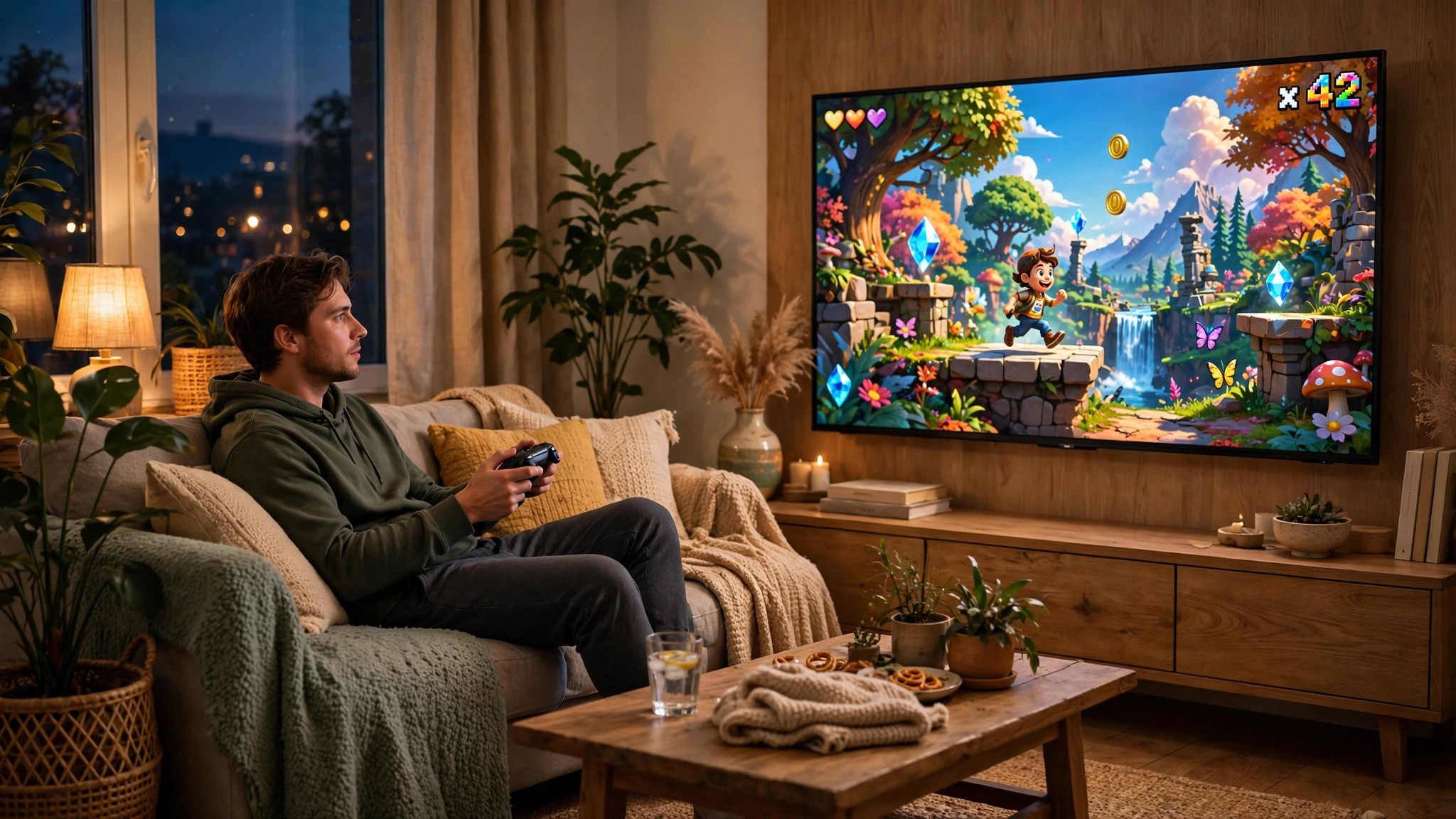
There is something special about playing a PC game on the living room TV: a bigger picture, a sofa instead of a desk chair, and a controller instead of a keyboard. The good news is that you do not need new hardware beyond what most gamers already own. Your PC can send its picture to the TV over a cable or wirelessly, and setup takes less than half an hour once you know which method suits your home.
The choice is a simple trade-off. A wired HDMI connection gives the best picture quality and the lowest delay, but means running a cable. Wireless streaming is far more convenient, but adds a small amount of input lag and depends on your home network. This guide covers both, plus the controller, picture and sound settings that turn a working connection into a good couch setup.
Pick your connection method
These are the four options that work well in practice. Same or adjacent rooms favour a cable; far apart, wireless streaming is the practical choice.
| Method | Best for | Input lag | What you need |
|---|---|---|---|
| HDMI cable | Fast-paced and competitive games | Lowest — effectively none beyond the TV itself | A spare HDMI port on your graphics card and a long enough cable |
| Steam Link app | Most living room setups | Low on a wired network, higher on Wi-Fi | A smart TV, streaming stick or phone running the free Steam Link app |
| Steam Remote Play to a second PC | Homes with a spare computer near the TV | Low on a wired network | Any second computer connected to the TV, running Steam |
| Sunshine and Moonlight | Streaming your whole desktop, not just Steam games | Low on a wired network | Sunshine on your gaming PC, Moonlight on the TV device |
Option 1: a wired HDMI connection
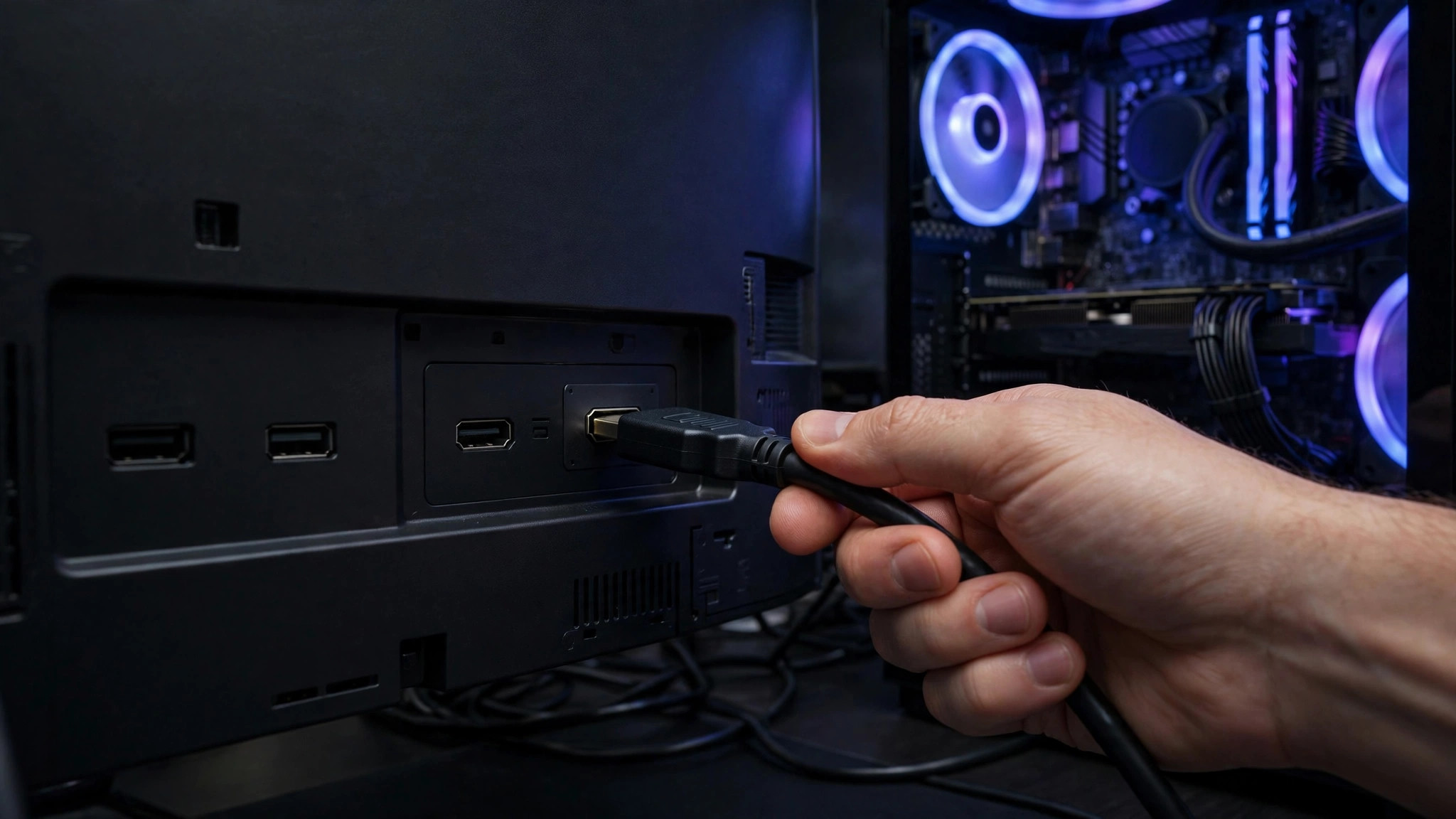
Connect an HDMI cable from your graphics card to a spare HDMI port on the TV. Use the graphics card's output, not the motherboard's, or you will run on your processor's integrated graphics and performance will collapse. Ordinary cables work up to about 5 metres for 4K at 60 frames per second; beyond that, use an active or fibre-optic cable.
Once connected, press the Windows key plus P and choose how the TV should behave. 'Duplicate' mirrors your monitor, which is simplest but forces both screens to the same resolution. 'Second screen only' turns your monitor off and treats the TV as your only display, which is usually better for gaming because the game then runs at the TV's native resolution and refresh rate. Then check Windows has set the TV to its native resolution and highest refresh rate under Settings, then System, then Display.
Finally, check the game's own display settings. Many games remember your monitor: set the display option to the TV, choose its native resolution, and pick fullscreen or borderless windowed mode. A stretched or blurry game is almost always a resolution mismatch.
Option 2: wireless streaming with Steam Link
Steam Link is the easiest wireless route for Steam games, and it is free. Install the app on your smart TV, streaming stick, phone or tablet, make sure your gaming PC and the TV device are on the same home network, then pair them with the code the app shows in Steam. Once paired, you launch games from your sofa as if you were sitting at the PC.
Your network decides how good this feels. A wired Ethernet connection on both ends is strongly recommended — even a powerline adapter beats Wi-Fi for streaming stability. If you must use Wi-Fi, use the 5 GHz band and avoid streaming while someone else downloads large files. In Steam, under Settings, then Remote Play, then Advanced Host Options, make sure hardware encoding is on, which offloads video compression to your graphics card. Streaming adds a few tens of milliseconds of latency on a good network, so competitive shooters feel slightly softer than on a cable.
Option 3: stream your whole desktop with Sunshine and Moonlight
If you want games from any launcher, or to use the TV as a second monitor for everything, Sunshine and Moonlight are the most flexible option. Sunshine is free, open-source software for your gaming PC that captures and encodes your screen with your graphics card. Moonlight is the matching free client app for TVs, streaming devices and phones. Pair them with the PIN the client shows to stream your entire desktop — Epic, GOG and emulators included. The same network rules apply. Start at 1080p and 60 frames per second, and only try 4K once the stream is smooth.
Set up your controller for the couch
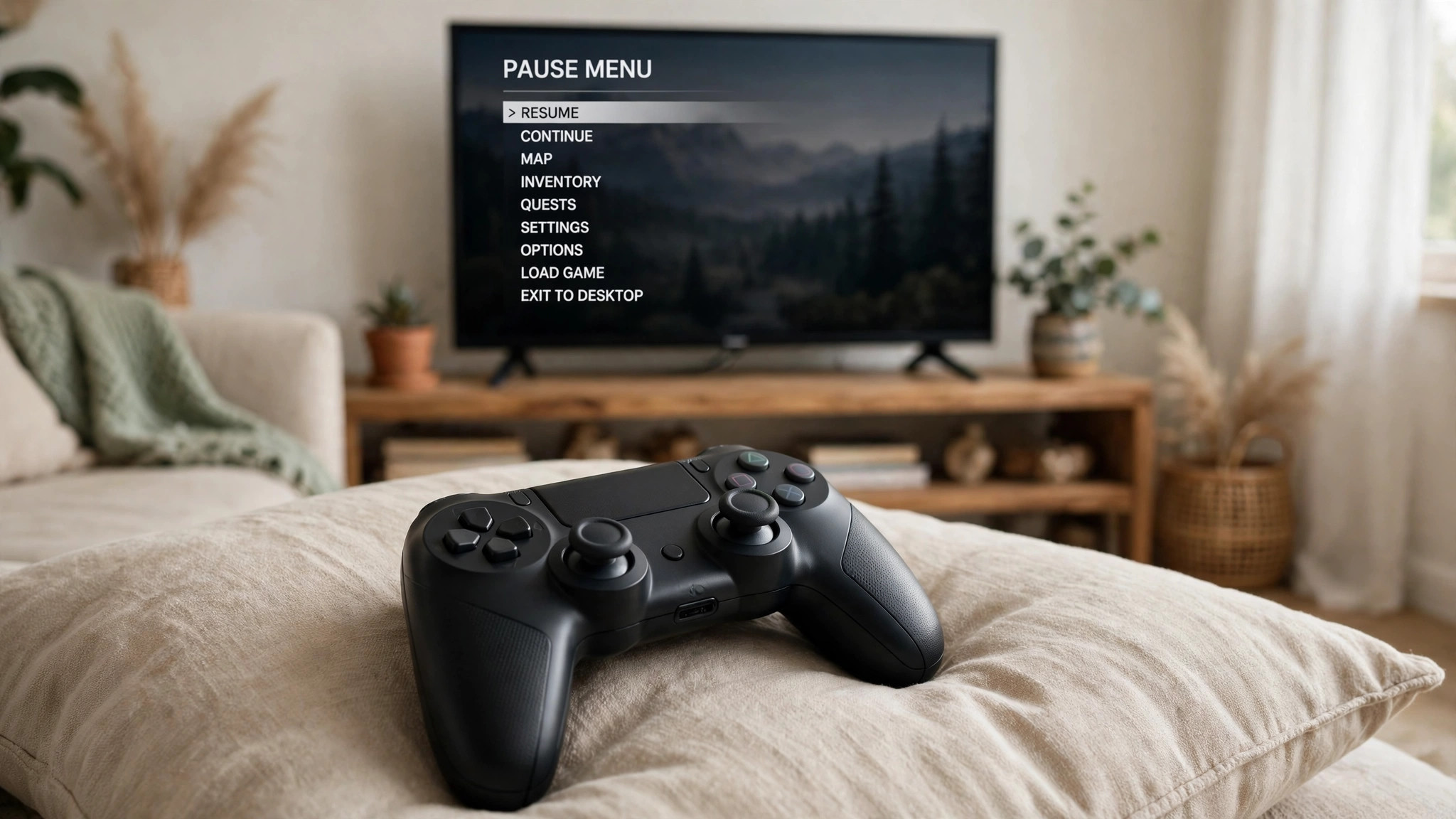
A controller is what makes TV gaming feel right, and most modern controllers work on PC without extra hardware. An Xbox controller connects over Bluetooth or USB, and our guide to connecting an Xbox controller to PC covers the pairing steps. A PlayStation DualSense works the same way, as explained in our guide to using a DualSense controller on PC. For a PC in another room, connect the controller to the streaming device instead, for better Bluetooth range.
Before a long session, check that games actually recognise the controller. If a game ignores it, the cause is usually a Steam Input setting or a connection problem, and our guide to fixing a controller that is not detected walks through the diagnosis. For keyboard-and-mouse games, a small wireless keyboard with a trackpad is a practical compromise, and Steam's Big Picture Mode gives you a controller-friendly library view.
Fix the TV picture: Game Mode, resolution and HDR
The most important TV setting is Game Mode, found in your TV's picture settings. It switches off the TV's extra image processing and cuts input lag dramatically. Enable it on the exact HDMI input your PC uses, because on most TVs it is a per-input setting.
Next, check for overscan, the old TV habit of cropping the edges of the picture. If your taskbar or a game's HUD looks cut off, open your TV's picture or aspect settings and look for 'Just Scan', 'Screen Fit' or '1:1 pixel mapping'. Then confirm Windows and the game are both at the TV's native resolution. If text still looks blurry, our guide to fixing blurry text and UI scaling explains the settings that sharpen it.
HDR needs extra care: your TV must support it on the input you use, the cable must be rated for the bandwidth, and HDR must be on in Windows and inside the game. If colours look washed out, our guides to enabling HDR in PC games and fixing washed-out HDR cover the checklist.
Fix the TV sound
Over HDMI, sound travels down the same cable as the picture, but Windows does not always switch to it automatically. Right-click the speaker icon, open Sound settings, and set the TV as the output device. If the TV does not appear, check the cable is in the graphics card, and select the TV input before launching the game, since some games only detect audio devices at launch. For streaming, audio rides inside the stream, so check the TV is not muted. If you get no sound at all, our guide to fixing no sound in PC games covers the general checks, and if voices lag behind the picture, check your TV's lip-sync setting — soundbars often add their own delay.
Get those basics right and your PC becomes the best console in the living room.