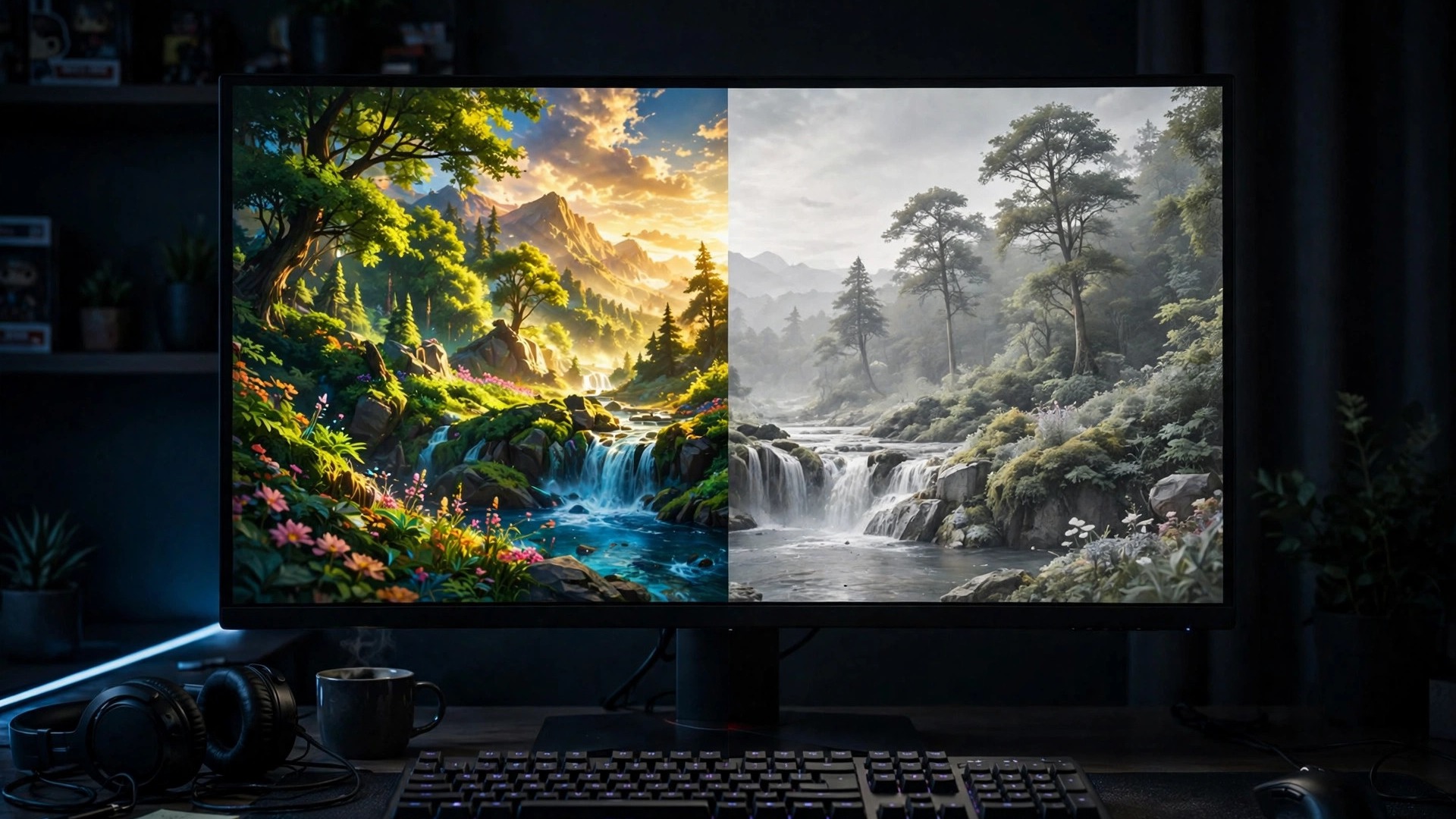
You turned on HDR expecting richer colours, deeper blacks, and highlights that pop. Instead your game looks grey, flat, and somehow worse than it did with HDR off. On PC, washed-out HDR is almost always a settings mismatch — somewhere between Windows, your graphics driver, your cable, and the game itself, one link in the chain is handling brightness wrong.
Work through these fixes in order, checking the game after each change. If your game also runs poorly once it is up and running, our guide on how to fix lag and stutter in PC games covers performance separately.
First: is your display actually HDR-capable?
Before troubleshooting settings, confirm what your screen can really do. A display marketed as "HDR" is not necessarily good at it. Look for a recognised certification such as DisplayHDR 400, 600, or 1000, or HDR10 support on a television. Displays without local dimming — the ability to dim parts of the screen independently — cannot show deep blacks and bright highlights at the same time, so HDR on them will always look muted. Check peak brightness too: a genuine HDR experience needs roughly 600 nits or more, while a 300-nit panel labelled HDR cannot reproduce bright highlights.
1. Turn HDR on in the right place — Windows first
HDR on PC has two switches, and both must agree: Windows and the game. Open Settings, then System, then Display, and turn on "Use HDR". Once Windows HDR is on, launch the game and enable HDR inside the game's own display or graphics settings as well. Some games follow the Windows setting automatically; others have their own HDR toggle, brightness slider, and peak-brightness setting that default to off or to wrong values. A game running in SDR while Windows HDR is on (or the reverse) is a classic recipe for a washed-out image.
2. Run the Windows HDR Calibration app
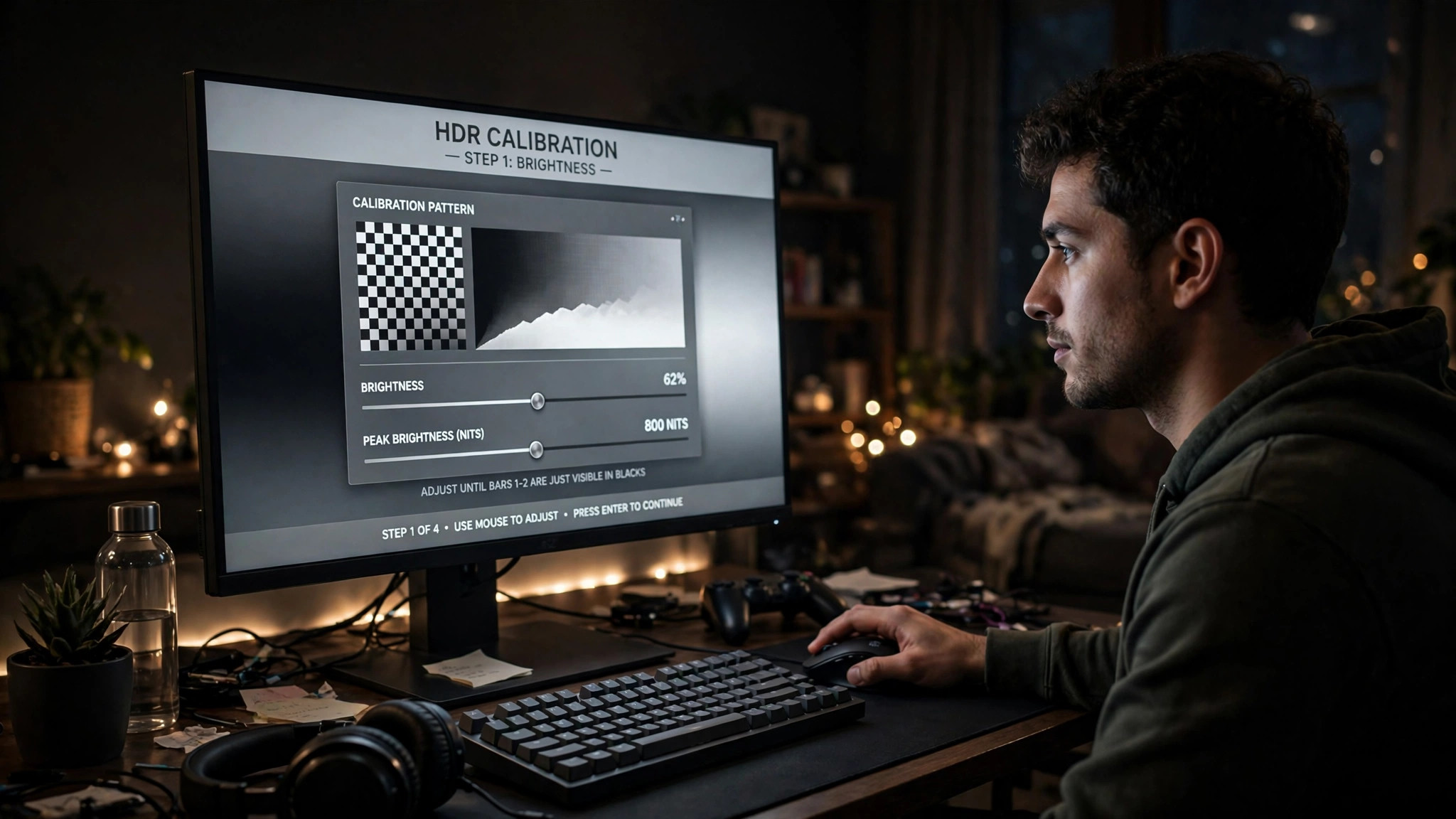
This is the single most effective fix for most people, and it is free. Install the "Windows HDR Calibration" app from the Microsoft Store and run it with HDR already enabled in Windows. It walks you through three test patterns — for dark detail, bright detail, and colour saturation — and builds a custom HDR profile for your exact display. Take your time with the sliders: for the dark test, stop as soon as the pattern disappears, since pushing further crushes shadow detail; for the bright test, stop when the pattern just disappears, which sets your display's true peak brightness.
3. Set the SDR content brightness correctly
Here is the setting most people miss. With HDR on, Windows shows a slider called "SDR content brightness" (on newer Windows 11 builds it sits under Settings, System, Display, HDR). This controls how bright non-HDR content — your desktop, browsers, and SDR games — appears while HDR mode is active. If this slider is too low, everything outside native HDR content looks dim and grey; if it is too high, SDR content looks blown out. A good starting point is around 50 percent, then adjust to taste while looking at a normal desktop window rather than at a game.
4. Match the in-game HDR settings to your display
Many games include their own HDR calibration screens, and their defaults are often wrong for your display. Look in the game's graphics or display menu for settings named HDR brightness, peak brightness, paper white, or maximum luminance. Set peak brightness to your display's real peak — roughly 400 for a DisplayHDR 400 screen, 600 for DisplayHDR 600, and 1000 for a high-end HDR television or DisplayHDR 1000 monitor. Setting it far above your display's real capability washes out highlights; setting it far below makes the image dull. Paper white controls how bright ordinary white surfaces appear and is usually best left near the default (often 100 to 200 nits) rather than pushed to maximum.
5. Check your cable and port
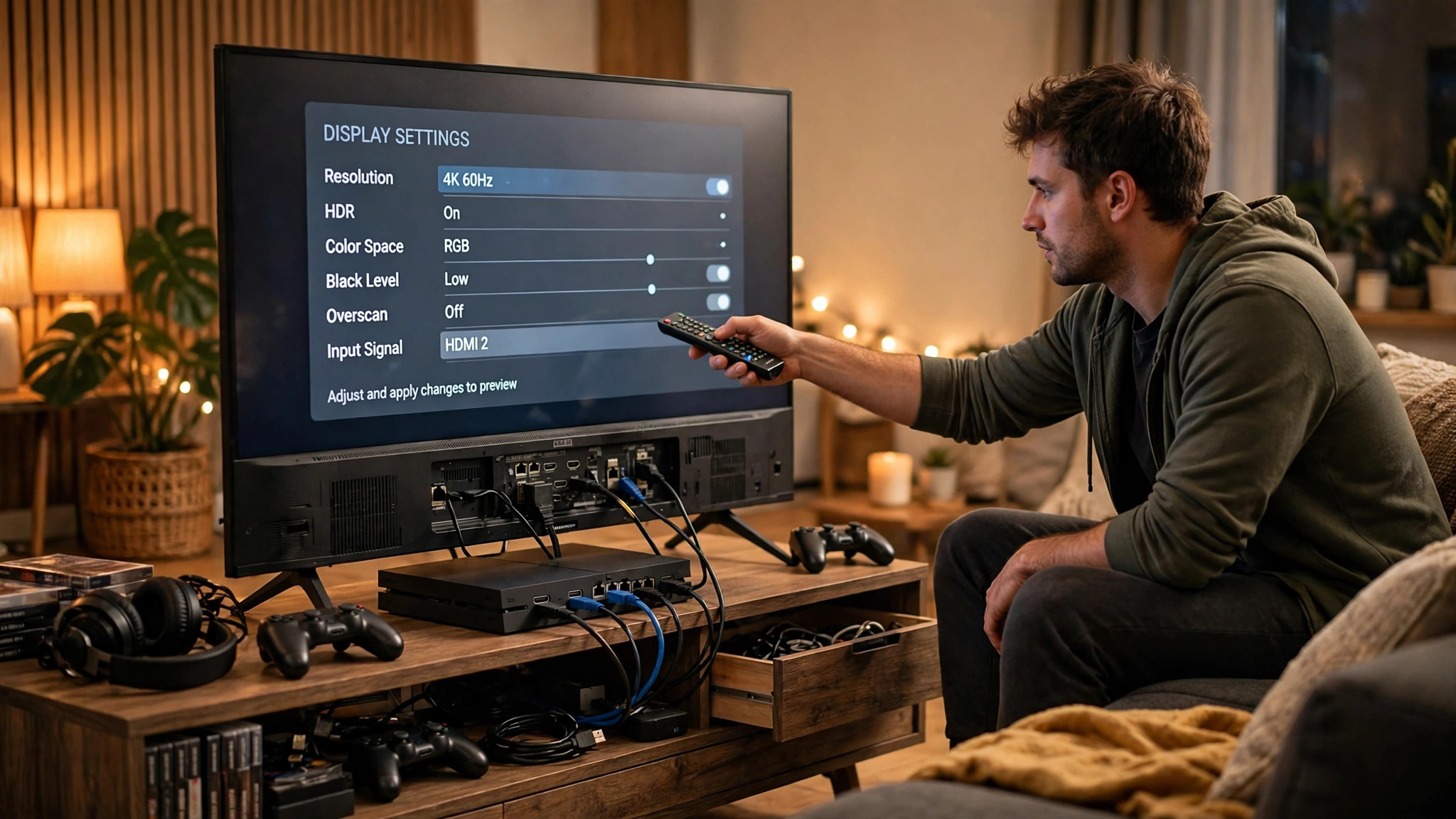
HDR needs bandwidth, and an old or low-quality cable can silently prevent it from working properly. For 4K HDR at 60 Hz you need an HDMI 2.0 cable or better; for 4K HDR at 120 Hz you need HDMI 2.1 or DisplayPort 1.4. Also check which port you are using: some televisions only enable full-bandwidth HDR on specific HDMI inputs, often labelled 4K 120 Hz or Enhanced, and some monitors reserve their best HDR support for DisplayPort rather than HDMI. Try another port and another cable, and on a television check that the input's "HDMI Enhanced Format" setting is enabled in the TV's own menu.
6. Set the correct colour format in your GPU control panel
Open the NVIDIA Control Panel or AMD Software and find the display colour settings. Two values matter. First, output colour format: use RGB for a PC monitor, and for a television use RGB if it supports it, otherwise YCbCr444. Second, output dynamic range: set it to Full, not Limited, when using a PC monitor. A Limited range on a Full-range display — or the reverse — crushes blacks or washes out the whole image, and it is one of the most common causes of the grey, flat look.
7. Enable HDR on the display itself
Some televisions and monitors have their own HDR toggle buried in their on-screen menus, and it can be off even when Windows thinks HDR is active. Look for settings named HDR Mode, HDMI HDR, or HDR10 and make sure they are enabled for the input you are using. On televisions, choose Game Mode for gaming, because other picture modes add processing that can dull HDR highlights and add input lag.
8. Update your graphics driver and display firmware
HDR support in drivers improves over time, and an old driver can mishandle HDR metadata or colour output. Install the latest driver from NVIDIA, AMD, or Intel, choosing a clean install if the option is offered. Then check the display manufacturer's site for a firmware update for your monitor or television — display firmware updates have fixed HDR tone-mapping bugs on several well-known models.
9. Try fullscreen, not borderless windowed
Some games handle HDR correctly only in exclusive fullscreen mode. In borderless windowed mode, Windows composites the game through the desktop, and on some systems that path applies the SDR brightness setting to the game or strips HDR metadata. If HDR looks washed out in borderless mode, switch the game to fullscreen and compare.
Quick-reference: match the symptom to the fix
| Symptom | Most likely cause | Try first |
|---|---|---|
| Everything grey, including desktop | SDR brightness too low | Step 3: SDR content brightness |
| Game washed out, desktop fine | In-game HDR settings wrong | Step 4: peak brightness |
| HDR toggle greyed out | Cable, port, or display setting | Steps 5 and 7 |
| Blacks look grey | Limited vs Full range mismatch | Step 6: GPU colour settings |
| HDR worked, then went flat | Driver or firmware change | Steps 2 and 8: recalibrate |
Frequently asked questions
Should I just leave HDR off? If your display has no local dimming and low peak brightness, yes — good SDR often looks better than bad HDR on such screens. On a capable display, though, calibrated HDR is a genuine improvement, so work through these steps before giving up on it.