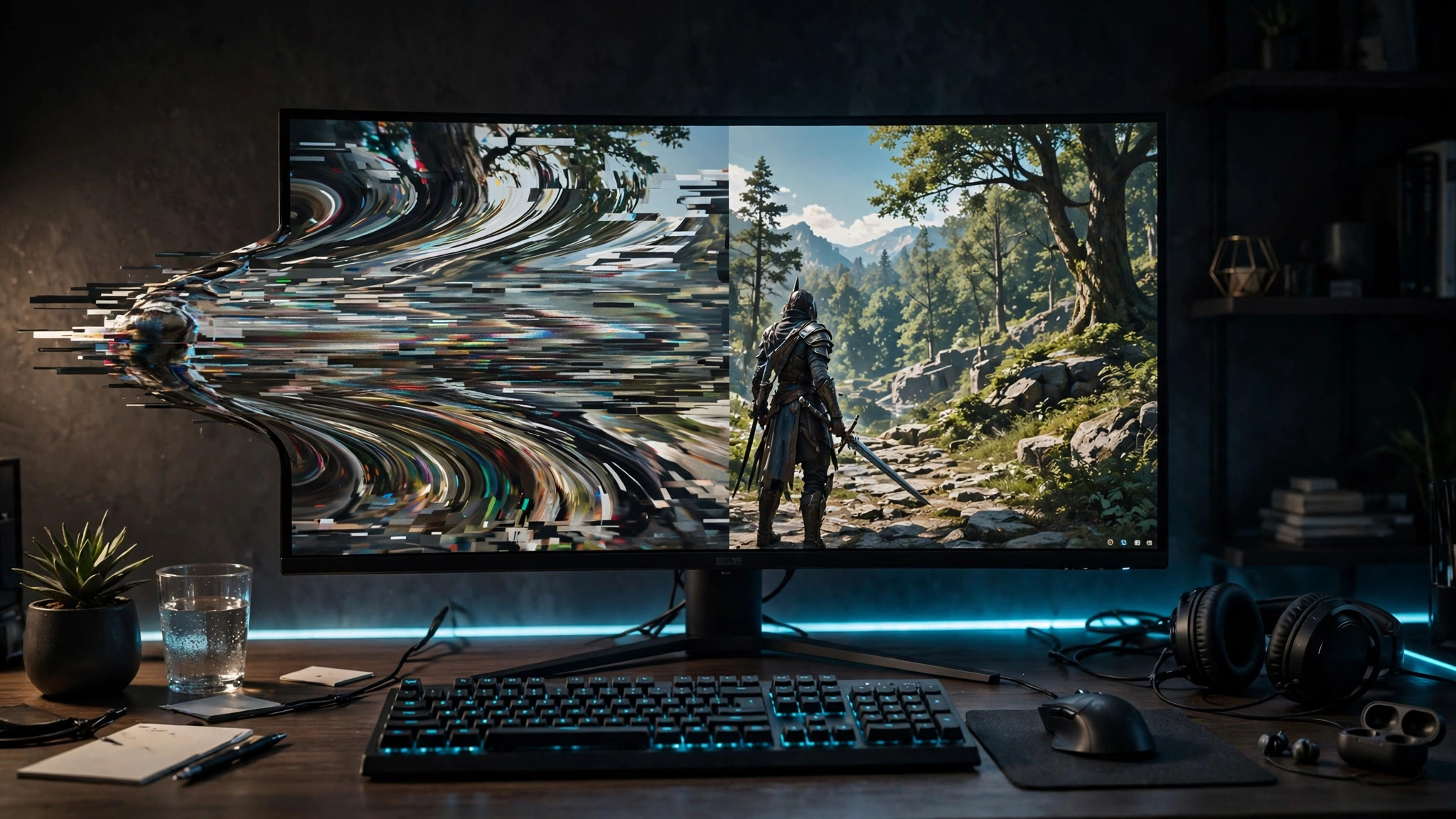
The screen flashes, blinks, or strobes while you play — sometimes in every game, sometimes in just one, sometimes only in menus. It rarely means your monitor or graphics card is dying: usually your game, driver, and monitor disagree about refresh rate, sync, or signal.
Find out where the flicker lives before changing anything. Work through the steps in order, testing after each one, and stop as soon as it is gone.
First, find out where the flicker lives
- Desktop too, or only in games? Flicker on the desktop points at the cable, the monitor, or the driver. Flicker only in games points at the game's settings or the driver.
- One game or every game? One game means a setting inside that game, or a bug in its current version. Every game means Windows, the driver, or hardware.
- Menus, gameplay, or both? Flicker only in menus often means the game switches refresh rates between menu and gameplay.
- Did it start after a change? A driver update, a Windows update, a new monitor, a new cable, or a game patch is almost always the trigger. Undo the most recent change first.
A black flash usually means the display is briefly losing signal (Step 4); a brightness pulse at low frame rates is a known quirk of some adaptive-sync monitors (Step 2).
Step 1: Match the refresh rate everywhere
The most common cause is a refresh-rate mismatch: the game tries to run at one rate while Windows or the monitor is set to another. In Windows, go to Settings > System > Display > Advanced display and set Choose a refresh rate to the highest rate your monitor supports. Inside the game, check the refresh rate in its display settings too — some games tie it to the resolution setting. Set it to the same rate as Windows.
If the game offers exclusive fullscreen and borderless windowed, try exclusive fullscreen: it lets the game set its own rate, which fixes games that switch rates between menu and gameplay. With more than one monitor, mismatched refresh rates can cause flickering too — test with the second monitor disconnected. See our guides to optimising Windows 11 for gaming and stopping games from minimising for the related display settings.
Step 2: Sort out V-Sync and adaptive sync
V-Sync forces the graphics card to wait for the monitor before sending each frame: it stops tearing, but can cause stuttering and visible flicker when the frame rate drops below the refresh rate. G-Sync (NVIDIA) and FreeSync (AMD) are adaptive sync: the monitor changes its refresh rate to match the graphics card. This is usually smoothest — but only inside the monitor's supported range, typically 48–144 Hz. Below that range, some monitors flicker or pulse in brightness.
The setup that works for most people: turn adaptive sync on in the driver (NVIDIA Control Panel or AMD Software) and in the monitor's own menu, turn V-Sync off inside the game, and cap the frame rate a few frames below your monitor's maximum — 141 fps on a 144 Hz monitor, for example. The cap keeps you inside the range. If the flicker started when you enabled G-Sync or FreeSync, test with adaptive sync off: if it stops, leave it off or raise the frame rate by lowering graphics settings.
Step 3: Update or clean-install the graphics driver
Flickering that appears after a driver update — or in a newly released game — is usually a driver bug, fixed by a clean install rather than another update on top. Download the latest driver from NVIDIA or AMD directly, install it, restart, and test. If the flicker stays, do a clean install with Display Driver Uninstaller (DDU): it removes every trace of the old driver in Safe Mode. Run it in Safe Mode, then install the fresh driver. If the flicker started with the newest driver, roll back to the previous version — driver pages keep older versions available.
Also check the game is running on your dedicated graphics card: on a laptop, flickering between the two chips looks like a driver problem. Our guide to forcing a game to use your dedicated GPU shows how to check.
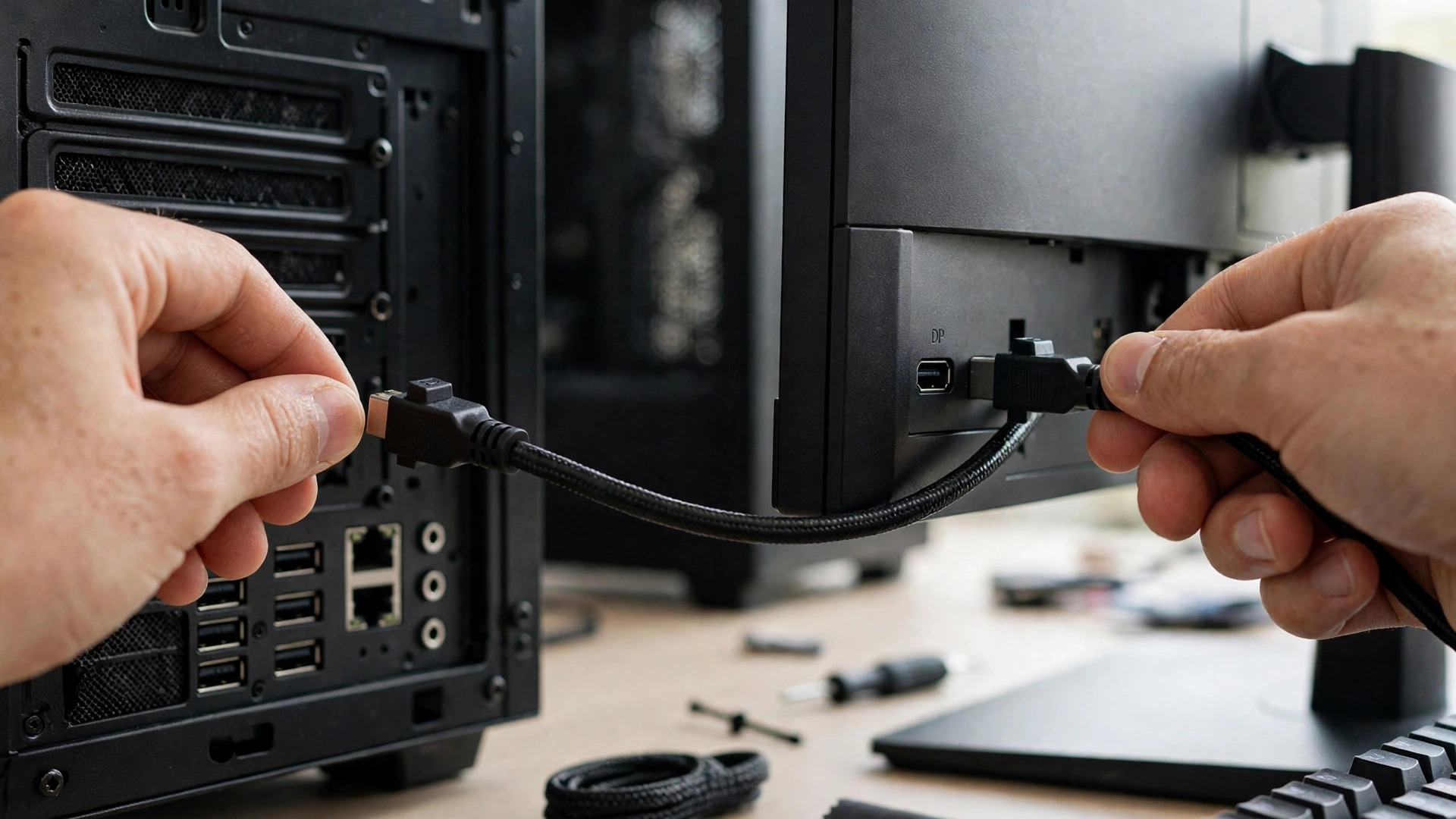
Step 4: Check the cable and the monitor
If the screen flashes black briefly, the display is losing signal — and the cable is the prime suspect. Reseat the cable at both ends and make sure it clicks in fully. Try a different cable: cheap or old cables are the most common cause of black flashes at 144 Hz and above, so use one rated for your resolution and refresh rate. Also try a different port on the graphics card and on the monitor: a damaged port flickers exactly like a damaged cable.
Check the monitor's own settings too: turn off any overdrive setting at its maximum — aggressive overdrive causes flashing on some panels. If you can, test another display: if the flicker follows the PC, the problem is the PC; if it stays with the monitor, the panel or power supply is failing — a warranty claim, not a settings fix.
Step 5: Turn off overlays and conflicting software
Overlays sit between the game and the display, and a misbehaving one can flash the screen every time it redraws. Disable them one at a time and test: in Steam, right-click the game, open Properties, and untick Enable the Steam Overlay while in-game; in Discord, turn the overlay off under Settings > Game Overlay; do the same in the GeForce Experience / NVIDIA App and AMD Software, and turn Game Bar off under Settings > Gaming > Game Bar. If the flicker only happens while recording, the capture software is fighting the game — close it and test without recording.
Step 6: Two Windows settings worth toggling
If the flicker survives everything above, test two Windows settings. First, disable fullscreen optimisations: right-click the game's executable, open Properties > Compatibility, and tick Disable fullscreen optimisations. Second, hardware-accelerated GPU scheduling: go to Settings > System > Display > Graphics > Default graphics settings and toggle it off, then restart. On some driver and hardware combinations it causes flicker; if turning it off fixes the problem, leave it off.
Also check for a loose monitor power cable — and heat: if the flicker only appears after an hour of play, check airflow and the card's temperature.
Diagnose by symptom
| Symptom | Most likely cause | Fix first |
|---|---|---|
| Brief black flashes | Signal loss — cable or port | Reseat or replace the cable; try another port |
| Brightness pulsing | Adaptive sync below its range | Cap frame rate; turn G-Sync/FreeSync off |
| Flicker in one game | Game settings or a game bug | In-game refresh rate; V-Sync; check for a patch |
| Flicker on desktop too | Driver, cable, or monitor | Clean-install driver; test another cable/display |
| Flicker after a driver update | Driver regression | Clean install with DDU; roll back a version |
| Flicker only while recording | Capture software or overlay | Disable overlays; check the capture frame rate |
Screen flickering looks alarming but it is usually a settings problem: match the refresh rate, get the sync settings right, clean-install the driver, and check the cable.