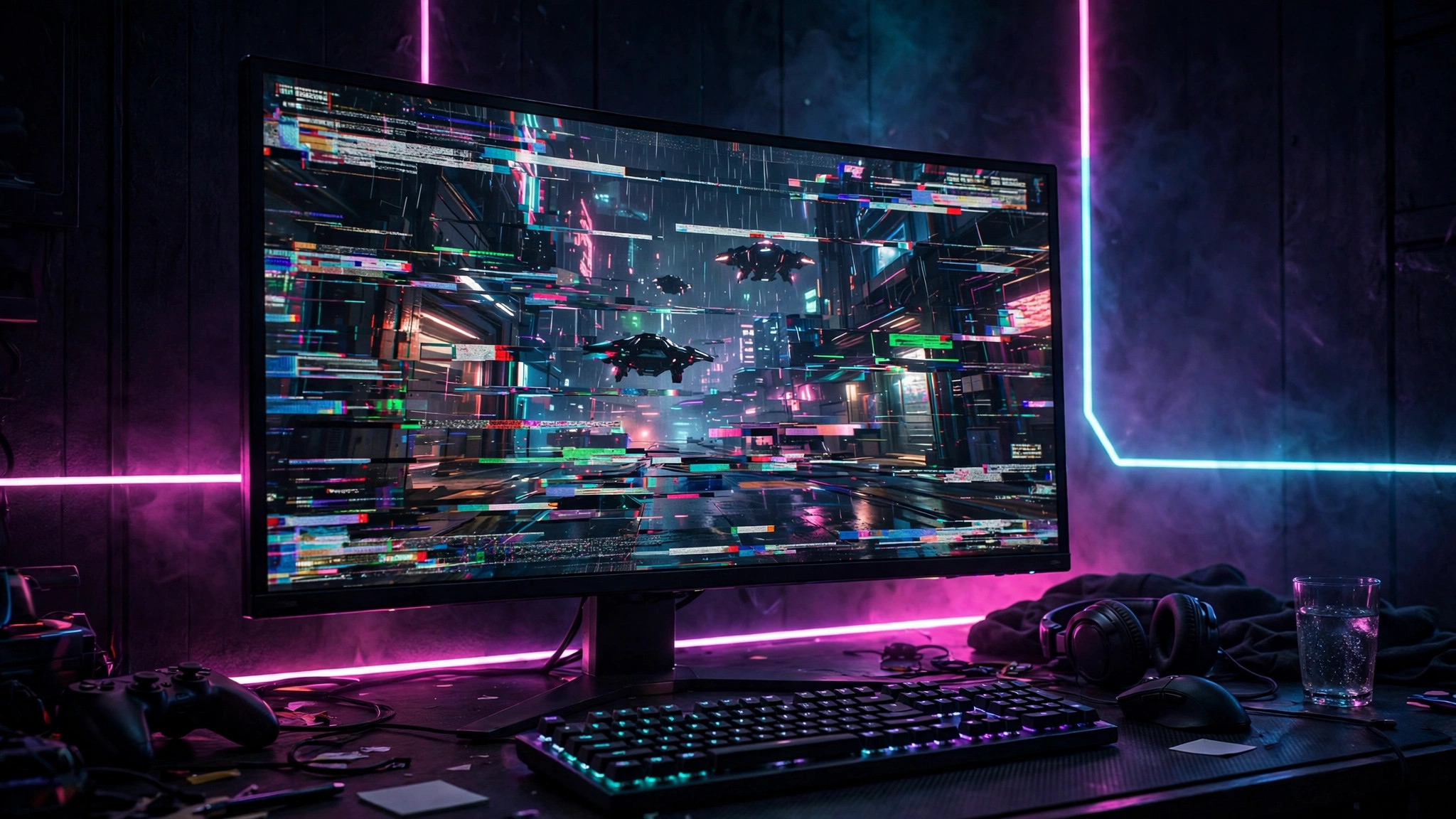
Blurry text in a PC game is a special kind of annoying. The game itself can look fine, but menus, dialogue, subtitles, and HUD elements look soft or slightly out of focus, and reading anything becomes tiring. This is rarely a fault with your monitor. It is almost always a scaling problem: the game renders text at one resolution and your display shows it at another, or Windows scales the game's window in a way the game does not expect.
Blurry game text is usually fixable without buying anything. This guide explains why it happens, then works through the fixes in order, from the display settings that matter most to the in-game and graphics-driver settings that finish the job.
1. Why game text goes blurry in the first place
Text is the first thing to suffer when resolutions do not match. If your monitor's native resolution is 1440p but the game runs at 1080p, the monitor or graphics card must stretch every pixel to fill the screen, and fine text edges blur first. The same happens with in-game resolution scaling: if the game renders at 70 percent of display resolution and then upscales, small text loses detail even though the 3D scene still looks acceptable.
Windows display scaling adds a second layer. On a laptop or high-resolution monitor, Windows often sets scaling to 125 percent or 150 percent so desktop text stays readable. Older games, and some games in borderless windowed mode, do not handle that scaling correctly: Windows scales the game's window as if it were a bitmap image. Fullscreen games are less affected, which is why the same game can look sharp in fullscreen and blurry in borderless mode.
2. Start with the basics: native resolution and fullscreen mode
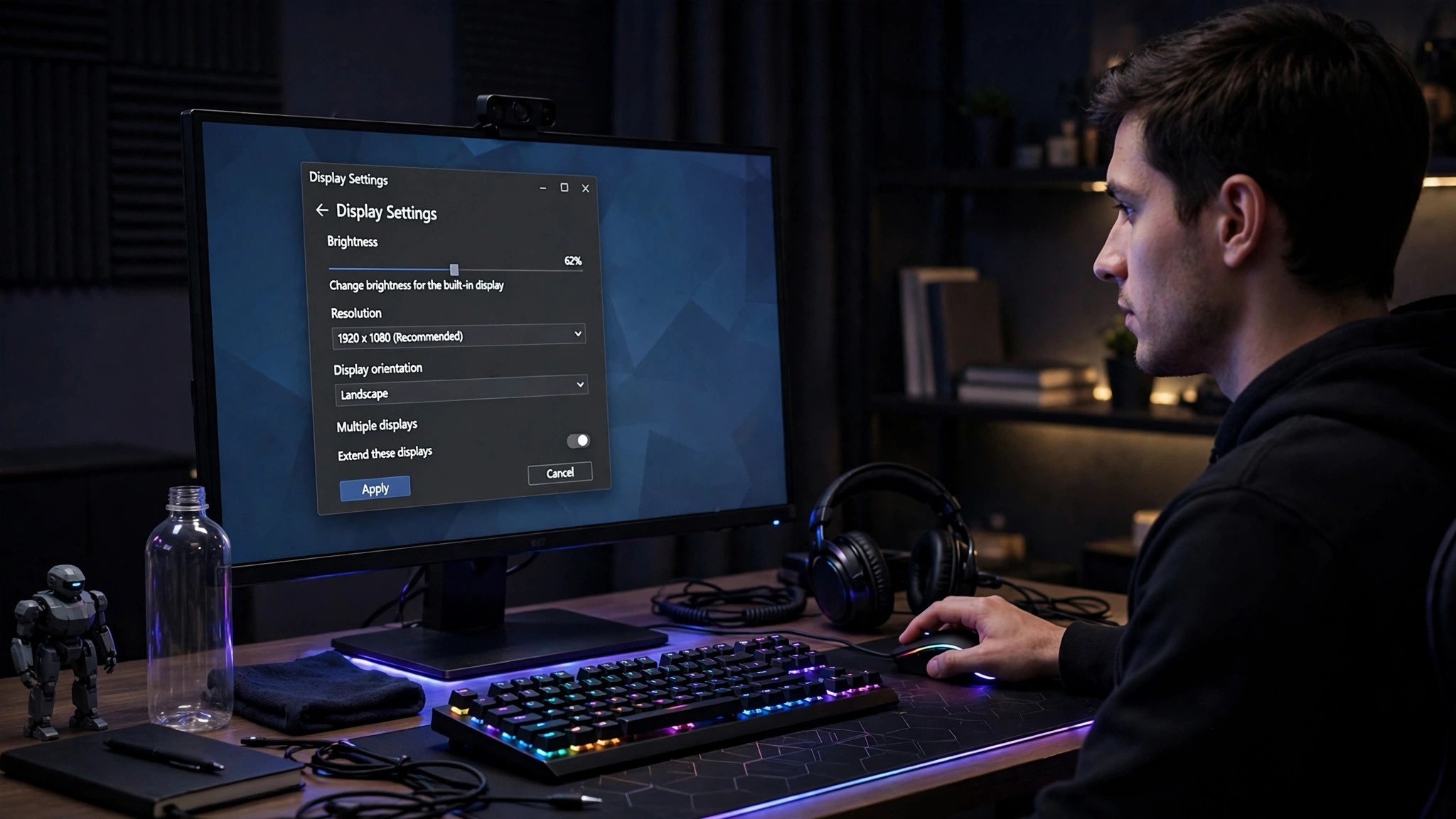
Set the game to your monitor's native resolution: the resolution the panel was built for, usually 1920 by 1080, 2560 by 1440, or 3840 by 2160, and the resolution Windows reports as recommended in display settings. Running below native resolution forces upscaling, and no later setting can fully restore the lost sharpness.
Next, try exclusive fullscreen mode instead of borderless windowed mode. In exclusive fullscreen, the game talks to the display directly and Windows display scaling does not interfere; in borderless mode, the game is really a window and Windows scaling rules apply. If text sharpens in fullscreen, you have found your cause: either keep playing in fullscreen or apply the Windows scaling override in section 4. On a TV, also switch to PC or Game mode and turn off picture smoothing.
3. Fix in-game resolution scale and upscaling
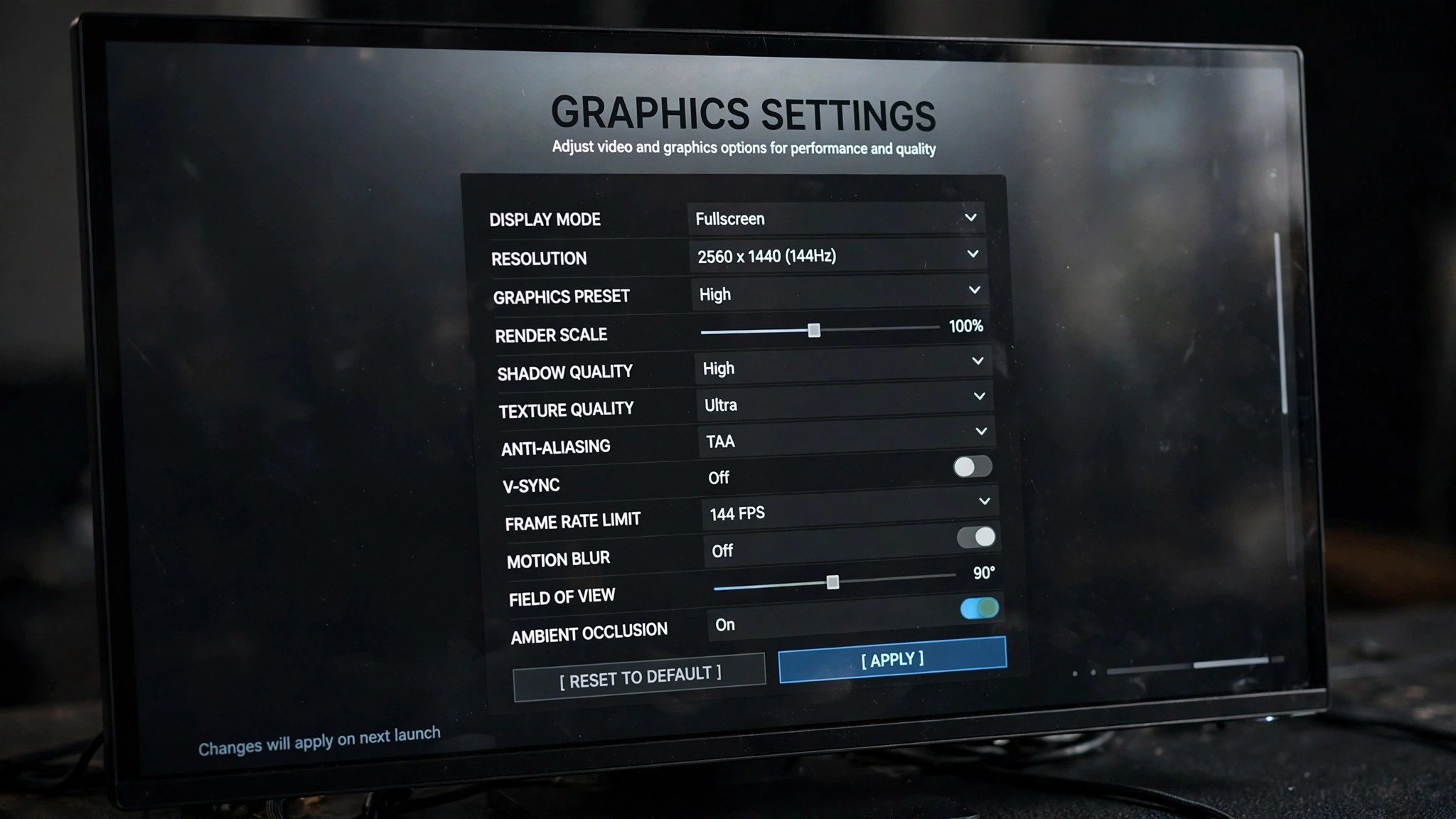
Open the game's graphics settings and look for resolution scale, render scale, or render resolution. This controls the internal resolution the game renders at, before the result is scaled to your screen. For sharp text, set it to 100 percent: anything lower trades text clarity for performance, and the effect on menus and subtitles is much larger than on the 3D scene.
Also look for upscaling options, which rebuild a lower-resolution image at a higher resolution. These are excellent for frame rates, but they can soften fine text, especially at lower quality presets. Try turning the upscaler off entirely first: if the text sharpens, you know it was responsible, and you can turn it back on at its highest quality preset or leave it off and lower a different setting instead.
Anti-aliasing deserves the same test. Temporal anti-aliasing can make text shimmer or blur while the camera moves, because it blends several frames together. If text looks fine when standing still but blurs in motion, switch modes or turn it down one step. The right combination is often native resolution, 100 percent render scale, and lighter anti-aliasing.
4. Override Windows DPI scaling for the game
If the game looks blurry in borderless or windowed mode but sharp in fullscreen, Windows scaling is the likely cause, and you can fix it for that game only without changing your desktop scaling.
- Find the game's executable file, usually in its installation folder, or right-click the game's shortcut and open its file location.
- Right-click the executable and choose Properties, then open the Compatibility tab.
- Click Change high DPI settings. Tick Override high DPI scaling behaviour, and set the dropdown to Application.
- Click OK, apply the change, and relaunch the game in borderless or windowed mode.
Setting the override to Application tells Windows to let the game handle its own scaling instead of stretching its window as an image, and text usually sharpens immediately. If the interface then becomes too small, use the game's own interface or HUD scale slider to enlarge text properly. Do not change your global Windows display scaling just for one game.
5. Check GPU scaling and sharpness settings
When a game runs below native resolution, either the monitor or the graphics card does the upscaling. Choose in your driver control panel: for NVIDIA, open NVIDIA Control Panel, go to Adjust desktop size and position, and choose display or GPU scaling; for AMD, the equivalent is GPU scaling in AMD Software under Display settings. Test both and keep the sharper one.
While you are in the driver panel, check image sharpening. A little sharpening can help text after upscaling, but too much creates halos around letters. If sharpening is set high globally, turn it down or off for the game and judge the text again.
6. Diagnose the problem by symptom
Use this table to match what you see to the most likely fix.
| What you see | Likely cause | Fix to try first |
|---|---|---|
| All text blurry, game also looks soft | Game running below native resolution | Set the game to your monitor's native resolution |
| Blurry only in borderless mode, sharp in fullscreen | Windows display scaling stretching the window | Apply the per-game high DPI scaling override set to Application |
| Text fine when still, blurry while moving | Temporal anti-aliasing or upscaling blending frames | Lower anti-aliasing or raise render scale to 100 percent |
| Menus sharp but subtitles or HUD text blurry | Low render scale or interface rendered at lower resolution | Set render scale to 100 percent and check the HUD scale setting |
| Text blurry on a TV but fine on a monitor | TV picture processing or overscan | Use the TV's PC or Game mode and disable smoothing |
7. A quick checklist to lock in sharp text
Once the text is sharp, keep it that way with a short routine for any new game: native resolution first, render scale at 100 percent, fullscreen if borderless looks soft, and the high DPI override for any older game that still looks blurry in a window. Only then adjust anti-aliasing and upscaling for performance, and always recheck a menu screen afterwards.
Blurry game text is almost never a reason to replace a monitor. It is a mismatch between the resolution the game renders, the resolution your display expects, and the scaling Windows or your graphics card applies in between. Line those three up and the text snaps back into focus. If fixing the resolution costs you performance, our guide to the settings that genuinely improve smoothness can help you win the frames back without dropping render scale: How to Fix Lag and Stutter in PC Games.