Grand Theft Auto V has been on PC for over a decade, and it still has one of the most detailed graphics menus of any open-world game. That is both a blessing and a problem: there are more than twenty settings to tune, several of them are badly named, and a single wrong one can cost you 20 frames per second for almost no visible gain. This guide explains what each setting actually does, which ones are worth the performance cost, and gives you a balanced setup for smooth 60 FPS.
Everything here applies to the current PC version of the game, GTA V Enhanced, which is the free upgrade for PC players and adds ray-traced shadows and reflections plus upscaling support. The settings below work on the older Legacy version too, except for the ray tracing and upscaling options, which are Enhanced-only.
Before you change anything: set a baseline
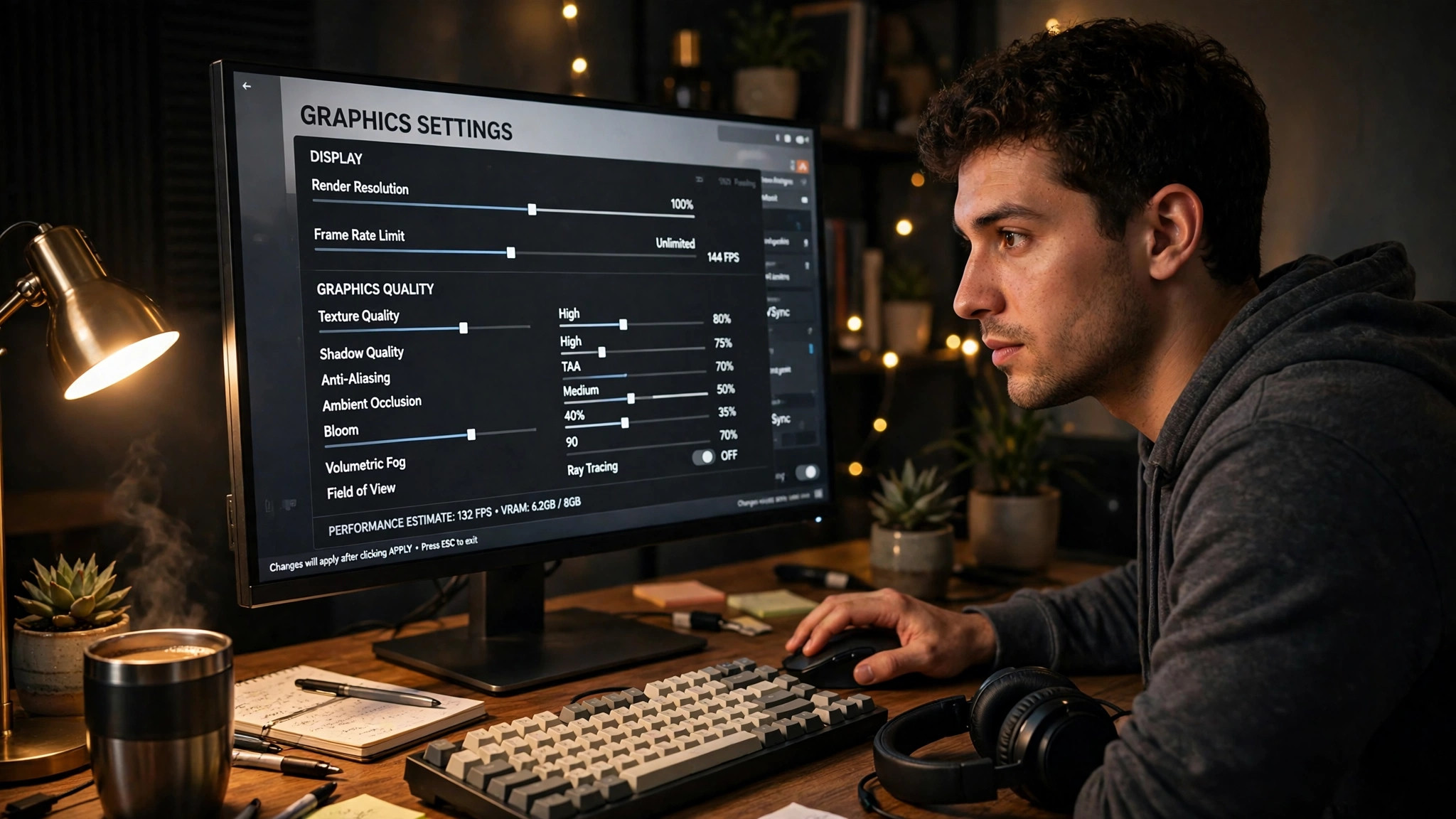
Do not start by copying someone else's settings blindly. First, find out where your PC stands:
- Open GTA V, go to
Settings > Graphics, and note your current resolution and frame rate. - Run the built-in benchmark from the Graphics menu. It flies the camera through Los Santos and reports your average, minimum and maximum frame rate.
- Write the average number down. That is your baseline — every change you make is judged against it.
- Make one change at a time, then re-run the benchmark. Changing five settings at once tells you nothing about which one helped.
Set your resolution first and leave it alone. Resolution is the single biggest performance lever in the game. If you are struggling for frames, dropping from 1440p to 1080p gains more performance than any combination of quality settings — but it also softens the whole image, so treat it as a last resort rather than a first step.
The settings that cost the most performance
Four settings do most of the damage to your frame rate. Tackle these first.
Grass Quality. This is the single most expensive setting in GTA V. Ultra grass in the countryside around Blaine County can cost 15–25 FPS compared with High, and the visual difference while driving at speed is small. Set it to High, or Normal on weaker hardware.
Extended Distance Scaling. This pushes the draw distance far beyond the normal range, rendering distant objects at full detail. It looks impressive in screenshots and costs a fortune in performance. Set it to the lowest value, or off. The related Distance Scaling slider is cheaper — keep that around halfway.
MSAA (anti-aliasing). Multi-sample anti-aliasing at 4x or 8x is brutally expensive in GTA V because it applies to the whole scene, including the dense city geometry. Use FXAA instead, which is far cheaper and still smooths most jagged edges. If you have a powerful modern graphics card, MSAA at 2x combined with FXAA is the sweet spot.
Shadow Quality and Extended Shadow Distance. Shadows are the second-biggest cost after grass. Very High shadows look great but cost heavily in the city at night, when every streetlight casts one. High is the best balance. Extended Shadow Distance should stay low — it only affects how far away shadows are drawn, which you rarely notice while playing.
The settings you can safely turn up
Not every Ultra setting is expensive. These cost very little on most graphics cards and make a real visual difference:
- Texture Quality. Textures mostly use video memory, not processing power. If your graphics card has 6 GB of VRAM or more, set this to Very High. Only lower it if you see texture pop-in or stuttering, which usually means you have run out of VRAM.
- Anisotropic Filtering. This sharpens ground and road textures viewed at an angle — exactly the view you get most of the time in GTA V. Set it to 16x. The performance cost is tiny on any modern card.
- Reflection Quality. Reflections on cars and wet roads are a big part of the game's look. High is worth it; Ultra mainly adds reflections to more distant surfaces and costs noticeably more.
- Water Quality. High water looks dramatically better than Normal, especially around the coast and the Alamo Sea, for a modest cost.
- Shader Quality. This controls lighting effects on surfaces. High is the best value — Very High adds subtle improvements for a real performance price.
Ray tracing and upscaling (Enhanced edition only)
GTA V Enhanced adds ray-traced shadows and reflections, plus support for upscaling technologies such as DLSS and FSR. Ray tracing makes reflections on windows and car paint genuinely accurate, but it is the most demanding option in the menu. On mid-range hardware, turn ray tracing off and use upscaling instead — you will get a bigger frame rate gain for a smaller visual loss.
If your graphics card supports DLSS or FSR, set the upscaling mode to Quality. This renders the game at a slightly lower internal resolution and reconstructs it, recovering a large chunk of performance while keeping the image sharp. It is the single best performance tool the Enhanced edition adds. The Balanced and Performance modes gain more frames but soften the image noticeably, so only use them if Quality is not enough.
Population and world density
Population Density and Population Variety control how many pedestrians and cars appear, and how varied they are. These settings load the processor as much as the graphics card: every extra pedestrian needs AI, animation and pathfinding. If your frame rate dips in busy city areas but is fine in the countryside, these are the likely cause. Set Density to around halfway and Variety to High. Turning Density to maximum on a weaker CPU causes the stuttering that many players blame on their graphics card — if your CPU is the bottleneck, our guide on fixing high CPU usage in PC games explains how to confirm it.
Recommended settings: 1080p 60 FPS
This preset targets a steady 60 FPS on a mid-range PC, such as a GTX 1660 Super or RTX 3060 with 16 GB of RAM:
| Setting | Recommended value |
|---|---|
| Texture Quality | Very High |
| Shader Quality | High |
| Shadow Quality | High |
| Reflection Quality | High |
| Water Quality | High |
| Grass Quality | High |
| Soft Shadows | Soft |
| Post FX | High |
| Anisotropic Filtering | 16x |
| Ambient Occlusion | High |
| Tessellation | High |
| MSAA | Off (use FXAA) |
| Population Density | 50% |
| Distance Scaling | 50% |
| Extended Distance Scaling | Off |
| Extended Shadow Distance | Off |
| VSync | On (or use your driver cap) |
For 1440p, start from this same preset and turn Grass Quality down to Normal and Shadow Quality to Normal first. Those two changes usually recover enough performance to hold 60 FPS at the higher resolution. If your card supports it, turn on DLSS or FSR on Quality mode before lowering anything else.
VSync, frame caps and stuttering
GTA V is sensitive to uncapped frame rates: if your card renders 120 FPS on a 60 Hz monitor, the extra work generates heat and can cause uneven frame pacing. Turn VSync on in the game, or cap the frame rate in your graphics driver to your monitor's refresh rate. A capped 60 FPS that never dips feels far smoother than an uncapped frame rate that swings between 55 and 110.
If the game stutters even at a steady frame rate, check that it is installed on an SSD rather than a hard drive — the game streams the open world from disk as you drive, and a slow drive causes hitches that look like a graphics problem. Also close background apps before playing: a browser with dozens of tabs can quietly eat the RAM the game needs, and our guide on fixing high RAM usage in PC games covers the usual culprits.
Quick checklist
- Run the built-in benchmark before changing anything, so you have a baseline.
- Grass Quality to High, Extended Distance Scaling off, MSAA off with FXAA on — these three changes recover the most frames.
- Texture Quality to Very High and Anisotropic Filtering to 16x — nearly free visual quality.
- Use DLSS or FSR on Quality mode if you have the Enhanced edition.
- Cap the frame rate to your monitor's refresh rate for smooth, consistent pacing.
- Re-run the benchmark after each change, and keep the settings that actually help your hardware.
GTA V rewards a little patience in its settings menu. The difference between a random Ultra preset and a tuned one is often 20–30 FPS with almost no visible loss — and once it is set, it stays set for every session in Los Santos.