High Dynamic Range, or HDR, lets a game show much brighter highlights and much deeper shadows at the same time: sunlight glinting off water, neon signs against a night street, a torch in a dark cave. When it works, the difference is obvious. When it does not, games look washed out, grey and flat — which is why so many players turn HDR on once, hate the result, and never touch it again. In most cases the problem is not HDR itself. It is that HDR needs three separate things switched on — the monitor, Windows and the game — and turning on only one or two of them produces exactly that washed-out mess. This guide goes through all three, in order, plus the hardware you need before you start.
What you need before you start
HDR is not a software effect you can force onto any screen. Four things must be true, and if any one of them fails, HDR will either be greyed out or look wrong.
- An HDR-capable display. Your monitor or TV must actually support HDR input. Check the manufacturer's specification page, not just the box: look for HDR10 support. A monitor that advertises HDR400 meets the minimum standard but produces a modest effect; HDR600 and above, especially with local dimming, looks far better. Be honest about this step — a monitor that merely accepts an HDR signal without the brightness or contrast to show it will always look worse than good SDR.
- The right connection. Use DisplayPort 1.4 or HDMI 2.0 or newer. Older cables and ports may not carry the bandwidth HDR needs at your resolution and refresh rate, and a marginal cable can silently drop you back to SDR. If HDR refuses to enable, swapping the cable is a cheap first test.
- A compatible graphics card and driver. Any reasonably modern GPU from NVIDIA, AMD or Intel supports HDR output, but install the latest driver anyway — HDR handling has improved steadily, and old drivers are a common source of greyed-out toggles.
- Windows 10 or Windows 11. HDR works on both, but Windows 11 handles it noticeably better, with a dedicated HDR calibration app and per-app behaviour that Windows 10 lacks. The steps below cover both versions and note where they differ.
One more thing worth knowing: PC games almost always use HDR10, the open standard, rather than Dolby Vision. A display advertising Dolby Vision alone, without HDR10, will not give you HDR in most PC games. Check for HDR10 specifically.
Step 1: Enable HDR on the monitor itself
Many monitors ship with HDR disabled by default, or hide it behind a picture-mode setting. Before touching Windows, open your monitor's on-screen menu and look for an HDR mode, an HDR toggle, or a picture preset labelled HDR. On some monitors this is under Picture or Gaming settings; on others it appears only when the monitor receives an HDR signal, which makes the order of operations awkward. The practical approach is: set the monitor to its HDR or Game HDR picture mode if one exists, then enable HDR in Windows (step 2), then re-check the monitor menu — the HDR option often becomes selectable only after Windows starts sending an HDR signal. Also turn off any aggressive "eco" or power-saving mode, which caps brightness and defeats the point of HDR. If your monitor has local dimming, make sure it is on, since that is what produces HDR's deep blacks.
Step 2: Enable HDR in Windows
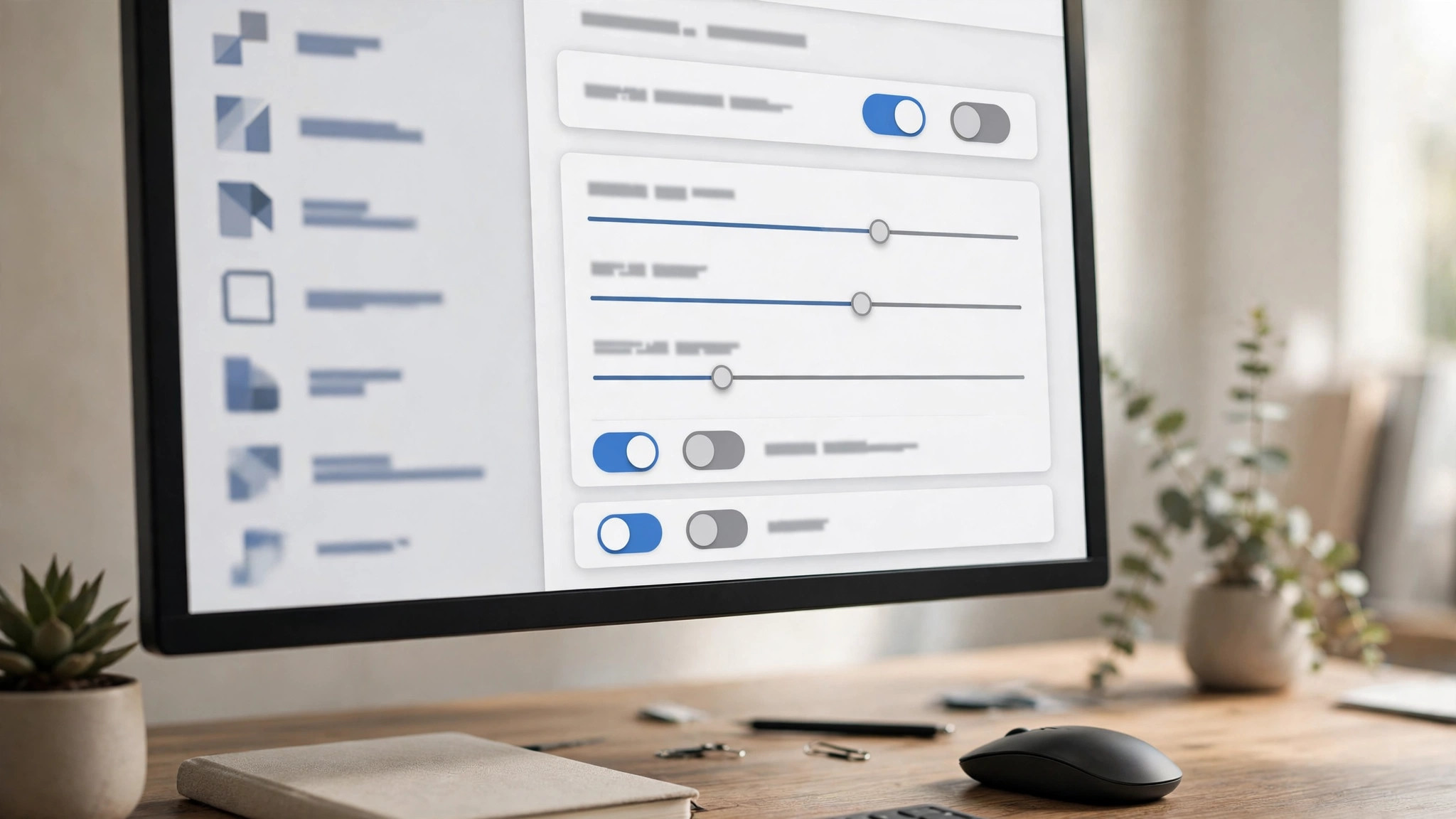
On Windows 11, go to Settings, then System, then Display, select your HDR monitor if you have more than one, and turn on Use HDR. On Windows 10, the same screen offers a toggle labelled Play HDR games and videos. The moment you switch it on, the desktop itself will probably look slightly different — SDR content viewed on an HDR display goes through tone mapping, and Windows lets you control how bright that content appears. On Windows 11, under the HDR toggle, use the SDR content brightness slider to set desktop apps, browsers and older games to a comfortable level. This slider is the single most important fix for the "everything looks washed out" complaint: the default is often too dim or too bright, and a minute of adjustment here transforms the desktop experience.
If the toggle is greyed out, work through the causes in order: confirm the monitor's HDR mode is on (step 1), confirm you are using DisplayPort 1.4 or HDMI 2.0 or newer, try a different port on both the monitor and the graphics card, and update the graphics driver. If you run multiple monitors, remember that HDR is per-display — enable it on the HDR monitor specifically, and note that moving a game window to a non-HDR monitor will drop it back to SDR. If you are choosing a display and want to understand the specifications first, our 2026 gaming monitor buying guide explains HDR ratings and what the numbers actually mean.
Step 3: Calibrate HDR properly
Windows' default HDR calibration is generic, and your monitor's factory calibration may be tuned for movies rather than games. On Windows 11, install the free Windows HDR Calibration app from the Microsoft Store. It walks you through setting black level, white level and colour saturation with test patterns, and creates a custom colour profile that Windows applies whenever HDR is active. This step alone fixes a large share of "HDR looks wrong" complaints, because it tells Windows exactly how bright and how dark your specific panel can go, instead of guessing.
On Windows 10 there is no equivalent calibration app, so use your monitor's own HDR brightness and contrast controls, and any in-game HDR brightness slider, to reach the same result. In both versions, calibrate in the room lighting you actually play in — a calibration done in a dark room will look wrong in daylight, and vice versa. Do not calibrate with a game running; the app's test patterns are designed to be viewed on their own.
Step 4: Enable HDR inside the game
With Windows HDR on, launch the game and look for an HDR setting in its display, graphics or video menu. Most HDR-capable games offer a simple HDR toggle, and many add an HDR brightness or peak-brightness slider and sometimes a paper-white setting. Turn the toggle on, then adjust the brightness slider while looking at a bright scene — sky, sun or neon — rather than a menu, since menus rarely show the HDR range. If the game offers a peak brightness value in nits, set it close to your monitor's rated peak brightness: 400 for an HDR400 display, 600 for HDR600, 1000 for HDR1000. Setting it far higher than your panel can reach crushes bright detail into white; setting it far lower makes the image dull.
Some games do not have their own HDR toggle at all and simply follow Windows: if Windows HDR is on, they render in HDR automatically. Others, especially older titles, have no HDR support whatsoever, and no Windows setting will add it. A useful middle ground is Auto HDR, covered below.
What about Auto HDR?
Auto HDR is a Windows 11 feature that adds HDR to games that were only built for SDR, by intelligently expanding the brightness range. To use it, keep Windows HDR switched on and, on the same Display settings page, enable Auto HDR. It works with DirectX 11 and DirectX 12 games and produces genuinely good results in many titles — brighter skies, more vivid highlights — but it is not magic. Results vary by game, some titles look slightly oversaturated, and competitive players often prefer it off for the most predictable image. Treat Auto HDR as a bonus for your single-player library, not as a replacement for native HDR in games that support it properly. If a specific game looks worse with it on, you can disable Auto HDR for that game alone from the same settings page.
Fixing the common HDR problems
| Problem | Likely cause | Fix |
|---|---|---|
| Everything looks washed out and grey | SDR brightness slider wrong, or monitor HDR mode off | Adjust the SDR content brightness slider; check the monitor's HDR picture mode |
| HDR toggle is greyed out | Cable, port or monitor setting | Use DisplayPort 1.4 or HDMI 2.0+, try another port, enable HDR on the monitor |
| Game has no HDR option | Game does not support native HDR | Use Auto HDR on Windows 11, or accept SDR for that title |
| Colours look oversaturated | Calibration or in-game slider set too high | Run Windows HDR Calibration; lower the in-game HDR brightness |
| HDR works, but the desktop looks dim | SDR brightness slider set too low | Raise the SDR content brightness slider in Display settings |
Two more quirks are worth knowing. First, screenshots and recordings usually cannot capture HDR: a screenshot of an HDR game will often look washed out or oddly coloured when viewed on an SDR screen, even though the game itself looked superb. That is a limitation of the capture, not your settings — if you record gameplay regularly, our guide on recording gameplay without losing FPS covers capture settings in general. Second, HDR raises power consumption and heat on the display, so a monitor that runs hot or dims itself after a while in HDR may be hitting its own thermal limit; dropping brightness slightly or improving airflow around the monitor usually settles it.
The quick checklist
- Confirm the display supports HDR10 and connect via DisplayPort 1.4 or HDMI 2.0 or newer.
- Enable the HDR mode in the monitor's own on-screen menu.
- Turn on
Use HDRin Windows Display settings and set the SDR content brightness slider. - Run the Windows HDR Calibration app on Windows 11.
- Enable HDR in the game's display settings and set peak brightness to your monitor's rating.
- Try Auto HDR for older SDR-only games, and switch it off per-game if a title looks worse.
Done in that order, HDR stops being a gamble. The monitor, Windows and the game all agree on what the display can do, the calibration matches the profile to your actual panel, and the washed-out look that puts so many players off disappears. If a particular game still looks wrong after all of this, the honest answer is usually that the game's own HDR implementation is poor — and in that case, playing that one title in SDR while keeping HDR for everything else is a perfectly good outcome.