Nothing is more frustrating than launching a game, picking up your controller, and realising the game does not know it exists. The buttons do nothing, the sticks do nothing, yet the controller works fine in another game or on another device. In most cases this is not a broken controller. It is a configuration problem: Steam Input is set wrongly, Windows has not paired the device properly, a driver is missing, or the game itself is set to keyboard and mouse only.
This guide works through the fixes in the order that solves the problem fastest.
1. Rule out the simple hardware problems first
Many controller problems come down to a worn cable, a flat battery, or a weak Bluetooth link, so check the physical connection first.
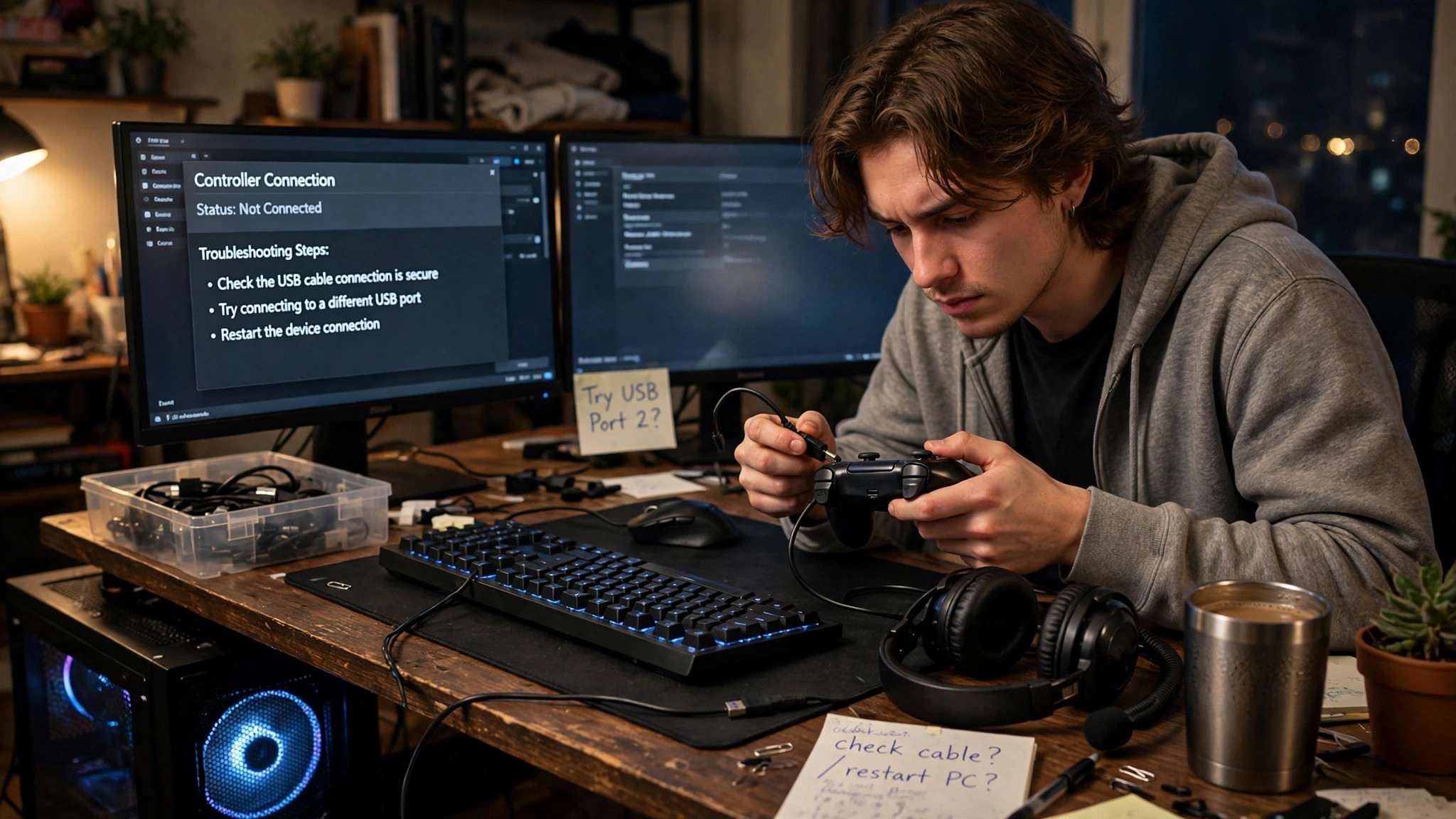
- Try a different USB cable and a different USB port, preferably one on the back of the PC. Some charge-only cables carry power but no data, and those will never be detected as a game controller.
- If you play wirelessly, charge the controller fully, then turn it off and on again. On Bluetooth, remove the controller from Windows Bluetooth settings and pair it again from scratch.
- Test the controller in a second game, and if possible on a second device. If it works elsewhere, the problem is with one game or one PC setting, not the controller itself.
- Disconnect other controllers, flight sticks, racing wheels, and virtual controller software. Games can get confused when several input devices are connected at once.
2. Check whether Windows actually sees the controller
Windows has a built-in test panel for game controllers. Press the Windows key and R together, type joy.cpl, and press Enter. If your controller appears in the list, Windows can see it, and the problem is almost certainly in Steam or in the game. Select it and click Properties to test the buttons and sticks. If a button does not respond here, Windows is not receiving the input, and no game setting will fix that.
If the controller does not appear in joy.cpl at all, open Device Manager and look under Human Interface Devices and under Sound, video and game controllers. A yellow warning icon or an unknown device points to a driver problem. For Bluetooth, check Settings, then Bluetooth and devices, and confirm the controller shows as Connected rather than merely Paired.
3. Fix Steam Input, the most common cause on PC
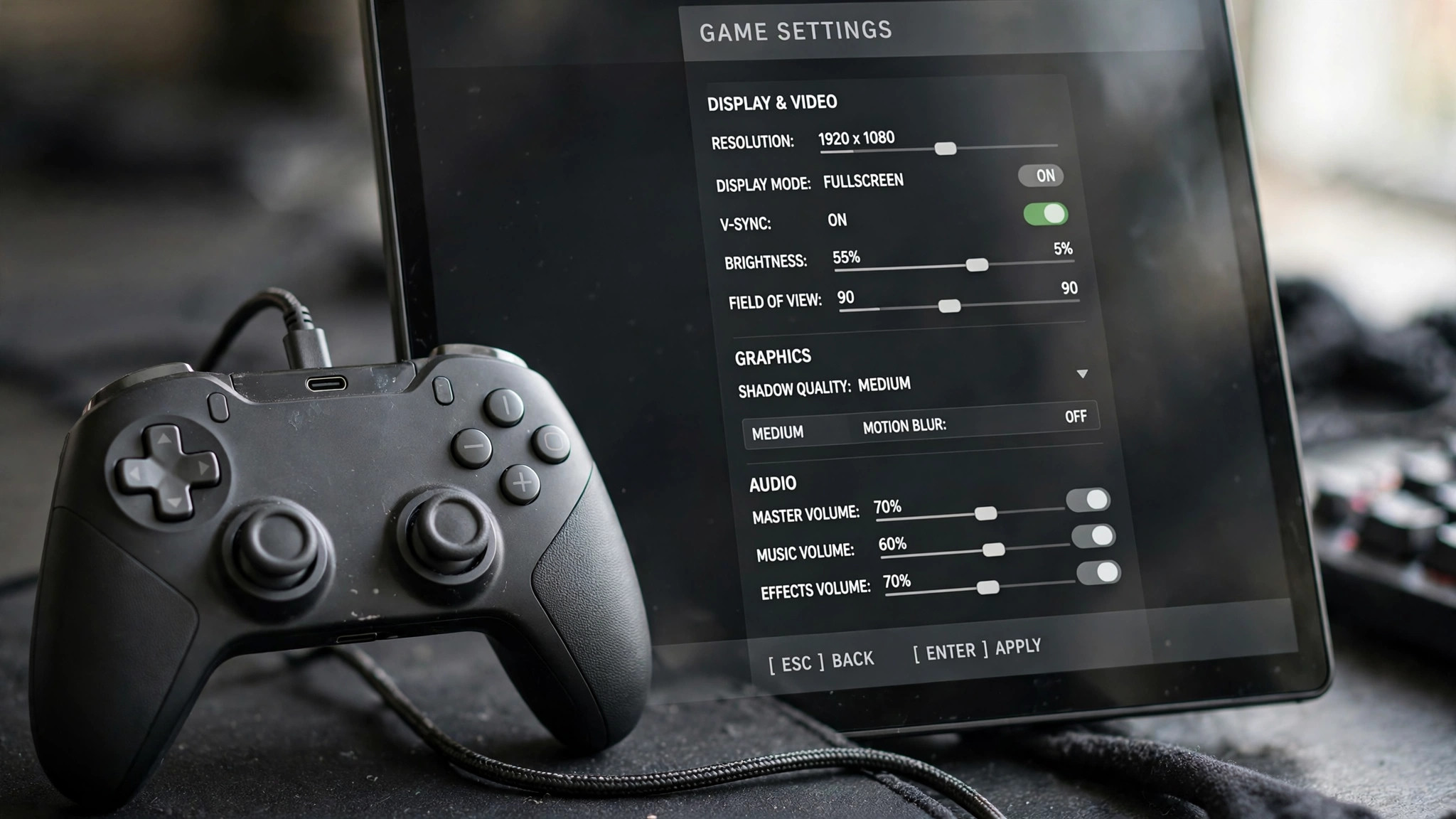
Steam Input is Steam's controller layer. It translates your controller into a standard Xbox-style input that games understand, and it lets you remap buttons. Most of the time it helps, especially with PlayStation controllers. But when it is set wrongly for one game, it can block input entirely.
First, check the global setting: in Steam, go to Settings, then Controller, and confirm support is enabled for your controller type. Then check the per-game setting, which overrides the global one. Right-click the game in your library, choose Properties, then Controller. If the override is set to Disable Steam Input and the game does not natively support your controller, the game will see nothing, so try Enable Steam Input instead. If it is already enabled, try the opposite setting, since some games work better with their own native support.
Also check the controller layout in the game's Properties, under Controller: confirm it is not blank or set to a keyboard-and-mouse template by mistake. For non-Steam games, Steam Input only applies when you launch the game through Steam.
4. Update drivers and controller firmware
Most modern controllers need no separate driver download on Windows 10 and Windows 11, because Windows installs a standard driver automatically. But that driver can still be outdated or corrupted, and wireless controllers often need a firmware update from the manufacturer.
- In Device Manager, right-click the controller, choose Update driver, and let Windows search automatically. If that finds nothing, uninstall the device, disconnect it, and reconnect it so Windows installs a fresh copy.
- Check Windows Update for optional driver updates, which sometimes include controller and Bluetooth radio drivers.
- For Xbox controllers, use the Xbox Accessories app from the Microsoft Store to check for a firmware update. For PlayStation controllers, firmware updates normally come through the console or the manufacturer's PC software.
- If you use Bluetooth, update the Bluetooth radio driver from your motherboard or laptop manufacturer's website. An old Bluetooth driver is a common cause of controllers that pair but never stay connected.
Do not install third-party driver packs; use Windows Update, the PC manufacturer, or the controller manufacturer.
5. Fix the settings inside the game itself
Some games default to keyboard and mouse and never switch automatically. Open the game's settings menu and look for a control or input section. Check that the input device is set to Controller or Gamepad, that controller support is not switched off, and that the game is not set to a controller type that does not match yours.
Also check whether the game requires a button press on the controller at the title screen to switch to controller mode; many games show keyboard prompts until then. If the game was launched before the controller was connected, close it completely, connect the controller, confirm it appears in joy.cpl, and relaunch. Older games only scan for controllers once, at startup.
6. Diagnose the problem by symptom
Use this table to narrow the cause down quickly instead of changing settings at random.
| Symptom | Likely cause | Fix to try first |
|---|---|---|
| Works in one game but not another | Per-game Steam Input or in-game setting | Change the per-game Steam Input override and check the game's input device setting |
| Not listed in joy.cpl | Cable, Bluetooth pairing, or driver problem | Change cable and port, re-pair Bluetooth, reinstall the driver |
| Listed in joy.cpl but dead in every game | Steam Input conflict or virtual controller software | Close tools like DS4Windows, then test with Steam Input on and off |
| Disconnects every few minutes | Low battery, Bluetooth interference, or power saving | Charge fully, move closer to the PC, disable USB selective suspend |
| Buttons work but sticks feel wrong | Calibration or stick wear | Recalibrate in joy.cpl and check the game's dead zone setting |
7. Final checklist when nothing has worked yet
Run through this checklist before assuming the hardware is faulty: the controller works on another device; it appears in joy.cpl and its buttons respond there; Steam Input is enabled globally and the per-game override is not set to Disable; the game was fully closed and relaunched after the controller was connected; and no other controller or virtual controller is connected. If the controller fails on another device too, but a second controller works on your PC, the original controller is faulty. If no controller works on your PC, a Windows or USB fault is more likely.
Controller detection problems almost always come down to one link in a short chain: connection, Windows detection, Steam Input, or the game's own setting. Work through that chain in order and test after each change. If your game also runs poorly once the controller is working, our guide to fixing lag and stutter covers the settings that actually help: How to Fix Lag and Stutter in PC Games.