Nothing ruins a good run like your game suddenly dropping to the desktop for no reason you can see. You did not press anything, the game did not crash, and when you click its icon it comes straight back — until it happens again a few minutes later. This problem has a name: something on your PC is stealing focus, which is Windows handing attention to another program while your game is still running.
The good news is that focus stealing is almost always fixable, and the culprit is usually boring: a notification, an updater, an overlay, or a display setting. This guide covers the fixes in the order that solves the problem for most people.
Why games minimise on their own
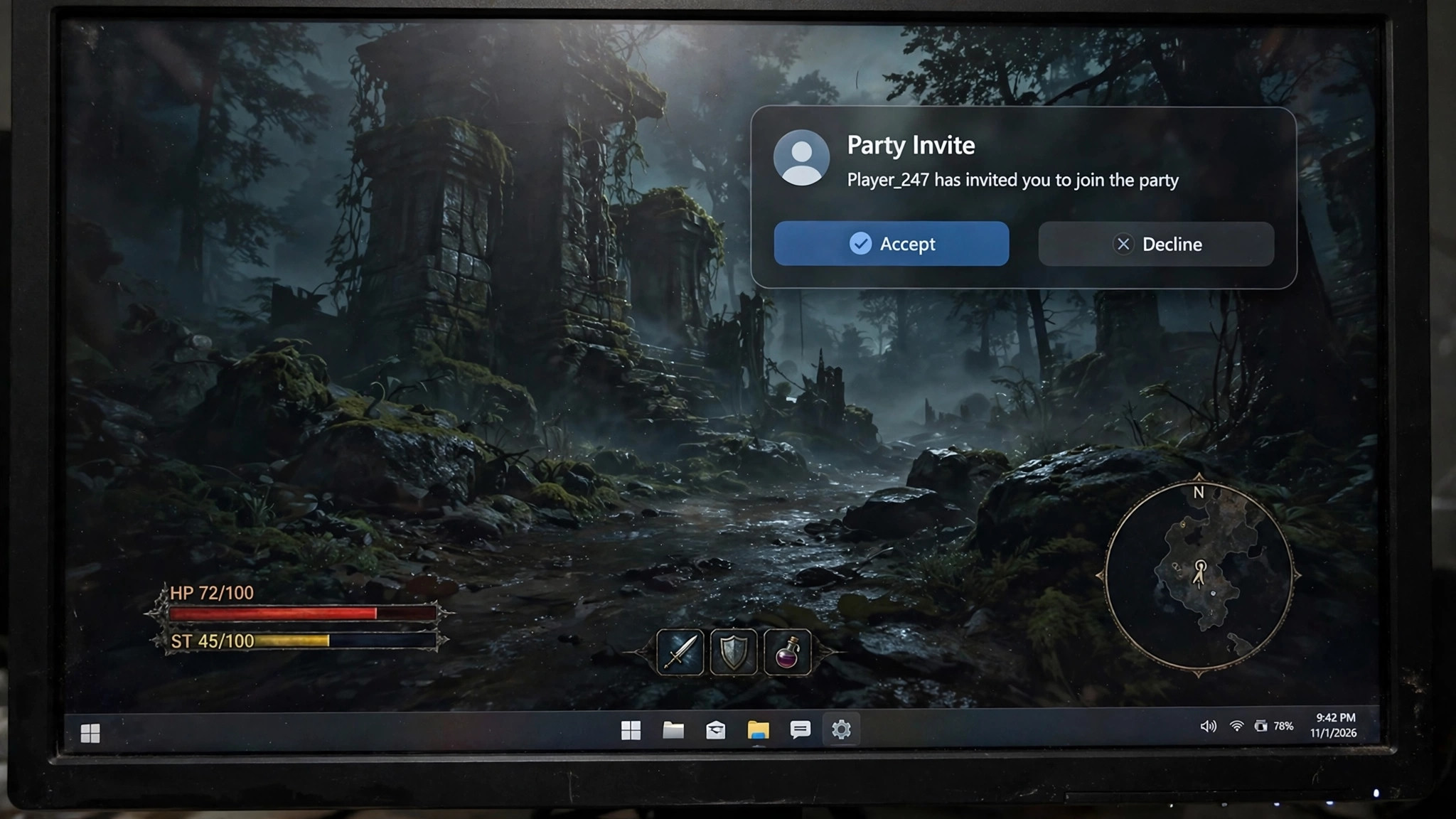
Windows only lets one window hold focus at a time. When another program asks for attention — a notification pops up, a background app opens a window, or a USB device disconnects and reconnects — Windows can pull your game out of fullscreen and drop it to the taskbar. Exclusive fullscreen games are the most vulnerable, because they own the whole screen; a borderless windowed game can often stay visible even when focus shifts.
The usual suspects fall into a few groups. Notification-heavy apps such as email, messaging and cloud storage tools are the most common. So are hardware utilities such as RGB software, fan controllers and driver updaters that periodically wake up. Game overlays can also trigger it, and so can display problems, such as a second monitor changing resolution or a cable working loose.
Quick fixes to try first
Run through this short checklist before changing anything permanent. One of these solves the problem surprisingly often.
- Turn on Do Not Disturb: open Settings, then System, then Notifications, and switch Do Not Disturb on. This silences the notification banners that are the single most common cause.
- Close apps you do not need while gaming, especially email, messaging and cloud sync tools. If the minimising stops, reopen them one at a time to find the culprit.
- Switch the game from exclusive fullscreen to borderless windowed mode in its display settings. The game still fills the screen, but a focus shift is far less likely to minimise it.
- Unplug any USB device that might be disconnecting on its own, such as a flaky controller cable or a loose headset dongle. Listen for the Windows device-connect sound as a clue.
- Check for a stuck key. A jammed Windows key or Alt key can send minimise commands by itself, so try a different keyboard for one session.
Stop background apps from stealing focus
Start with notifications. In Settings, go to System, then Notifications, and review which apps may send banners. Turn off notifications for anything you do not need while gaming, or set Do Not Disturb to switch on automatically. This alone fixes a large share of cases.
Next, look at what is actually running. Open Task Manager with Ctrl plus Shift plus Esc and check the Processes tab for anything unfamiliar that spikes when your game minimises. Common offenders include software updaters, cloud sync clients and printer utilities. Closing one for a single session is enough to test it.
Also check the Startup tab in Task Manager. Apps here launch with Windows and sit in the background all day, so they can interrupt you at any time. Disable anything you do not need running constantly, such as updaters and helper tools, then restart your PC.
Fix your display and fullscreen settings
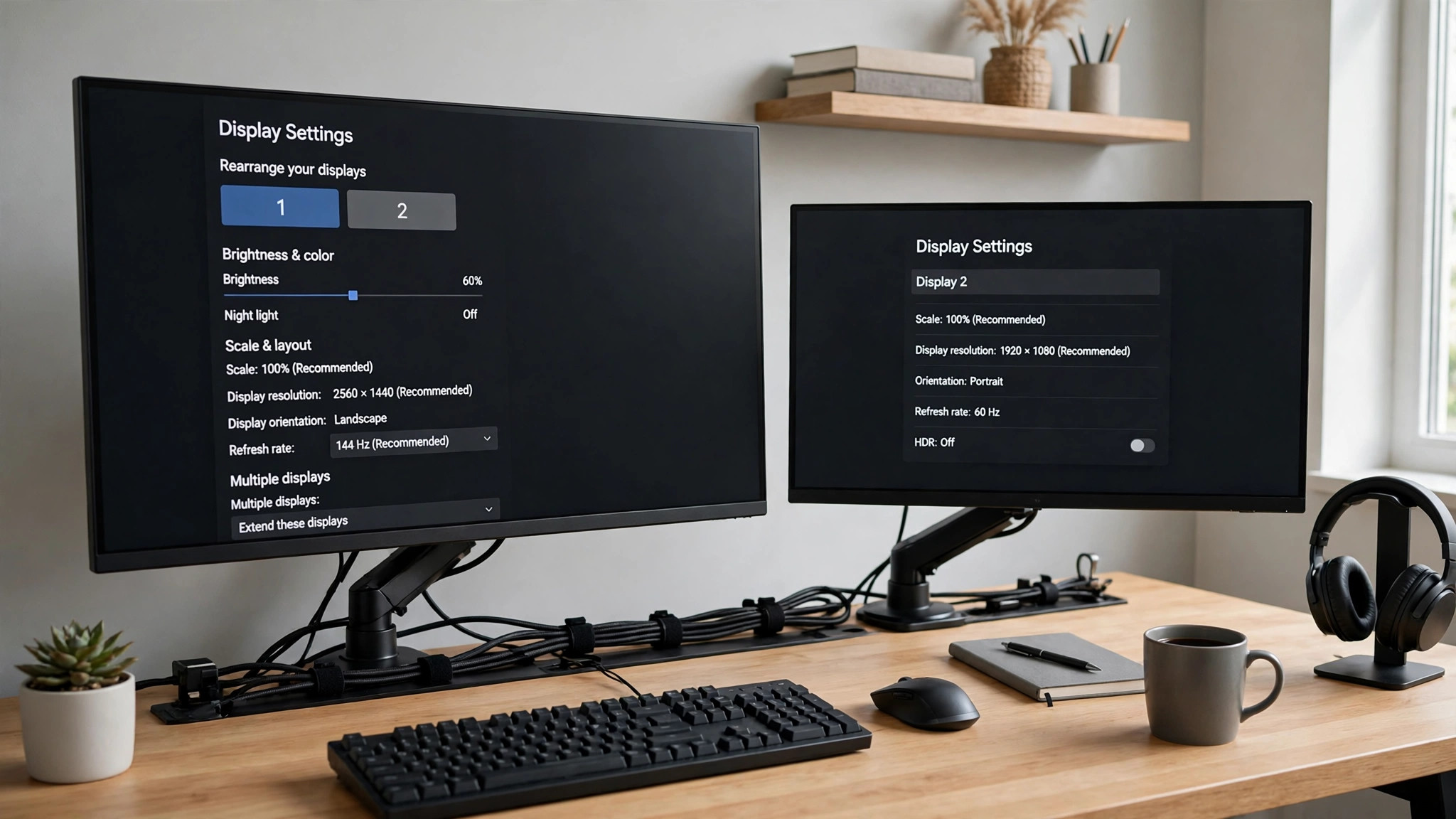
If background apps are not the cause, look at your display setup. Exclusive fullscreen hands the game total control of your screen, which is great for performance but means any display change minimises the game instantly. Switching to borderless windowed mode is the simplest fix, and on modern hardware the performance difference is usually tiny.
Check that your monitor cable is firmly seated at both ends, and try a different port or cable if you have one spare. A loose or failing DisplayPort or HDMI cable can make the monitor briefly lose signal, and Windows treats that as a display change. The same thing happens if a second monitor or TV wakes from sleep, so disconnect your second screen for one session to test this.
Also confirm that Windows and your game agree on the refresh rate. Open Settings, then System, then Display, then Advanced display, and compare the monitor's refresh rate with the one set inside the game. A mismatch, especially across monitors running at different rates, can cause instability when focus changes. Our guide to fixing screen tearing explains how refresh and sync settings interact.
Disable overlays and conflicting software
Overlays are designed to appear on top of your game, which puts them in exactly the right position to steal focus when they misbehave. Disable them one at a time, so you know which one was responsible.
- Discord: open User Settings, then Game Overlay, and turn off 'Enable in-game overlay'. Our guide to fixing the Discord overlay covers the settings that keep it stable.
- Steam: open Settings, then In Game, and turn off 'Enable the Steam Overlay while in-game'. You can also disable it for one game only, from that game's Properties in your library.
- Xbox Game Bar: open Settings, then Gaming, then Game Bar, and turn it off. Game Mode on the same page rarely causes minimising, but turning it off for one session is a useful test.
- Graphics card overlays: turn off the in-game overlay in the NVIDIA App or AMD Software, including instant replay and recording, then test. Re-enable them afterwards if they prove innocent.
RGB and hardware monitoring tools also inject themselves into games, and a buggy update can cause repeated focus loss. If the problem started after updating such a tool, close it completely, including its system tray process, and test again.
Diagnose the problem by pattern
When the cause is still unclear, the pattern of the minimising usually gives it away. Use this table to narrow it down.
| Pattern | Likely cause | First thing to try |
|---|---|---|
| Happens at the same time every day | Scheduled task, antivirus scan or updater | Check Task Scheduler and reschedule the task |
| Happens only in one game | That game's fullscreen mode or overlay setting | Switch to borderless windowed and disable overlays for that game |
| Happens in every game | System-wide notification, background app or display issue | Turn on Do Not Disturb and close background apps |
| Happens when you move or bump the desk | Loose cable or failing USB device | Reseat cables and unplug suspect USB devices |
| Happens when a second screen wakes up | Display change from a monitor or TV | Disconnect the second screen for one session |
If nothing has worked yet
Two deeper causes are worth checking. First, update your graphics drivers with a clean install, which removes old settings that can conflict with fullscreen games. Our guide to clean-installing NVIDIA and AMD drivers with DDU walks through the safe way to do this. Second, make sure Windows itself is up to date, since Microsoft regularly fixes focus and fullscreen bugs.
Also check whether the game is genuinely crashing rather than minimising. If it closes completely instead of dropping to the taskbar, our guide to fixing games that crash on launch covers that side of it. In most cases, though, the fix is one of the simple ones above.