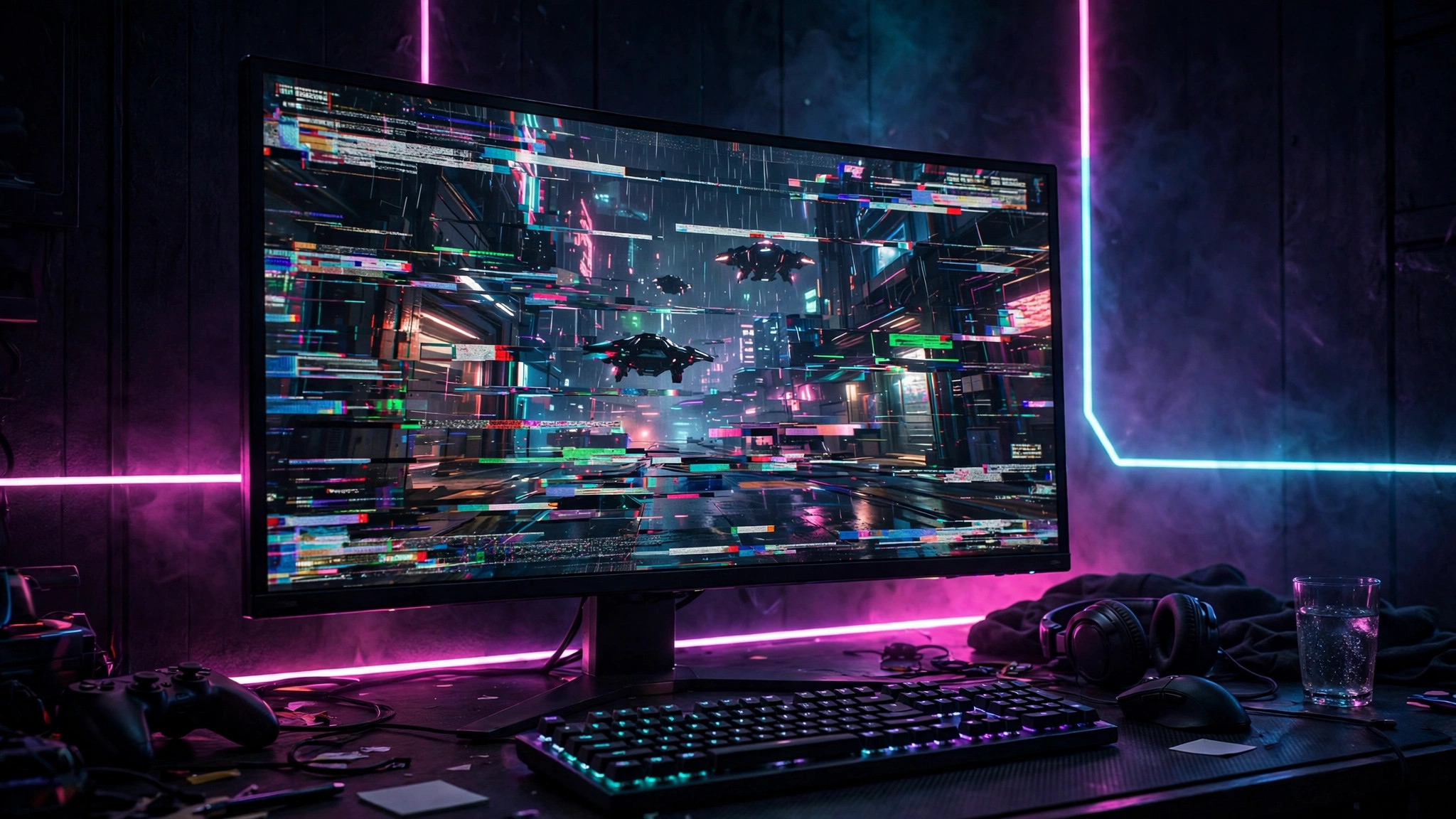
You launch a game and something is off: stretched characters, a blurry picture, black bars, or the whole game trapped in a small window. The game is running at the wrong resolution — almost never a broken monitor or a weak graphics card, just a mismatch between the game, Windows, and your monitor.
Here are the fixes in order, from the one-minute in-game change to the config-file fix for stubborn games.
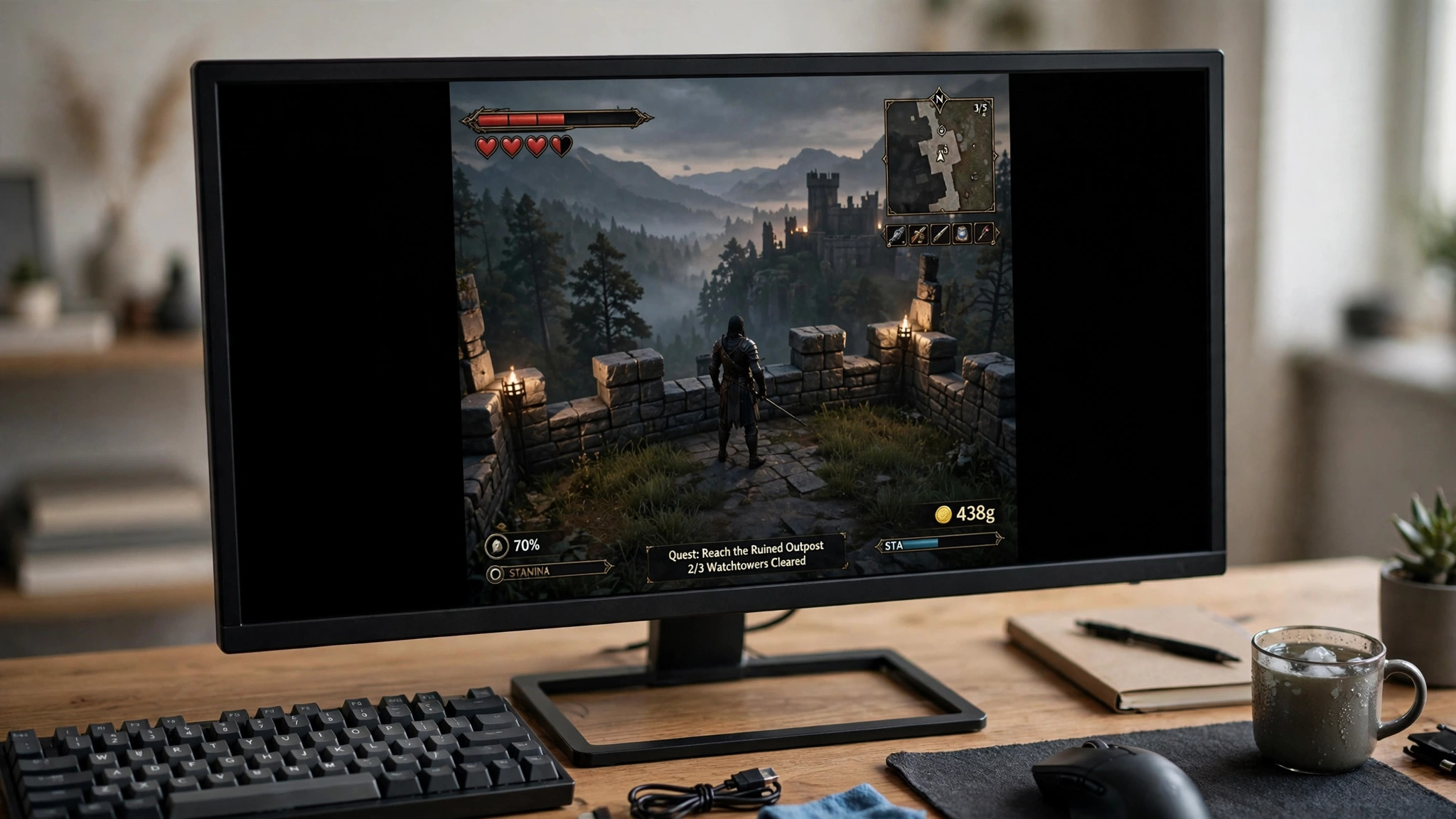
What "wrong resolution" actually looks like
Every monitor has a native resolution — the exact number of pixels its panel contains, such as 1920x1080 or 2560x1440. A game looks its best at exactly that resolution. Check yours in the manual or on the product page first.
- Stretched or squashed image: the game renders at a different aspect ratio from your monitor — a 4:3 resolution like 1024x768 stretched across a 16:9 screen, so circles become ovals.
- Black bars: the game renders at a different aspect ratio, or a lower resolution, and the display shows it unscaled.
- Blurry or soft picture: the game renders below native resolution and the image is stretched to fill the screen.
- Tiny window or huge UI: the game launched in a small window, or Windows display scaling is fighting the game's own UI scaling.
- Stuck at a low resolution: only 800x600 or 1024x768 is offered, usually because the game cannot see your monitor properly or its settings file is locked.
Step 1: Set the resolution inside the game
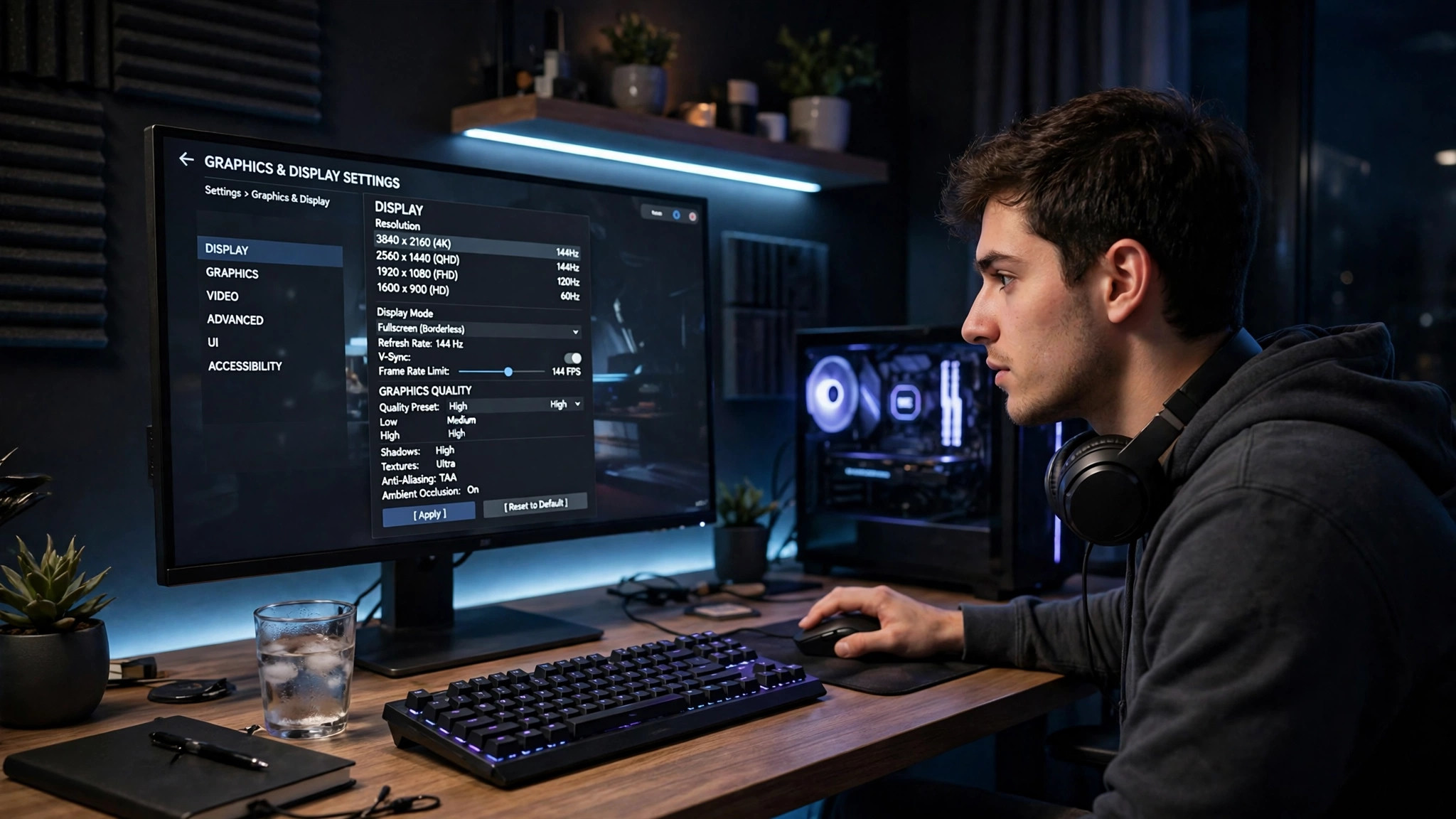
Start where the setting lives. In most games, open Settings, then Display, Graphics or Video, and set the Resolution dropdown to your monitor's native resolution.
Check three things while you are there. Display mode: exclusive fullscreen gives the game full control of the resolution; borderless windowed runs at your desktop resolution — try the other mode if one looks wrong. Refresh rate: some games combine it with resolution in one dropdown, so pick native resolution at your monitor's highest refresh rate. Resolution scale / render scale: not the same as resolution — below 100% the game renders internally at a lower resolution and upscales, looking blurry even when the resolution setting is correct. Set it to 100%.
If the game has no resolution option at all — normal for some console ports and older titles — skip to Step 4.
Step 2: Match Windows to your monitor's native resolution
A borderless windowed game uses your desktop resolution, so a wrong Windows setting becomes a wrong game resolution. Right-click the desktop and open Display settings, or go to Settings > System > Display. Under Display resolution, pick the option marked (Recommended) — your monitor's native resolution. Then open Advanced display and confirm the refresh rate is the highest your monitor supports. With more than one monitor, set each display individually: a game can open on the wrong monitor and inherit its resolution.
Also check Scale on the same page. Windows defaults to 100% on most gaming monitors, but laptops and high-resolution screens often default to 125% or 150% — and some older games read that scaling and render at a scaled resolution. If a game looks wrong only in windowed mode, try 100%. Our guide to optimising Windows 11 for gaming covers these settings in full.
Step 3: Check GPU scaling
When the game and Windows both claim the right resolution but the picture still looks stretched or boxed, the graphics driver is deciding how to scale the image. On NVIDIA cards, open NVIDIA Control Panel and go to Adjust desktop size and position: Aspect ratio keeps the picture's proportions and adds black bars instead of stretching; Full-screen stretches everything; No scaling shows the image at true pixel size. For a stretched game, choose Aspect ratio, scaled by the GPU. On AMD cards, the equivalent is in AMD Software under Display: GPU Scaling on, Scaling Mode set to Preserve aspect ratio.
Also check the game is running on your dedicated graphics card: on a laptop, a game falling back to integrated graphics can lock itself to a low resolution. Our guide to forcing a game to use your dedicated GPU shows how to check.
Step 4: When the game will not let you change it
Some games remember a bad resolution and refuse to offer anything else. Try the easy routes first. Alt + Enter toggles most games between fullscreen and windowed — a game stuck in a tiny window often jumps to your desktop resolution in fullscreen. In Steam, right-click the game, open Properties, and in Launch Options type -w 1920 -h 1080 (your native resolution): many older games and Source-engine titles respect these flags, as they do -windowed and -fullscreen. Also verify the game files in Properties > Installed Files — a corrupted settings file is repaired.
If that fails, find the game's configuration file — usually settings.ini, config.ini or GameUserSettings.ini, in Documents\My Games\<game name>, %LOCALAPPDATA%, or the install folder. Open it in Notepad, find ResolutionWidth, ResolutionHeight or FullscreenMode, and set the width and height to your native resolution. If the game overwrites it, right-click the file, open Properties, and tick Read-only — copy the file first so you can restore it. If you cannot find it, search the web for the game's name plus "config file location".
Step 5: Ultrawide and multi-monitor quirks
Ultrawide (21:9) and super-ultrawide (32:9) monitors cause their own version of this problem: a game that does not support your aspect ratio runs with black bars or stretches the image. Check for an ultrawide option in the game's display settings, an official patch, or a community fix — many games have a small config-file edit or a free mod that adds ultrawide support.
With two monitors, a game can open on the wrong screen: use Win + Shift + Left/Right arrow to move a windowed game, or set your gaming monitor as the main display in Settings > System > Display. If you also play on a TV, check the game is set to the right display — a game remembering the TV renders at the TV's resolution. Our guide to playing PC games on your TV covers those settings.
Diagnose by symptom
| Symptom | Most likely cause | Fix first |
|---|---|---|
| Stretched image | Wrong aspect ratio | In-game resolution; GPU scaling to Aspect ratio |
| Black bars | Narrower aspect ratio than the monitor | In-game resolution; check ultrawide support |
| Blurry picture | Rendering below native resolution | Native resolution; render scale to 100% |
| Small window | Windowed mode at a low resolution | Alt + Enter; switch to fullscreen |
| Only 800x600 offered | Locked settings file | Launch options; edit the config file |
| Wrong on one monitor | Game on the wrong display | Set main display; Win + Shift + arrows |
Wrong resolution is a configuration problem, not a hardware problem: set it in the game, match Windows to your monitor's native resolution, check GPU scaling, and if the game still refuses, reset its settings file. The picture your monitor was built to show is one settings change away.