You bought a gaming laptop with a proper NVIDIA or AMD graphics card, you launch a game, and it runs like a slideshow. Before you blame the hardware, check something simple: the game may be running on your laptop's weak integrated graphics instead of the dedicated GPU. It is one of the most common causes of mysteriously bad performance on laptops, and it takes about two minutes to fix once you know where to look.
Why laptops pick the wrong GPU
Almost every gaming laptop has two graphics chips: a power-efficient integrated GPU (Intel or AMD graphics built into the processor) and a powerful dedicated GPU (your NVIDIA GeForce or AMD Radeon card). To save battery, Windows hands everyday apps — browsers, video players, the desktop itself — to the integrated chip, and is supposed to switch games over to the dedicated one.
"Supposed to" is doing a lot of work in that sentence. Newly installed games, games launched from third-party launchers, older titles, and games added through unusual shortcuts regularly get assigned to the integrated GPU, where they limp along at 15–25 fps. The fix is to tell Windows — or the GPU driver — exactly which chip each game should use.
Step 1: Check which GPU your game is actually using
Do not guess; verify. The quickest check needs no extra software:
- Launch the game and get into actual gameplay (menus often run on the integrated chip by design).
- Press
Ctrl + Shift + Escto open Task Manager, then open the Performance tab. - Look at the GPU entries — typically GPU 0 (integrated) and GPU 1 (dedicated). The one showing high 3D usage while you play is the one doing the work.
- Alternatively, switch Task Manager to the Processes tab, right-click the column headers, enable the GPU column, and find your game's
.exe— it will showGPU 0orGPU 1directly.
If the game sits on GPU 0 while your dedicated card idles at 0%, you have found your problem. For a more detailed view, an overlay like MSI Afterburner with RivaTuner will show exactly which GPU is rendering in real time — see our guide on how to show FPS in any PC game for the setup. And if the dedicated GPU is being used but still runs hot, check how to check CPU and GPU temperature while gaming to rule out thermal throttling.
The Windows method: set the graphics preference per game (works for NVIDIA and AMD)
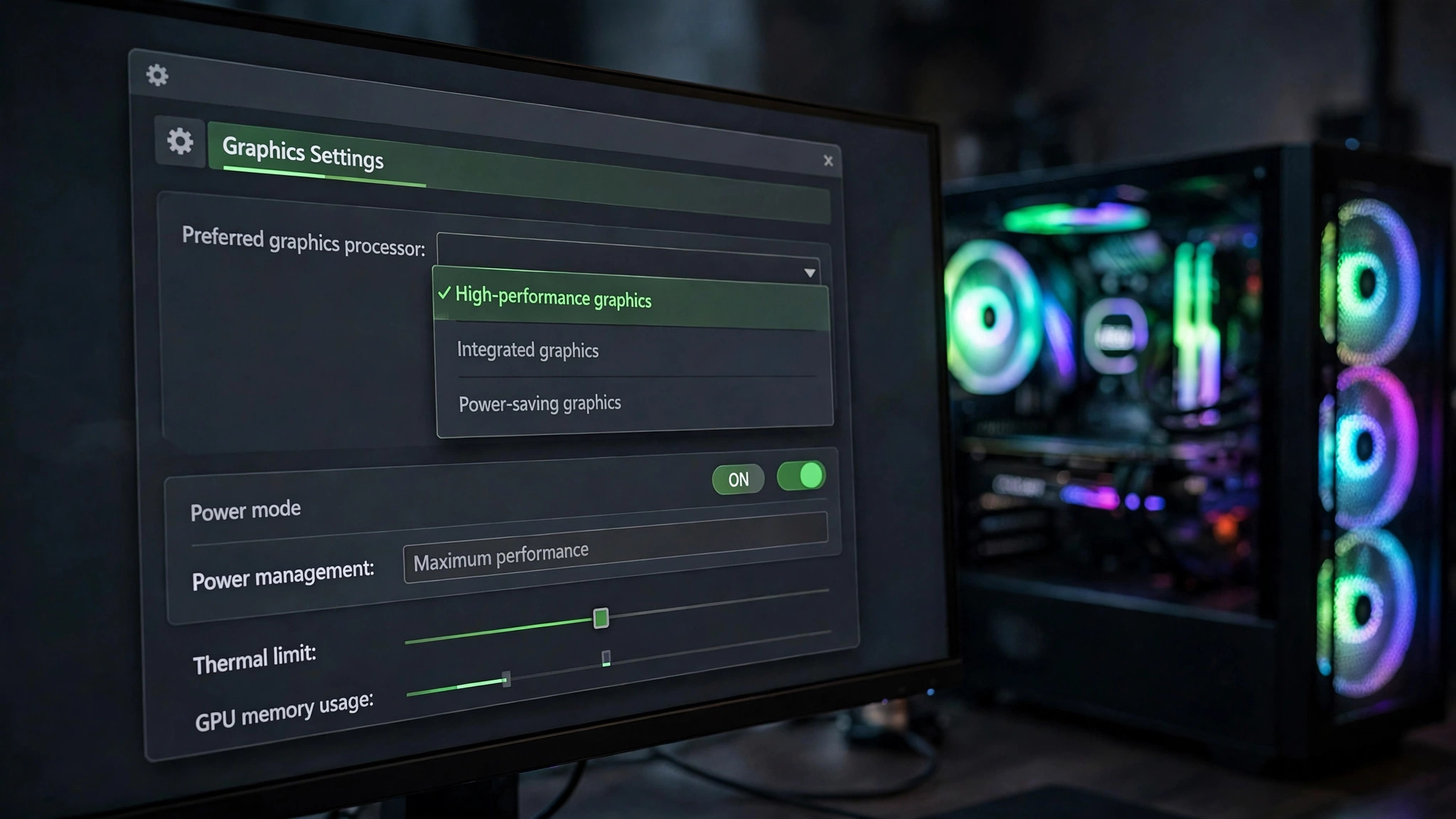
Since Windows 10, the operating system itself can pin an app to a specific GPU. This is the method to try first — it works regardless of whether your dedicated card is NVIDIA or AMD.
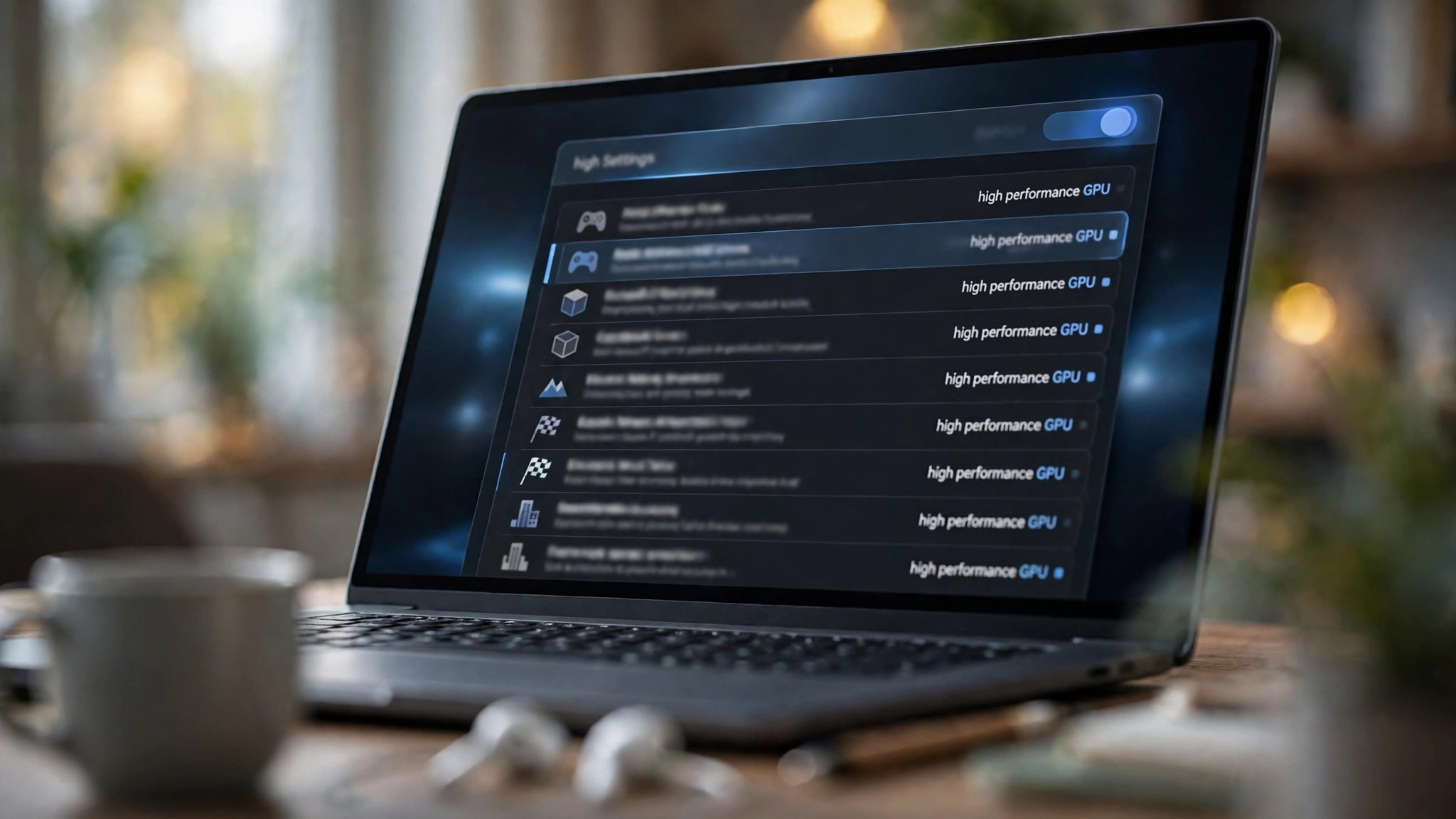
- Open Settings → System → Display → Graphics (on Windows 11; on Windows 10 it is Settings → System → Display, then Graphics settings at the bottom).
- Click Add (or Browse) and navigate to the game's
.exefile — usually inSteam\steamapps\common\, or wherever your launcher installed it. Some launchers need the actual game executable added, not the launcher itself. - Select the game in the list, click Options, choose High performance, and save.
- Restart the game completely and re-check with Task Manager.
High performance means "use the dedicated GPU"; Power saving means "use the integrated one". Windows occasionally lists the GPUs by name so you can confirm which is which. If a game still ignores the setting, add both the launcher's .exe and the game's .exe — some games spawn child processes that inherit the wrong assignment.
The NVIDIA method: NVIDIA Control Panel
If the Windows setting does not stick, the NVIDIA driver has its own per-program override, which usually wins:
- Right-click the desktop and open NVIDIA Control Panel (if it is missing, install it from the Microsoft Store — it ships separately on newer drivers).
- Go to Manage 3D settings → Program Settings tab.
- Under "Select a program to customize", pick your game from the dropdown, or click Add and browse to its
.exe. - Under "Select the preferred graphics processor for this program", choose High-performance NVIDIA processor.
- Click Apply and restart the game.
For stubborn older games, also set OpenGL rendering GPU in the same program profile to your NVIDIA card — some legacy engines query this setting directly. As a last resort, the Global Settings tab lets you force the NVIDIA processor for everything, but that costs battery life, so treat it as temporary.
The AMD method: AMD Software and your laptop's utility
On AMD laptops, the primary control is the same Windows Graphics setting above — modern AMD drivers defer GPU selection to Windows rather than offering their own per-game switch. So set High performance for the game there first.
Then check your laptop manufacturer's utility, because many gaming laptops add a hardware-level switch on top of Windows:
- MUX switch / Advanced Optimus: many laptops (ASUS, Lenovo, HP Omen and others) include a multiplexer that can route the display directly to the dedicated GPU, bypassing the integrated chip entirely. Look in Armoury Crate, Lenovo Legion Zone, OMEN Gaming Hub or your vendor's equivalent for a GPU mode, MUX or Ultimate setting. Enabling it usually requires a restart, and it is the single most effective fix when software settings are ignored.
- AMD Software: Adrenalin Edition: open the Gaming tab, select your game, and confirm its graphics profile is set for maximum performance rather than power saving. The driver also respects the Windows assignment, so the two work together.
Quick checklist when it still will not switch
If the game insists on the integrated GPU after all of the above, work through these in order:
- Plug in the charger. On battery power, many laptops lock the dedicated GPU off or throttle it hard regardless of settings.
- Update your graphics driver. A clean reinstall fixes more GPU-selection bugs than any setting. See how to clean-install NVIDIA/AMD drivers with DDU for the safe procedure.
- Check the in-game graphics settings. A few games (and game engines) have their own "preferred graphics adapter" dropdown — if yours does, set it explicitly.
- Disable the integrated GPU temporarily as a test. In Device Manager, under Display adapters, right-click the Intel/AMD integrated graphics and choose Disable device. If the game now runs on the dedicated card, re-enable the integrated chip and revisit the per-game settings — at least you have confirmed the diagnosis. Do not leave it disabled permanently; it breaks battery life and some laptop displays.
- Check for a BIOS/firmware update from your laptop manufacturer — GPU switching bugs are sometimes fixed at the firmware level.
| Situation | Use this method |
|---|---|
| Any modern laptop, first attempt | Windows Settings → Display → Graphics → High performance |
| NVIDIA laptop, Windows setting ignored | NVIDIA Control Panel → Program Settings → High-performance NVIDIA processor |
| AMD laptop | Windows Graphics setting + vendor utility (MUX / GPU mode) |
| Nothing in software works | Enable the MUX switch / Ultimate mode in the vendor utility |
Once the game is on the right GPU, the difference is usually dramatic — integrated graphics that struggled at 720p low settings become a dedicated card cruising at 1080p high. It is a two-minute settings change that can feel like a hardware upgrade, which is exactly why it is worth checking before you spend money on anything else.