What Screen Tearing Actually Is (and Why It Happens)
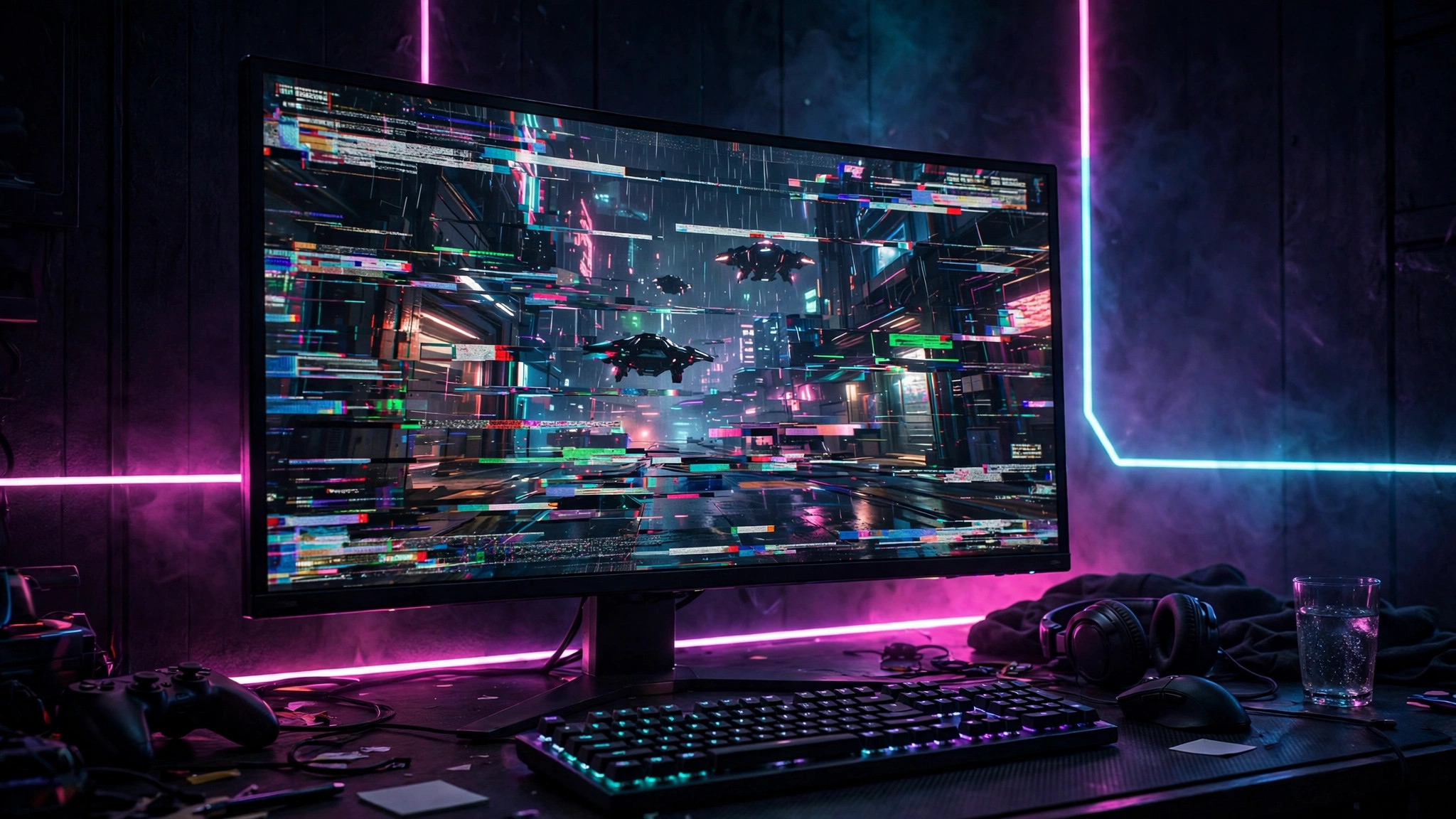
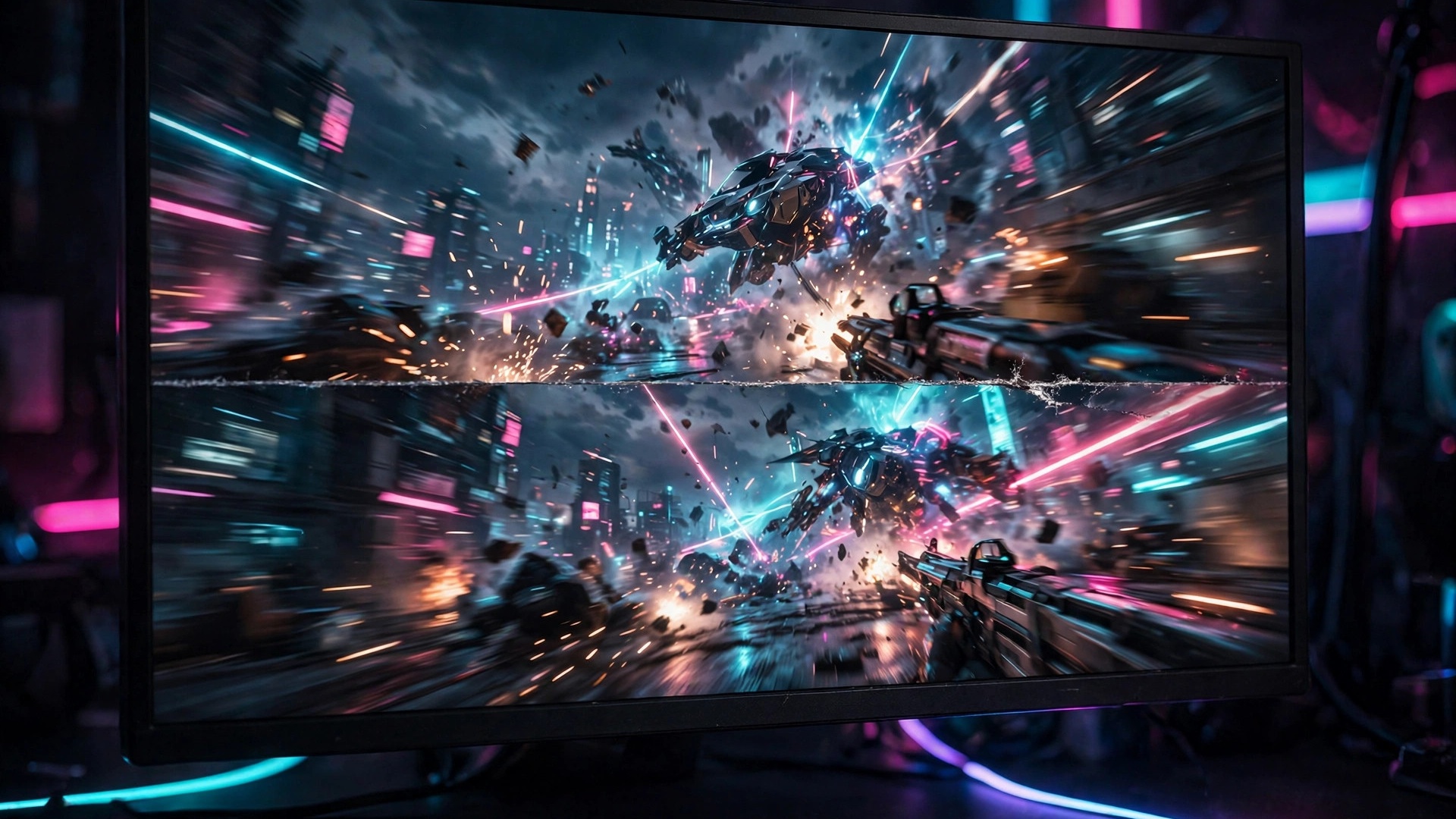
Screen tearing is the horizontal line — sometimes several — that splits your screen during fast movement, so a wall or a horizon looks sheared in two. It is most obvious when panning the camera in a shooter or whipping the view around in a racing game.
It happens because your GPU and monitor are out of sync. The monitor redraws top to bottom at a fixed rate — 60 times per second on a 60Hz panel, 144 on a 144Hz one — while the GPU finishes frames whenever it can. If a new frame swaps in mid-draw, you see the old frame on top and the new one below. That seam is the tear.
A few things worth knowing before you change any settings:
- Tearing is not damaging your hardware. It is purely a timing mismatch. Annoying, but harmless.
- Tearing is not stuttering. Stuttering is uneven frame pacing (the game feels jerky); tearing is a visual split in an otherwise smooth image.
- More FPS does not prevent tearing. Even 200 FPS on a 60Hz monitor can tear mid-refresh — synchronisation matters, not raw speed.
Here are the real fixes, in the order you should try them.
Fix 1: Turn On V-Sync
V-Sync (vertical synchronisation) is the oldest and simplest fix. When enabled, the GPU holds each finished frame and only sends it to the monitor during the vertical blanking interval — the tiny pause between one screen refresh and the next. Because frames are never swapped mid-draw, tearing disappears completely.
You can usually enable it in two places:
- In the game itself: look under video or graphics settings for "V-Sync", "Vertical Sync", or "Sync Every Frame". This is the best place to enable it.
- In your GPU driver: NVIDIA Control Panel under
Manage 3D settings → Vertical sync, or AMD Software underGaming → Graphics → Wait for Vertical Refresh. Use this if the game has no V-Sync option.
The trade-off is input lag: the GPU holds each frame until the monitor is ready, so inputs feel slightly delayed — unnoticeable in story games, a real handicap in competitive shooters. There is a second catch: with double-buffered V-Sync, if your frame rate dips below your refresh rate (55 FPS on a 60Hz monitor), V-Sync drops it to the next clean fraction — 30 FPS — and the game stutters. Triple buffering smooths this out but adds more lag.
Verdict: V-Sync is fine for single-player games where your frame rate stays at or above your refresh rate. For anything competitive, keep reading.
Fix 2: G-Sync, FreeSync and Adaptive-Sync — The Best Fix If Your Hardware Supports It
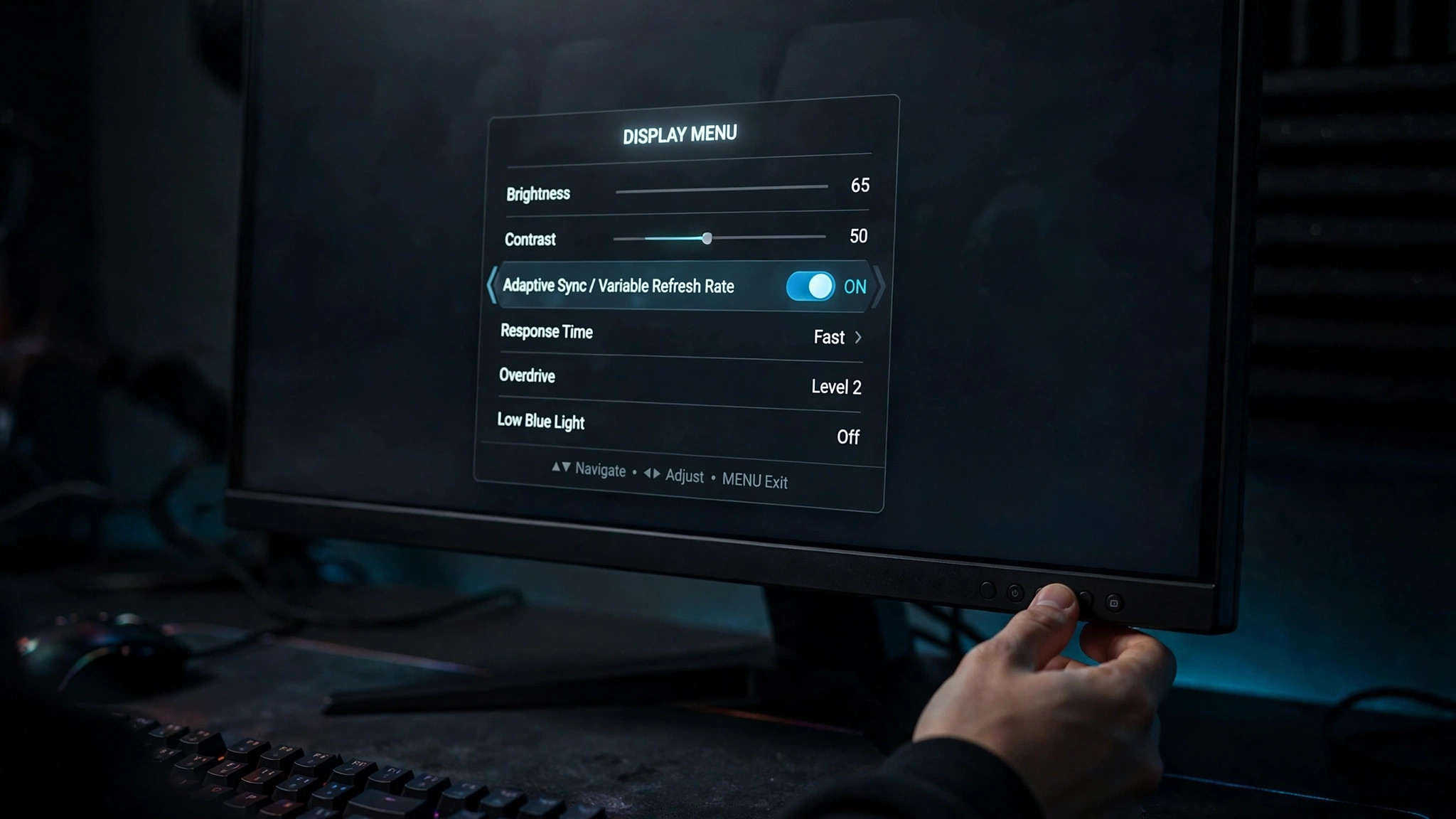
Adaptive sync is the modern answer to tearing, and it is the fix most people should be using. Instead of forcing the GPU to wait for the monitor (V-Sync) or the monitor to ignore the GPU (tearing), the monitor changes its refresh rate on the fly to match whatever frame rate the GPU is producing. No waiting, no mid-refresh swaps — tearing gone, with barely any added input lag.
The three names describe the same idea:
- G-Sync (NVIDIA): needs a GTX 10-series GPU or newer and a G-Sync or "G-Sync Compatible" monitor over DisplayPort. Enable it in NVIDIA Control Panel under
Display → Set up G-SYNCplus the monitor's on-screen menu. - FreeSync (AMD): built on the open VESA Adaptive-Sync standard; needs a FreeSync monitor and usually an AMD GPU, though many FreeSync monitors also work with NVIDIA cards in G-Sync Compatible mode. Enable it in AMD Software under
Display → AMD FreeSyncplus the monitor menu. - Adaptive-Sync / VRR is the underlying standard — HDMI 2.1 carries it too, so many TVs and newer monitors support VRR over HDMI.
Two practical notes: adaptive sync works within a refresh-rate range (e.g. 48–144Hz) — below it, good monitors use low framerate compensation (LFC) to stay smooth. And the setting must be on in both the driver and the monitor's own on-screen menu; half the "G-Sync isn't working" complaints come from the monitor-side toggle being off. See our monitor buying guide if you are shopping for one.
Verdict: if your monitor and GPU both support it, adaptive sync is the best tearing fix available. Turn it on and leave it on.
Fix 3: Cap Your Frame Rate Just Below Your Refresh Rate
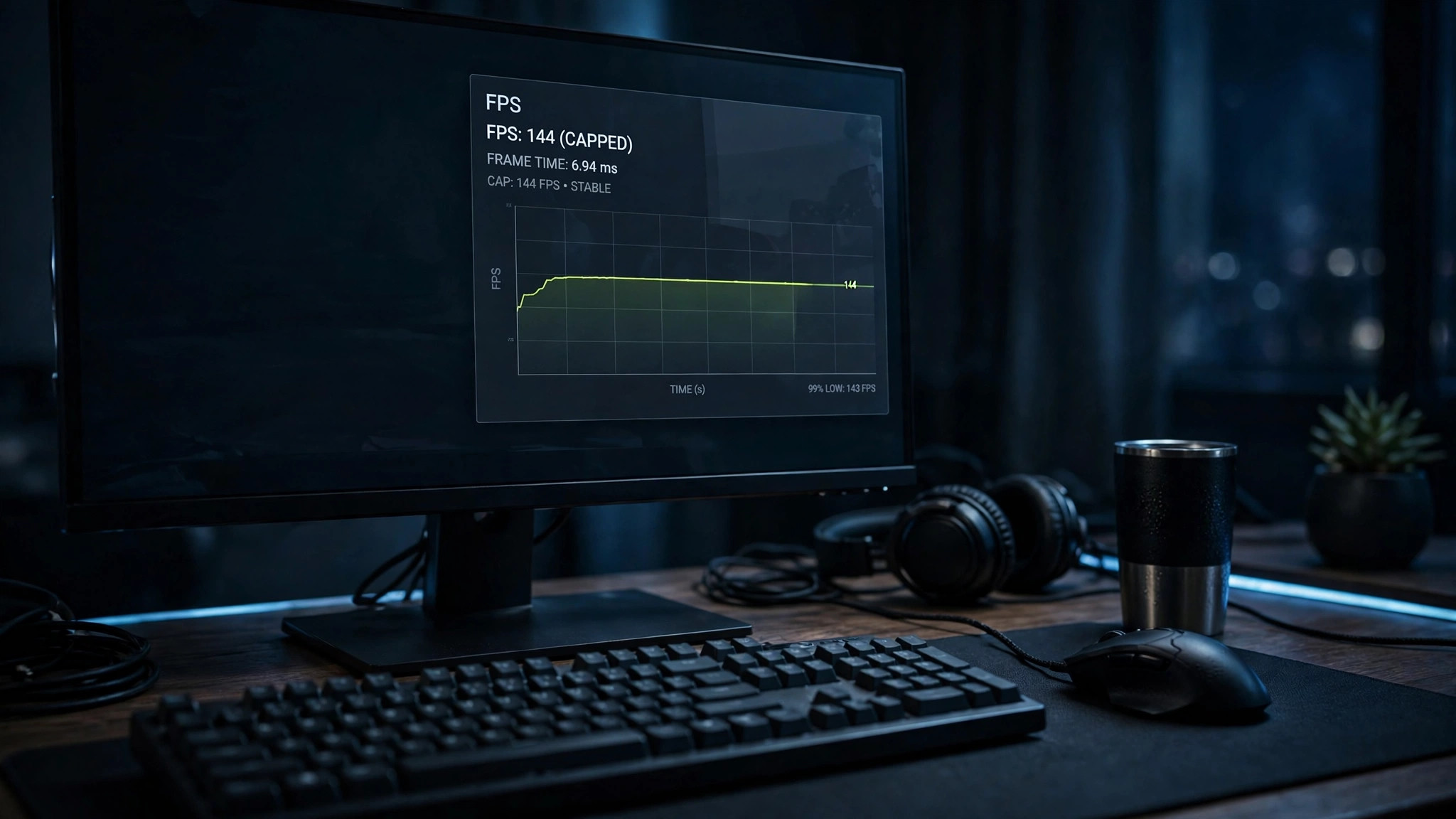
This pairs with adaptive sync: when your frame rate hits your monitor's maximum refresh rate, adaptive sync disengages and you are back to V-Sync behaviour (or tearing, if V-Sync is off). Capping a few frames below your refresh rate keeps adaptive sync engaged — 141 FPS on a 144Hz monitor, 162 on a 165Hz one.
Set the cap in this order of preference: the game's own FPS limiter (lowest latency), then RivaTuner Statistics Server (RTSS), then the driver — NVIDIA's Max Frame Rate or AMD's frame-rate target control. Even without adaptive sync, a cap steadies frame delivery and reduces tearing. To confirm your frame rate while testing, see our guide on how to show FPS in any PC game. (NVIDIA's Fast Sync and AMD's Enhanced Sync are also worth trying if your FPS runs well above your refresh rate — they display only completed frames, with less lag than V-Sync.)
Fix 4: Play in Borderless Windowed Mode
Switching from exclusive fullscreen to borderless windowed often kills tearing by itself: in borderless mode, Windows' desktop compositor applies its own synchronisation to the final image — effectively a free V-Sync in almost every game.
The cost is a little added input latency and occasionally slightly lower performance. On modern Windows with a decent PC the difference is negligible, and you get instant alt-tabbing as a bonus.
Which Fix Should You Actually Use?
| Your setup | Do this |
|---|---|
| G-Sync/FreeSync supported | Enable in driver + monitor menu; cap FPS 3 below refresh rate; in-game V-Sync off |
| No adaptive sync, single-player | In-game V-Sync on; triple buffering if offered |
| No adaptive sync, competitive | V-Sync off; Fast Sync / Enhanced Sync if FPS is well above refresh rate |
| One game only | Try borderless windowed for that game |
If Nothing Worked, Check These
- Update your GPU drivers — broken sync behaviour is sometimes just a driver bug. For a full wipe, see our DDU clean-install guide.
- Use DisplayPort for adaptive sync — older HDMI ports often cannot carry the variable-refresh signal.
- Do not stack V-Sync on G-Sync — with adaptive sync plus a frame cap, in-game V-Sync should be off; stacking just adds lag.
- Test a second game — tearing everywhere means your setup; one game means that game's engine. Check its forums.
Screen tearing looks alarming but it is one of the most fixable problems in PC gaming. Nine times out of ten, the answer is adaptive sync plus a frame-rate cap — set it once, and you will never think about that horizontal line again.