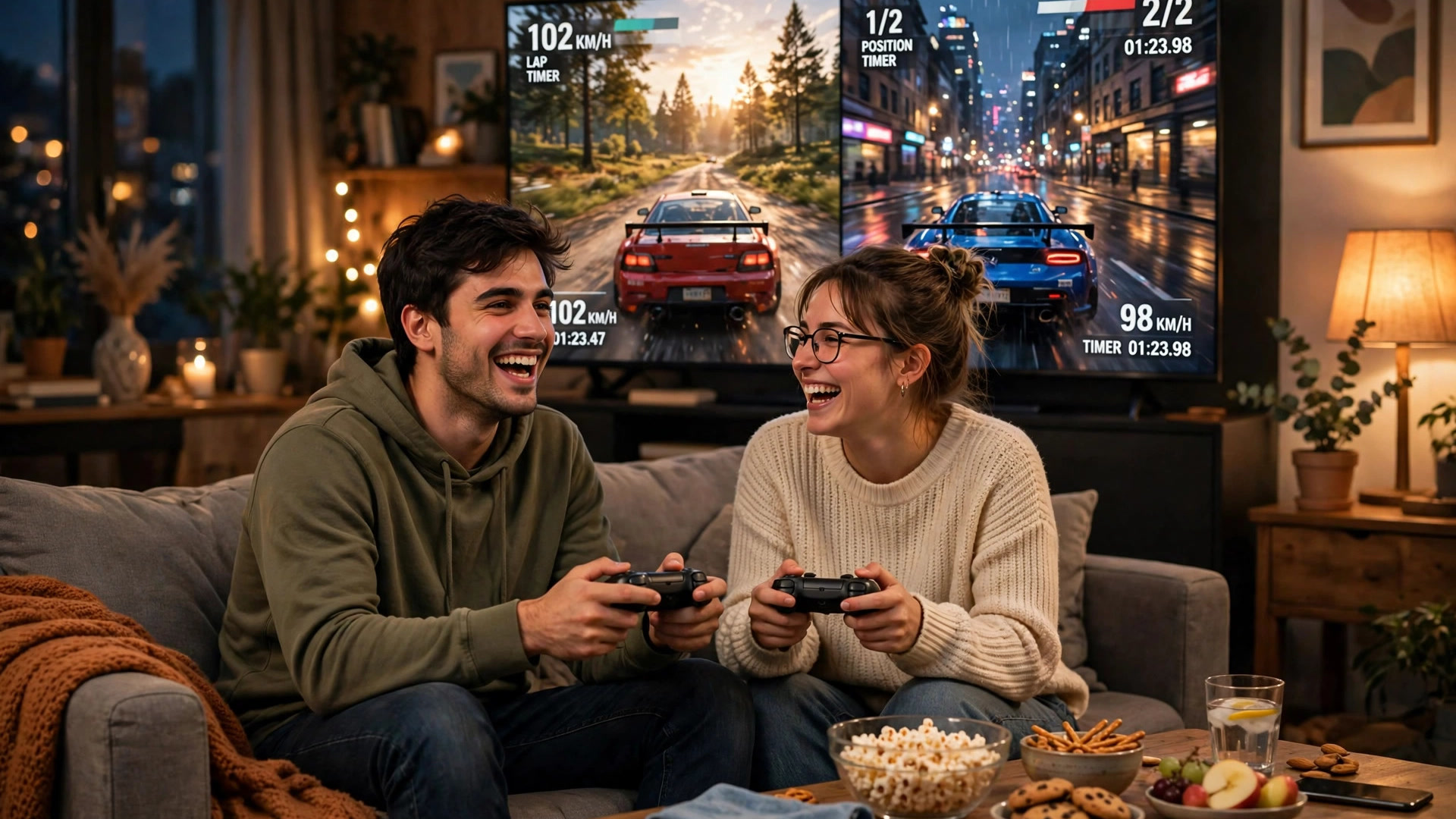
Some of the best gaming sessions need no internet at all: two players, one screen, one PC. Split-screen and local co-op are still alive on PC, from indie party games and racing titles to big co-op adventures — but they are also easy to get wrong. Many modern PC ports quietly dropped split-screen, and a second controller that works fine in Windows can still be ignored by the game itself. A little setup before your friends arrive saves the whole evening.
The key distinction is between two kinds of local play. In split-screen, both players share one screen divided in two, each with their own view of the game world. In shared-screen local co-op, both players share a single camera, as in most beat-'em-ups and party games. Both count as local co-op, but only split-screen divides the display — and only some games offer either at all.
First, does your game actually support it?
Check before you buy, because a game's online co-op mode is no guarantee of local play. On Steam, open the game's store page and look at the sidebar: the tags 'Shared/Split Screen', 'Local Co-op' and 'Local Multiplayer' mean the game officially supports couch play. If those tags are missing, the game almost certainly does not — no setting will conjure up a mode the developers never built.
For games outside Steam, or when the store page is vague, PCGamingWiki is the most reliable check: its pages record exactly what each game supports and needs. Community lists help with discovery, but always confirm against the store page or PCGamingWiki before buying, since older lists go out of date when a port changes the feature set.
What you need before you start
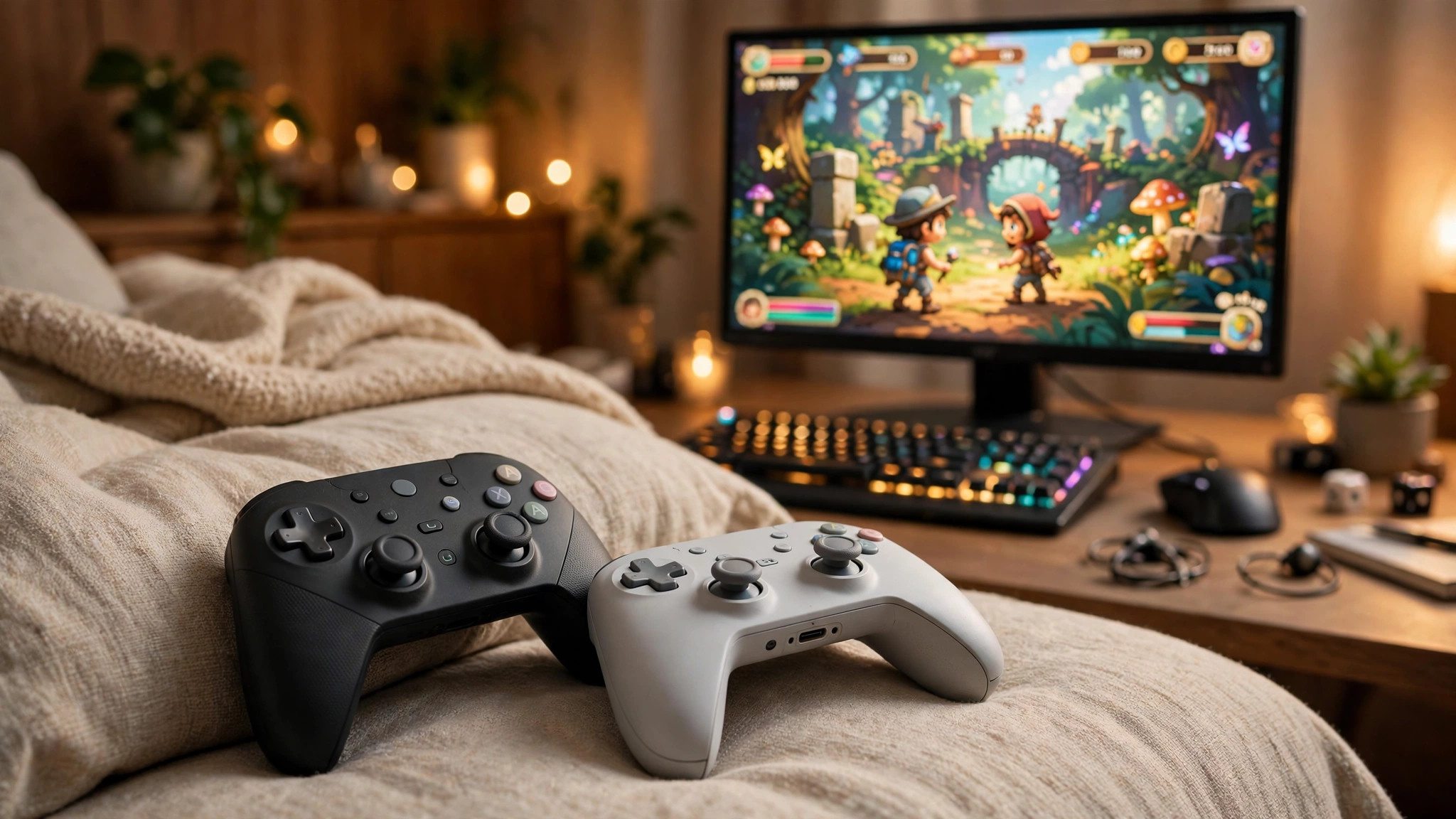
Local co-op needs surprisingly little hardware. The essentials are a second input device — a second controller, or a keyboard if the game supports shared-keyboard play — and a screen both players can see comfortably. A TV works brilliantly for this: if your PC is not already connected to one, our guide to playing PC games on your TV covers the HDMI and streaming options.
Also budget for performance. Split-screen renders the world twice, roughly doubling the graphics workload, so if a game already pushes your PC hard, expect to lower settings for a smooth session. Shared-screen co-op is far lighter, rendering a single view.
Set up two controllers on one PC
Connect and test both controllers before launching the game, not after. Pair or plug in both pads, then open Steam, go to Settings, then Controller, and confirm both appear. If a controller is missing here, it will be missing in game too — our guides to connecting an Xbox controller to PC and using a DualSense controller on PC cover the pairing steps, and our guide to fixing a controller that is not detected covers the diagnosis when one pad is ignored.
Two identical controllers can confuse some games about which pad belongs to which player. The fix is usually to let the game assign players in order: press a button on player one's controller first at the 'press any button' screen, then on player two's. Steam Input can also help — in the game's Properties, under Controller, you can reorder controllers so the game sees them in the order you want. Avoid mixing one controller with keyboard input for player two unless the game explicitly supports it, since many games assign keyboard and controller to the same player slot.
Split-screen settings that trip people up
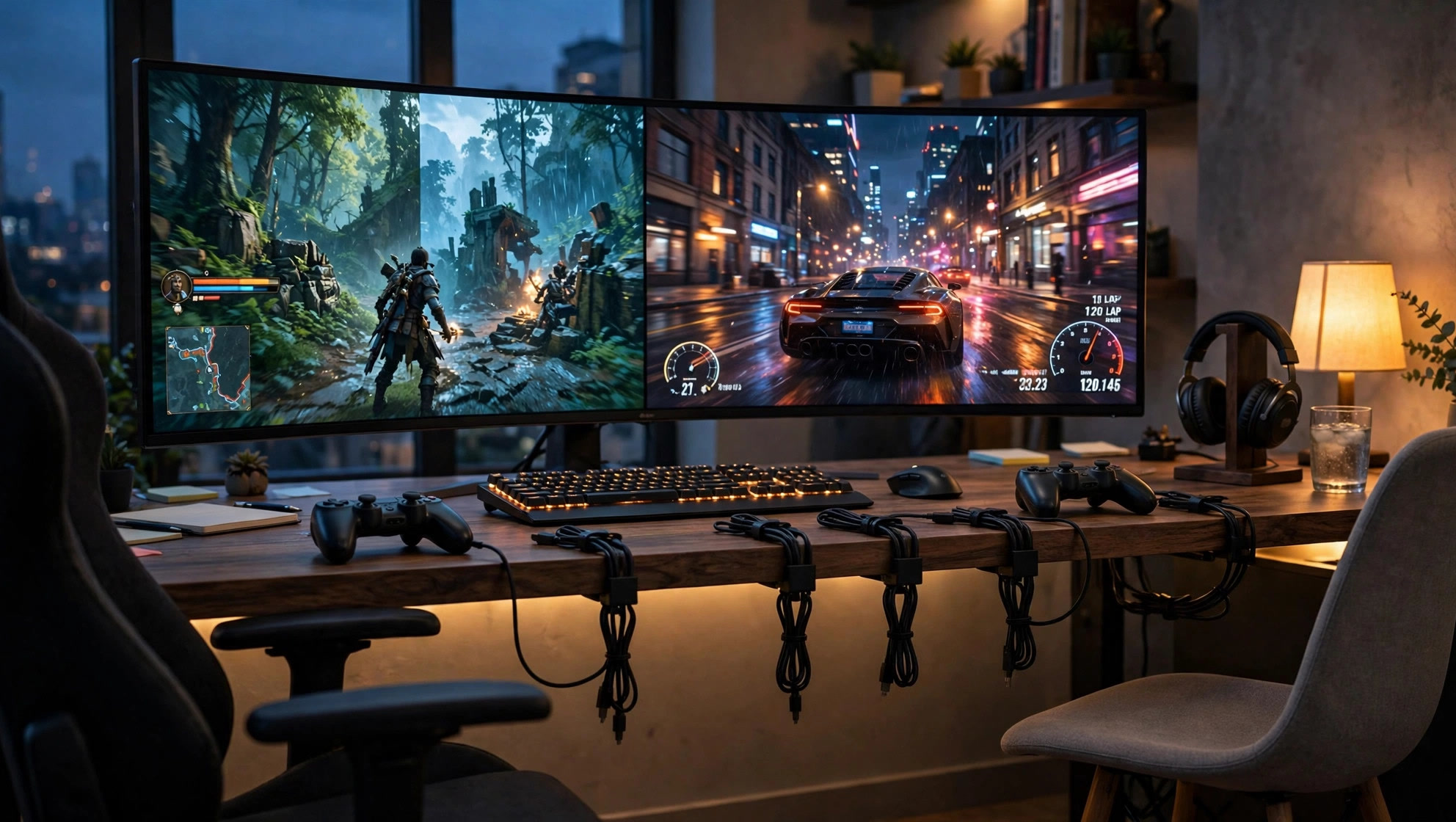
Split-screen rarely starts automatically: look for a 'Local', 'Couch Co-op' or 'Split Screen' option in the game's multiplayer menu, and add the second player from there. If that option is greyed out, the usual cause is that the second controller was not connected before launch: quit fully, connect it, and relaunch.
Then check the split-screen layout. Many games offer a horizontal split (one view above the other) or a vertical split (side by side). On a widescreen display, vertical usually feels better, since each player keeps a wider view. Also check field-of-view if offered: a wider view helps enormously when each player's half-screen is small. If text looks cramped at half-screen size, our guide to fixing blurry text and UI scaling explains the settings that sharpen it.
Playing with one keyboard
Not every local co-op game needs two controllers. Many indie and party games let two players share one keyboard — typically one player on WASD and the other on the arrow keys — and some support one player on keyboard and the other on a controller. Check the game's controls menu: if it lists separate bindings for player one and player two, shared-keyboard play is supported.
One hardware quirk is key ghosting: cheap keyboards cannot always register several keys pressed at once, so shared-keyboard sessions can drop inputs during frantic moments. If keys stop responding when both players press together, try a gaming keyboard, which handles many simultaneous presses far better, or switch one player to a controller.
When a game has no local co-op at all
If your favourite game only offers online co-op, you still have two workarounds. The first is Steam Remote Play Together: from a game that supports local multiplayer, the host can invite a friend online through Steam, and Steam streams the host's game to them. It is remote rather than same-room play, but it lets a local-only game be played with a friend anywhere, and only the host needs to own the game.
The second is Nucleus Co-op, a free community tool that runs multiple instances of one game on a PC, giving each player their own window, controller and input. Support varies by game and setup is per-game, and you should never use it with competitive online games, where modified instances risk an anti-cheat ban. Check its supported-games list first, and keep it for single-player and friendly co-op titles.
Common problems, quick fixes
| Problem | Likely cause | Fix |
|---|---|---|
| Second controller not detected | Connected after launch, or a driver issue | Quit fully, connect the controller, relaunch, and check Steam's Controller settings |
| Both controllers move player one | Game assigned both pads to one slot | Reorder controllers in Steam Input, then press buttons in player order at the join screen |
| Split-screen option greyed out | Game does not support it, or player two not joined | Confirm the feature on the store page, then add player two from the co-op menu |
| Frame rate halves in split-screen | Rendering the world twice | Lower resolution and graphics settings, or cap the frame rate |
| Game opens on the wrong monitor | Windows display order | Set the gaming display as primary, or use Windows key plus Shift plus arrow key to move the window |
Couch co-op is worth the small amount of setup it takes. Check the feature before buying, connect both controllers before launching, and keep the graphics settings realistic for two views at once — then the only argument left is who gets the good side of the sofa.
