You open Task Manager mid-game and see 14 GB of RAM in use and the game stuttering. Is the game broken, or is that just what modern games do? Both are possible, and the fix depends on which.
This guide shows how to check what is actually using your RAM, how much usage is normal, and the fixes that work — from closing a browser tab to deciding it is time to buy more memory.

How Much RAM Usage Is Normal?
Before fixing anything, establish what normal looks like. Modern games are hungry by design, and a high number on its own is not a fault:
| Your total RAM | Typical in-game usage | When to worry |
|---|---|---|
| 8 GB | 6–7.5 GB | 95–100% with stuttering or crashes |
| 16 GB | 9–13 GB | Climbs steadily over hours until the game slows |
| 32 GB | 12–20 GB | One game over 24 GB, or usage never drops after quitting |
Windows also caches files in unused RAM on purpose, so Task Manager showing 80% usage while a game runs smoothly is not a problem. The symptoms that matter are stuttering, long loading screens, textures popping in late, and crashes with errors like out of memory. If the game runs fine, the number does not matter.
Step 1: Find Out What Is Actually Using Your RAM
Check first, then act:
- Press
Ctrl + Shift + Escto open Task Manager, then click theMemorycolumn header to sort by usage. - Look at the top entries while the game is running — the game itself should be first, usually followed by your browser, Discord, and the launcher.
- Click
Performance, thenMemory, and checkIn useandCommitted. If committed memory is much larger than your physical RAM, Windows is leaning on the slow page file — a real bottleneck. - Note the number, play for 30 minutes, and check again. If the game's memory use has grown by several gigabytes, you are probably looking at a memory leak.
Step 2: Close the Usual Memory Hogs
Usually the game is not the problem — everything running next to it is. Closing them before you play is the fastest fix there is:
- Your browser: twenty tabs can use 2–4 GB on their own. Close the browser entirely while gaming.
- Discord, Spotify and chat apps: close the ones you are not actively using, and turn off Discord's hardware acceleration if its usage keeps creeping up.
- Game launchers: Steam, Epic, Battle.net and the EA App all sit in memory. Keep only the one your game needs open.
- Overlays and recording tools: turn off overlays you do not use, in Steam, Discord and your graphics driver app.
- Startup apps: in Task Manager's
Startup appstab, disable anything you do not need at boot — cloud storage sync, RGB software and updaters are frequent culprits.
Background apps also steal focus and minimise games. Our guide to stopping PC games from minimising on their own covers the same culprits from that angle.
Step 3: Deal With a Memory Leak
A memory leak is when a game keeps grabbing RAM and never gives it back. It runs fine for the first hour, then gradually stutters more and eventually crashes — and restarting fixes it until the leak builds up again.
- Restart the game regularly. A fresh launch clears the leaked memory, and for a known leak this is often the only practical fix until the developer patches it.
- Update the game. Memory leaks are a common patch note — if the leak is fixed, the update is the fix.
- Update your graphics drivers. Driver-level leaks exist too, especially after a major driver release.
- Turn down texture quality. Textures are the biggest memory consumer inside a game. Dropping from Ultra to High can free 2–4 GB instantly, and at 1080p the visual difference is usually small.
- Disable mods one at a time. A single badly written mod can leak memory for an entire session. Remove them in batches until the growth stops.
Step 4: Tune Windows and the Page File
When physical RAM runs out, Windows uses the page file — space on your drive that acts as overflow memory. It is far slower than real RAM, but a correctly sized one prevents crashes:
- Open Settings, then System, then About, then
Advanced system settings. - Under Performance, click
Settings, open theAdvancedtab, and clickChangeunder Virtual memory. - Leave
Automatically manage paging file sizeswitched on — Windows sizes it better than most manual guides suggest. - If you turned it off in the past, switch it back on and restart. A page file that is too small is a classic cause of out-of-memory crashes on 8 GB machines.
Also turn on Game Mode in Settings, then Gaming, then Game Mode, which tells Windows to prioritise the game, and keep Windows updated — memory management improvements ship in regular updates.
Step 5: Check Your RAM Is Actually Healthy
If usage looks wrong with nothing else running, the RAM itself may be the problem:
- Run Windows Memory Diagnostic: press
Win + R, typemdsched.exe, and chooseRestart now and check for problems. - Check your RAM speed: in Task Manager, go to
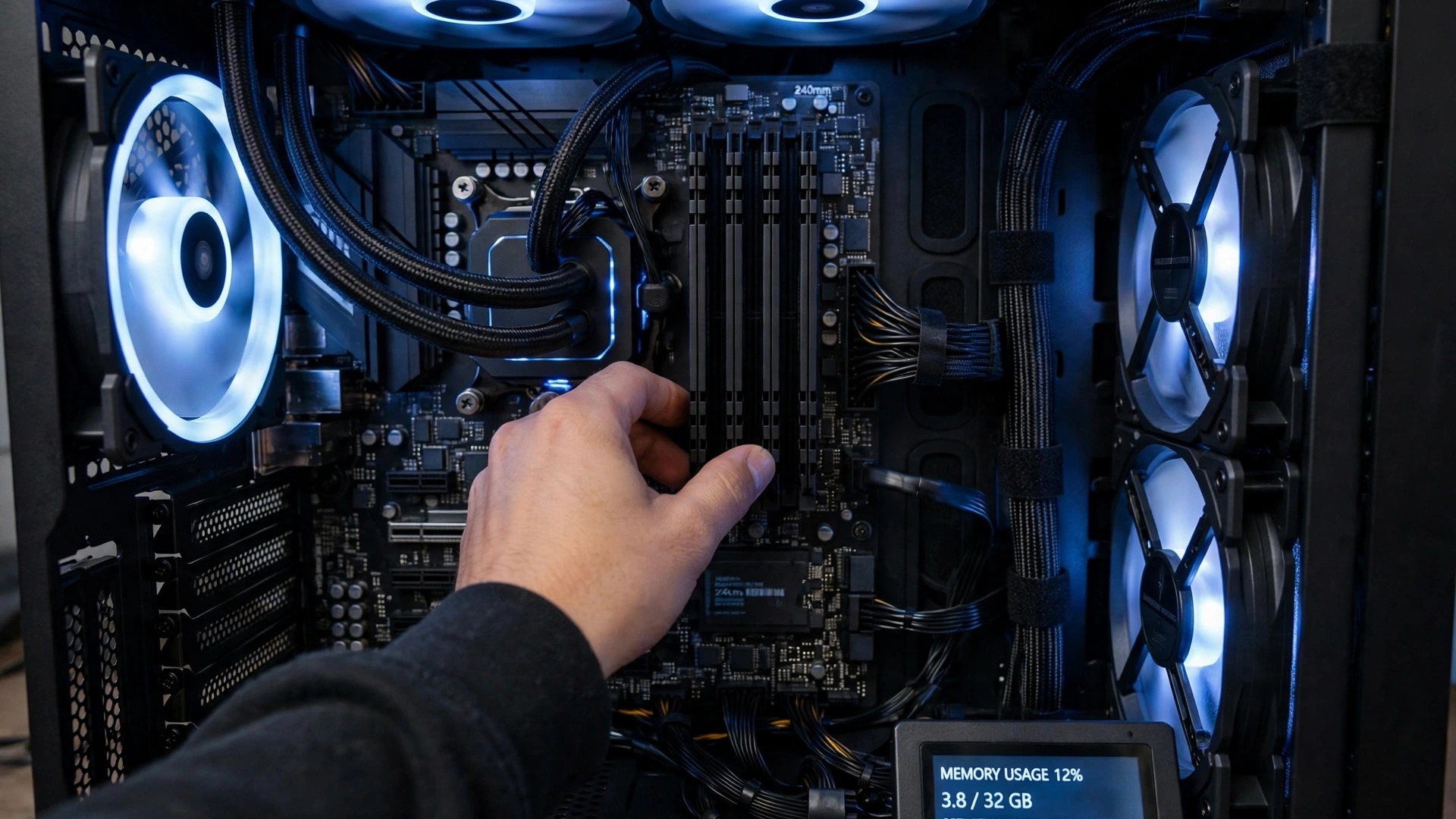
Performance, thenMemory. If it shows 2133 MHz on a kit rated for 3200 MHz, XMP (or EXPO on AMD boards) is off in the BIOS and your RAM is running far slower than you paid for. Enabling it is a five-minute BIOS change. - Check all sticks are detected: the same screen shows how many slots are used. If you installed 16 GB but Windows only sees 8 GB, a stick is loose, in the wrong slot, or faulty — reseat it.
When to Upgrade Your RAM
Some fixes only go so far. If you have 8 GB of RAM, it is no longer enough for modern gaming: Windows 11 alone uses 3–4 GB and a current game wants 8–12 GB. The stuttering, late-loading textures and crashes will keep returning no matter how many background apps you close.
- 8 GB: upgrade to 16 GB. It is the single best value upgrade in PC gaming right now.
- 16 GB: enough for almost every game today. Go to 32 GB only if you stream, keep a browser full of tabs open while playing, or play heavily modded games.
- 32 GB: more than any current game needs. If you still have memory problems at 32 GB, the cause is a leak or a misbehaving program, not a shortage.
Buy RAM in a matched kit — two identical sticks rather than one random stick added to an old one — and check your motherboard's manual for the correct slots, usually slots 2 and 4. Before buying, our Can I Run It checker can confirm what a game actually asks for.
The Quick Checklist
If a game is eating your RAM, work through this list in order: check Task Manager, close the browser and apps you do not need, drop texture quality one notch, restart the game if usage keeps climbing, and make sure the page file is on automatic. If it still stutters or crashes on 8 GB, the real fix is a 16 GB kit — no setting will conjure memory that is not there.