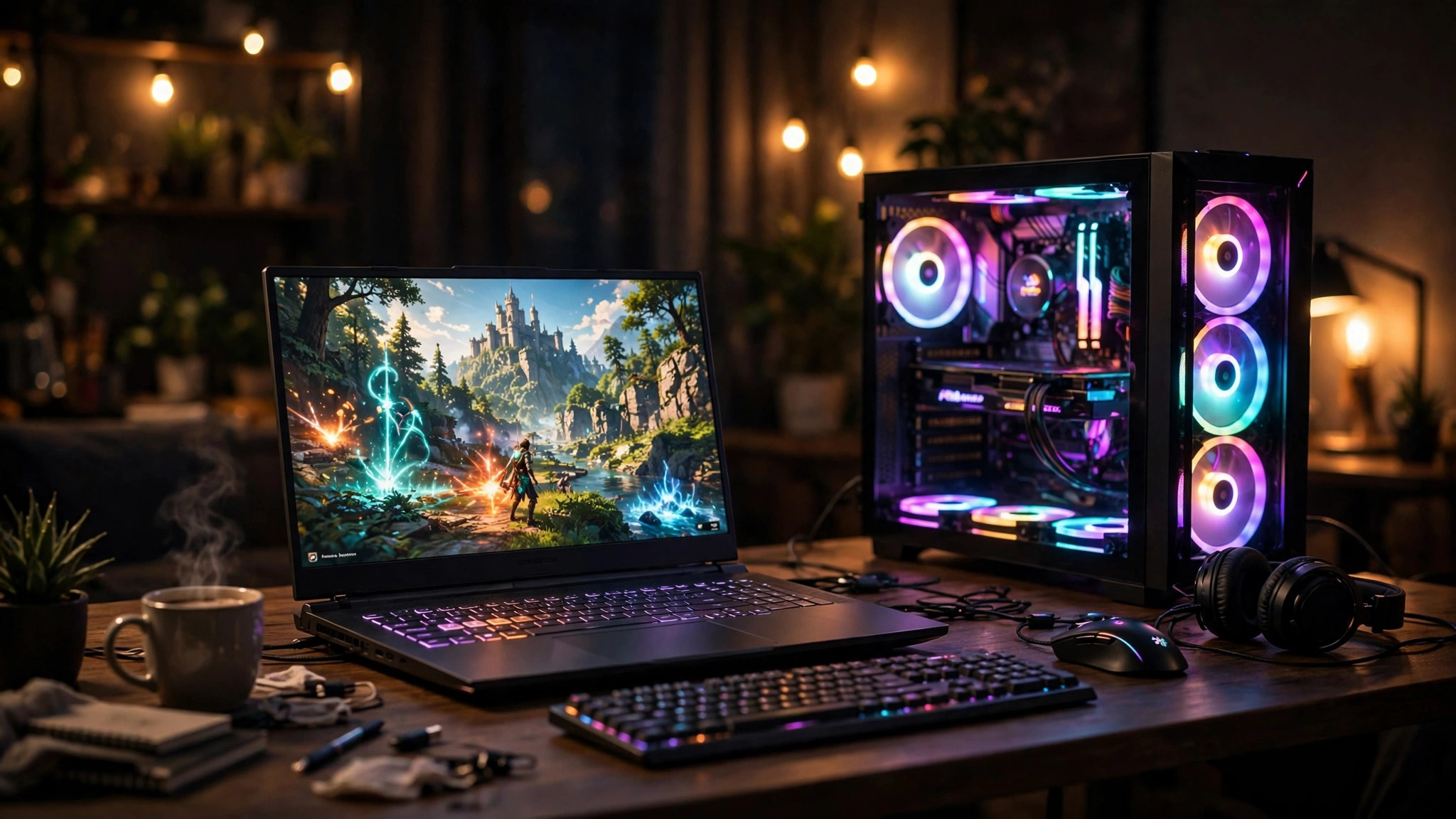
Your gaming PC need not be the machine you sit at. Steam Remote Play streams a game running on your main PC to another device — a laptop, phone, tablet or Steam Deck — so you can keep playing from another room or another city. The host runs the game; the client shows the picture and returns your inputs.
What Is Steam Remote Play?
Steam Remote Play is Valve's built-in game streaming feature. A game launches on your host PC and its video and audio stream live to the device in your hands. The client needs almost no power — it never runs the game.
There are two modes. Remote Play streams your own library to your own devices. Remote Play Together lets a friend join a local multiplayer game over the internet — only the host needs to own the game. Both are free, built into Steam, and work on Windows, macOS, Linux, iOS, Android and Steam Deck. Unlike cloud gaming, there is no remote server or monthly fee: your PC is the server, so quality depends on your network and upload speed.
What You Need Before You Start
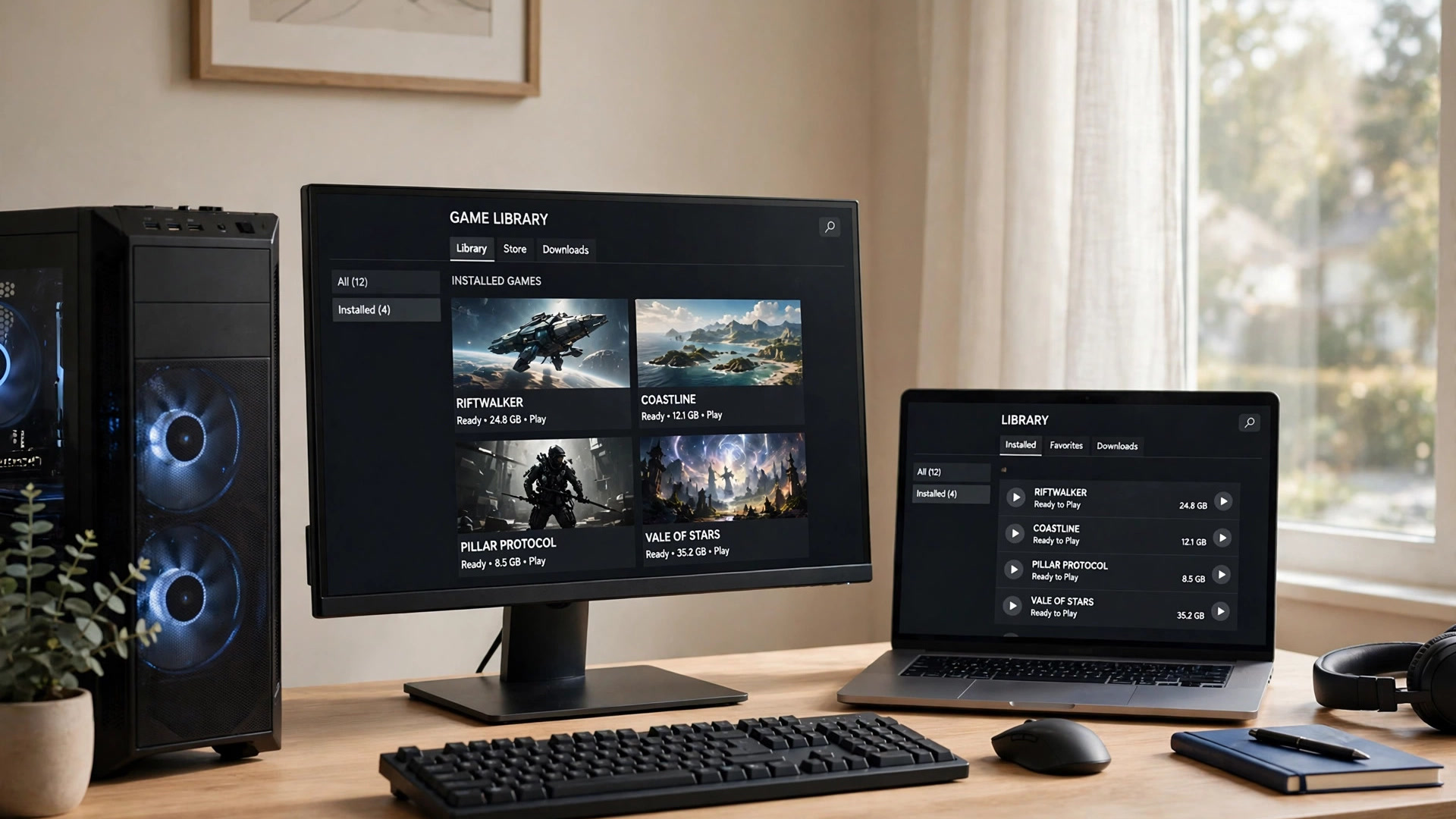
- A host PC with Steam installed and logged in. It must stay awake while you play — disable sleep in Windows power settings.
- A client device with Steam or the Steam Link app. Another PC or Mac needs the Steam client; phones and tablets need the free Steam Link app; Steam Deck has it built in.
- A solid network. Wire the host PC into Ethernet — the single biggest quality upgrade. Wi-Fi 5 or 6 on the client is fine with a strong signal.
- A controller (recommended). A controller suits phone or tablet play far better. See our guides on connecting an Xbox controller to PC and using a PS5 DualSense on PC.
How to Set Up Remote Play on Your Main PC
- On your host PC, open Steam and go to
Steam > Settings > Remote Play. - Tick Enable Remote Play.
- Under Advanced Host Options, tick Enable hardware encoding — most modern NVIDIA and AMD cards support it. It cuts latency and frees up your CPU.
- Set the PC to never sleep while plugged in, and leave Steam running.
How to Connect From Another Device
From another PC or Mac: install Steam, sign in, and open your library. Games on the host show a Stream button instead of Play — click it and the game launches on the host while you play on the client.
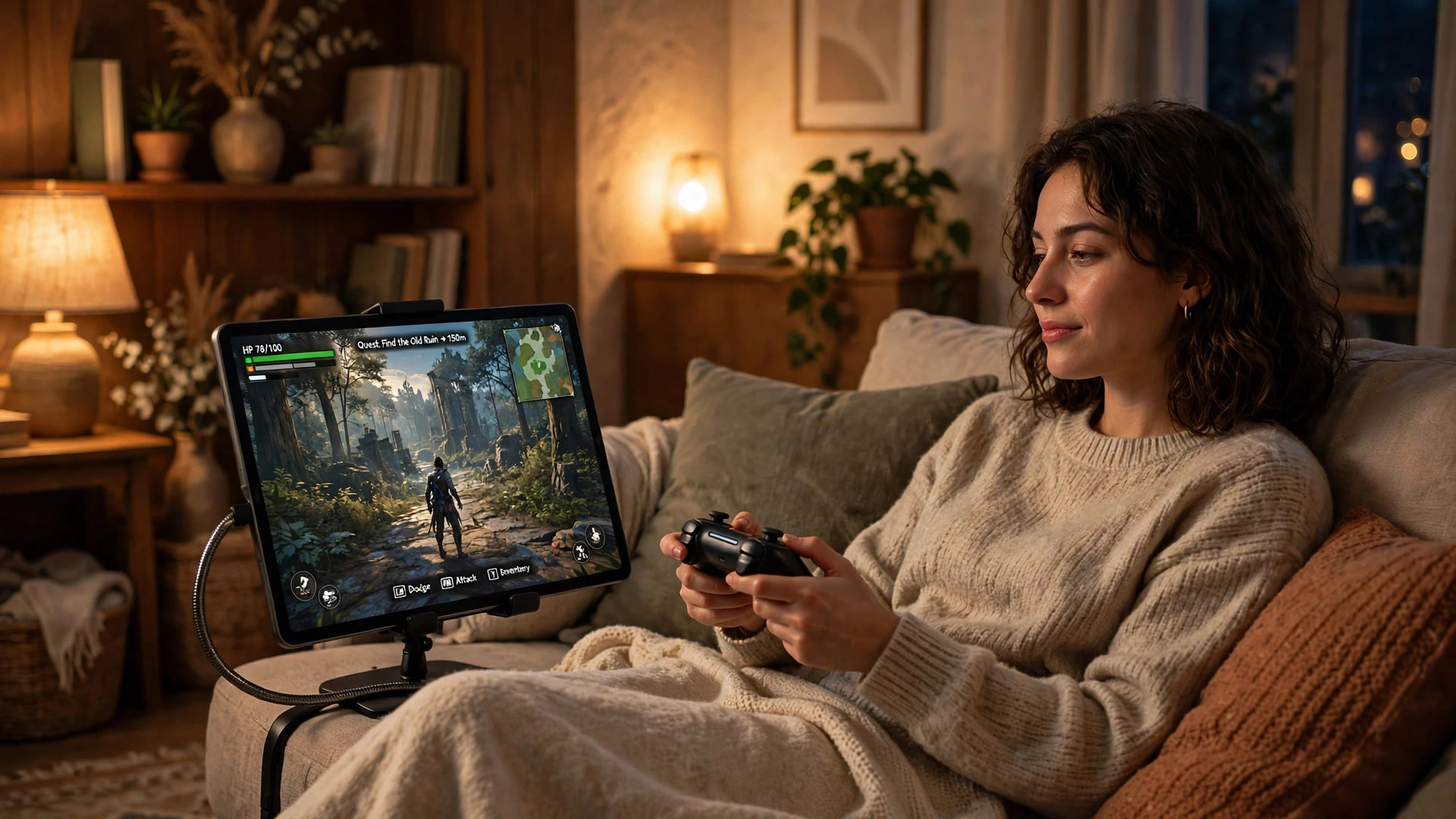
From a phone or tablet: install the Steam Link app and sign in. Tap your host PC, then Start Playing. Pair a Bluetooth controller first; touch controls suit simple games only.
From a Steam Deck: the game appears in your library with a stream option when your host PC is online. From outside your home the process is identical, as long as the host PC is on and Steam is running. Steam routes the connection itself, so you normally need no port forwarding.
How to Optimise Stream Quality and Latency
Change these under Remote Play > Advanced Client Options on the client (or the Steam Link app's streaming settings on mobile):
| Setting | What to choose | Why |
|---|---|---|
| Resolution | Match your client screen | Above your screen's resolution wastes bandwidth |
| Bandwidth limit | Unlimited at home; 15–30 Mbps away from home | Keeps the stream stable instead of stuttering |
| Framerate limit | 60 FPS normally; 30 FPS for slow or turn-based games | 30 FPS halves bandwidth; fine for strategy games |
| Hardware decoding | On, if your client supports it | GPU decoding cuts input lag |
| Network | 5 GHz Wi-Fi over 2.4 GHz; Ethernet over Wi-Fi | Far lower latency and jitter |
Smooth 1080p/60 FPS needs about 15–30 Mbps; 720p/30 FPS needs roughly 10 Mbps. At home, input lag is typically 20–40 ms; over the internet, 50–100 ms or more — fine for story games and strategy, poor for ranked play. If a game feels sluggish, lower the resolution first. Close bandwidth-hungry apps on both ends — our guide to speeding up Steam downloads explains how to schedule them.
Steam Remote Play Together
Remote Play Together turns a local co-op game into an online one. Games built for split-screen or shared-screen multiplayer — see our guide to split-screen and local co-op games on PC — can be played with friends over the internet, even if they do not own the game.
- Launch a local multiplayer game on the host PC.
- Open the Steam overlay with
Shift + Tab. - Right-click a friend and choose Remote Play Together, or send an invite link from the overlay panel.
- Your friend accepts and joins as player two. Their inputs reach your PC as if their controller were plugged in locally.
Only the host needs to own the game — guests need only a free Steam account and a decent connection. The host can mute a guest, hand over controls, or remove someone from the overlay. It suits co-op campaigns and party games best — in a fast competitive game, the guest's extra latency puts them at a disadvantage.
Troubleshooting Common Problems
Black screen on the client. Switch the game to borderless windowed mode — Remote Play captures it far more reliably than exclusive fullscreen. If that fails, disable hardware encoding on the host and restart Steam.
Lag, stuttering or rubber-banding. Wire the host PC into Ethernet and move the client onto 5 GHz Wi-Fi. Then lower the stream to 720p/30 FPS — if it clears up, your connection was the bottleneck. If every game stutters, our guide to fixing lag and stutter in PC games covers the host-side settings.
Remote Play will not connect at all. Confirm the host PC is awake, Steam is running on it, and both devices use the same account. Restart Steam on both ends — this alone fixes most failed connections. A VPN on either device can also block the connection; disconnect it and try again.
No audio on the client. Check the host is not sending audio to a device that is off — a powered-off headset or a monitor with no speakers is a classic cause. Set your speakers or headset as default, then restart the stream.
Controller not working on the client. Pair the controller to the client, not the host — inputs are captured where you sit. On a phone or tablet, pair through Bluetooth before opening Steam Link.
Game shows a login or launcher window. Some games open a separate launcher that does not always stream. Launch the game once directly on the host PC first — Steam usually skips the prompt next time.
Quick Answers
Does Remote Play use a lot of data? Yes — roughly 5–10 GB per hour at 1080p/60 FPS, less at lower settings. Avoid it on metered mobile data.
Can someone else use the host PC while I stream? No — the host PC is fully occupied by the streamed game.
Does it work with non-Steam games? Yes, if you add the game to Steam first (Games > Add a Non-Steam Game to My Library).
Is Remote Play Together free for guests? Yes. Guests need only a free Steam account.
