You click Play, the game starts, and then… nothing. A black screen. Maybe you can hear the menu music, maybe the mouse cursor is still there, or maybe only Alt-Tab saves you. It is one of the most frustrating problems in PC gaming, because the game is clearly running — it just refuses to show you anything.
A black screen on launch is almost never a broken game. Usually it is a display setting the game got wrong, a driver problem, a clashing overlay, or a corrupted file. Work through the fixes in order — most people find the answer in the first three sections.
First, work out what kind of black screen you have
Match your symptom to the table before you start changing settings.
| What you see | Most likely cause | Start with |
|---|---|---|
| Black screen with game audio | Display or resolution problem | Sections 1 and 2 |
| Black screen, then the game appears | Slow shader loading | Wait it out |
| Black screen, then it closes | Driver crash or corrupted files | Sections 4 and 6 |
| Black screen only in fullscreen | Fullscreen or refresh-rate mismatch | Section 2 |
| Black screen in every game | Driver, cable or monitor problem | Sections 4 and 7 |
| Black screen in one game only | That game's settings or files | Sections 2, 6 and 8 |
1. Wait, then try the keyboard shortcuts
Some games take a long time to show their first frame. Modern titles compile shaders on first launch, and on a mechanical hard drive that can take a minute or more of black screen. Wait a full 30 seconds first — if you can hear audio, the game is loading.
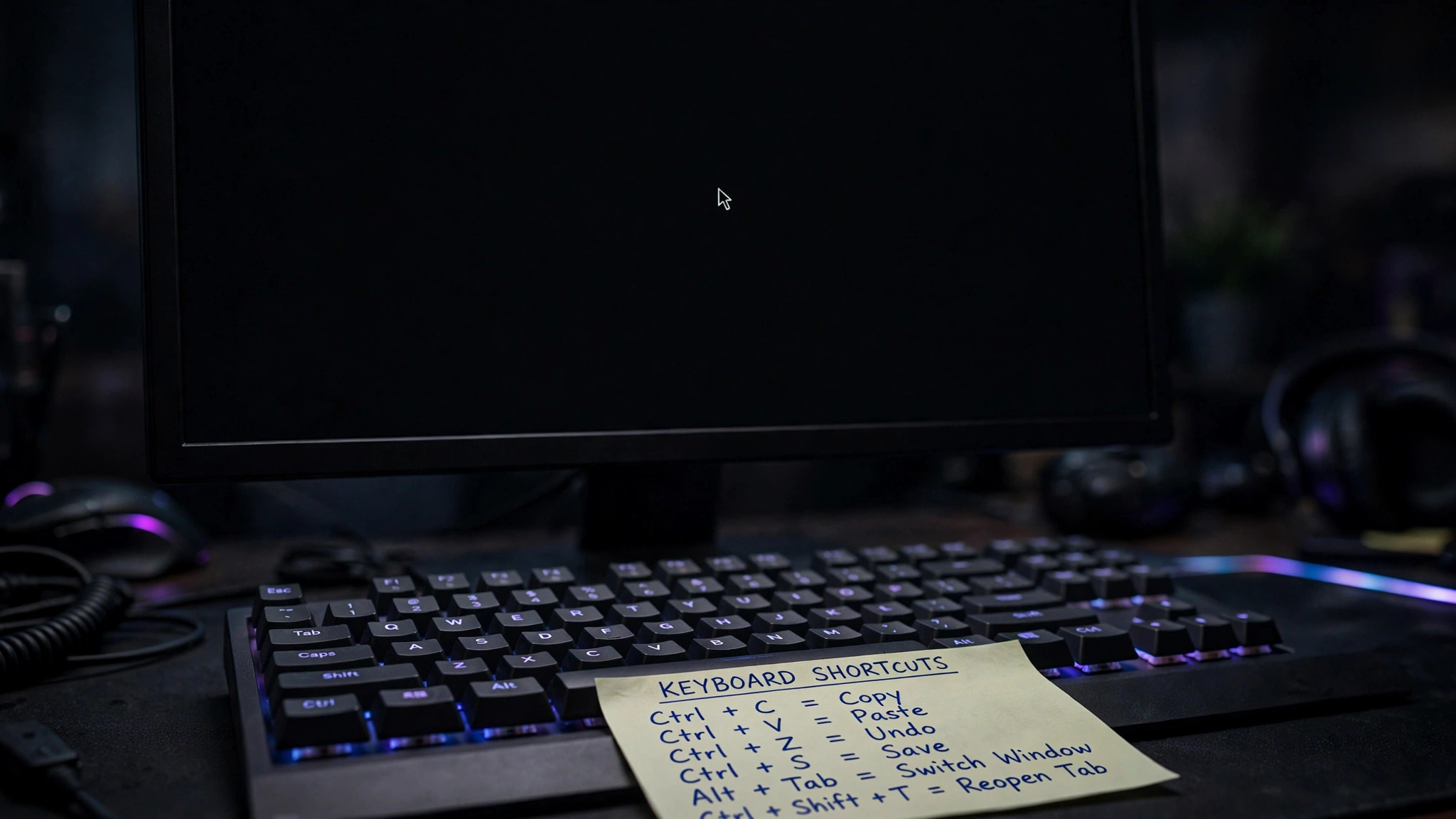
If nothing appears, try these in order. Alt + Enter switches between fullscreen and windowed mode, which alone fixes many black screens. Alt + Tab switches to another window and back. Windows key + Ctrl + Shift + B restarts your graphics driver instantly — your screen will flash black for a second, then come back. Also try Esc, Space or Enter to skip a failing intro video.
2. Force the game into windowed mode
When a game launches into a display mode your monitor cannot show — a resolution or refresh rate that is out of range — you get a black screen with a healthy game running underneath. Force the game to start in a window, then fix its settings from there.
On Steam, right-click the game, choose Properties, and type -windowed in the Launch Options box. Once the game is visible, set your monitor's native resolution and a refresh rate it supports, then switch back to fullscreen and remove the launch option.
If -windowed does nothing, try -w 1920 -h 1080 to force 1080p, or delete the game's config file in Documents\My Games\[game name] or %AppData% to reset its settings.
3. Turn off overlays
Overlays draw on top of the game's rendering. When two compete — or one clashes with a game — the game may never draw its first frame.
- Steam overlay: right-click the game, choose Properties, and uncheck "Enable the Steam Overlay while in-game".
- Discord overlay: open Discord Settings, go to Game Overlay, and switch it off — see our guide to fixing a Discord overlay that is not working.
- NVIDIA overlay: open the NVIDIA App, go to Settings, and turn off the in-game overlay.
- Xbox Game Bar: open Windows Settings, go to Gaming, then Game Bar, and switch it off.
- MSI Afterburner / RivaTuner: close them completely, or turn off their on-screen display.
Turn them off one at a time to find the culprit. If the game only goes black while recording, switch OBS to Game Capture.
4. Update or clean-install your graphics drivers
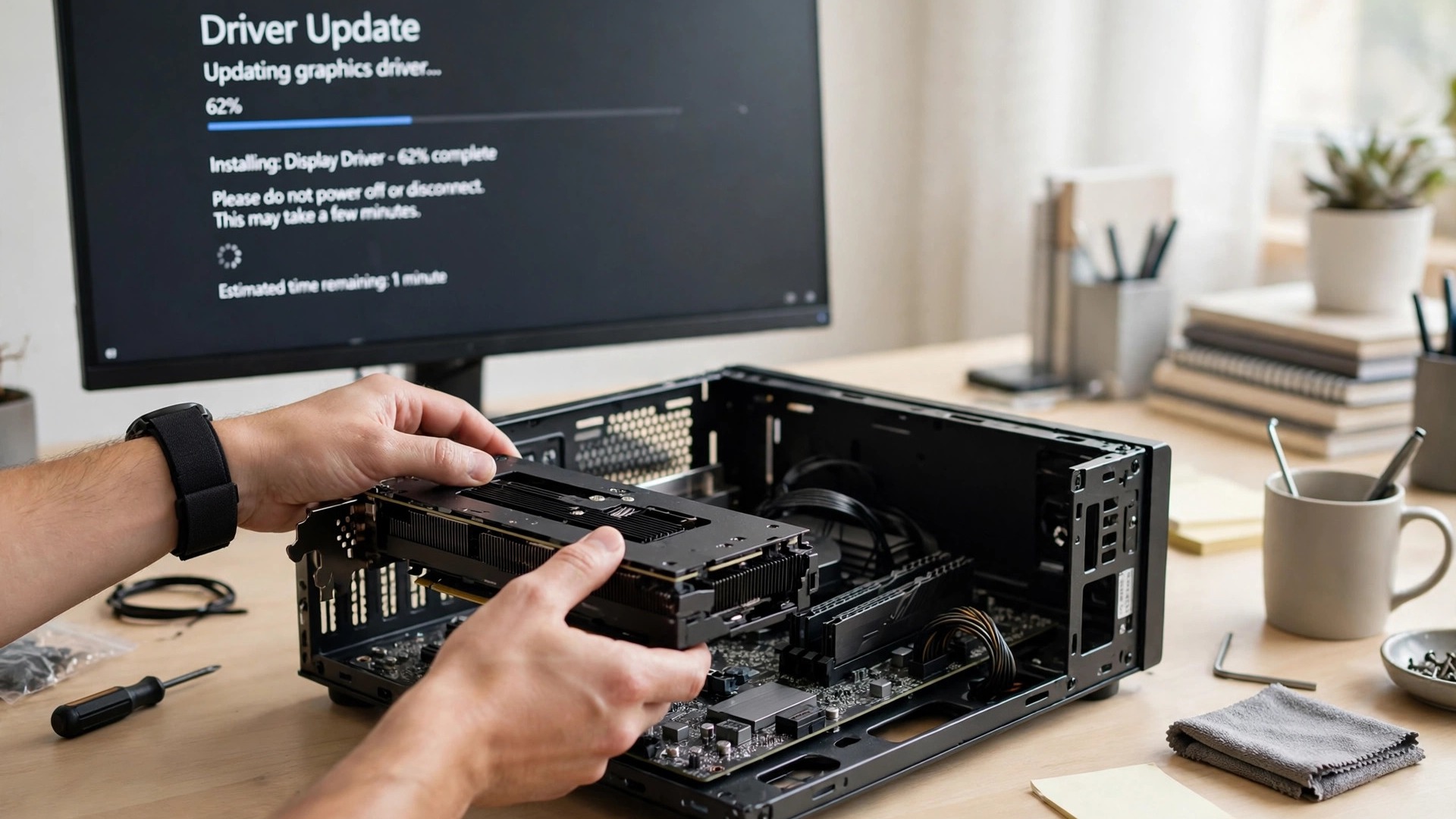
A black screen in every game — or in a game that worked before a driver update — points at the graphics driver. Open the NVIDIA App, AMD Software, or Intel Arc Control, install the latest driver, and restart your PC.
If the problem started right after a driver update, or an update did not fix it, do a clean install. Download Display Driver Uninstaller (DDU), boot Windows into Safe Mode, run DDU to remove the old driver completely, then install the latest driver fresh. A clean install removes corrupted files a normal update keeps.
5. Make sure the game is using your dedicated GPU
On a gaming laptop, a black screen can mean the game launched on the wrong graphics chip. Laptops have a power-saving integrated GPU and a powerful dedicated GPU, and Windows sometimes assigns a game to the integrated chip, which may not support the display mode the game wants. See our guide to forcing a game to use your dedicated GPU.
Quick check: open Task Manager (Ctrl + Shift + Esc, Performance tab) while the game runs. If it sits on GPU 0 while your dedicated card idles at 0%, pin it to High performance in Windows Settings under System, Display, then Graphics.
6. Verify the game files
If only one game goes black, its files may be damaged. Verifying files checks every file against the store's copy and replaces anything that does not match.
On Steam, right-click the game, choose Properties, go to Installed Files, and click "Verify integrity of game files". On Epic, click the three dots on the game tile, choose Manage, then Verify. On GOG Galaxy, open the game settings and choose "Verify / Repair". Let the check finish before launching the game.
7. Check your monitor, cable and HDR settings
Sometimes the game is fine and the display chain is the problem — a loose cable, a wrong input, or mismatched HDR can all look like a game problem.
- Try another cable or port. A cable that works at 1080p can fail at 1440p or 144 Hz.
- Turn off HDR in the game and in Windows. Some games enable HDR even when Windows has it off, and the mismatch shows as black.
- Check your refresh rate. Open Settings, go to System, Display, then Advanced display, and confirm it matches what your monitor supports.
- Test a second display. If the game appears on a TV or spare monitor, your monitor or cable is the issue — see our guide to playing PC games on your TV.
8. When the black screen only happens in one game
Check the game's community hub or support page first — if a recent patch broke the game for many players, the fix is usually a hotfix from the developer, and no amount of reinstalling on your side will help.
Otherwise, run the game as administrator (right-click its .exe, choose "Run as administrator"), temporarily disable your antivirus, and if the game worked before you installed mods, remove them — one outdated graphics mod can stop a game rendering entirely.
If nothing works
When every fix above has failed, reinstall the game completely — uninstall it, delete any leftover files in its install folder, then install it fresh. If the black screen happens in every game after a clean driver install, the graphics card itself may be failing.
Before you give up, check Event Viewer (Windows key + R, type eventvwr) for errors logged when the game went black.
