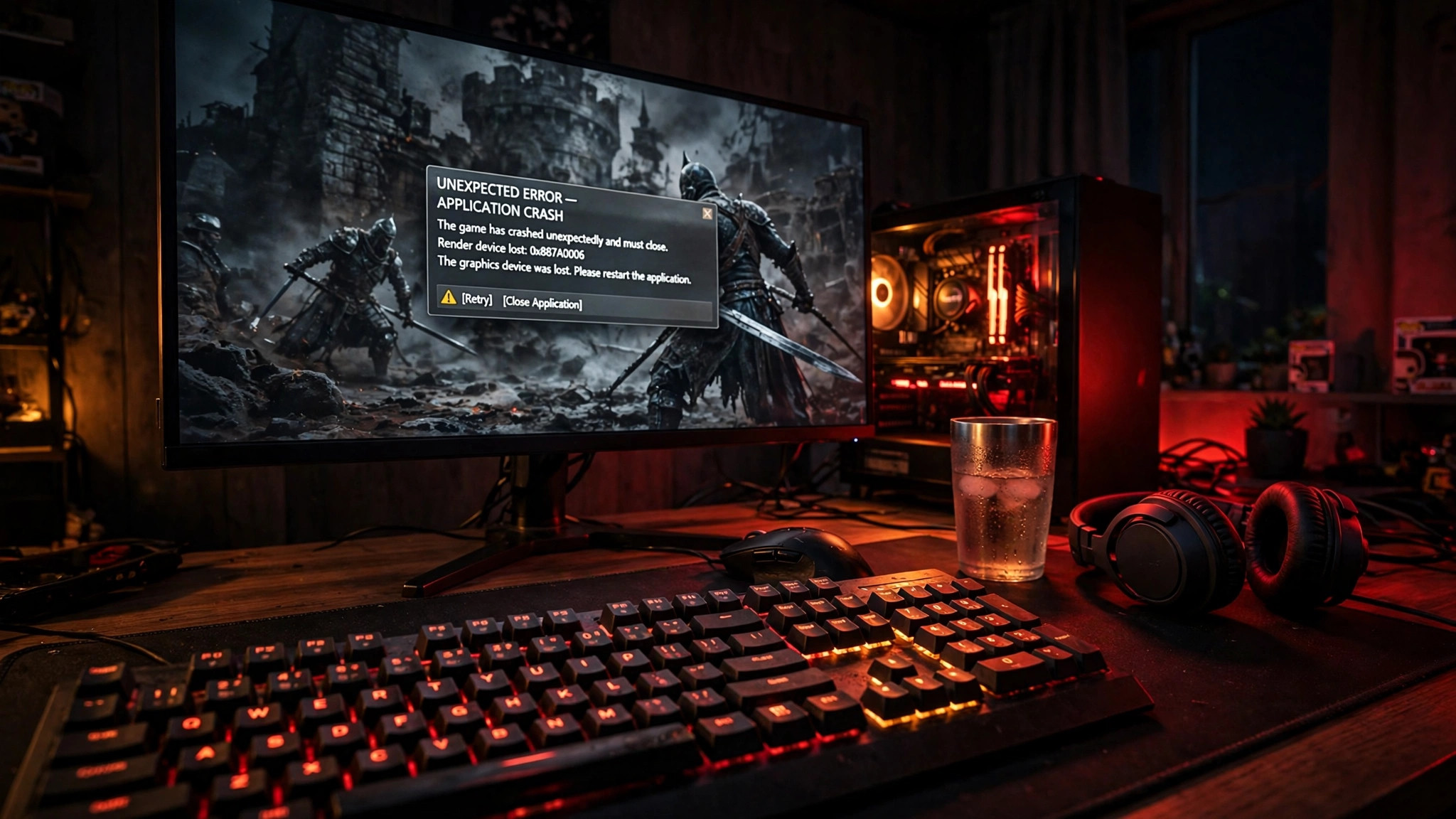
A crash to desktop — the game just vanishing, with or without an error message — is one of the most frustrating problems in PC gaming, because it feels random. It almost never is. Crashes leave patterns: they happen at the same moment, after the same amount of time, or only in one game. Find the pattern, and you usually find the cause.
Work through the fixes below in order. They are arranged from the quickest, most common causes to the deeper hardware checks, so stop as soon as your crashes stop.
Start Here: Find the Pattern
Before changing anything, spend two minutes observing. When exactly does the crash happen?
- On launch, before any graphics appear — usually a missing dependency, a permissions problem, or a corrupt install.
- On a loading screen — often a corrupt game file or a storage problem.
- After 10–30 minutes of play — the classic signature of overheating.
- At the same spot or event — a game bug or a corrupt save. Our guide on where PC games keep their save files can help you test with a fresh save.
- Only in one game — probably the game or its interaction with your system, not your hardware.
- In every game — drivers, temperature, RAM, or power supply. Systemic, not game-specific.
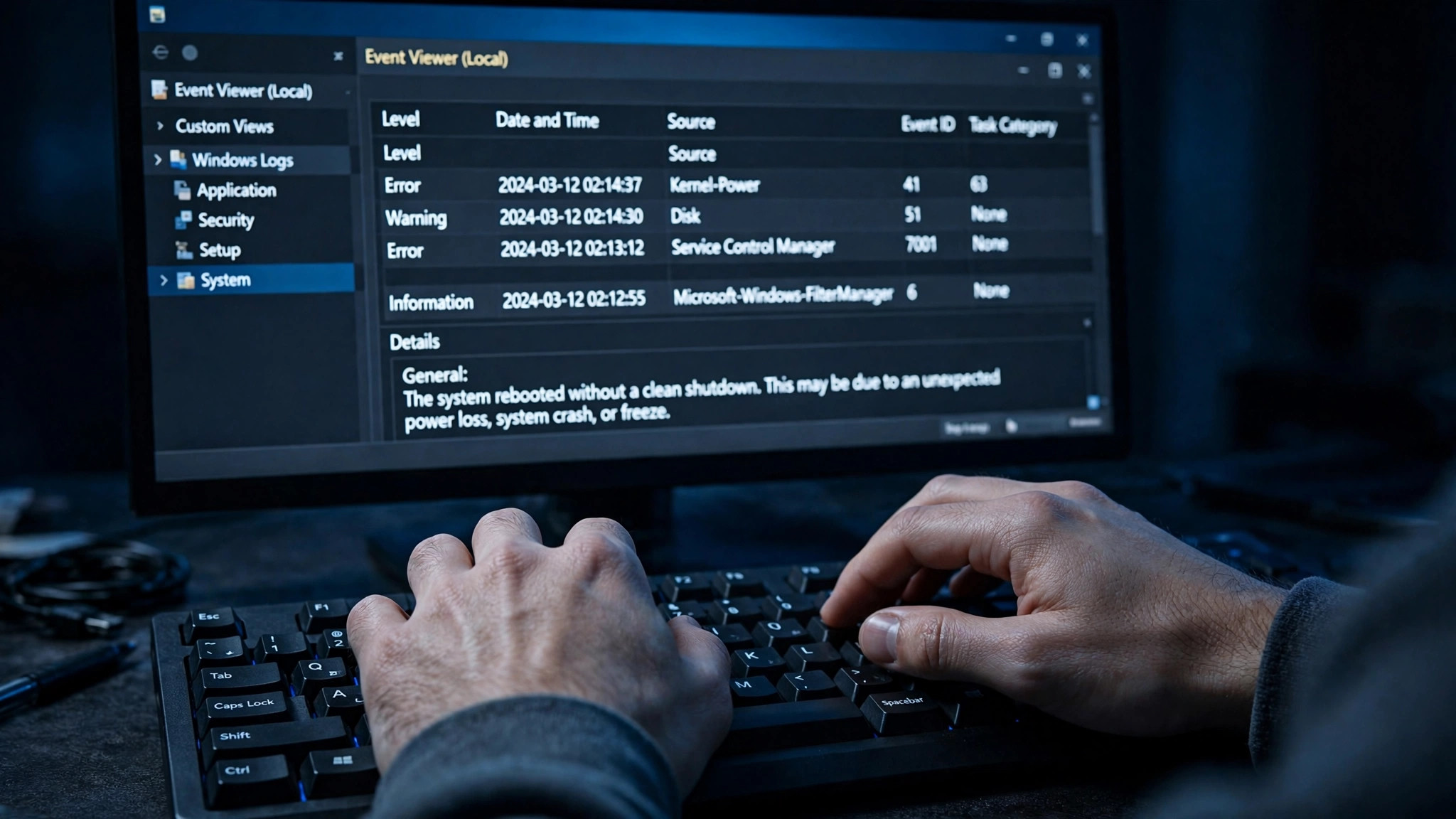
Then check Event Viewer: Win + R, type eventvwr, open Windows Logs → Application, and look for red errors at your crash time. The "Faulting module name" often names the exact DLL or driver — search it plus the game name to see what other players did.
Fix 1: Update (or Reinstall) Your GPU Drivers
Outdated, corrupt, or buggy graphics drivers are the single most common cause of game crashes. Start here.
- Update to the latest driver via GeForce Experience / the NVIDIA App, AMD Software: Adrenalin Edition, or Intel Arc Software.
- If the crashes started right after a driver update, the new driver is the suspect. Roll back to the previous version from Device Manager, or reinstall the older driver manually.
- If updating did not help, do a clean reinstall. The standard update process can leave broken remnants behind; wiping them properly fixes a surprising number of "nothing works" crashes. Our DDU clean-install guide walks through the whole process step by step.
While you are at it, install Windows updates too — games increasingly depend on current DirectX and Visual C++ redistributables, which arrive through Windows Update.
Fix 2: Verify Your Game Files
One corrupt file can crash a game every time it loads a particular asset. Every launcher can check and repair this: Steam's "Verify integrity of game files", Epic's "Verify", GOG Galaxy's "Verify / Repair". Full steps for all three are in our game file verification guide.
If verification finds nothing, reinstall the game on a different drive if you have one — that rules out failing storage at the same time.
Fix 3: Check for Overheating
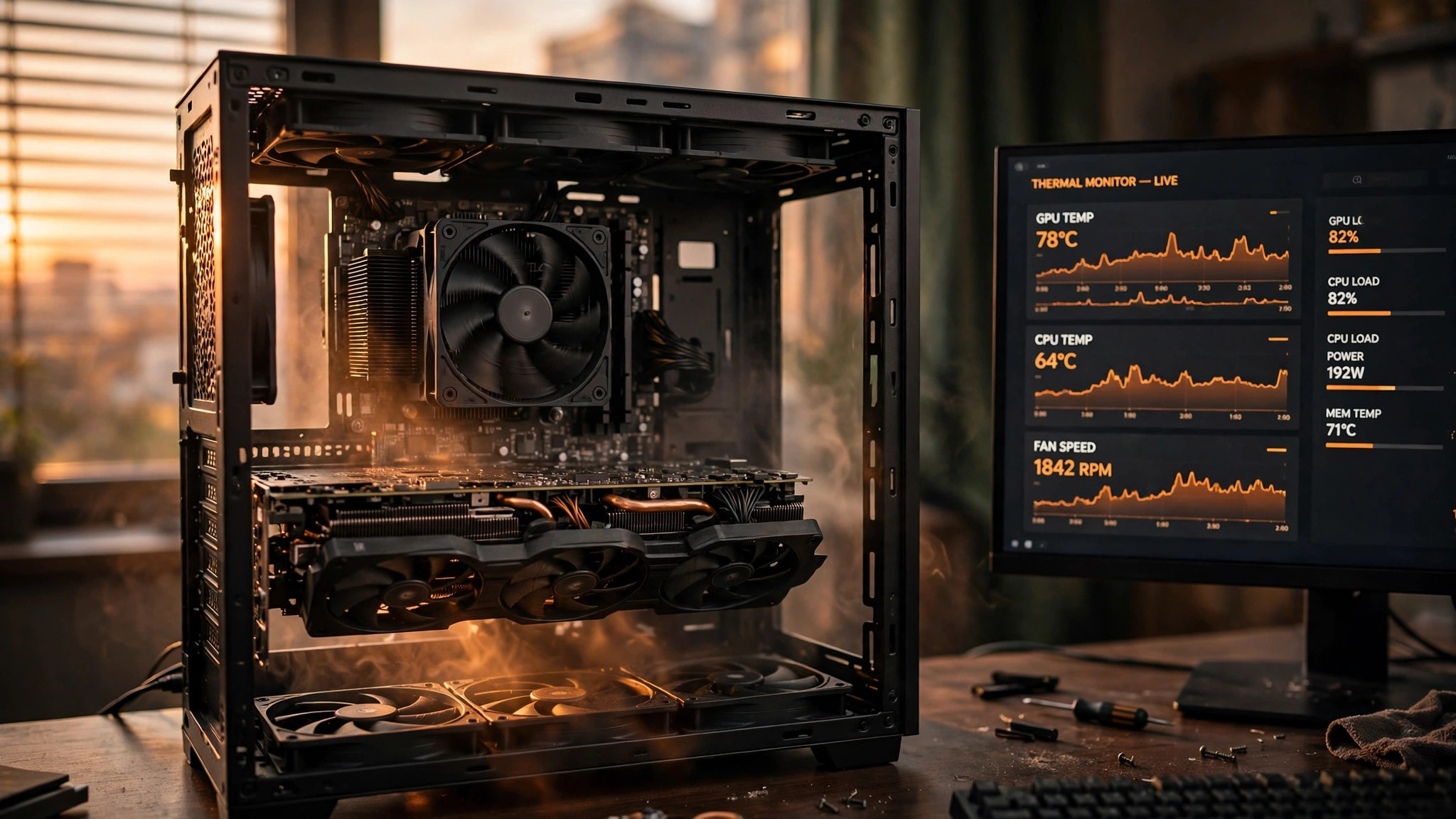
Crashes after 10–30 minutes of play, especially in demanding scenes, point at overheating: a GPU or CPU that keeps climbing past its limits will throttle, then give up — and the game dies with it.
- Monitor your temperatures while playing. Anything consistently above 85–90°C on the GPU or CPU under load is worth investigating; our temperature monitoring guide shows the free tools to use.
- Clean the dust out of your case, fans, and GPU heatsink — compressed air, PC powered off and unplugged.
- Check that all fans are actually spinning and that case airflow is not blocked by cables.
- On old cards and laptops, dried-out thermal paste is a real cause — repaste only if you are comfortable opening hardware.
Note that crashes can also come from an unstable undervolt or overclock rather than heat itself — which brings us to the next fix.
Fix 4: Disable Overlays and Background Software
Overlays inject themselves into the game's rendering pipeline, and they are a notorious crash source — especially after either the game or the overlay updates. Disable them one at a time, testing the game after each:
- Discord overlay (Discord settings → Game Overlay)
- Steam overlay (right-click the game → Properties → uncheck "Enable the Steam Overlay")
- NVIDIA GeForce Experience / ShadowPlay overlay
- MSI Afterburner and RivaTuner Statistics Server
- RGB control software and motherboard utilities
- Antivirus real-time scanning — add your game folder as an exclusion rather than disabling protection entirely
If you cannot find the culprit, do a clean boot (msconfig, disable non-Microsoft services and startup items, reboot) and test. If crashes stop, re-enable in groups until it returns.
Fix 5: Undo Your Overclock
Any overclock trades stability for speed, and games are the heaviest stability test your PC will run. Revert everything to stock and test, including:
- GPU core/memory overclocks in Afterburner or similar tools
- CPU overclocks in BIOS
- RAM running with XMP or EXPO enabled — yes, that counts as an overclock. Try disabling it temporarily to test; unstable memory causes exactly these symptoms.
If the crashes stop at stock settings, your overclock was never fully stable. Either keep stock speeds or re-tune with proper stress testing.
Fix 6: Test Your RAM and Storage
Failing RAM causes random, patternless crashes — the hardest kind to diagnose. Test with Windows Memory Diagnostic: Win + R, type mdsched.exe, restart and let it run. Any errors mean a RAM stick needs replacing.
For storage and system files:
- Check your drive's health with your SSD manufacturer's toolbox or a free S.M.A.R.T. reader — reallocated sectors and CRC errors are red flags.
- Run
sfc /scannowin an elevated Command Prompt to repair corrupt Windows system files. - Follow it with
DISM /Online /Cleanup-Image /RestoreHealthif SFC reports problems it cannot fix. - Keep the page file system-managed (Advanced system settings → Performance → Advanced → Virtual memory) — PCs with 8GB RAM and a tiny page file crash far more often.
Fix 7: Run as Administrator and Try Compatibility Mode
Some games crash because they cannot write to their own folders under modern Windows permissions. Right-click the game's executable and choose "Run as administrator". For pre-2015 titles, also try Compatibility Mode (Properties → Compatibility → Windows 7/8). Our old-games-on-Windows-11 guide covers the rest.
When It Is the Game's Fault
Sometimes the game is simply broken — a buggy launch build, a bad patch, or a crash the developer has acknowledged. Signs: it is widely reported on the game's forums, it started right after a game update, or it hits everyone at the same story moment.
In that case, check official forums and patch notes for a known-issues list, look for a hotfix or Steam beta branch, and back up your saves before reinstalling. Some crashes genuinely are not yours to fix.
The Order, One More Time
- Find the pattern and check Event Viewer
- Update or clean-reinstall GPU drivers
- Verify the game files
- Check temperatures
- Disable overlays and background software
- Revert any overclock, including XMP/EXPO
- Test RAM, storage, and system files
- Try administrator mode and compatibility settings
- Check whether the developer has acknowledged the bug
Work the list top to bottom and change one thing at a time, testing the game after each step. That discipline is what separates a twenty-minute fix from a weekend of reinstalling Windows for no reason.
