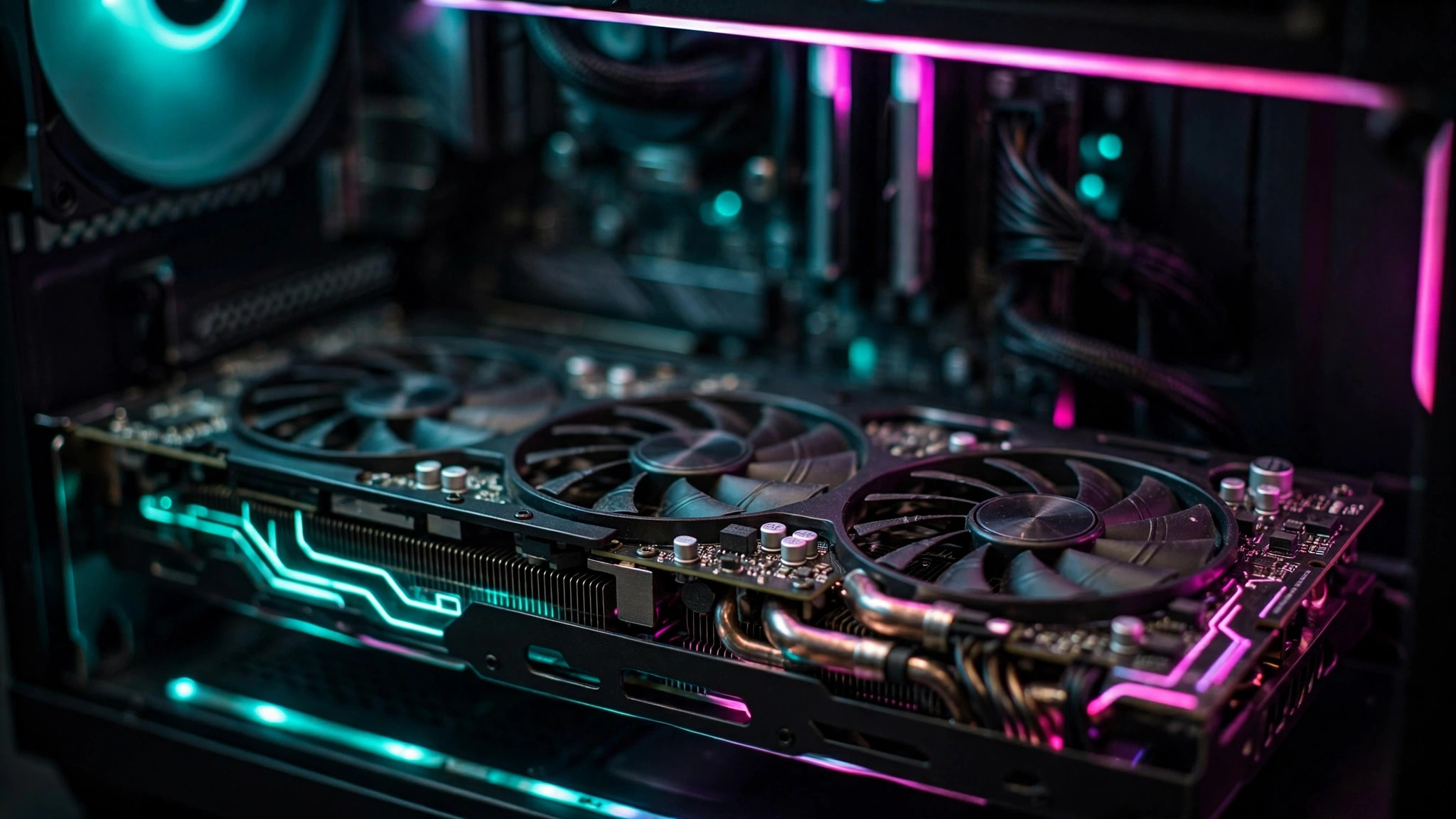
Hardware-accelerated GPU scheduling — usually shortened to HAGS — is a small Windows setting that changes who manages your graphics card's video memory. Instead of the CPU scheduling every chunk of VRAM, the GPU takes over that job itself. The reasoning is simple: the component doing the rendering is best placed to decide what lives in its own memory, which can trim latency and add a few frames per second.
It is free, it takes about a minute to switch on, and you can reverse it just as quickly if you do not like the results. Here is what the setting does, who it actually helps, and exactly where the toggle lives on Windows 10 and Windows 11.
What hardware-accelerated GPU scheduling actually does
Normally, your CPU handles GPU scheduling: it decides which rendering tasks go to the graphics card and when, and it manages the video memory those tasks use. With HAGS enabled, Windows hands the memory-management part of that job to a dedicated scheduling processor on the GPU itself.
Offloading this work matters most when your processor is the bottleneck. If your CPU is struggling to feed frames to a powerful graphics card — a common situation with an older processor paired with a modern GPU — reducing scheduling overhead can smooth out frame times and shave a little off input latency. On a high-end CPU that is barely breaking a sweat, you are unlikely to notice any difference at all.
Microsoft introduced the feature in the Windows 10 May 2020 Update (version 2004), and it is fully supported on Windows 11. Both NVIDIA and AMD support it on current drivers.
Who benefits most
| Your setup | What to expect |
|---|---|
| Older or mid-range CPU paired with a strong GPU | The biggest potential gain — less scheduling overhead exactly where the CPU is the limit |
| High-end CPU and GPU, gaming at 4K | Little to no measurable difference; the GPU is the limit, not scheduling |
| Laptop with integrated and dedicated graphics | Usually safe to enable; the effect is small either way |
Should you turn it on?
For most gamers the honest answer is: it probably helps a little, and it almost certainly will not hurt. Testing over the years has typically found gains of a few per cent in CPU-limited scenarios and effectively nothing in GPU-limited ones. That said, a small number of games and applications have shown stuttering or odd behaviour with HAGS enabled — usually fixed by a driver update, occasionally only by switching the setting back off.
Our recommendation: turn it on, play your usual games for a few days, and watch for new stutter or crashes. If everything is fine, leave it on. If something misbehaves, it takes ten seconds to revert.
How to enable hardware-accelerated GPU scheduling
You need Windows 10 version 2004 or newer, or Windows 11, plus a reasonably recent graphics driver (NVIDIA driver 451.48 or newer, or AMD Adrenalin 20.5.1 or newer — any driver from the last few years qualifies). The menu path differs slightly between the two versions of Windows.
On Windows 11
- Open Settings (press Win + I).
- Go to System > Display > Graphics.
- Click Change default graphics settings.
- Turn on Hardware-accelerated GPU scheduling.
- Restart your PC. The change does not take effect until you reboot.
On Windows 10
- Open Settings and go to System > Display.
- Click Graphics settings near the bottom of the page.
- Turn on Hardware-accelerated GPU scheduling.
- Restart your PC.
How to check it is active
Windows shows no confirmation banner, so verify the setting stuck:
- Revisit the toggle after restarting — it should still show On.
- Optionally, open the Registry Editor (press Win + R, type
regedit) and navigate to the GraphicsDrivers key under HKEY_LOCAL_MACHINE, then SYSTEM, CurrentControlSet, Control. A value namedHwSchModeset to2means HAGS is on;1means it is off. Do not change anything else in there.
If the option is greyed out or missing
| Symptom | Likely cause | Fix |
|---|---|---|
| Toggle is greyed out | Graphics driver is too old | Update to the latest NVIDIA or AMD driver — a clean install with DDU is the most reliable way |
| No toggle at all | Windows is older than version 2004 | Install the latest Windows updates |
| Setting reverts after a restart | Your GPU or its driver does not support the feature | Leave it off — the hardware predates HAGS |
When to turn it back off
Disable HAGS if you notice any of the following after switching it on:
- New micro-stutter in games that previously ran smoothly
- Crashes or driver timeouts that started around the same time
- Odd behaviour in streaming or recording software
Just revisit the same toggle, switch it off, and restart. Because the change is fully reversible, there is no reason not to try it — the worst case costs you two minutes.
It also pairs well with a healthy driver install: if you have been layering new drivers over old ones for years, our guide to clean-installing NVIDIA and AMD drivers with DDU is worth doing first, and you can check your CPU and GPU temperatures while gaming to rule out heat as the cause of any stutter you are chasing.