The DualShock 4 is still one of the most comfortable controllers you can hold, and you do not need a PlayStation 4 to use it. On PC it works over USB and Bluetooth, with full Steam support and workable support almost everywhere else.
This guide covers every connection method, Steam Input, DS4Windows for non-Steam games, and the fixes for double inputs, disconnects, and a controller Windows refuses to see.
What you need
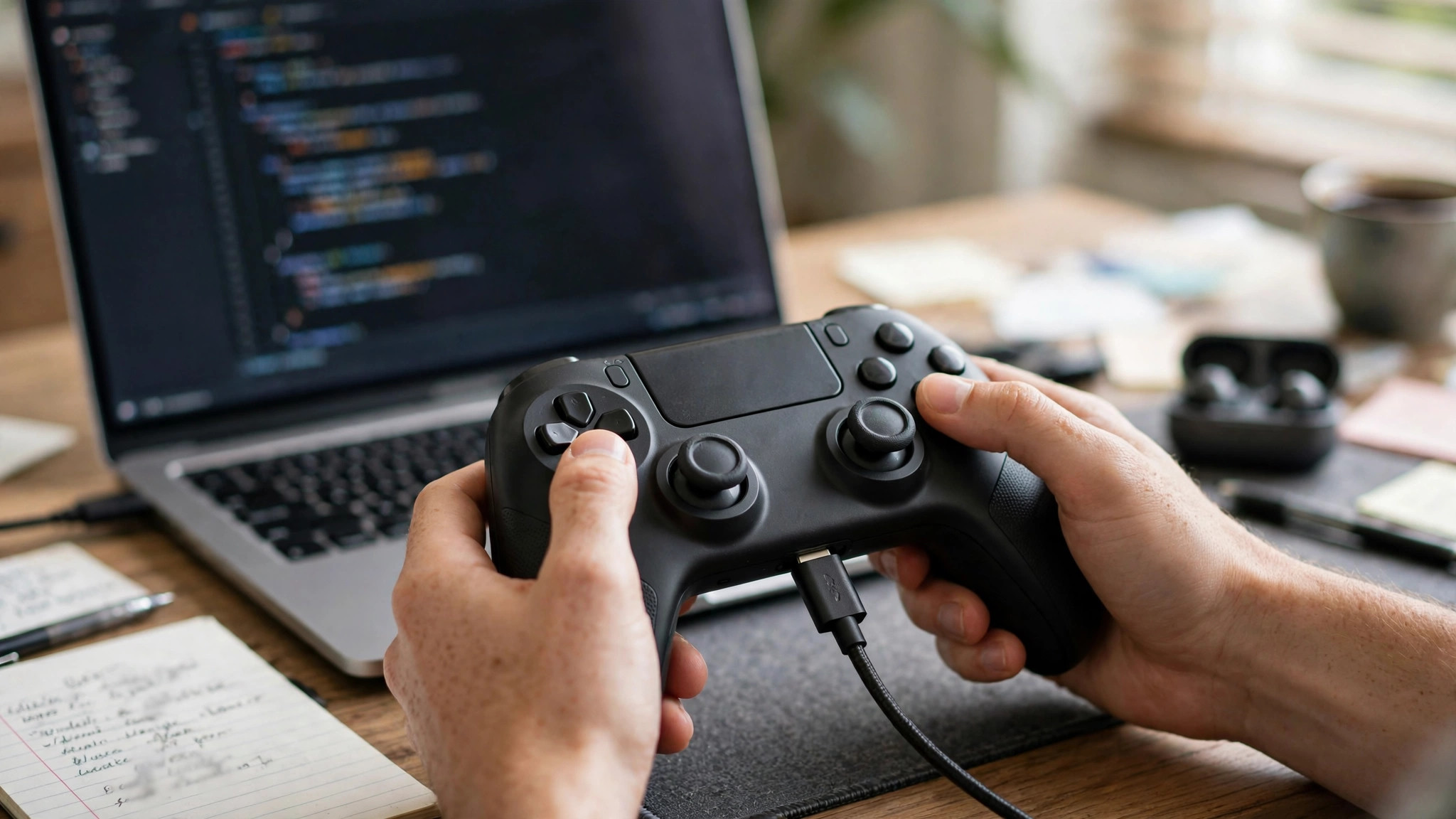
Very little: a DualShock 4, and a micro-USB cable or a PC with Bluetooth. Two details matter. The cable must be a proper data cable — cheap micro-USB cables often carry power only, so the controller charges but never appears in Windows. If it charges but is not detected, try another cable. If your PC has no Bluetooth, a small USB adapter works; Bluetooth 4.0 or newer is best.
If you own a PS5 controller instead, the setup differs — see our guide to using a PS5 DualSense controller on PC.
Connect with a USB cable
Wired is the simplest and most reliable method — try it first:
- Plug the micro-USB cable into the controller and a USB port on your PC.
- Press the
PSbutton. The light bar glows, and Windows detects the controller within seconds asWireless Controller. - Open Steam, go to
Settings > Controller, and confirm the controller appears.
That is all the setup — Windows 10 and 11 include the drivers. Wired is best for competitive play: no interference, no flat battery mid-match, lowest input delay, and it charges while you play.
If Windows does not detect it, try another port, then another cable. Front-panel ports are unreliable — a rear motherboard port is the best test. Still nothing? Check Device Manager for an unknown device and update or reinstall its driver.
Pair over Bluetooth
For wireless play, first put the controller into pairing mode:
- Hold
PSfor about 10 seconds until the light bar goes dark — the controller is now off. - Hold
PSandSharetogether until the light bar flashes rapidly.Shareis the small button upper-left of the touchpad. - On your PC, open
Settings > Bluetooth & devices > Add device > Bluetoothand selectWireless Controller. - After pairing, press
PSto reconnect — the controller remembers your PC.
Two warnings. The controller remembers only one Bluetooth host, so pairing it with your PC breaks its PS4 pairing — reconnect it to the console with a USB cable and press PS to re-pair. And pressing PS can wake a PS4 in rest mode, so fully power the console down before playing on PC.
Bluetooth range is roughly 10 metres in open air, but walls, USB 3.0 ports, and Wi-Fi routers cause interference. If inputs lag or the controller drops out, move closer to the PC, plug the adapter into a USB 2.0 port away from other wireless devices, or play wired for that session.
Set up Steam Input
Steam supports the DualShock 4 natively through Steam Input — the setup most players should use. It translates inputs for Xbox-only games, remaps buttons, and unlocks the touchpad and gyro.
- In Steam, open
Settings > Controllerand setPlayStation Controller SupporttoEnabled. - Connect your DualShock 4, open the game's page in your library, click the controller icon, and confirm Steam Input is enabled for that title.
- Use the configuration screen to remap buttons, tune stick dead zones, and set up gyro aiming where supported.
With Steam Input on, the pad works in virtually every Steam game, including older Xbox-only titles. Xbox button prompts are normal — the game sees a virtual Xbox controller. PlayStation prompts only appear in games with native PlayStation support.
The touchpad works as a mouse by default, or bound to any action in the configuration screen; the gyro can be bound to aiming or mouse movement, and the light bar colour can be changed there too.
Use DS4Windows for non-Steam games
Steam Input only helps inside Steam. For Epic, GOG, Game Pass, or emulator games, use DS4Windows — free, open-source software that makes Windows treat the DualShock 4 as an Xbox 360 controller.
- Download the latest release from its official GitHub page and install the included ViGEmBus driver. Only use the official repository — fake copies with malware circulate on download sites.
- Connect your DualShock 4, launch DS4Windows, and confirm it appears in the Controllers tab.
- Create a profile to remap buttons, adjust stick curves, or set the light bar — then leave DS4Windows running while you play.
Never run DS4Windows and Steam Input on the same controller at once: both grab it, so every press registers twice. Close Steam before using DS4Windows, or disable PlayStation Controller Support in Steam for that session.
Touchpad, light bar and gyro: what actually works
The extra features work on PC, but only through the right software. The touchpad acts as a mouse or bindable buttons in Steam Input and DS4Windows; unbound, it usually does nothing. The light bar is cosmetic on PC — it shows battery and player number, and its colour can be changed.
The gyro can be bound to aiming in Steam Input, or to mouse movement in DS4Windows. It is surprisingly good for fine aiming once tuned — expect a few minutes adjusting sensitivity first.
Battery life and charging
Expect roughly 4–8 hours of wireless play per charge, depending on rumble, light bar, and speaker use. Turning the light bar brightness down extends battery life noticeably. It charges over any USB port — PC, wall charger, or PS4 — and a full charge takes about two hours.
Troubleshooting
- Not detected over USB. Try another cable (charge-only cables are the usual culprit) and a rear motherboard port; check Device Manager for an unknown device.
- Double inputs. Steam Input and DS4Windows are both active — close one, or disable PlayStation Controller Support in Steam.
- Connects but no game responds. Some PC titles are keyboard and mouse only — otherwise confirm Steam Input is enabled for that game, or DS4Windows is running.
- Random Bluetooth disconnects. Move closer, use a Bluetooth 4.0+ adapter, keep it away from USB 3.0 ports and routers — or play wired.
- Controller keeps waking the PS4. Fully power off the console — or unplug it — while playing on PC.
- Stick drift. Increasing the dead zone in Steam Input or DS4Windows masks minor drift; heavy drift means the stick module needs cleaning or replacing.
FAQ
Does the DualShock 4 work on Windows 10? Yes — wired and Bluetooth both work on Windows 10 and 11, and Steam Input supports it on both.
Can I use it with the Epic Games Store? Yes, via DS4Windows — Steam Input does not reach games launched outside Steam.
Why does my PC call it 'Wireless Controller'? That is the DualShock 4's Bluetooth device name — it is how the controller identifies itself to Windows, and it is completely normal.
