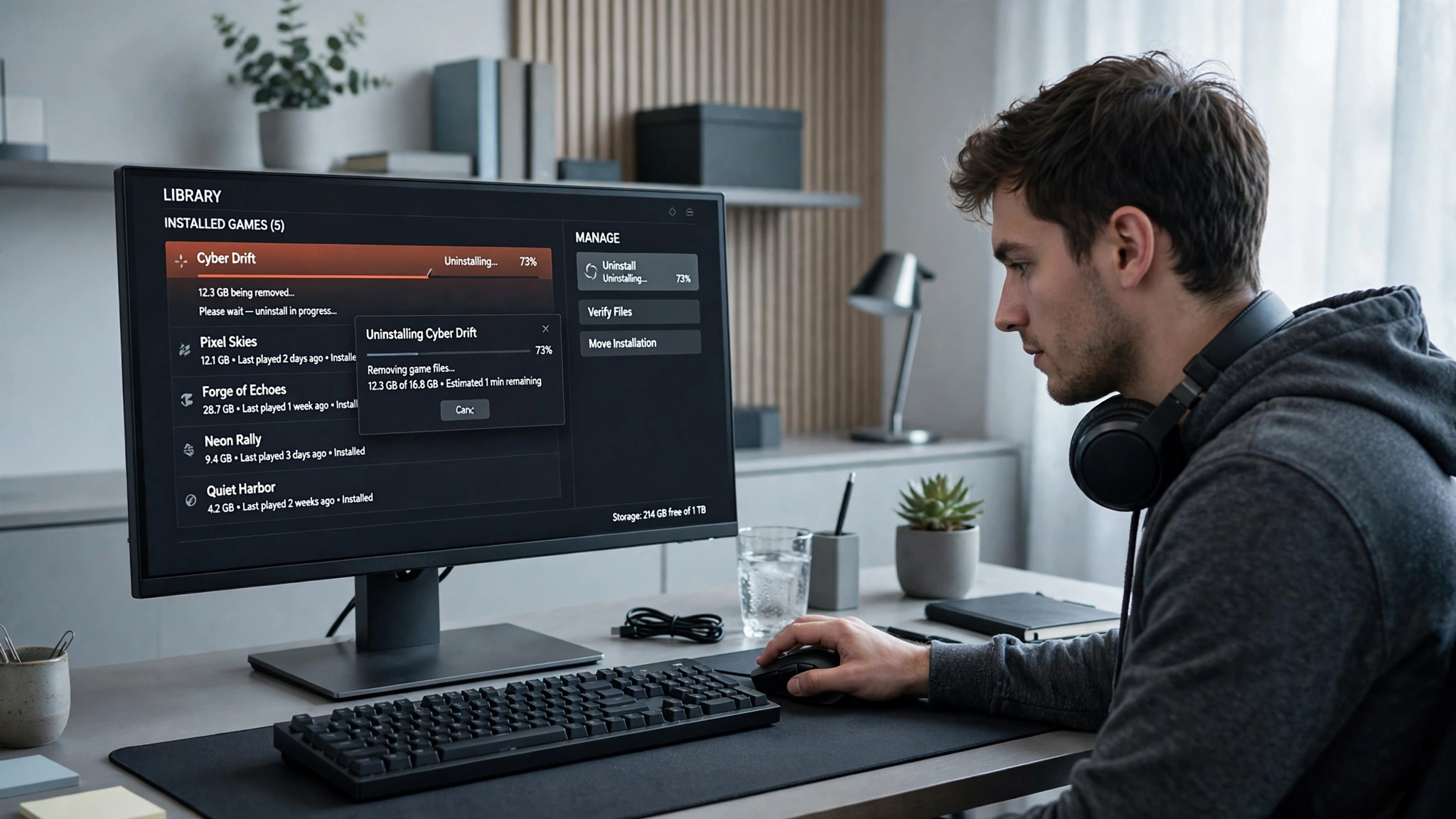
Clicking "Uninstall" feels final, but it is not. Launchers remove the game itself and leave nearly everything else: your save files, graphics settings, mods, screenshots, and shader caches stay scattered across your drives — sometimes several gigabytes per game. That is by design, so you can reinstall later without losing progress. But when you are freeing space for good, or a corrupted install needs a truly fresh start, the leftovers matter: they eat disk space, and a broken config file left behind can break a clean reinstall of the same game. Here is how to uninstall properly on every major launcher, then hunt down what it leaves behind.
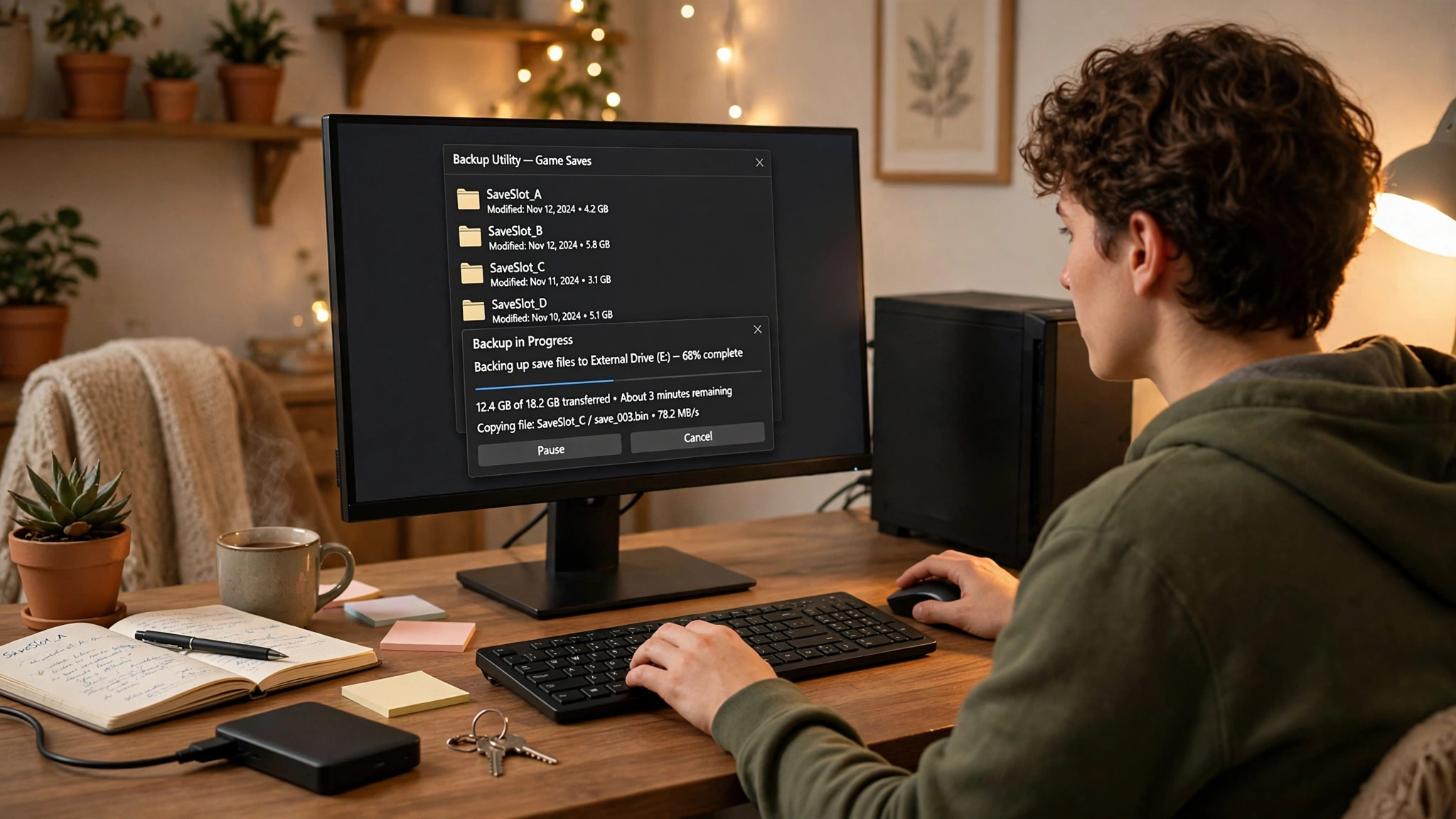
Step 1: Back up your saves first
Before deleting anything, decide whether you will ever want your progress back. Most modern games sync saves to the cloud, but not all of them — and cloud sync only protects the saves it knows about. Launch the game once and quit cleanly so the cloud syncs a fresh copy. Then check the usual save locations on your own PC: C:\Users\YourName\Documents\My Games, C:\Users\YourName\Saved Games, and inside the game's own folder. If you find save files, copy the whole folder to a backup drive or a cloud folder. This takes a minute and is the difference between "I can reinstall and continue" and "fifty hours gone". Our guide to backing up and restoring game saves covers the full save-file map if you want to be thorough.
Step 2: Uninstall from Steam the right way
Steam's uninstall is straightforward, but it has one option most people miss.
- In your Steam library, right-click the game and choose Manage > Uninstall.
- Confirm. Steam deletes the game files from
steamapps\commonand removes the game from your installed list. - If you only need space temporarily, use Properties > Installed Files > Uninstall instead — same result, but this screen also shows the game's exact size, so you can see what you are actually freeing.
What Steam deliberately keeps: your save files (in steamapps or Documents), your screenshots, and your Workshop mods. To remove Workshop content too, unsubscribe from the game's Workshop items first, or delete the game's folder under steamapps\workshop\content. If you plan to reinstall the same game later and want a genuinely fresh start, delete the leftover folders described in Step 4 as well — a corrupted settings file left behind is the most common reason a "fresh" reinstall behaves exactly like the broken one.
Step 3: Uninstall from Epic, GOG, and other launchers
Every launcher has its own uninstall, and each leaves different leftovers behind.
- Epic Games Store: open your library, click the three dots under the game, and choose Uninstall. Epic removes the game folder but keeps saves in Documents and AppData. Epic also leaves the game's manifest files behind, which is why a reinstalled game sometimes shows the wrong version — delete the game's folder under
C:\ProgramData\Epic\EpicGamesLauncher\Data\Manifestsif that happens. - GOG Galaxy: right-click the game and choose Manage installation > Uninstall. GOG asks whether to remove saved games too — say yes only if you have a backup. GOG's offline installers leave the downloaded setup files in your GOG download folder; delete those separately if you do not need them.
- EA App: open your library, click the game, open the menu and choose Uninstall. EA games often store saves in Documents under the game's publisher folder — check there afterwards.
- Battle.net: select the game, click the gear icon, and choose Uninstall. Battle.net keeps its own cache in
C:\ProgramData\Battle.net, which is safe to leave but can be cleared if you are uninstalling everything Blizzard. - Ubisoft Connect: right-click the game and choose Uninstall. Ubisoft saves live in
C:\Program Files (x86)\Ubisoft\Ubisoft Game Launcher\savegames— back this folder up before deleting anything.
For games installed without a launcher — old discs, standalone installers, itch.io games — use Settings > Apps > Installed apps, find the game, and click Uninstall. If a game has no uninstaller entry at all, deleting its folder manually is acceptable for a standalone game, but never do that for a launcher-managed game: the launcher will still think it is installed.
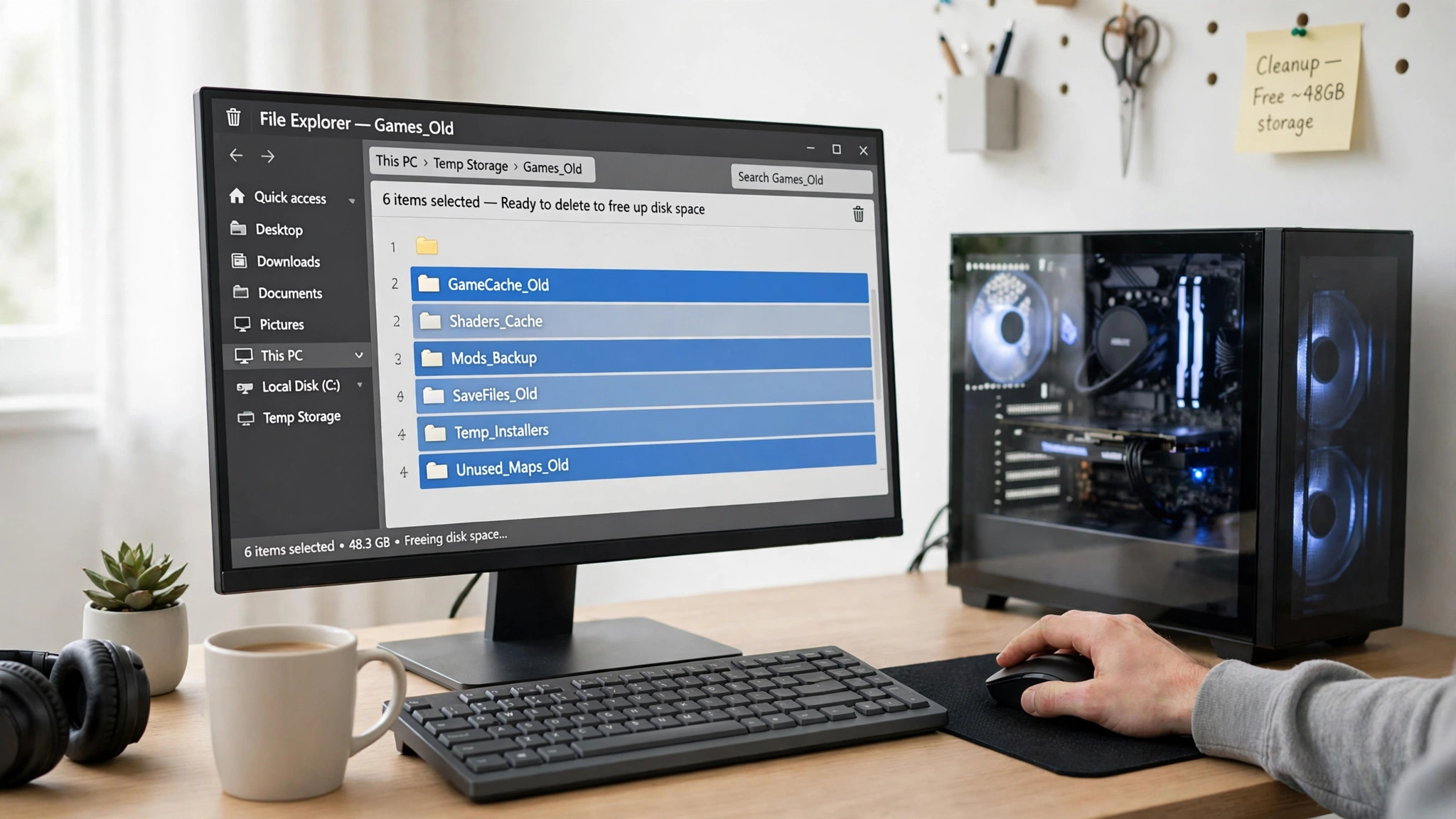
Step 4: Delete the leftover folders
This is the step that actually frees the hidden gigabytes. After uninstalling, check these locations for folders named after the game or its developer and delete them — but only after your save backup from Step 1 is safe.
C:\Program Files (x86)\Steam\steamapps\common\GameName— the game folder itself, if anything remains.C:\Users\YourName\Documents\My Games\GameName— the most common home for saves and settings.C:\Users\YourName\Saved Games\GameName— used by many Microsoft Store and newer titles.C:\Users\YourName\AppData\Local\GameName— settings, logs, and shader caches. Shader caches here can be several gigabytes for a single game.C:\Users\YourName\AppData\Roaming\GameName— settings and profiles for many older games.C:\Users\YourName\AppData\LocalLow\DeveloperName— used by Unity games and many indie titles.
To see the AppData folder, type %appdata% into the File Explorer address bar and press Enter — it is hidden by default. Delete only folders that clearly belong to the game you just uninstalled. If a folder name is ambiguous, leave it alone: deleting the wrong AppData folder can wipe another program's settings. If you want this done automatically and safely, a free tool such as Revo Uninstaller or Bulk Crap Uninstaller scans for leftovers after the standard uninstall and lists them for you to approve — safer than hand-deleting, especially for registry entries.
Step 5: Clean up shortcuts, registry entries, and the Recycle Bin
The last traces are small but worth clearing. Delete the game's desktop and Start menu shortcuts — they point nowhere now and clutter search results. Empty the Recycle Bin, because everything you just deleted is still sitting there taking up disk space until you do. As for the Windows registry: a normal uninstall removes the entries that matter, and leftover keys are tiny and harmless. Do not hand-edit the registry to chase them — a wrong deletion there can break Windows. If you insist on a registry cleanup, use Revo Uninstaller or Bulk Crap Uninstaller from Step 4, which only remove entries tied to the game you uninstalled, and let it make a backup first.
Step 6: Check how much space you actually freed
Open Settings > System > Storage and check your free space before and after the cleanup — the difference is often much larger than the game's Steam page size, because shader caches, mods, and leftover folders add up. If you freed space to install something new, check the drive the new game will use: Steam installs to whichever library folder you choose, and a game will not fit on a drive that only looks empty. If you regularly run out of space, consider moving games you still play to another drive instead of uninstalling them — our guide to moving Steam games to another drive without reinstalling covers that without any re-downloading.
What uninstalling does NOT delete
| What stays behind | Where it lives | Delete it? |
|---|---|---|
| Save files | Documents, Saved Games, AppData | Only after backing up |
| Settings and configs | Documents\My Games, AppData | Yes, for a truly fresh install |
| Shader caches | AppData\Local, GPU driver folders | Yes — safe, rebuilt on next launch |
| Workshop mods | steamapps\workshop\content | Unsubscribe first, then delete |
| Screenshots and recordings | Steam userdata, Videos folder | Keep unless you do not want them |
| Cloud saves | Steam / Epic / GOG servers | Kept by the launcher — reinstall restores them |
| Registry entries | Windows registry | Leave alone, or use Revo Uninstaller |
Uninstalling a game properly takes five minutes longer than clicking the button — and it is worth it. Back up your saves, uninstall through the launcher, delete the leftover folders, and empty the Recycle Bin. You get the disk space back, and if you ever reinstall, you start from a genuinely clean slate instead of inheriting the broken config that made you uninstall in the first place.
