Cloud saves are convenient until they are not: sync conflicts, a reinstall that wipes the wrong folder, or a cloud outage right before a big boss fight. A manual backup takes two minutes and protects hundreds of hours. This guide covers finding your saves, backing them up, and restoring them on Steam, Epic Games Store and GOG.

1. Check the cloud first
Before doing anything manual, confirm the game's cloud sync is actually on. In Steam: right-click the game → Properties → General → "Keep games saves in the Steam Cloud". In Epic: Settings → "Enable Cloud Saves". In GOG Galaxy: the game page → "Cloud saves" toggle. Cloud sync protects you against drive failure, but it does not protect against sync conflicts overwriting your progress — that is what the manual backup below is for.
2. Find the real save folder
Every game keeps saves somewhere on your disk, and there are only a handful of places developers use. Our guide to where PC games keep their save files lists the seven folders to check — Documents\My Games, AppData\LocalLow, AppData\Local, Saved Games, Steam's userdata folder and the Steam Deck compatdata folder — with real examples. Open the folder for your game and confirm you can see save files with recent dates before backing up.
3. The manual copy (works for everything)
This is the method that never fails, for any launcher:
- Close the game completely — never copy saves while the game is running.
- Open the save folder from step 2.
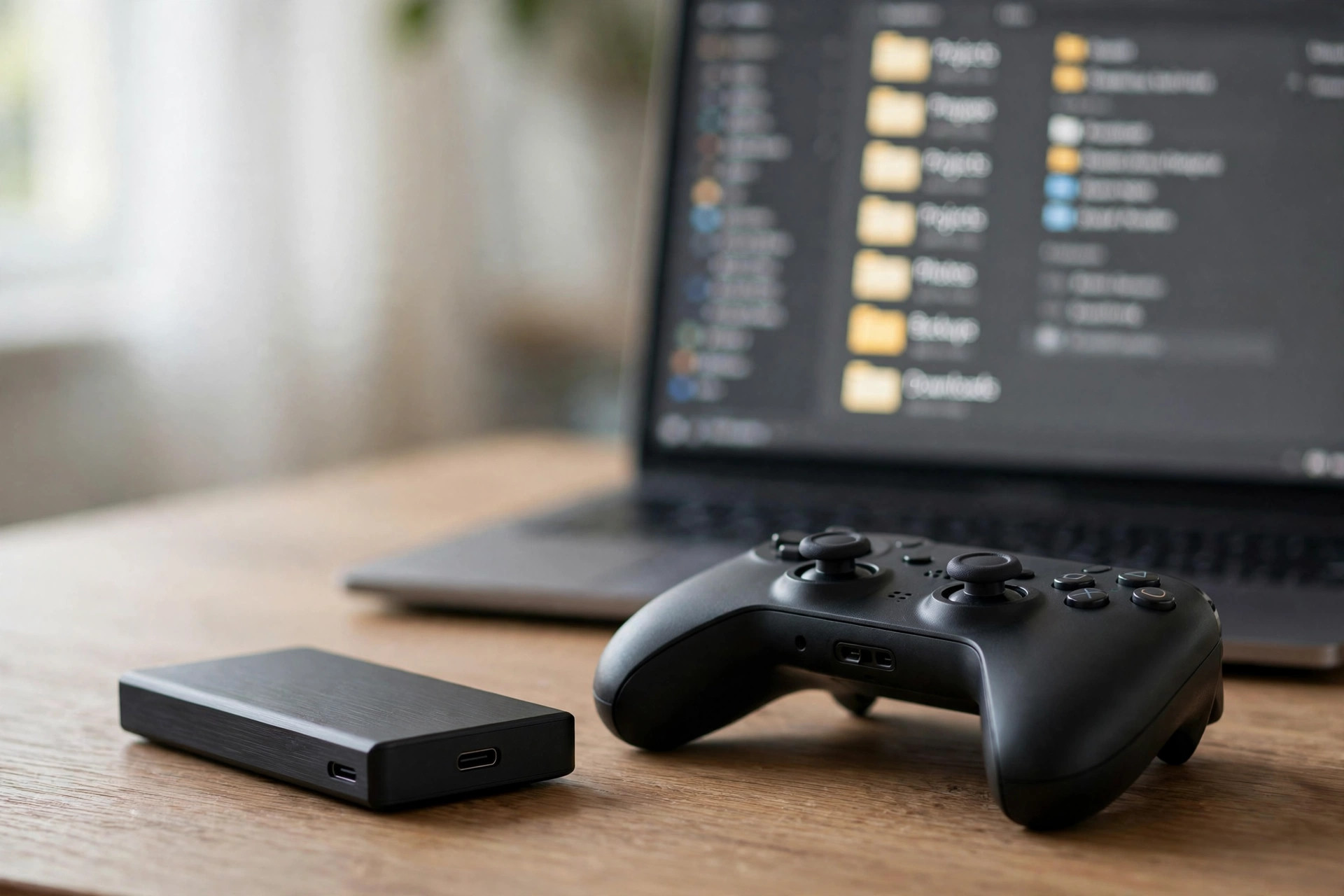
- Copy the entire folder (not just one file) to a backup location: an external drive, a second internal drive, or a cloud folder like OneDrive or Google Drive.
- Name the backup with the game and date, e.g.
Skyrim-saves-2026-10-07.
Copy the whole folder because many games split progress across several files — profiles, settings and screenshots alongside the saves. Grabbing one .sav file is how restores go wrong.
4. The one-line automatic backup
If you would rather not remember, one Robocopy command mirrors a save folder on demand. Open Command Prompt and run:
robocopy "%USERPROFILE%\Documents\My Games\Skyrim\Saves" "D:\Backups\Skyrim" /MIR
Replace both paths with your game's folder and your backup drive. Run it after each play session, or save it as a .bat file and double-click it. Robocopy only copies changed files, so repeat runs take seconds.
5. Use GameSave Manager for many games
GameSave Manager is a free tool that knows the save locations of thousands of games. Point it at your library, schedule automatic backups, and it handles detection, copying and restoring through one window. It is the best option if you play dozens of games and want them all covered without hunting folders yourself.

6. Epic Games Store saves
Epic's cloud saves live in %USERPROFILE%\Documents or %LOCALAPPDATA% depending on the game, and sync only when cloud saves are enabled in Epic's settings. The manual method from step 3 works identically — find the folder, copy it whole. Note that some Epic games store saves in odd publisher-specific folders (Ubisoft games especially), so verify the files have today's date before you trust the backup.
7. GOG Galaxy saves
GOG Galaxy syncs saves for games that support it, shown by the cloud icon on the game page. GOG games are often DRM-free, which means saves sit in plain folders — usually Documents or AppData\Local — and copy cleanly. The manual backup method is especially reliable here because there is no launcher lock-in to fight.
8. How to restore
- Close the game and its launcher completely.
- Temporarily disable cloud sync for the game (so the cloud does not immediately overwrite your restore).
- Copy your backup folder back over the live save folder, replacing files.
- Launch the game, load a save, confirm your progress is there.
- Re-enable cloud sync and let it upload your restored saves.
Step 2 is the one people skip — restoring while cloud sync is on is the classic way to watch your backup get replaced by the broken cloud copy.
9. Automate it with Task Scheduler
For games you play daily, schedule the Robocopy line from step 4: open Task Scheduler → Create Basic Task → trigger daily or at log on → action "Start a program" → point it at your .bat file. Silent, automatic, and you will only ever notice it the day it saves your progress.
Quick checklist
- Confirm cloud sync is on (Steam, Epic, GOG) — but do not rely on it alone
- Find the real save folder and check file dates
- Copy the whole folder, named with game + date
- Disable cloud sync before any restore
- Automate repeat games with Robocopy or GameSave Manager
FAQ
Can I move saves between Steam and GOG versions of a game?
Often yes — the save format is usually identical and only the folder differs. Copy the files into the other version's save folder (check our save-folder guide for locations). Some games with achievements or DRM checks may refuse; test with a backup first.
Do I need to back up settings and configs too?
It costs nothing to include them — they usually live next to the saves. Graphics settings, keybinds and mods lists are painful to rebuild from memory, so copy the whole folder as step 3 says.
How often should I back up?
After every long session for games you care about, weekly for the rest. Automated daily backups (step 9) make the question moot.