Graphics card manufacturers ship their cards with voltage set conservatively high — high enough that even the worst silicon off the production line runs stable. Most individual cards can hold the same clock speeds on noticeably less voltage. Undervolting takes advantage of that margin: lower the voltage while keeping the clock speed the same, and the card runs cooler, quieter, and often sustains its boost clocks longer.
What undervolting is — and what it is not
A GPU's clock speed and voltage are linked by a curve: higher clocks need higher voltage. Undervolting does not mean lowering your clock speed — that would be downclocking, and it costs performance. Instead, you tell the card: run at the same clock speed, but use less voltage to get there.
- It is not underclocking. Clocks stay the same, so FPS stays the same.
- It reduces heat and power draw. Lower voltage means less power converted to heat, so temperatures drop and fans spin slower.
- It can slightly improve performance. Cards that were thermally throttling can now hold their boost clocks steadily, which smooths out frame times.
- It cannot damage your card. Unlike overvolting, there is no hardware risk. The worst outcome is a crash to desktop or a driver reset — raise the voltage a step and try again. Settings reset on reboot unless you save them, so you cannot get stuck with an unstable profile.
- Every card is different. Two cards of the same model can need different voltages. Treat any values you see online as starting points, never as targets you must hit.
Before you start: the tools and the baseline
- Install MSI Afterburner (NVIDIA cards) — it works with cards from any manufacturer, and its curve editor is the standard undervolting tool. For AMD cards you will use the built-in AMD Adrenaline Software instead.
- Install a monitoring tool. Afterburner's on-screen display works well for watching temperature, clock speed, and voltage while you play. Our guide to checking CPU and GPU temperatures while gaming shows how to set that up.
- Record your baseline. Run your most demanding game for ten minutes and note average GPU temperature, the clock speed it holds, and fan noise. You need these numbers to measure the improvement.
- Pick a stress test. A looping benchmark like Unigine Heaven, Unigine Superposition, or 3DMark's Time Spy stress test loads the GPU continuously and consistently. You will also test with real games afterward, since some games stress the card in ways benchmarks do not.
- Reset any overclocks first. Return to stock before undervolting — change one variable at a time.
NVIDIA: tuning the voltage-frequency curve
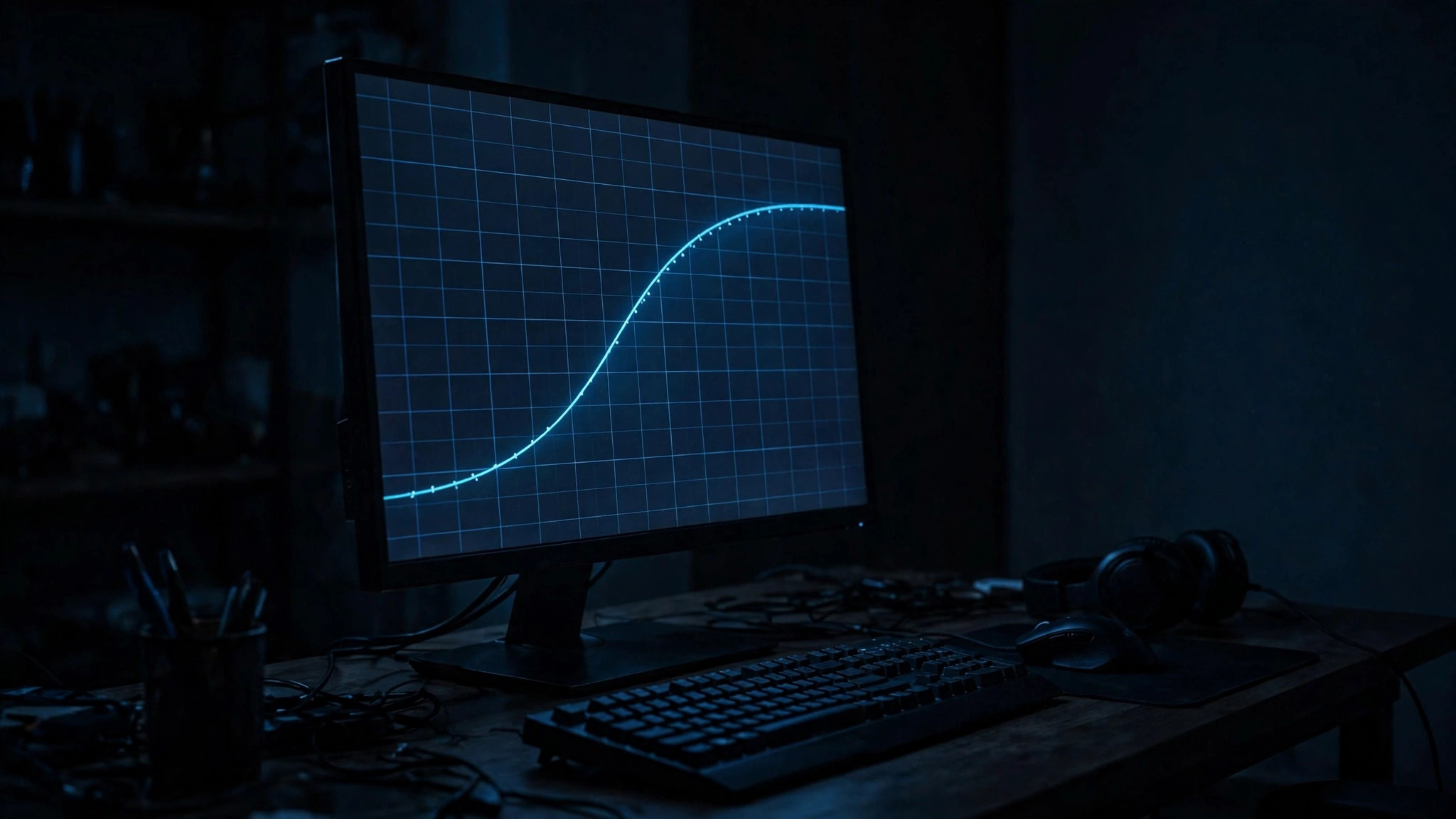
NVIDIA cards are undervolted through the voltage-frequency curve editor in MSI Afterburner. Press Ctrl+F to open it: voltage runs along the bottom, clock speed up the side. The method is the "flatten" technique:
- Note your card's typical boost clock under load from your baseline run. This is the clock you want to keep.
- In the curve editor, find the voltage point you want to target and drag it up until it matches your target clock speed.
- Select every point to the right of your chosen voltage and drag them all down so they are flat — no higher than your target clock. This stops the card from ever boosting past your chosen point, which locks the voltage down.
- Click the checkmark to apply, then save the profile to one of Afterburner's numbered slots. Optionally set Afterburner to apply it at Windows startup (Settings > General).
If you drag the whole curve down uniformly instead of flattening, the card can still boost into higher voltages and your undervolt will not hold — flattening is what makes it stick.
AMD: voltage control in Adrenaline
On AMD, undervolting happens in the Adrenaline software instead of Afterburner. Menus move between driver versions, but the path stays consistent:
- Open AMD Adrenaline and go to Performance > Tuning.
- Switch tuning control to Manual (or Custom) so the voltage and frequency sliders unlock.
- Lower the GPU voltage in small steps from stock, keeping the maximum frequency where it is. Apply and test after each step — if the driver crashes or the screen goes black, you went too far; raise it one step and re-test.
- Some Adrenaline versions expose a per-frequency voltage curve like NVIDIA's. The principle is identical — same clocks, less voltage — so use whichever interface your driver version provides.
Pair the undervolt with a gentler fan curve — less heat to remove means the fans can spin slower. The two work best together.
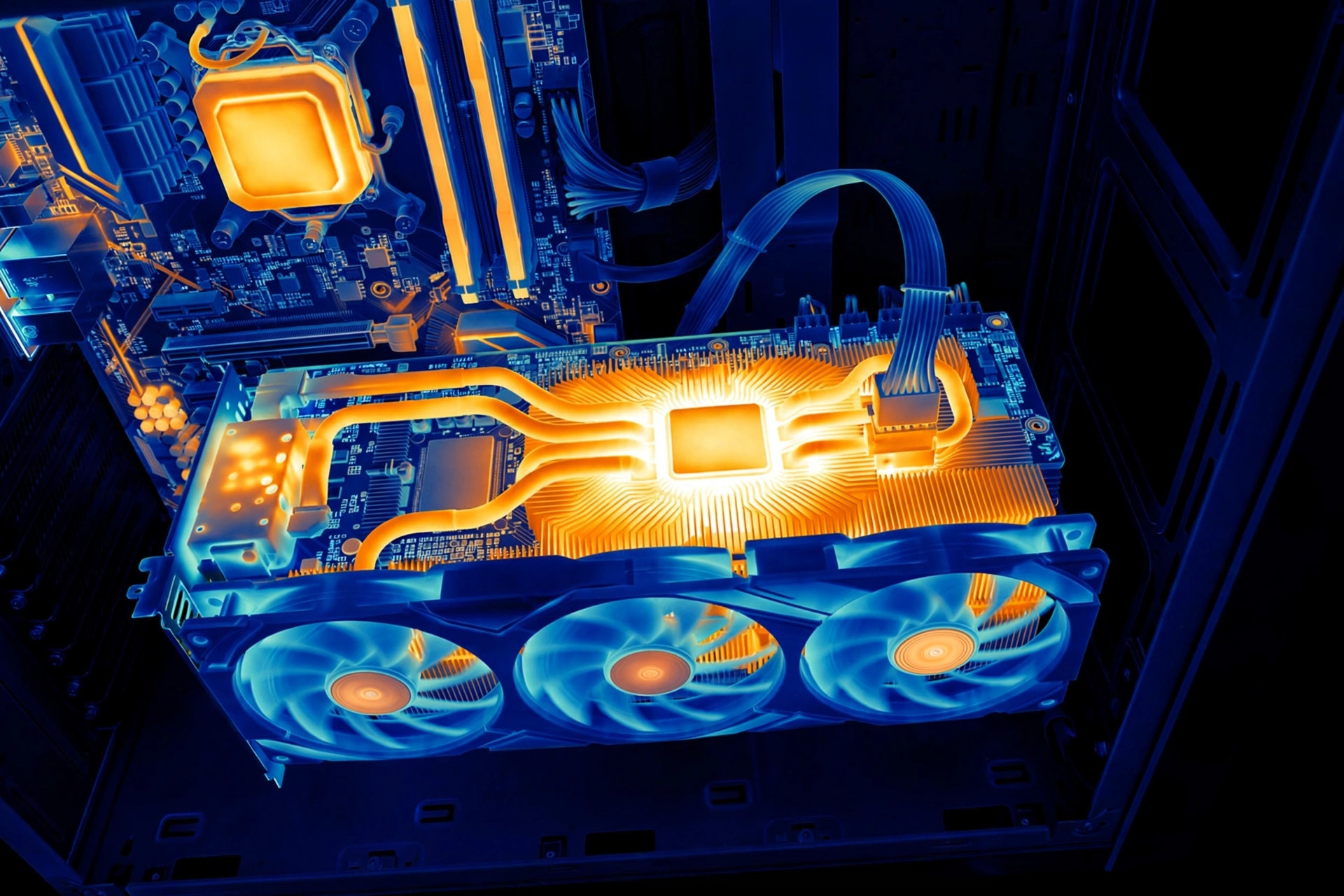
Stability testing: the part everyone skips
An undervolt that looks fine for five minutes can crash forty minutes into a game — do not skip the testing:
- Benchmark loop first. Loop your stress test for at least 30 minutes. Watch for crashes, driver timeouts, visual artifacts (flickering, wrong colors, geometry glitches), and sudden clock drops.
- Then play real games. Pick two or three demanding games and play each for 30–60 minutes. Some games expose instability that synthetic benchmarks miss.
- Test the edges. Light loads can crash an undervolt too — a card idling on the desktop sits at low voltages where your curve may be too aggressive. Random desktop crashes mean the low-end curve points need attention.
- If anything crashes, raise the voltage one small step at your target clock and repeat the testing. There is no prize for the lowest voltage — the goal is the lowest voltage that is fully stable.
- Re-check your baseline numbers. Compare temperature, sustained clock speed, and fan noise against your original measurements. You should see lower temperatures and quieter fans with the same — or steadier — clock speeds.
Quick-reference: the undervolting workflow
| Step | What to do | What success looks like |
|---|---|---|
| 1. Baseline | Record stock temps, clocks, and noise in a demanding game | You have baseline numbers |
| 2. Tool setup | MSI Afterburner (NVIDIA) or Adrenaline manual tuning (AMD); monitoring overlay on | You can see live voltage, clock, and temperature |
| 3. Apply undervolt | Flatten the NVIDIA curve, or step AMD voltage down | Same target clock, lower voltage |
| 4. Benchmark loop | 30+ minutes of Heaven, Superposition, or Time Spy stress test | No crashes, artifacts, or clock drops |
| 5. Real games | 30–60 minutes each in 2–3 demanding games | Stable gameplay, no driver timeouts |
| 6. Edge cases | Desktop idle and light games for a while | No random crashes outside of games |
| 7. Compare | Re-measure temps, clocks, and noise | Cooler, quieter, same FPS |
Troubleshooting common problems
- Crashes only in one specific game — that game pushes the card in a way your benchmark did not. Raise the voltage one step; per-game quirks are normal.
- Driver timeouts on AMD — the classic "went too far" signal. Raise the voltage a step and re-test.
- The undervolt does not apply after reboot — set Afterburner to start with Windows and apply the profile; re-check Adrenaline manual tuning after driver updates, which can reset it.
- Temperatures barely changed — make sure the curve actually flattened and the card is not boosting past your target. Also check case airflow; undervolting cannot fix a card suffocating with no airflow.
Undervolting is one of the rare tweaks with no real downside: no hardware risk, no cost, and the worst case is a crash that shows you exactly where your card's limit is. Test properly, and enjoy a cooler, quieter card.