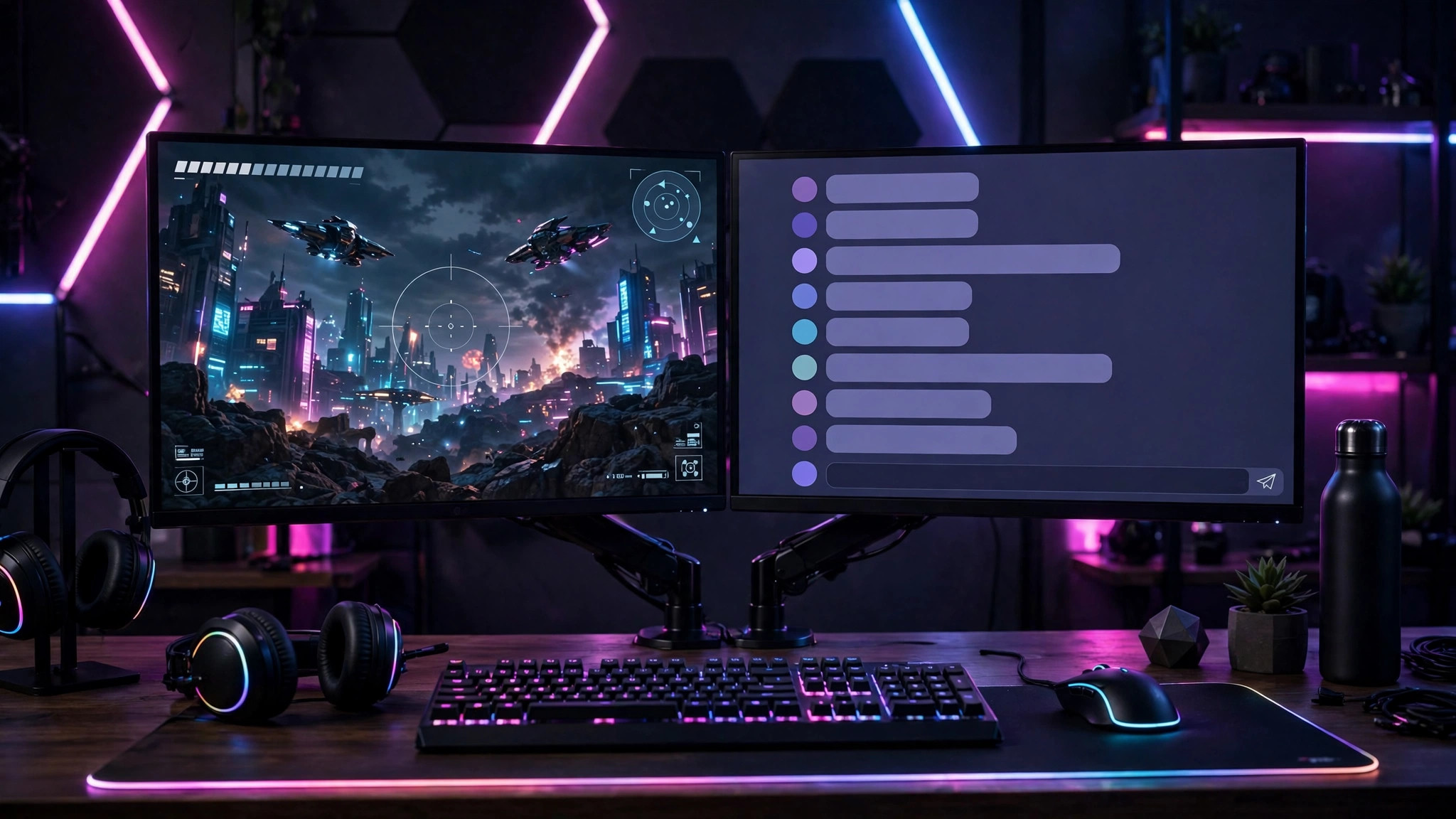
A second monitor is the single best quality-of-life upgrade for PC gaming after an SSD. Your game runs on the main screen while Discord, a walkthrough, or a stream lives on the second — no more alt-tabbing out of a boss fight to check a crafting recipe. Setup is straightforward: if your graphics card has a spare port, you can be up and running in about fifteen minutes. This guide walks through the whole process, from cables to display settings, and fixes the problems most people hit along the way.
What You Need Before You Start
Almost every modern graphics card has at least three display outputs, so a second monitor usually just needs a cable. First, check the ports on the back of your graphics card — not the motherboard, which is a common mistake. Then check the inputs on your second monitor and buy the right cable. The two standards you will meet are:
| Connection | Best for | Notes |
|---|---|---|
| DisplayPort | High-refresh-rate gaming monitors | DisplayPort 1.4 handles 4K at 144 Hz and above; the preferred choice for your main monitor |
| HDMI | TVs and most second monitors | HDMI 2.1 supports 4K at 120 Hz; older HDMI 2.0 is limited to 4K at 60 Hz |
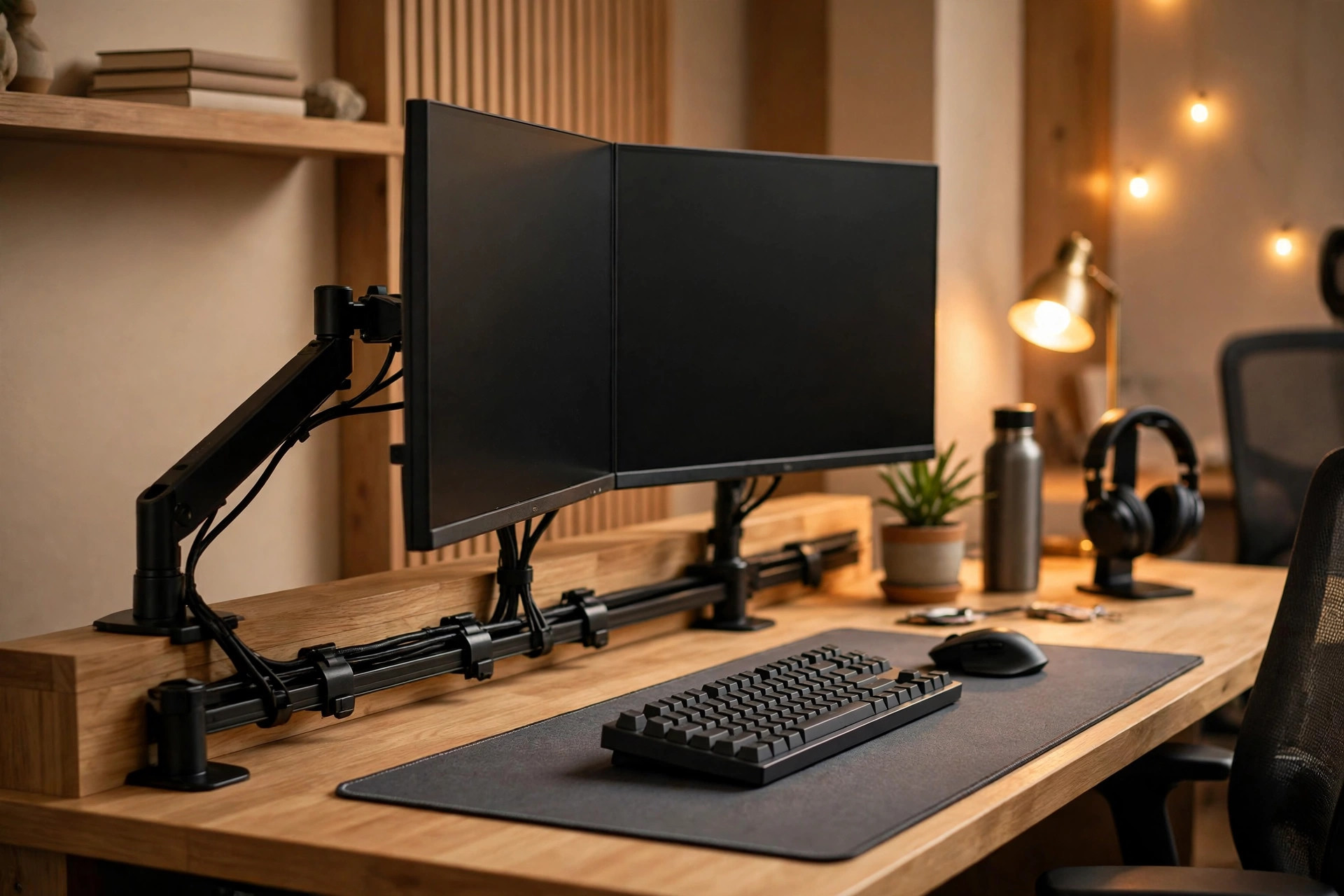
You do not need a matching pair of monitors. Your second screen can be an old 1080p 60 Hz panel while your main monitor is a 1440p 165 Hz display — they will work fine together, and using a spare monitor you already own costs nothing. If you are buying new, a basic 24-inch 1080p IPS panel is all a second screen needs, since it mostly shows text and chat. One practical tip: matching monitor heights makes the setup feel far better than matching resolutions, so a monitor arm or a stack of books under the shorter screen is money well spent.
Connecting the Second Monitor
With the PC switched off, plug the cable into the graphics card and the monitor, connect the monitor's power, and switch it on. Turn the PC on and Windows should detect the new display automatically. If the screen stays black, press the monitor's input or source button and select the port you used. If it still shows nothing, try a different cable or a different port on the graphics card.
One warning: avoid the motherboard's video output. On most gaming PCs that port is disabled when a graphics card is installed, and even when it works, the monitor runs off the CPU's integrated graphics, which can cause stuttering in games.
Arranging Displays in Windows
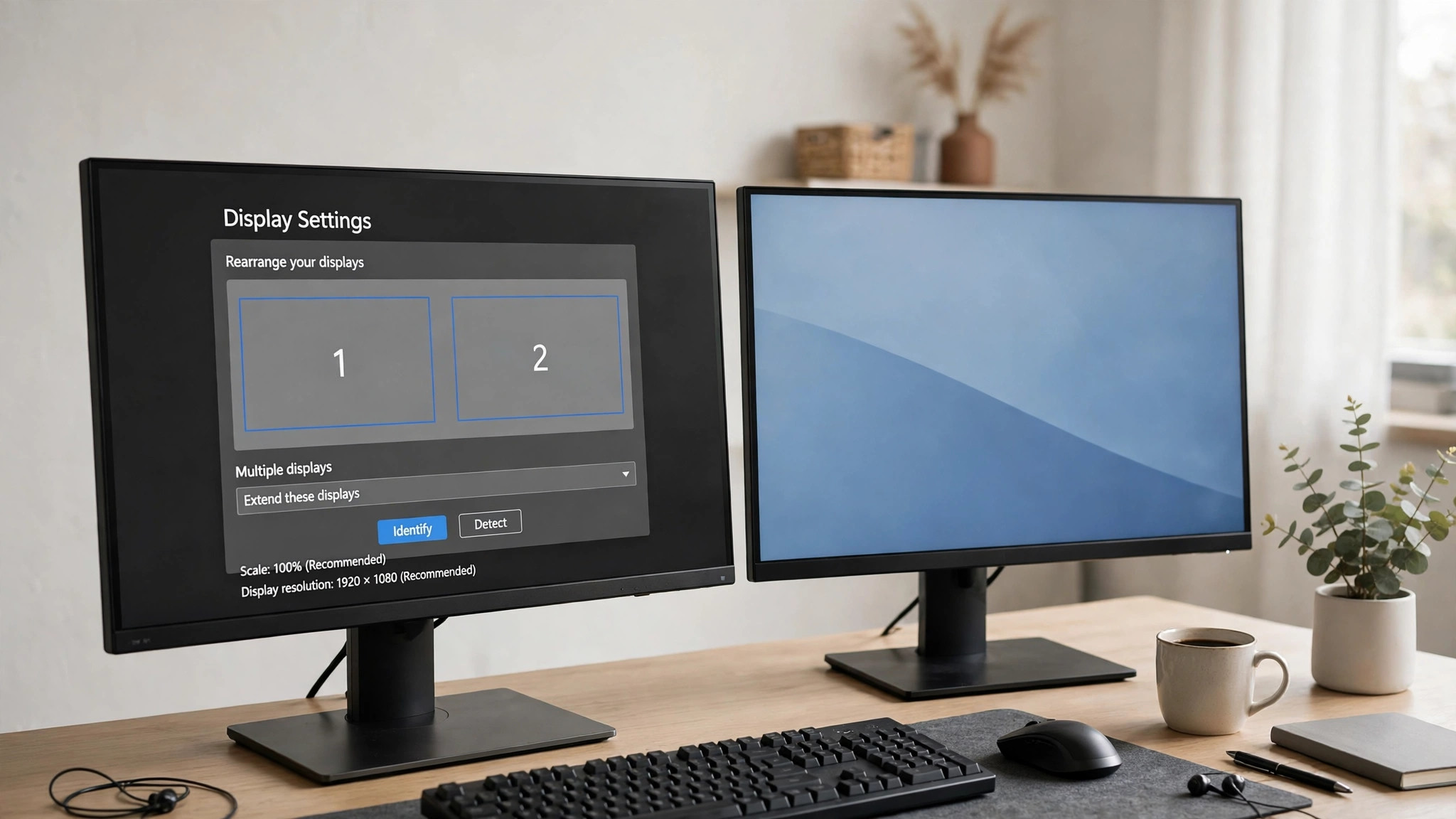
Open Settings, go to System, then Display. Windows shows both monitors as numbered rectangles — click Identify to see which is which. Drag the rectangles so they match how the monitors actually sit on your desk. This matters, because the mouse moves between screens according to this layout.
Under the Multiple displays dropdown, choose "Extend these displays" so each monitor shows different content — this is the option you want for gaming. "Duplicate these displays" mirrors the same image on both, which is useful for presentations but useless here.
Picking the Primary Display and Refresh Rate
Click the monitor you want to game on, scroll down, and tick "Make this my main display". Games open on the primary display by default, the taskbar clock and system tray live there, and new windows open there too. Get this wrong and every game will launch on the wrong screen, which is the single most common dual-monitor complaint.
Next, check the refresh rate of each monitor. Still in Display settings, click Advanced display, select a monitor, and set "Choose a refresh rate" to the highest value it supports — a 165 Hz monitor that is still running at 60 Hz will look no smoother than a cheap office screen. For more on why refresh rate and sync settings matter, see our guide on how to fix screen tearing in PC games.
Gaming on One Screen While Using the Other
Here is where the setup pays for itself. The trick is your game's display mode. In exclusive fullscreen, clicking on the second monitor usually minimises the game or locks the mouse to the game window. In borderless windowed mode, the game looks identical but behaves like a window, so you can move the mouse freely to the second screen, click a Discord message, and come back without the game minimising. Most modern games offer it in their display settings, and for a dual-monitor setup it is almost always the right choice.
A few setups that work well: keep Discord and voice chat on the second screen so you can see who is talking; put a wiki, map, or crafting guide there during open-world games; or run a stream or video there during slower games.
Common Problems and Fixes
Most dual-monitor problems have simple causes. Work through these in order:
- The game opens on the wrong monitor. Check that the right screen is set as the main display in Windows, then check the game's own display settings — many games let you choose which monitor to use. If it still opens on the wrong screen, use Windows key + Shift + Left/Right arrow to move the game window between screens.
- The second monitor flickers or goes black for a second. This is usually a cable or refresh-rate issue. Try a different cable, lower the second monitor's refresh rate to 60 Hz, or update your graphics drivers.
- The game stutters since adding the second monitor. A second screen showing static content costs almost nothing, but video playback, hardware-accelerated browsers, and animated wallpapers all use GPU resources. Close video on the second screen while gaming, and turn off hardware acceleration in your browser if the stutter follows it. Also make sure the game is running on the graphics card, not the integrated graphics — our guide on how to reduce input lag in PC games covers the display chain and the settings that affect responsiveness.
- The mouse escapes to the second monitor mid-game. Switch the game to exclusive fullscreen, or use the game's "confine mouse cursor" or "lock cursor to window" option if it has one.
- Text looks blurry on one monitor. The monitors are probably running different scaling settings. In Display settings, set each monitor's scale individually — 100% for most 1080p screens, 125% or 150% for 1440p and 4K.
Should Both Monitors Match?
Matching monitors look better and feel more consistent, but they are not necessary. Different sizes and resolutions are fine for a gaming-plus-everything-else setup. What does matter is physical alignment: if one monitor is much taller than the other, your neck will complain, and a monitor arm fixes this better than buying a second expensive display.
One combination worth considering is a high-refresh-rate main monitor for gaming plus a cheaper vertical second monitor. A 24-inch screen rotated to portrait is excellent for Discord and long guides, and takes up barely any desk space.
That is the whole setup: one cable, five minutes in Display settings, and borderless windowed mode in your games. Once you have gamed with a second screen, going back to one feels like playing with one hand tied behind your back.
