Every PC gamer has lived through it: you launch a game you have been enjoying for months, Steam helpfully "updates" it overnight, and suddenly your mods are broken, your saves will not load, or performance has tanked. Steam gives you no undo button for this. But the old version of the game has not vanished — it is still sitting on Steam's servers, and with a little work you can download and install it yourself. Here is how to roll back a Steam game update, step by step.
Why Steam makes this awkward
Steam is built around the idea that everyone plays the newest version. When an update lands, the client replaces your files and moves on, and most developers never ship an official downgrade option — multiplayer games genuinely cannot let old and new clients play together.
That said, every build a developer ever uploaded to Steam is stored as a depot manifest — a kind of inventory of the files that made up the game at that moment. If you know the manifest for the version you want, you can ask Steam's own console to download it. It is an officially supported console command, not a hack, and it works for the vast majority of single-player games.
Before you start: back up your saves
Old builds and new save files do not always get along. A save written by version 1.4 of a game can corrupt or simply refuse to load in version 1.2, and going backwards never magically restores a save that the new version already converted. Protect yourself first:
- Find your game's save folder. If you are not sure where to look, our guide to where PC games keep their save files covers the seven folders to check.
- Copy the entire save folder somewhere safe — a different drive or a cloud folder. Do not move it; copy it.
- If the game supports Steam Cloud, force a sync by launching the game once and quitting cleanly, so the cloud holds a fresh copy too.
- Read how to back up and restore game saves on Steam, Epic and GOG for the full procedure.
This five-minute job is the difference between a clean rollback and a ruined weekend.
Method 1: Check for a legacy beta branch first (the easy way)
Before touching manifests, check whether the developer left an older build one click away. Some developers publish a "legacy" or "previous version" branch precisely so players can escape a bad patch.
- In your Steam library, right-click the game and choose Properties.
- Open the Betas tab on the left.
- Look at the Beta Participation dropdown. You may see entries like
legacy,previous_version,1.3.x, or similar. - Select one, close the window, and let Steam download the switch. You are done — no manifest hunting required.
No beta password is needed for public branches. If the list only shows "None", move on to Method 2.
Method 2: Download the old build with the Steam depot console
This is the method that works for nearly every game. You will use SteamDB (a community database of everything on Steam) to find the right numbers, then Steam's built-in console to download them. Nothing is installed and your account is never at risk.
Step 1 — Find the game's App ID
Every game on Steam has a numeric App ID. The easiest way to find it: open the game's store page in your browser and look at the URL — store.steampowered.com/app/1091500/... means the App ID is 1091500. You can also right-click the game in Steam, choose Properties, and the App ID is printed at the top of the General tab.
Step 2 — Find the depot ID
Go to steamdb.info/app/<your-app-id>/depots/. This page lists the game's depots — bundles of files, usually one per operating system plus shared content. Note the depot ID for your OS (for example, the "Windows" depot). A single game can have several depots; you only need the one matching your platform, plus any "shared" depot listed alongside it.
Step 3 — Find the manifest for the version you want
Click through to a depot's page (steamdb.info/depot/<depot-id>/manifests/) and open its Manifests history. Each entry is timestamped, so scroll back to just before the update that broke things and copy that manifest's ID. If you are not sure exactly which update caused the problem, pick a manifest a few days before the trouble started.
Handy reference for what each number means:
| Term | What it is | Where to find it |
|---|---|---|
| App ID | The game's unique number on Steam | Store page URL or game Properties |
| Depot ID | The bundle of files for your OS | steamdb.info/app/<id>/depots/ |
| Manifest ID | The file list for one specific build | steamdb.info/depot/<id>/manifests/ |
Step 4 — Open the Steam console and download
- Press
Win + R, typesteam://open/console, and press Enter. A Console tab appears in your Steam client. - Type the download command with your three numbers:
download_depot <app-id> <depot-id> <manifest-id>and press Enter. - Wait for the download to finish. Files land in
Steam\steamapps\content\app_<app-id>\depot_<depot-id>\. - Copy those files over your game's install folder (the one in
steamapps\common\), replacing everything when asked.
Launch the game — if it runs, you are on the older build.
Method 3: Use DepotDownloader (for tricky cases)
If the Steam console refuses a depot — some manifests are encrypted and need a depot key — the open-source tool DepotDownloader can still fetch them. It is a command-line program maintained on GitHub; you run it with your Steam username and password, so only download it from its official repository. For most games Method 2 is enough, so treat this as the backup plan.
Stop Steam updating the game again
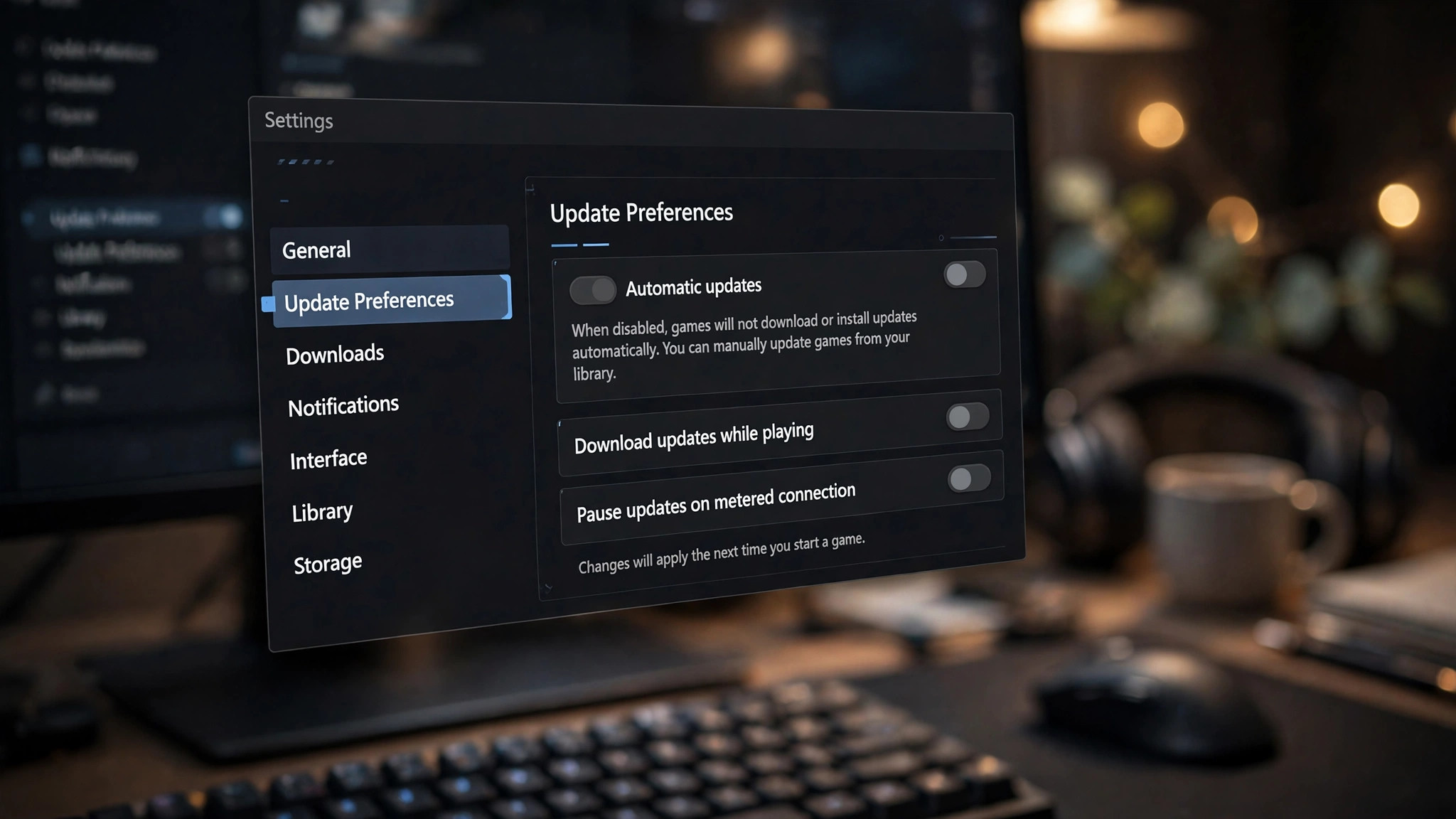
This is the step people forget, and Steam will happily undo your rollback overnight. Right-click the game, open Properties → Updates, and set Automatic updates to "Only update this game when I launch it". Then play in Offline Mode (Steam → Go Offline) whenever you launch the rolled-back game — Steam cannot patch a game it cannot reach.
Two honest caveats: first, the moment you launch online, Steam will detect the old files and start updating, so stay offline while you play this version. Second, verifying the integrity of the game files will "fix" your rollback by re-downloading the newest build — useful to know, annoying to discover by accident.
What can go wrong
- Multiplayer games: servers reject old clients, so a rollback only helps single-player games or games with private servers.
- Save incompatibility: saves made on the new version may not load on the old one. This is why the backup step is non-negotiable.
- Missing DLC or workshop items: content released after your chosen manifest simply will not be there.
- Encrypted depots: a few developers lock their manifests; Method 3 is your only route, and occasionally not even that works.
- Achievements and cloud saves: Steam Cloud may try to sync a newer save over your old one. Disable Steam Cloud for the game (Properties → General) while you play the rolled-back build.
Rolling back a Steam update takes about twenty minutes once you know the routine, and most of that time is the download. The manifest you used is worth writing down — if a future patch breaks things again, you will already know exactly which numbers to type.
