Mods are one of the best reasons to play on PC. They can fix a game's rough edges, add new quests, overhaul graphics, rebalance difficulty, or turn a ten-year-old favourite into something that feels new again. The catch is that a bad install can break your saves, and a careless download can put junk on your PC. Done properly, though, installing mods is a simple, repeatable process — and this guide covers the three ways to do it safely.
The golden rule is simple: back up before you mod, and only download from places other players trust. Most mod problems come from skipping one of those two steps.
Before you install anything: the safety rules
Run through this short checklist before your first download. It takes five minutes and prevents the vast majority of mod disasters.
- Back up your saves. Copy your save folder somewhere safe before changing anything. Our guide to backing up and restoring game saves shows where the main launchers keep them.
- Download only from trusted sources: Steam Workshop, Nexus Mods, ModDB, or the game's official forums. Random file-hosting links in video descriptions are where malware hides.
- Read the mod's description page properly, especially the requirements section. Many mods need another mod, a script extender, or a specific game version to work at all.
- Install one mod at a time and test the game after each one. If you install twenty mods at once and the game breaks, you have no idea which one caused it.
- Check the date. A mod last updated in 2019 may not work with a game patched in 2025, and abandoned mods are the most common cause of crashes after a game update.

Method 1: Steam Workshop — the easy way
If your game has Steam Workshop support, this is the route to take. Workshop mods install and update automatically, and removing one is as simple as unsubscribing.
Open the game's page in your Steam library, click the Workshop tab, and browse or search for what you want. Click Subscribe on a mod's page and Steam downloads it the next time you launch the game. Many games then let you switch mods on or off from an in-game Mods or Add-ons menu; others apply subscribed mods automatically. To remove a mod, return to its Workshop page and click Unsubscribe, then verify your game files if anything looks wrong afterwards.
Workshop's weakness is control: you get little say over load order or file conflicts, and updates arrive whether you want them or not. For a few tweaks or cosmetic packs, that trade-off is well worth it; for dozens of interlocking mods, a manager gives far more control.
Method 2: Nexus Mods and mod managers
Nexus Mods is the biggest mod library outside Steam, and its free mod manager, Vortex, handles the fiddly parts for you: downloading, installing, enabling, disabling, and sorting mods. Create a free Nexus account, install Vortex, and let it detect your games. From then on, clicking 'Mod Manager Download' on a Nexus mod page sends it straight into Vortex, where you enable it with one click.
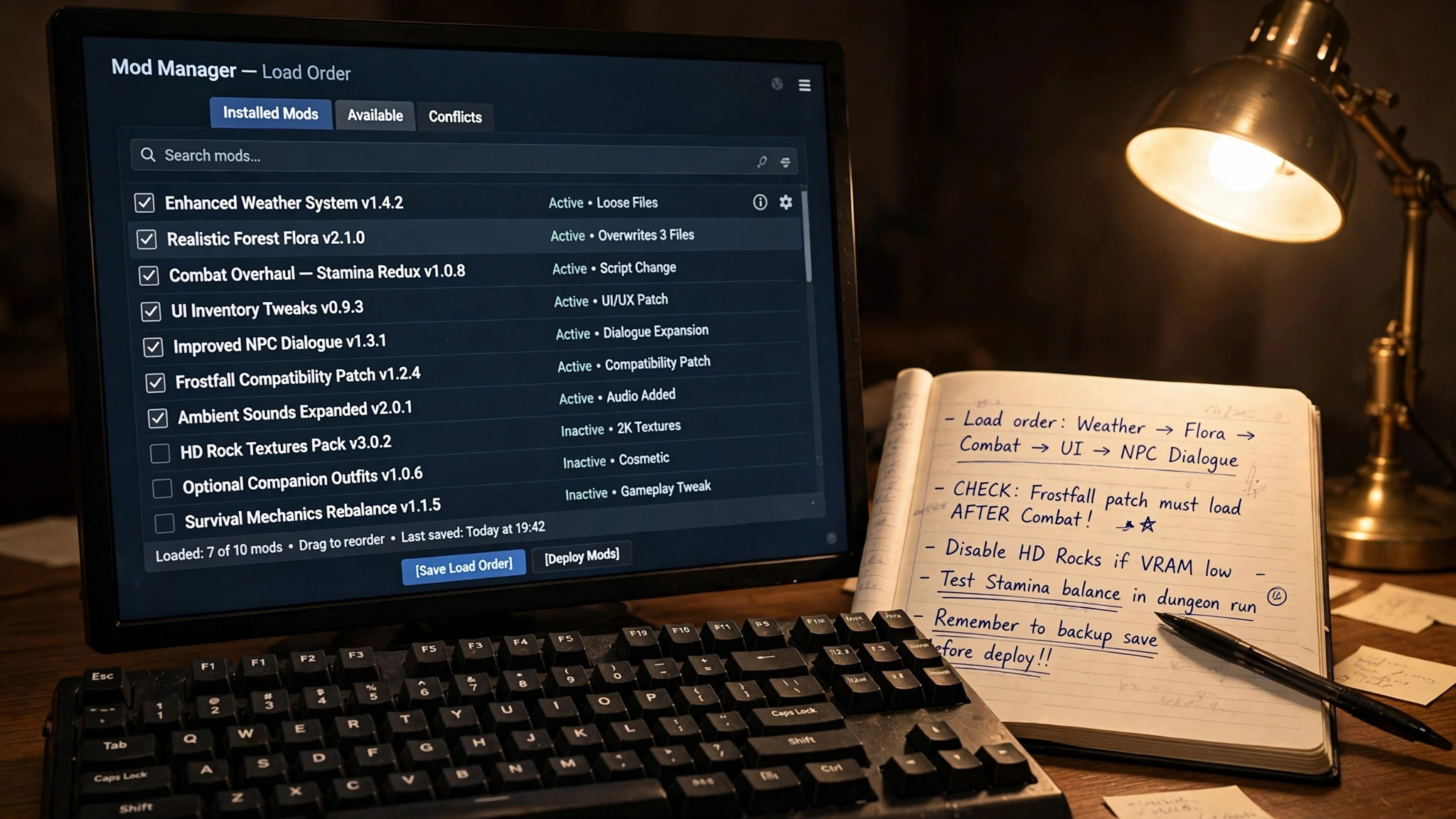
Two habits make Vortex painless. First, always read the Requirements section on a mod's page and install those dependencies first — a mod that needs a framework mod will silently do nothing without it. Second, use Vortex's conflict warnings rather than ignoring them: when two mods change the same files, Vortex asks which should win, and that choice decides which mod's changes you actually see in game.
Other games have their own managers worth knowing about. Bethesda games have a long tradition of community managers and load-order tools, Minecraft Java Edition uses launchers such as Modrinth or CurseForge together with Fabric or NeoForge, and Stardew Valley runs through SMAPI, a free mod loader the community treats as standard. In each case, the manager exists to solve the same problem: keeping dozens of mods in the right order without you hand-editing files.
Method 3: Manual installs — and when to use them
Some mods are only available as plain downloads, usually a compressed folder you place inside the game's own folders yourself. The exact destination varies by game, so always follow the mod's own instructions — but the pattern is usually one of these:
- Skyrim and Fallout: extract into the game's Data folder, then enable the plugin in your mod manager or the game's launcher.
- Minecraft Java Edition: drop the file into the
modsfolder inside your.minecraftfolder, with Forge, Fabric or NeoForge installed first. - Stardew Valley: drop the folder into the game's
Modsfolder after installing SMAPI. - Many indie games: look for a folder literally called
Modsin the game's install directory.
Manual installs suit one or two simple mods, but they get messy fast: removing a mod means remembering exactly which files you added, and updates mean repeating the process by hand. For more than a handful of mods, switch to a manager first.
Load order, conflicts and why mods break
When two mods touch the same thing — the same weapon, the same map, the same game system — the one that loads last usually wins. That ordering is called load order, and getting it wrong produces the classic symptoms: missing textures, features that silently do nothing, or crashes on startup. Mod managers sort load order automatically for supported games, and Bethesda players additionally use the free LOOT tool, which sorts plugins according to a community-maintained ruleset.
| Method | Best for | Effort | Control |
|---|---|---|---|
| Steam Workshop | A few mods on a Steam game | Lowest | Low — automatic updates, little say over order |
| Nexus Mods + manager | Dozens of mods, load order matters | Medium | High — enable, disable and reorder freely |
| Manual install | Mods not listed on any manager | Medium | Full, but you do all the bookkeeping |
Game updates are another common cause of breakage: a patch can change the files a mod depends on, breaking it overnight. If your game breaks right after an update, disable your mods first and test the unmodded game. Our guide to verifying game files explains how to restore the clean version.
If a mod breaks your game
- Disable the most recently installed mod and test. Repeat, newest first, until the game works.
- Check the mod's comments or bug reports — if an update broke it, other players will already be talking about it.
- Verify the game's files through Steam, Epic or GOG to restore any damaged base files, then re-enable mods one at a time.
- Restore your save backup if a save was corrupted, and remember that a save made with a mod often needs that mod to load again.
One honest warning: mods can disable achievements in some games. Bethesda's single-player games, for example, normally block achievements while mods are active unless you use a community achievement-enabler mod. If achievements matter to you, check the game's behaviour before modding your main save.
Modding rewards patience more than technical skill. Start with one trusted mod, back up your saves, and build from there — and the next time a game feels stale, you will know exactly how to give it a second life.
