There is nothing more frustrating in a multiplayer match than realising your teammates cannot hear you. You can hear them, the mic works elsewhere — but in the game, you are silent. The good news is that a dead in-game microphone is rarely a broken headset. It is almost always a settings problem somewhere in a short chain: the hardware, Windows, or the game. Work through it in order and you will usually find the break in minutes.
First, Check Whether the Microphone Works at All
Before changing settings, find out whether the problem is the mic or the game. Open the Voice Recorder app, record a ten-second clip, and play it back. If you hear yourself clearly, the mic and its connection are fine, and the problem is in Windows or the game. If the recording is silent or distorted, the fault is hardware or driver level — skip to those sections below.
Check the Hardware: Cables, Mute Switches and Ports
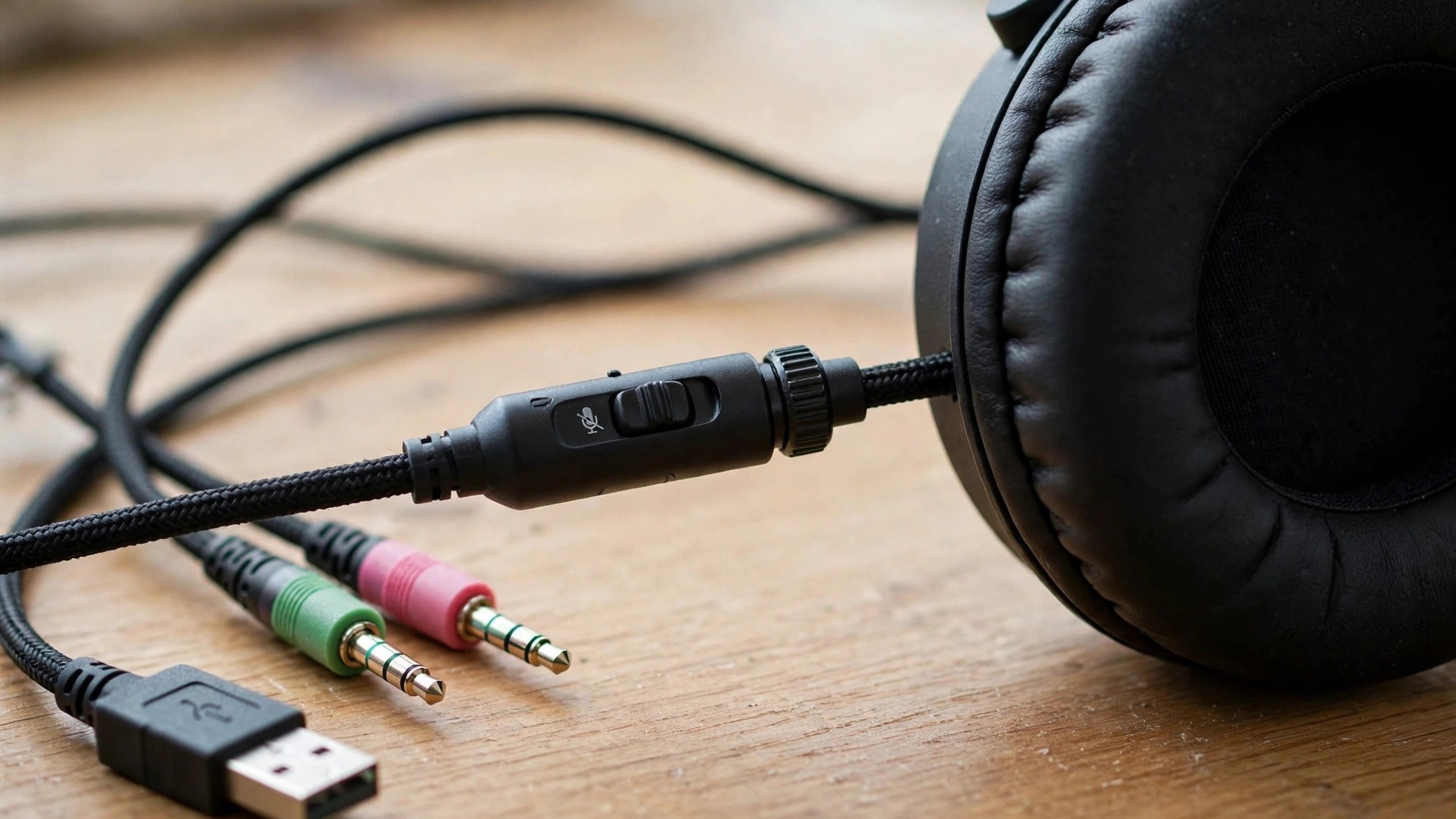
Start with the simplest causes. Unplug your headset and plug it firmly back in. Check the inline mute switch on the cable, the mute button on the earcup, and whether the boom mutes when flipped up. With separate pink and green 3.5 mm plugs, the pink one goes in the microphone socket — and push both fully in.
For USB headsets, try a different port directly on the PC rather than on a hub — a loose hub connection is a classic cause of a mic that appears in Windows but never picks up sound. Bluetooth cannot carry high-quality stereo audio and mic audio at once: when the mic activates, Windows switches to the low-quality Hands-Free profile, and some headsets stop working as a mic. For gaming voice chat, wired or USB is far more reliable.
Set the Right Microphone as the Default in Windows
Most gaming PCs have several microphones — headset, webcam, monitor, laptop array — and Windows and your game may listen to the wrong one. Fix it at the Windows level first:
- Open Settings > System > Sound and look at the Input section.
- Open the Choose a device for speaking or recording dropdown and select your headset microphone by name.
- Speak and confirm the input volume bar moves — a slider left at zero is the same as a muted mic.
- For a deeper check, run
mmsys.cpl, open the Recording tab, set your mic as Default Device and Default Communication Device, then check Levels is up and unmuted.
Check Windows Microphone Privacy Settings
This is the most common cause of a mic that works in a voice recorder but not in a game: Windows privacy settings can block apps from the microphone entirely, and an update sometimes resets them.
- Open Settings > Privacy & security > Microphone.
- Make sure Microphone access, Let apps access your microphone and Let desktop apps access your microphone are all turned On — most PC games are desktop apps, so the last toggle is the one that matters for gaming.
- Check the app list below: your game or launcher needs permission — if a toggle looks wrong, switch it off and on again.
Restart the game after changing these settings — games usually check mic permission once, at launch, so a change made while the game is running may not take effect until you restart.
Fix the In-Game Voice Chat Settings
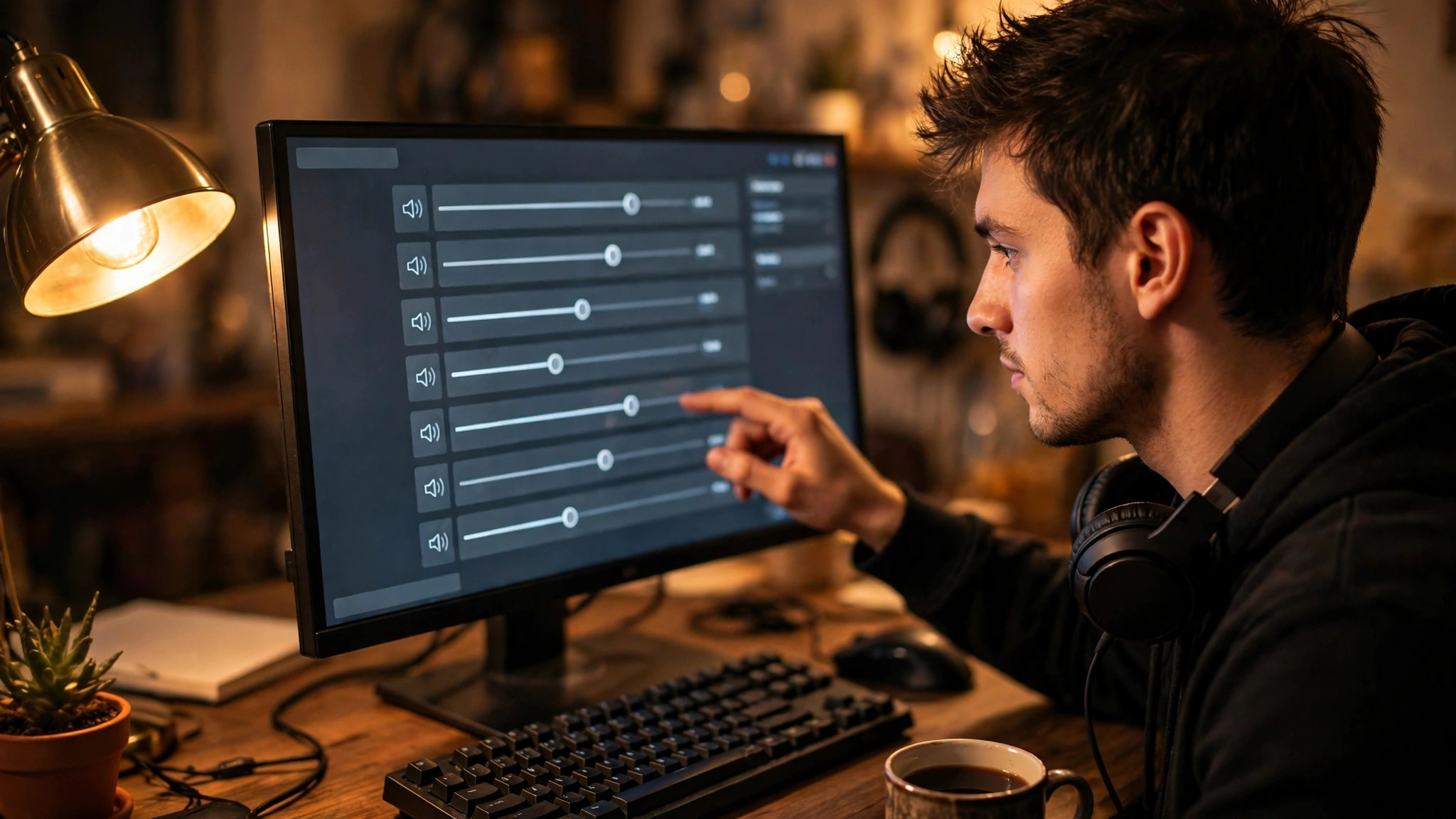
Even with Windows configured correctly, the game itself may be listening to the wrong device — or not listening at all. In the game, open Settings > Audio (or Voice, or Voice Chat) and check:
- Voice chat is enabled. Many games ship with voice chat off by default, or hide an Enable voice option in the audio menu.
- The input device is correct. If the game has a microphone dropdown, select your headset by name instead of Default — Default can pick up your webcam mic instead.
- The input volume or sensitivity is high enough. Start at 70 to 80 percent, and use the game's mic test feature if it has one — most competitive games do.
- You are in the right voice channel. Some games split voice chat into team, party and proximity channels — talk on the wrong one and your squad will never hear you.
Steam has its own voice settings too (Settings > Voice) — check the recording device there as well.
Fix Push-to-Talk and Voice Activation
Many players set push-to-talk and forget which key they bound — or the game defaults to it while they expect an open microphone. If teammates only hear you while you hold a key, this is your problem. In the game's voice settings, choose voice activation (the mic opens when you speak) or push-to-talk (you hold a key to talk). For push-to-talk, bind a key you can reach easily in a fight, such as a mouse side button. For voice activation, set the threshold low enough that normal speech opens the mic, but not so low that keyboard noise triggers it. Also check the mute keybind — several games bind mic mute to a key by default, and it is easy to hit by accident.
Update or Reinstall Your Audio Drivers
If the microphone works nowhere — not in the game, not in Voice Recorder, not in the Windows test — suspect the driver. A corrupted or outdated audio driver can leave the device listed in Windows while delivering no sound.
- Press Win + X, open Device Manager, expand Audio inputs and outputs, right-click your microphone, and choose Update driver > Search automatically for drivers.
- If that finds nothing, expand Sound, video and game controllers and update your audio device there too.
- If updating does not help, right-click the microphone, choose Uninstall device, and restart your PC — Windows reinstalls a fresh driver on startup.
For a headset with its own software — SteelSeries, Razer, Logitech — update the manufacturer's app too: these apps install their own audio drivers. A controller-connected headset can also be muted at the controller — see our guide to using a PS5 DualSense controller on PC.
What the Symptoms Mean
| Symptom | Most likely cause | Fix first |
|---|---|---|
| Mic works in Voice Recorder, not in the game | Wrong in-game input, or voice chat off | Enable voice chat in game audio settings and pick the right device |
| Mic works nowhere | Hardware, connection or driver fault | Check cables and mute switches, then reinstall the driver |
| Only heard while holding a key | Push-to-talk is on, or the wrong key is bound | Switch to voice activation, or rebind the key |
| Mic stopped after an update | Update reset privacy settings or drivers | Check the Microphone privacy toggles, then update the driver |
| Mic stops working when Discord opens | Discord holds the mic with exclusive access | Sound panel > mic Properties > Advanced: untick exclusive control |
Test after each step — use the game's mic test, or ask a teammate to confirm they can hear you. Most mic problems are fixed by one of these steps. If you record gameplay too, our guide to recording gameplay on PC without losing FPS covers the encoder settings that keep recordings smooth.
