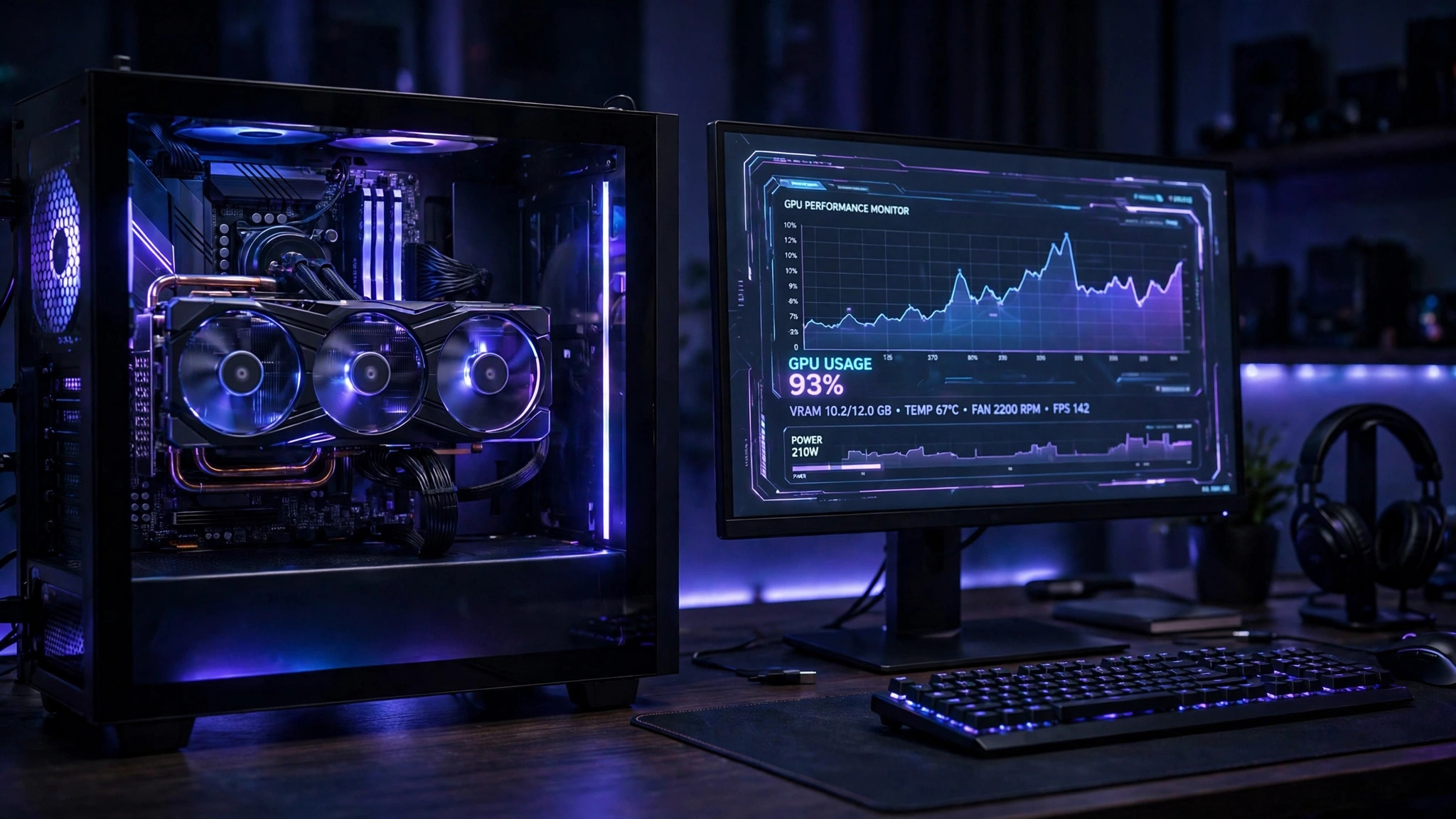
Your graphics card is usually the most expensive part of a gaming PC, so it is frustrating to open the performance overlay and see it sitting at 30 or 40 percent usage while your game stutters. The GPU is not broken, and it is almost certainly not lazy. Low GPU usage means your graphics card is waiting — waiting for your processor, your memory, or the game itself to hand it the next frame to draw. Fixing it is less about pushing the GPU harder and more about finding whatever is starving it and getting that out of the way.
What Low GPU Usage Actually Means
Rendering a frame is a relay race: your CPU prepares each frame — game logic, physics, draw calls — and your GPU draws it. If the CPU can only prepare 45 frames per second, your GPU will only draw 45, no matter how powerful it is. A card capable of 144 frames per second will sit around 40 percent usage, idle for more than half of every second.
That is the key insight: low GPU usage is a symptom, not a disease. The usual suspects are a processor that cannot keep up, a frame limiter or VSync, power or thermal limits, background software eating CPU time, or a game that asks little of the GPU at its current settings. Diagnose first, then fix the cause.
Step 1: Confirm the Problem Properly
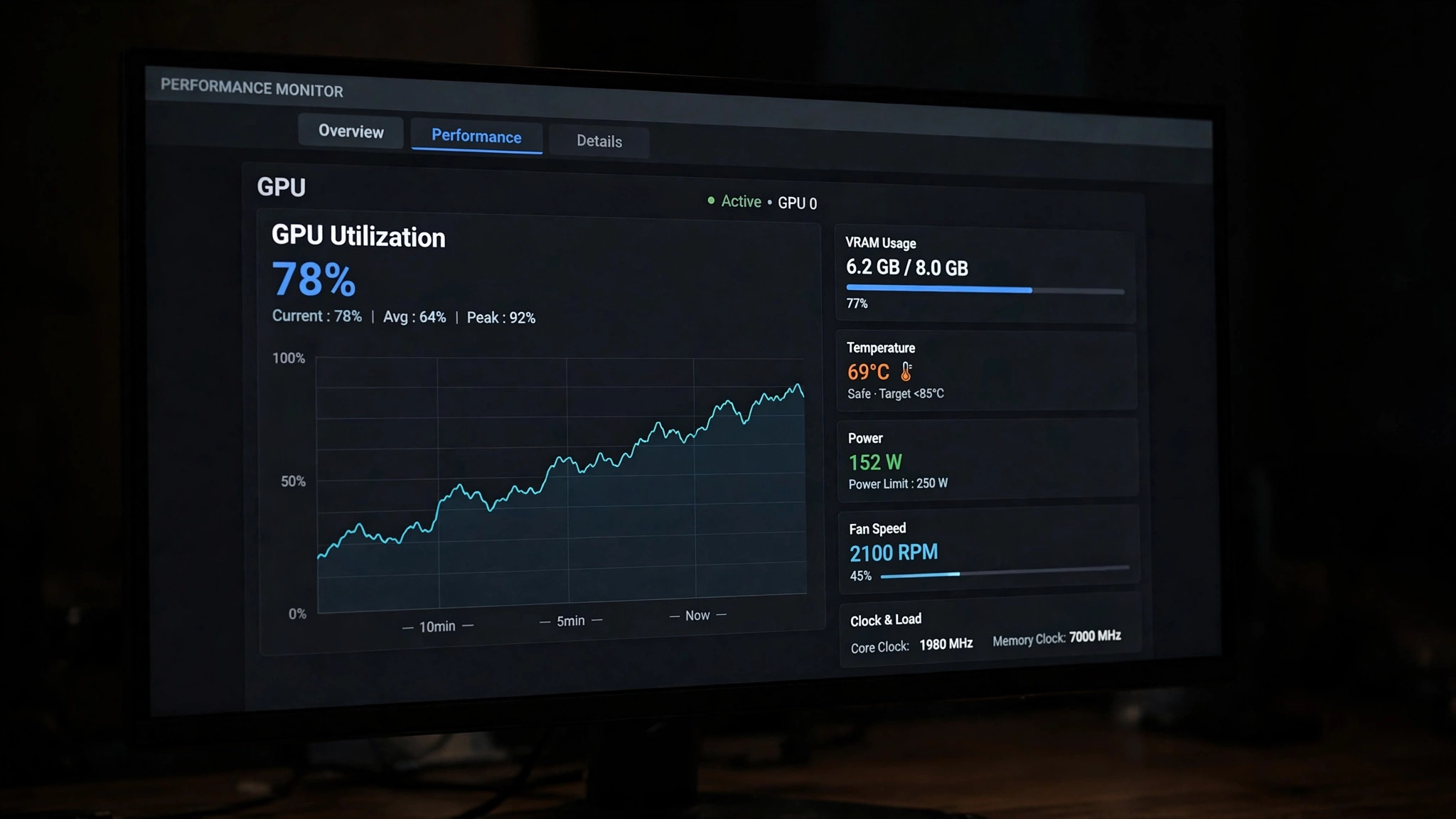
Before changing anything, get real numbers: measure during actual gameplay, in a busy scene, for a few minutes. A glance at an overlay in a menu tells you nothing — usage always drops there.
- Open Task Manager with
Ctrl + Shift + Esc, go to the Performance tab, and watch GPU utilisation and CPU utilisation side by side while you play. - Or use your driver's overlay —
Alt + Rin AMD Software,Alt + Zthen Performance in the NVIDIA App — which shows GPU usage, CPU usage, frame rate and frame time together. - Note three numbers: GPU usage, CPU usage, and frames per second. If GPU usage is under 70 percent, the frame rate is below what you expect, and one CPU core is near 100 percent, you have a CPU bottleneck. If GPU usage is low but the frame rate already matches your monitor's refresh rate, you have a frame cap, not a problem.
Also check temperatures. A GPU above 83°C under load throttles itself, which looks like low usage with low frame rates — clean the dust out and improve airflow before anything else in this guide.
Read the Numbers: What Is Bottlenecking You?
Match what you measured to the pattern below. Most low GPU usage falls into one of these four buckets.
| What you see | Likely cause | Where to look |
|---|---|---|
| GPU 30–60%, one CPU core near 100% | CPU bottleneck | CPU-heavy settings; background apps |
| GPU under 50%, frame rate locked at 60 or 144 | Frame cap or VSync | In-game limiter, VSync, driver frame cap |
| GPU usage swings wildly, frame rate stutters | Power limit or thermal throttling | Power plan, driver power settings, temperatures |
| GPU under 50% in one game only, fine elsewhere | That game's engine or settings | Per-game settings, resolution scale, mods |
Fix a CPU Bottleneck
A CPU bottleneck is the most common cause, and the most misunderstood. Do not fix it with a faster graphics card — the new card just waits longer. Fix it by taking work off the CPU, or by giving the GPU more work per frame.
- Turn down CPU-heavy settings first. Draw distance, shadows, crowd density, physics and view distance all load the processor. Lowering them frees the CPU to feed frames faster.
- Close background software. Browsers, Discord, recording software and RGB utilities compete for the same CPU cores your game needs. Close what you do not need and test again.
- Check the Windows power plan. On laptops especially, the
Balancedplan can hold the CPU back. Switch toHigh performanceunder Settings, then System, then Power, and plug the laptop in — a laptop on battery throttles the CPU hard. - Raise the resolution or resolution scale. This sounds backwards, but it works: running at 1440p instead of 1080p, or raising the resolution scale above 100 percent, gives the GPU more work per frame while the CPU cost barely changes. Usage climbs toward 90 percent or more.
If one CPU core is still pinned at 100 percent in every modern game, your processor genuinely cannot keep up with your graphics card — the honest answer is a CPU upgrade.
Settings That Put Load Back on the GPU
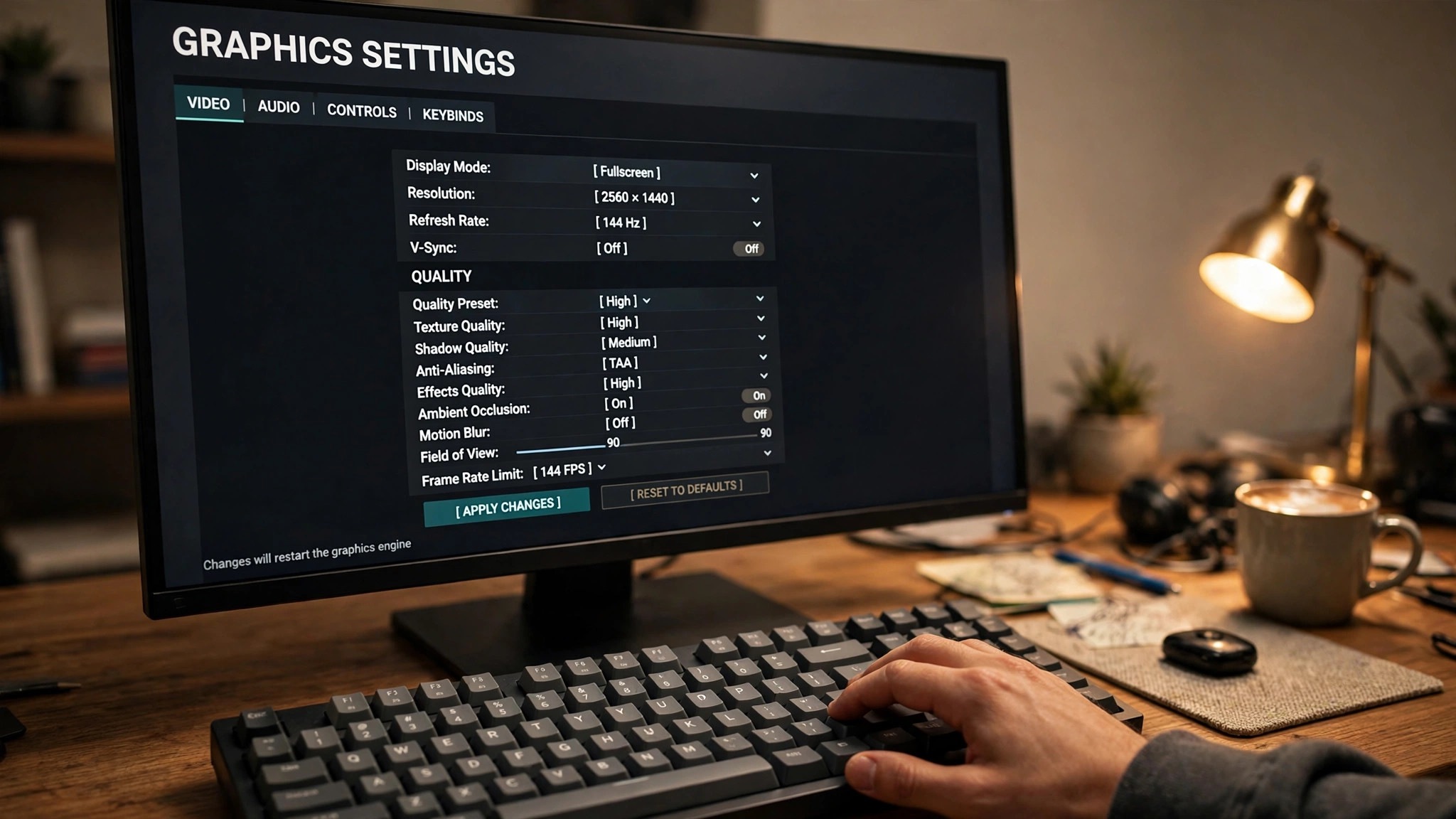
When the CPU is not the problem, give the GPU more to do — the one time in PC gaming where turning settings up is the fix.
- Raise the resolution. If you play at 1080p on a card built for 1440p, the GPU finishes each frame quickly and waits. Move to your monitor's native resolution.
- Turn up GPU-heavy settings. Texture quality, anti-aliasing, ambient occlusion and post-processing load the graphics card far more than the CPU. Raising these increases GPU usage and improves the picture at the same time.
- Turn off frame rate caps and VSync as a test. An in-game limiter, VSync, or a driver cap such as NVIDIA's Max Frame Rate holds GPU usage down by design. Disable them temporarily: if usage jumps up, the cap was the cause.
- Check the render resolution scale. Some games ship with resolution scale below 100 percent, or dynamic resolution that quietly lowers it. Set it to 100 percent or higher.
Driver, Power and Background Fixes
If the settings are right and the CPU is not overloaded, check power delivery and drivers.
- Set the GPU power plan to maximum performance. In the NVIDIA App, set Power management mode to
Prefer maximum performancefor the game; in AMD Software, set the tuning profile to maximum power. - Do a clean driver install. Corrupt or half-updated drivers can leave a card stuck in a low-power state. Use Display Driver Uninstaller in Safe Mode to remove the old driver completely, then install the latest driver fresh.
- Check the power connectors. A card fed by a single daisy-chained power cable, or a power supply that cannot deliver enough wattage, will throttle under load. Use separate cables from the power supply for each connector.
- Make sure the game is using the right GPU. On laptops and desktops with integrated graphics, a game can end up running on the weak integrated chip while the real card idles. Our guide to forcing a game to use your dedicated GPU walks through the Windows and driver settings that fix this.
When Low GPU Usage Is Normal
Not every low number is a problem. If your frame rate already matches your monitor's refresh rate and the game feels smooth, your GPU is doing exactly as much work as it needs to — chasing 99 percent usage would only add heat and fan noise. The same applies to older games, menus and loading screens, where usage always falls. Low GPU usage only matters when it comes with a frame rate you are unhappy with. Fix the bottleneck, not the number on the overlay.
