
Short answer: The fastest way to fix high ping is to plug your PC or console directly into your router with an Ethernet cable, pick the game server closest to you, and close background downloads and streams on every device sharing your connection. Those three free changes fix most high ping. If they do not, work through the rest of this guide in order: restart your router, fix your Wi-Fi setup, turn on QoS, update your drivers and firmware, and check whether the game server itself is the problem.
Ping, also called latency, measures a round trip: data leaves your device, arrives at the game server, and returns. It is measured in milliseconds, and in a fast-paced game every millisecond matters. This guide explains what good ping looks like, how to find whether the problem is yours or the server's, and the 11 fixes that actually work — in the order you should try them.
What counts as good ping?
| Ping | What it feels like |
|---|---|
| 0 to 20 ms | Excellent. Competitive play feels instant. |
| 20 to 50 ms | Good. Smooth play in almost every game. |
| 50 to 100 ms | Playable, but you may notice delayed hits in fast shooters. |
| 100 ms and above | Laggy. Rubber-banding, teleporting players and shots that do not register. |
Aim for under 50 ms, and treat 100 ms as the line where most games start to feel broken. Note that ping and frame rate are different problems: low frame rate is your PC struggling to draw the game, while high ping is your connection struggling to reach the server. If your game stutters but your ping is fine, the problem is local performance — see our guides on fixing high CPU usage and fixing high RAM usage in PC games. If your ping spikes only when someone else in the house starts streaming, this guide is the right one.
First, find out whether the problem is yours or the server's
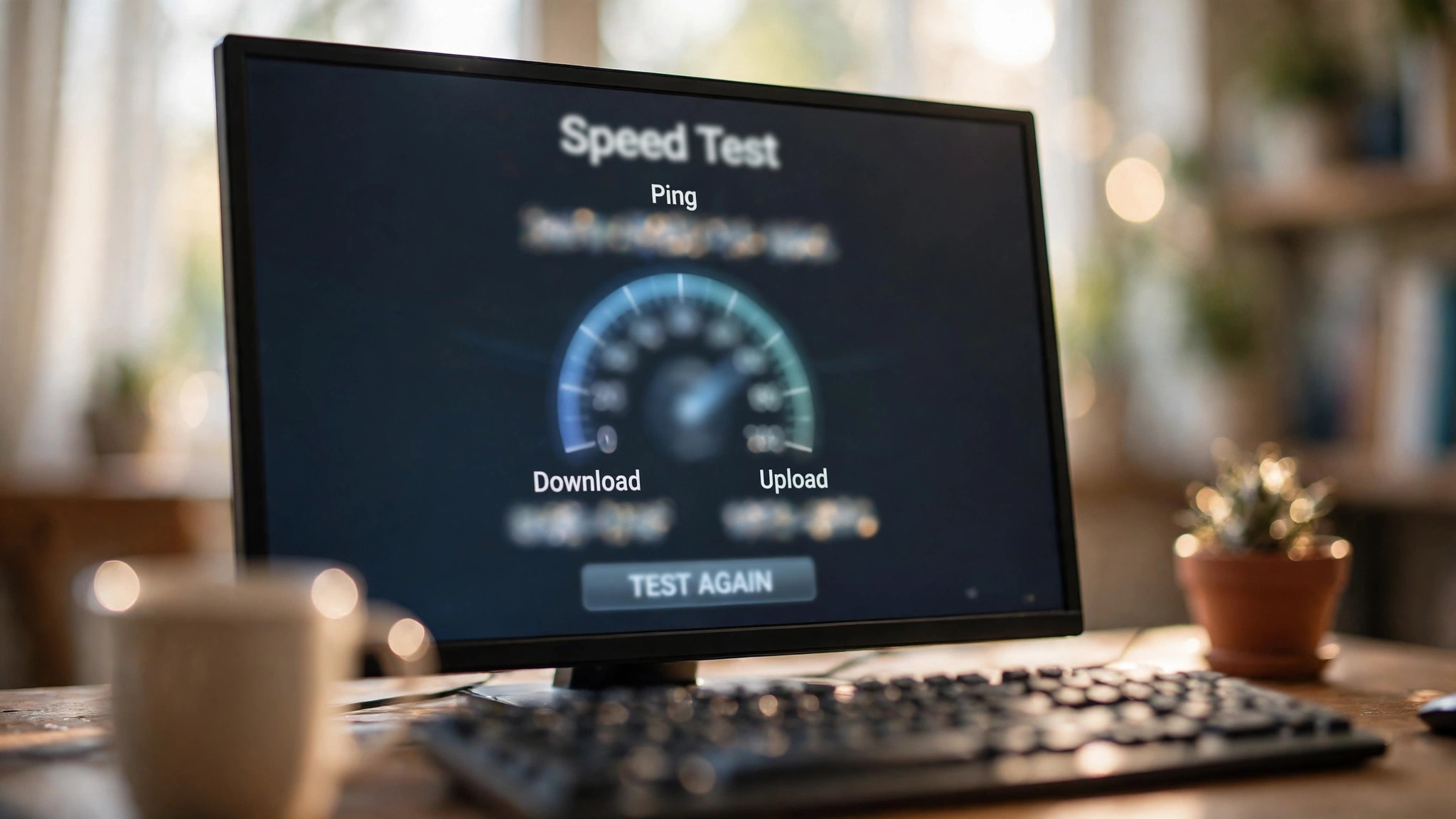
Before changing anything, test. Run a speed test — Speedtest by Ookla is the standard choice — and write down your ping, download speed and upload speed. Then check the ping inside your game: most online games show it in the settings or on the scoreboard, and some let you display it permanently. If the speed test shows low ping but the game shows high ping, the problem is the route to that game server, or the server itself. Check a server status site or the game's official status page before touching your setup: if the servers are down or struggling, no local fix will help, and you should wait it out.
Also check when the lag happens. Ping that is fine at midnight and terrible at 8pm usually means congestion — either your household, your street, or your ISP's network at peak hours. Ping that is high all day points at your own connection: Wi-Fi, a bad cable, or a server region set wrong. Knowing which pattern you have tells you which fix to prioritise.
Fix 1: Switch to a wired Ethernet connection
If you play over Wi-Fi, an Ethernet cable is the single most effective change you can make. Wi-Fi is a shared radio medium: walls, distance and other wireless devices all add delay and jitter, while a cable delivers your data directly to the router. Run Cat5e or Cat6 cable from your router to your PC or console — Cat6 handles up to 10 Gbps and costs only slightly more than Cat5e, and Cat8 is overkill for a home connection. If a cable is genuinely impossible, sit close to the router with a clear line of sight, and use the 5 GHz or 6 GHz band, which are faster and less congested than 2.4 GHz. Wi-Fi 6E narrows the gap significantly, reaching 3 to 7 ms latency in good conditions against Ethernet's 1 to 3 ms, but a cable still wins.
Fix 2: Choose the closest game server
Your data travels at a fixed speed, so distance is ping. Most competitive games let you pick a server region: in Valorant it is under Settings, then General, then Region; in Fortnite it is Settings, then Game, then Matchmaking Region, set manually instead of Auto; in League of Legends it is the region selector in the client; in Counter-Strike 2 you can set it with a launch option in Steam. Always pick the region closest to your physical location, and never leave it on Auto if Auto keeps putting you on a distant server. This one setting can cut 50 ms or more for players who were unknowingly playing on another continent.
Fix 3: Close background apps and pause downloads
Every download, stream and update on your network steals bandwidth and adds delay. Before a match, close browser tabs streaming video or music, pause cloud syncing, pause game downloads and updates in Steam and other launchers, and stop anyone else in the house downloading or streaming in 4K. On PC, open Task Manager with Ctrl + Shift + Esc, go to the Performance tab and open Resource Monitor to see exactly which program is using your network. One hidden drain most players miss is Windows Delivery Optimization, which uploads system updates to other users by default: turn it off under Settings, then Windows Update, then Advanced Options, then Delivery Optimization. If you record gameplay while you play, use your graphics card's hardware encoder — NVENC on NVIDIA, AMF on AMD — instead of software encoding, so recording does not compete with the game. Our guide on recording gameplay without losing FPS covers the exact settings.
Fix 4: Restart your router and modem
Turn both off, wait about 30 seconds, then power them back on — modem first, then the router. This clears errors and stale sessions that build up over days of use, refreshes your connection, and can cut latency spikes immediately. It is the oldest fix in networking and it still works, which is why it is worth doing before you change any settings. While you are there, check the cables: a damaged or loose Ethernet cable can cause exactly the intermittent spikes that look like high ping.
Fix 5: Fix your Wi-Fi setup
If a cable is not an option, make your Wi-Fi as clean as possible. Move the router out into the open, up high and away from thick walls, metal objects and other electronics. Switch to the 5 GHz or 6 GHz band when you are close to the router, and pick a clean channel to cut interference from neighbouring networks — your router's admin page or app usually has a channel scan. Remove devices you do not need from the network while you play, and keep the router's firmware updated, since manufacturers regularly fix performance and stability bugs in firmware updates.
Fix 6: Turn on QoS or Smart Queue Management
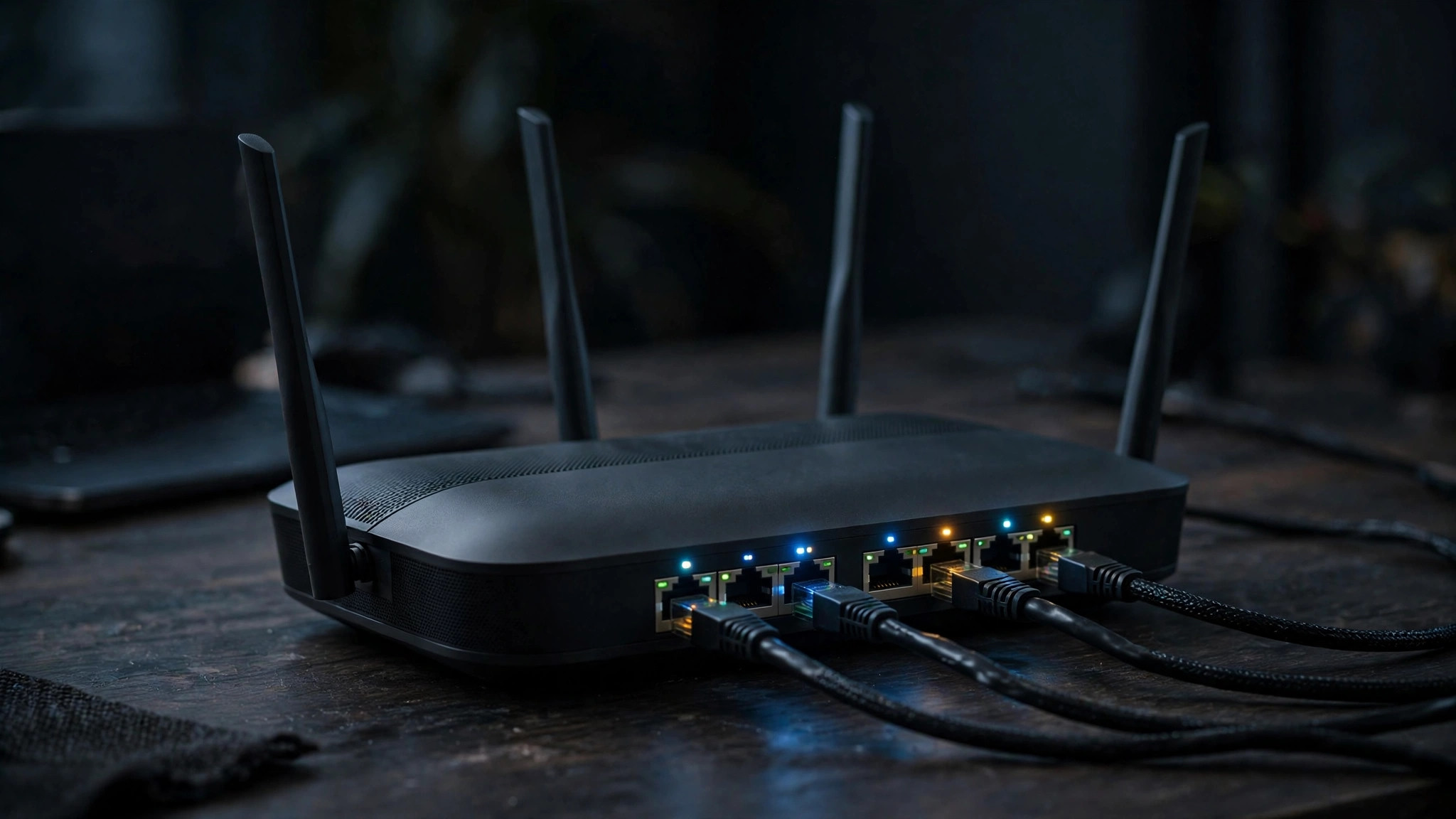
Quality of Service, or QoS, tells your router which traffic matters most, so your game gets served before a background download. The most effective version is Smart Queue Management, or SQM — also sold as anti-bufferbloat — which stops one download from filling your connection and delaying everything else. To set it up, log in to your router's admin panel, usually at 192.168.1.1 or 192.168.0.1, find the QoS or Traffic Manager section, run a speed test first, then set the QoS bandwidth to about 85 to 90 percent of what you actually get, and give your gaming PC or console the highest priority. Configure it once and it works automatically whenever the network is under load — this is the fix that solves the "ping spikes the moment someone starts streaming" problem.
Fix 7: Update your network drivers, firmware and game files
Out-of-date network drivers cause real latency problems, especially after a major Windows update. Update your network adapter driver from your motherboard or laptop maker's site rather than relying on Windows Update alone, update your router's firmware from its admin page, and keep the game itself updated — developers regularly fix netcode and server browser bugs in patches. While you are at it, check Windows is fully updated, and if you play on a laptop, plug in the charger: power-saving modes throttle the network adapter along with everything else.
Fix 8: Check the game server, not just your connection
High ping is not always your fault. If only one game lags while everything else is fine, the problem is almost certainly that game's servers or the route to them. Check the game's official status page and community reports, try a different server region in that game, and try another online game for comparison. If every game on one server region lags but another region is fine, play on the good region and report the bad one. If all games lag equally, the problem is on your side — go back to fixes 1 to 7.
Fix 9: Use a VPN only if your ISP is throttling or routing badly
A VPN usually adds latency, because your data takes an extra hop — so do not use one as a general fix. The exception is when your ISP slows gaming traffic during peak hours, or routes you to the game server by a slow path. In that case, connecting to a fast VPN server near you, or near the game server, can sometimes give you a shorter route and lower ping. Test it properly: play three matches with the VPN off, three with it on, and compare the in-game ping. If it does not help, turn it off — a VPN that does not help is pure overhead. Never pay for a "gaming VPN" on a promise of lower ping without testing it first.
Fix 10: Upgrade your plan or your router
If you have worked through fixes 1 to 9 and your ping is still high, the connection itself may be the limit. Two upgrades matter. First, the plan: fibre internet gives lower and steadier latency than cable or DSL, and a slow upload speed — under 10 Mbps — can cause lag even with fast downloads, because your game constantly sends data upstream. Second, the router: an old router, or the free one your ISP supplied years ago, may not handle modern speeds or QoS at all, and replacing it is often the single biggest improvement after the cable itself. Before spending money, borrow a newer router or test with a wired connection at a friend's house to confirm the upgrade will actually help.
Fix 11: Contact your ISP
If nothing above works, the problem may be outside your home: a faulty line, congestion on your street, or bad routing at your ISP. Call with evidence, not a complaint: your speed test results at different times of day, your ping to the game server with and without a cable, and whether the problem started on a specific date. Ask them to check the line quality and whether your area has known congestion, and ask if a different routing profile or a plan change would help. If they cannot fix it and a competing fibre provider serves your street, that is the point where switching providers is the rational fix, not another settings tweak.
What will not fix high ping
A few popular suggestions waste your time. Game booster apps that claim to lower ping mostly just close background programs — which fix 3 already does for free. Changing your DNS server rarely affects in-game ping at all, since DNS is only used once to look up the server address. Closing the game overlay or lowering your graphics settings fixes frame rate, not latency. And buying a faster internet plan will not help if your problem is Wi-Fi interference or a distant server: a 1 Gbps plan with a bad route still loses to a 100 Mbps plan with a clean one. Spend your effort on the cable, the server region and the background traffic first.
Frequently asked questions
What is a good ping for gaming?
Under 50 ms is good for almost every game, and 20 ms or less is excellent. Over 100 ms, most fast-paced games feel laggy, with rubber-banding and shots that do not register.
Does Ethernet really lower ping?
Yes. A wired connection is faster and more stable than Wi-Fi because it is not affected by walls, distance or other wireless devices. It is the single most effective free change most gamers can make.
Why is my ping high only at night?
Evening congestion. More people in your house and on your street are streaming and downloading at the same time, and your ISP's network is at its busiest. QoS or Smart Queue Management on your router is the fix that helps most here.
Can a VPN lower my ping?
Sometimes, if your ISP throttles gaming traffic or routes you badly — but usually a VPN adds latency. Test it with three matches on and three off, and keep it only if the numbers improve.
Is high ping the same as low FPS?
No. High ping is a network delay between you and the server; low FPS is your PC struggling to draw the game. Fix ping with the steps in this guide, and fix frame rate with our Windows 11 gaming optimisation guide.
