Audio crackling is one of the most irritating problems in PC gaming. The game runs fine and the picture is smooth, but every explosion pops and every voice line crackles. It is easy to blame your headset, but in most cases the hardware is fine — crackling is usually a timing problem: somewhere between the game and your ears, the audio stream is being interrupted, resampled badly, or processed by a driver that cannot keep up.
The fixes below run from quickest to deepest. Test the game after each step and stop as soon as the crackling is gone.
What Audio Crackling Actually Is
Digital audio is a steady stream of tiny samples — typically 48,000 every second. Your game produces that stream, Windows mixes it, and your driver hands it to your speakers. Crackling happens when the stream breaks: samples arrive late or get dropped, and your ears hear the break as a pop or a crackle.
| What you hear | Likely cause | Fix first |
|---|---|---|
| Constant faint crackle in every game | Sample rate mismatch | Set Windows to 24 bit, 48000 Hz |
| Pops when action gets busy | CPU overload or DPC latency | Close background apps; check LatencyMon |
| Distortion with bass or loud sounds | Audio enhancement processing | Disable all enhancements |
| Crackle in one game only | That game's audio settings | In-game audio options; verify game files |
Quick Fixes to Try First
Start with these checks — one of them usually solves it.
- Restart the game, then restart Windows. Audio drivers can get into a bad state after sleep or a long session. A clean restart clears it.
- Unplug and replug your audio device. Remove the headset and plug it back in — preferably into a different port or jack. A loose connection can crackle exactly like a software fault.
- Test with different audio hardware. Plug in a different headset and play the same scene. If the crackling follows the device, the device is the problem; if it stays, the problem is in Windows or the game.
- Close background apps. Browsers, Discord, recording software and RGB utilities all compete for CPU time. Close them one at a time and test.
Match the Sample Rate and Turn Off Exclusive Mode
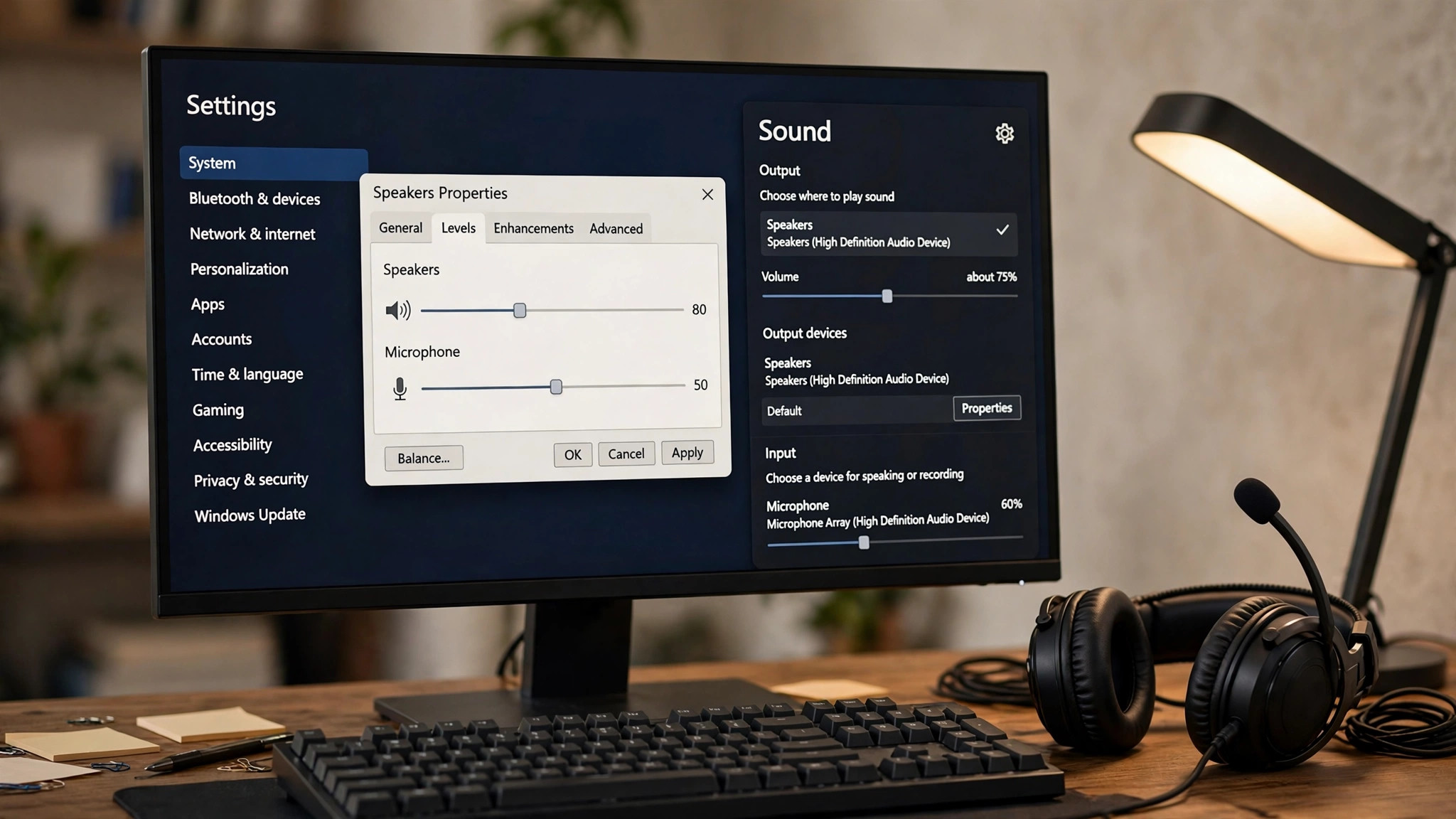
This is the most effective fix for crackling. Windows and your game can disagree on the sample rate — usually 44.1 kHz or 48 kHz — and when they do, Windows resamples the audio on the fly, which sounds like crackling.
- Right-click the speaker icon in the taskbar and open
Sound settings. - Open your output device's
Properties, then theAdvancedtab. - Set the default format to
24 bit, 48000 Hz— most games output at 48 kHz, so matching it removes resampling entirely. If the crackling stays, try16 bit, 44100 Hzinstead. - On the same tab, untick
Allow applications to take exclusive control of this deviceand test again — when two programs fight over the device, the result is pops and dropouts.
While you are there, turn off audio enhancements: on the Enhancements tab, disable loudness equalisation, bass boost, virtual surround and any manufacturer enhancement. These process every sample in real time, and a buggy one is a classic cause of distortion. Turn off your headset software's own surround or equaliser too while testing.
Update or Reinstall Your Audio Drivers
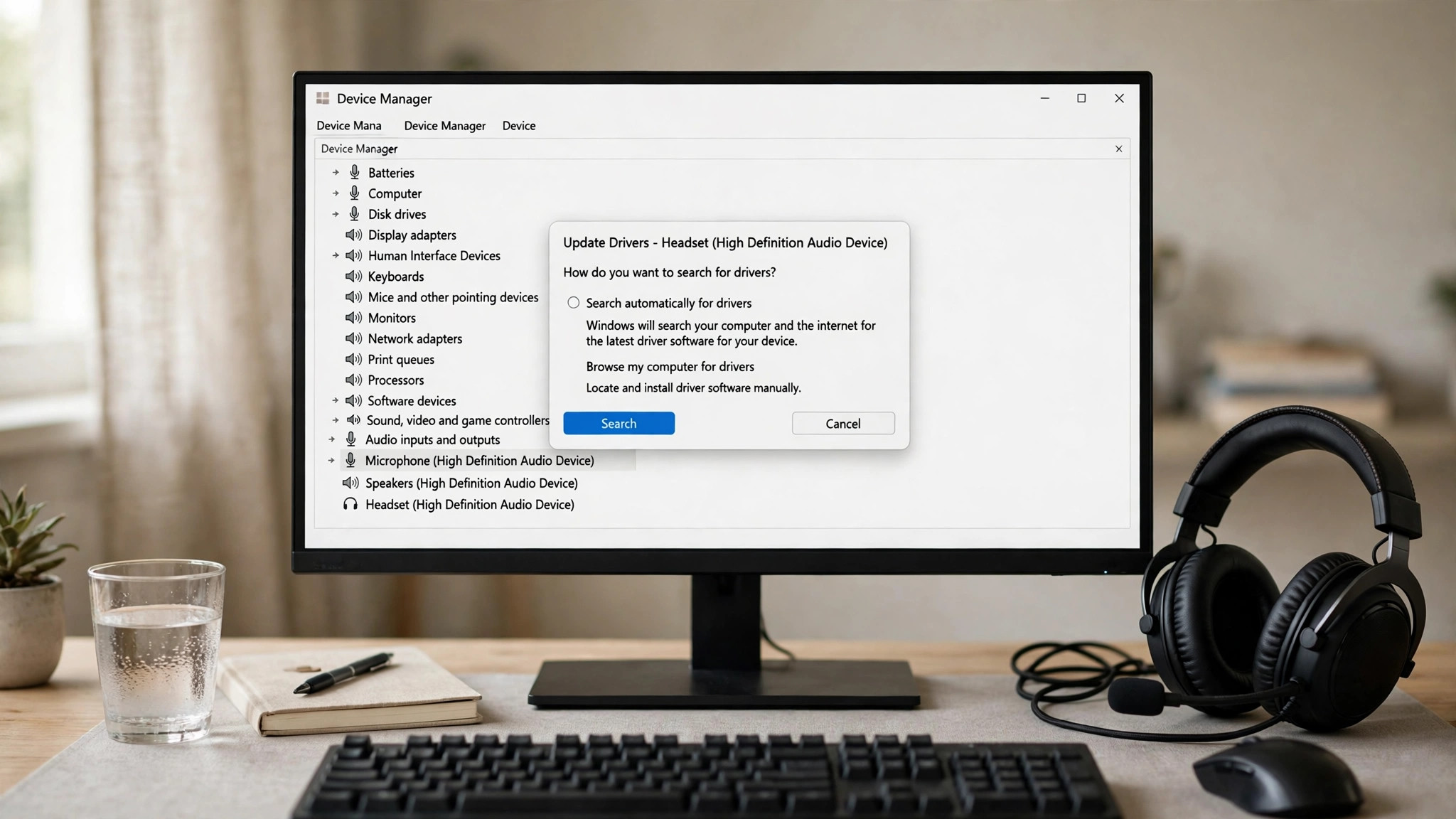
If the settings are right and the crackling continues, the driver is the next suspect. Windows Update installs generic audio drivers that are often old, and a driver that shipped with your motherboard or headset can go stale.
- Update from the manufacturer, not Windows Update. For onboard audio, get the driver from your motherboard maker's support page. For a USB headset, get the driver or companion app from the headset maker's site.
- Do a clean reinstall if updating does not help. Open Device Manager, expand
Sound, video and game controllers, right-click your audio device, chooseUninstall device, and tickDelete the driver software for this deviceif the option appears. Restart Windows, then install the manufacturer's driver on top. - Update your chipset drivers too. The chipset driver controls data flow between your CPU, USB ports and audio hardware, and an old one can starve the audio stream — especially for USB headsets. Get it from your motherboard or laptop maker's support page.
Fix DPC Latency and Background Interference
When the settings and drivers are correct but the crackling continues, the cause is often latency: something on your PC keeps delaying the audio stream. LatencyMon, a free DPC latency checker, shows exactly which driver is stalling the system.
- Download LatencyMon, press play, and run the game for a few minutes.
- On the Drivers tab, if one driver shows very high execution times — network, storage and RGB drivers are frequent offenders — that driver is delaying your audio.
- Update or temporarily disable the offending driver and test again. A Wi-Fi driver is a common culprit — try a wired connection, or update it from the laptop or motherboard maker's site.
- Disable Wi-Fi power saving: in Device Manager, find your network adapter, open Power Management, and untick
Allow the computer to turn off this device to save power. A Wi-Fi card waking from low power can stall the system for milliseconds — enough to crackle the audio.
Power management causes the same problem elsewhere: set the Windows power plan to High performance while gaming, and disable power saving on your USB hubs in Device Manager — USB headsets are sensitive to a hub dropping to low power mid-game.
Check the In-Game Audio Settings
Some games cause their own crackling — the fix lives in the game's settings menu.
- Turn off the game's own spatial audio or 3D audio. Windows Sonic, Dolby Atmos and the game's built-in spatial audio can fight each other when more than one is active. Use one at most.
- Verify the game files. A corrupt audio file in the install can crackle at the same moment in the same scene, every time. Use Steam, Epic or GOG's built-in file verification to check the install and re-download any damaged files.
When It Is the Hardware
If every game crackles, the drivers are fresh, and a different headset crackles too, it is probably hardware. Test a different jack, a USB headset instead of a 3.5 mm one (or the reverse), then the same headset on a different computer. If the crackling follows the PC, the onboard audio chip may be failing — a cheap USB sound adapter bypasses it entirely.
One last check: plug the headset directly into the PC, not through a front-panel jack, a monitor's audio port, or a USB hub. Front-panel cables pick up interference from inside the case, and the rear ports — wired straight to the motherboard — are the cleanest connection you have. If you play on a TV over HDMI and the sound crackles, our guide to playing PC games on your TV covers the HDMI audio settings that usually fix it.
Audio crackling feels like a hardware death sentence, but it almost never is. Start with the sample rate, turn off the enhancements, and work down the list — most people find the fix in the first three sections.
