Ray tracing is the single biggest visual upgrade in modern PC gaming. Instead of faking light with pre-baked tricks, the game traces real light rays as they bounce off surfaces, which produces reflections you can trust, shadows that soften naturally, and lighting that reacts to the scene. The catch is that it is expensive: every ray costs performance, and not every graphics card can do it at all.
This guide explains how to enable ray tracing, which hardware you need, what to do when the setting is greyed out, and how to keep the game running smoothly once it is on.
What Ray Tracing Actually Does
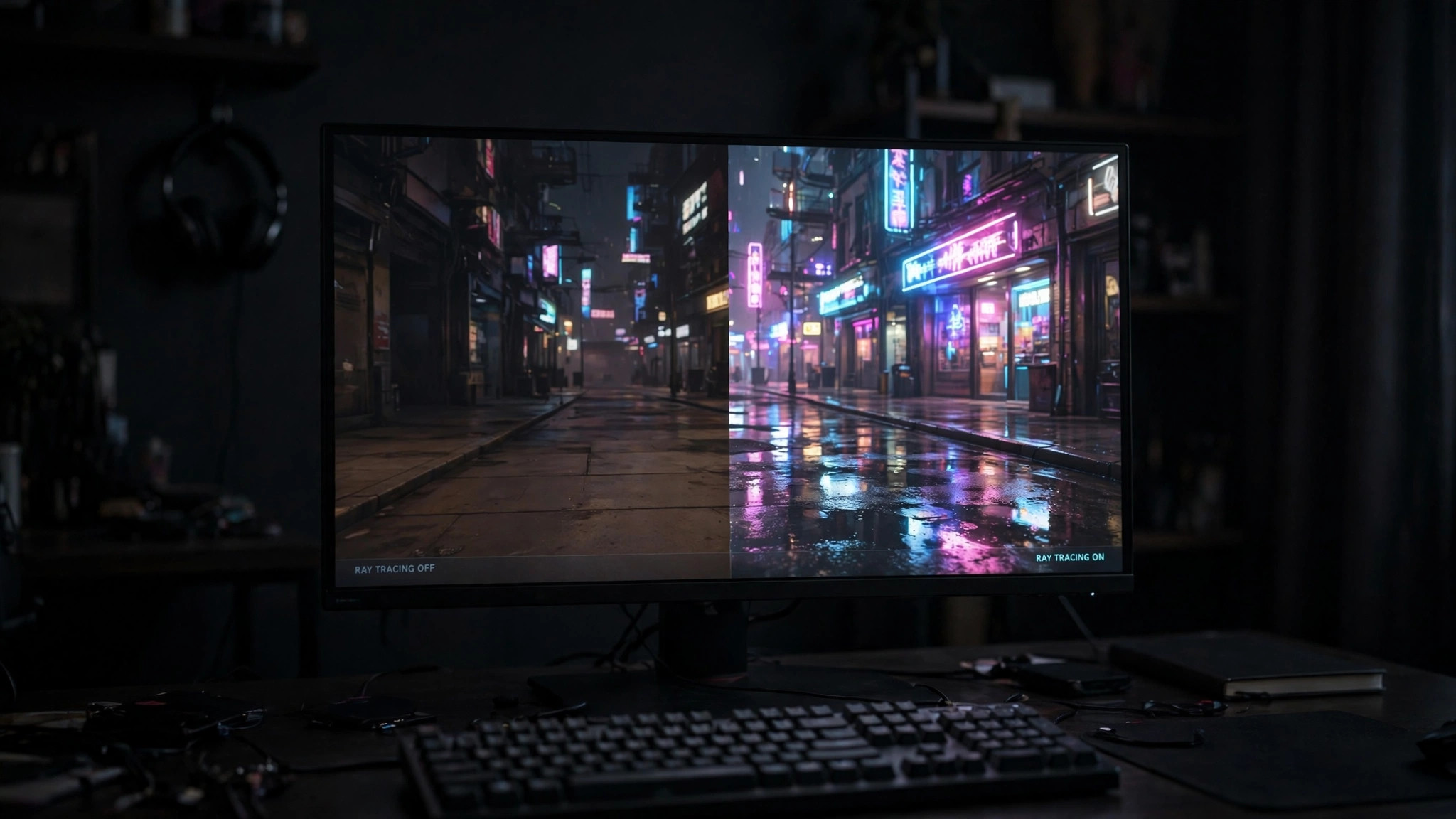
Traditional game graphics use rasterisation: the GPU draws triangles and then paints lighting on top using shortcuts. Ray tracing works the other way around. It follows light from the camera, bounces it off surfaces, and calculates what each pixel should look like based on what the ray actually hit. The result shows up in four places:
- Reflections: mirrors, puddles, windows and polished floors show the real scene instead of a blurred copy of it.
- Shadows: shadows get softer edges the further they fall from the object casting them, and they move correctly with the light source.
- Global illumination: light bounces between surfaces, so a red wall tints the floor next to it and a dark room feels dark because the light genuinely cannot reach it.
- Ambient occlusion: corners and creases darken naturally where light is blocked, which adds depth to interiors.
Not every game uses all four. Most games let you enable ray-traced reflections or shadows individually, while a smaller number offer full path tracing, which ray-traces almost everything and is far more demanding.
Which GPUs Support Ray Tracing
Ray tracing needs dedicated hardware in the graphics card, so the first check is whether your GPU has it at all:
| Brand | Supported cards | Notes |
|---|---|---|
| NVIDIA | GeForce RTX 20-series and newer | Best ray tracing performance per tier |
| AMD | Radeon RX 6000-series and newer | Works well, but generally a step behind equivalent NVIDIA cards |
| Intel | Arc A-series and newer | Capable for the price; drivers keep improving |
Older cards such as the GTX 10-series and RX 5000-series have no ray tracing hardware. Some games will still show the option on those cards by running the calculations on the regular cores, but the frame rate collapses so badly that it is not worth using.
If you are unsure what your card can handle, our Can I Run It checker compares your parts against a game's published requirements before you buy or install anything.
How to Enable Ray Tracing in a Game
There is no single Windows switch for ray tracing. It is a per-game setting, and the exact menu path differs, but the pattern is the same everywhere:
- Open the game's graphics or display settings menu.
- Look for a section labelled
Ray Tracing,RTXorRay Traced. In some games it sits under anAdvancedorQualitytab. - Switch the individual options on one at a time: reflections first, then shadows, then global illumination. Test the frame rate after each one.
- Set the quality level to
Mediumto start.HighandUltralook slightly better but cost far more performance than the visual difference justifies on most cards. - Apply the settings and restart the game if it asks you to. Several games only load ray tracing after a restart, and skipping it leaves the setting half-applied.
What to Do When Ray Tracing Is Greyed Out
A greyed-out ray tracing option is common, and it almost always has one of these causes:
- Your GPU does not support it. Check the table above. On an unsupported card the option is usually locked or missing entirely.
- The game is running in DirectX 11 mode. Ray tracing needs DirectX 12 (or Vulkan with ray tracing extensions). Look for a DirectX version option in the launcher or graphics menu and switch it to DirectX 12, then restart the game.
- Your drivers are out of date. Download the latest driver from NVIDIA, AMD or Intel directly — never from a third-party driver updater. A fresh driver has fixed greyed-out ray tracing more times than any other single fix.
- Windows needs an update. Ray tracing relies on DirectX 12 Ultimate, which ships with recent Windows 10 and Windows 11 builds. Run Windows Update and install any pending feature updates.
- The game needs a patch. Some games shipped with ray tracing locked until a later update, and a few only unlock it after a specific story point or area loads.
Keep Your Frame Rate: Pair Ray Tracing With Upscaling
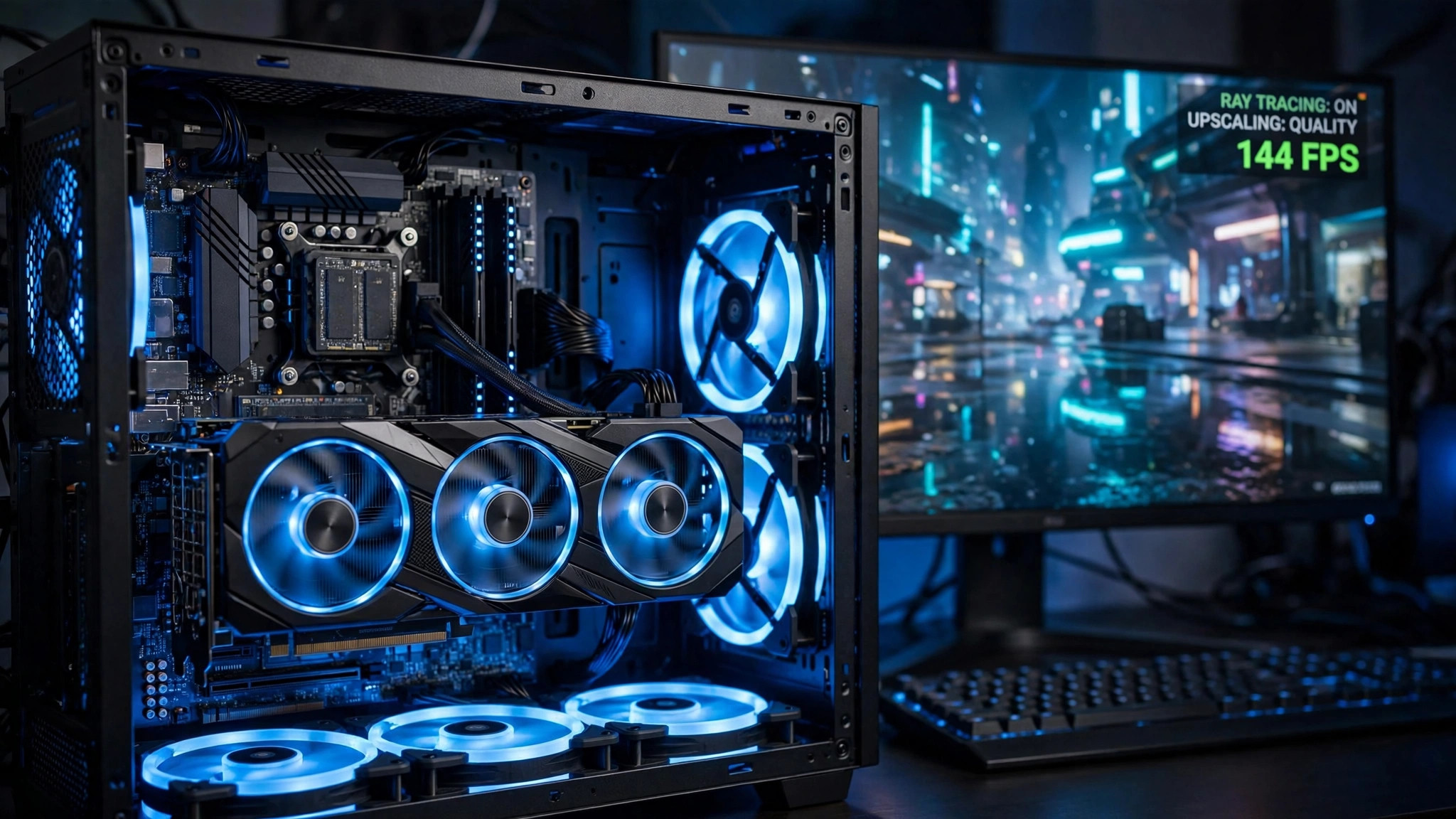
Ray tracing on its own can cut your frame rate in half. Upscaling is what makes it playable: the game renders at a lower internal resolution, applies ray tracing there, and then reconstructs a sharp final image. On a mid-range card this is the difference between 30 and 60 frames per second.
- NVIDIA DLSS: available on RTX cards. Set it to
Qualitymode for the best balance, orBalancedif the frame rate still struggles. Frame Generation, on RTX 40-series and newer, can add further frames on top. - AMD FSR: available on almost any GPU, including NVIDIA and Intel cards. Set it to
Qualitymode first and drop toBalancedonly if needed. - Intel XeSS: works best on Intel Arc cards but also runs on other hardware.
Turn the upscaler on before judging ray tracing performance. Testing ray tracing at native resolution tells you nothing about how the game actually plays, because almost nobody runs the two together without upscaling.
Ray Tracing vs Path Tracing: Know the Difference
Path tracing is ray tracing taken to its limit: instead of ray-tracing a few effects, the game traces light for nearly everything in the scene. It looks extraordinary in games that support it, such as Cyberpunk 2077's Overdrive mode, but it is roughly twice as demanding again as standard ray tracing, and it is only realistic on high-end RTX 40-series or 50-series cards with DLSS and Frame Generation switched on.
If your card is mid-range or older, treat path tracing as a curiosity to try once, not a setting to play with. Standard ray tracing with a couple of effects enabled gives you most of the visual benefit for a fraction of the cost.
Is Ray Tracing Worth It?
It depends on the game and your hardware. In slow, atmospheric games — horror, exploration, story-driven titles — the improved lighting genuinely changes how the world feels, and the performance cost is easy to absorb. In fast competitive shooters, the visual difference is hard to notice while you are moving, and the lost frames hurt more than the prettier shadows help.
A good rule: enable ray-traced reflections and shadows on a capable card with upscaling on, leave global illumination and path tracing off unless you have a high-end GPU, and always test the frame rate in a busy scene rather than a quiet menu.
And if you play on the living room TV, the same display rules apply there too: our guide to playing PC games on your TV covers the HDR and resolution settings that make ray-traced lighting look its best on a big screen.
