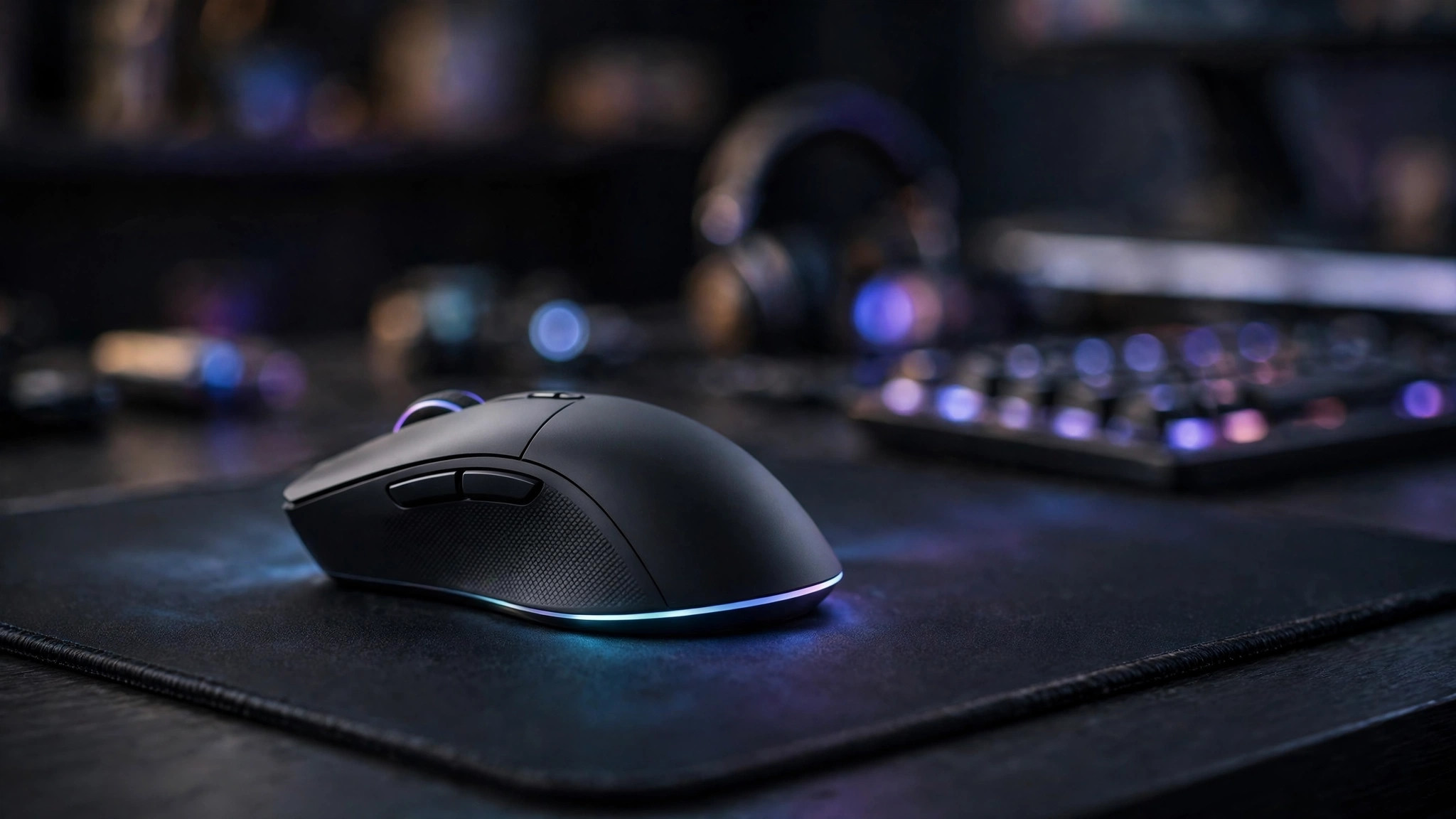
Your mouse is the one piece of hardware your hand touches for every hour you play. A good one disappears — you stop thinking about it and just play. Yet mouse shopping is full of numbers that sound important and mostly are not. This guide explains what actually matters — sensor, shape, weight, switches, and connection type — so you can buy the right mouse for your hand and your games the first time.
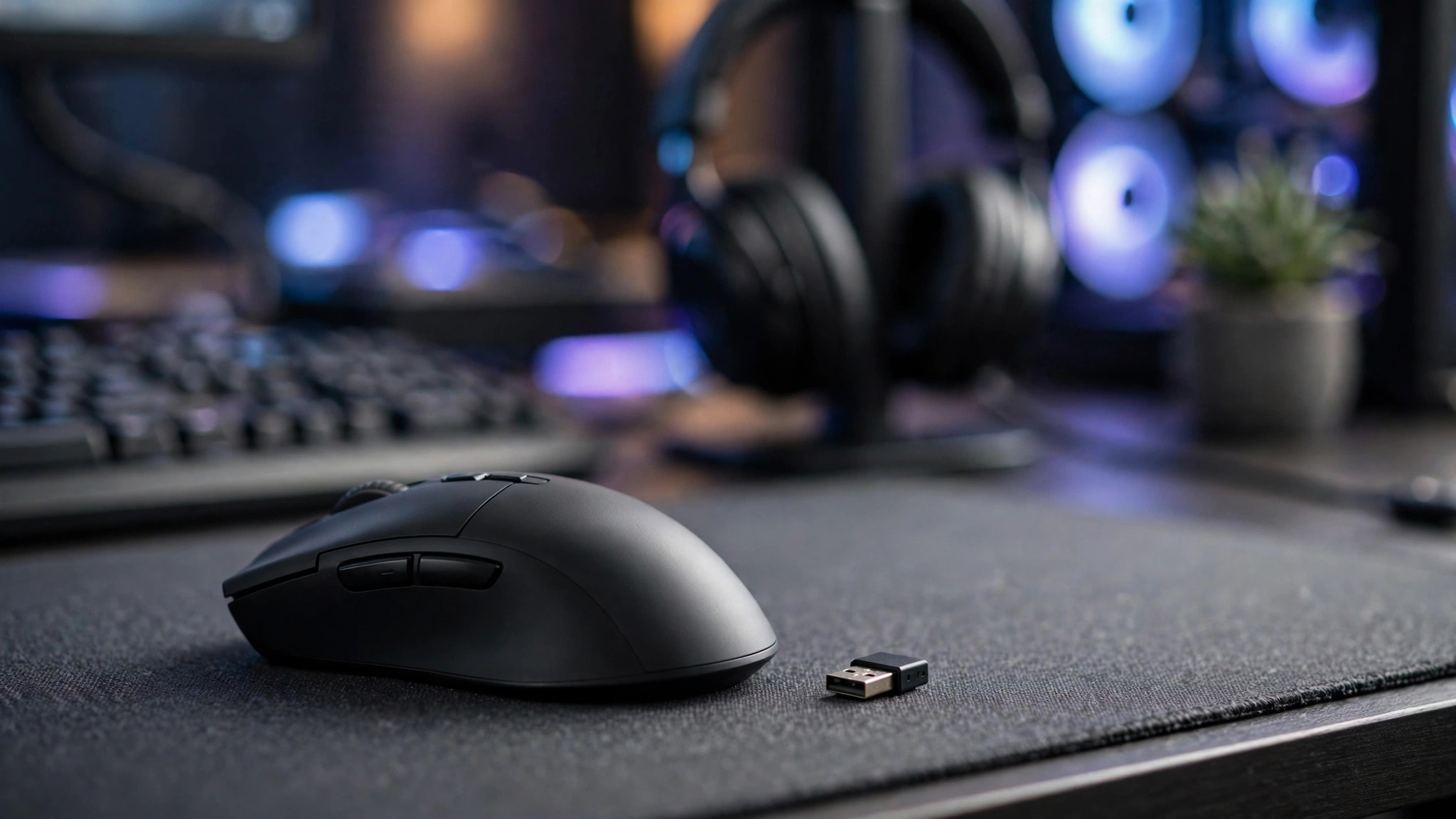
Wired vs Wireless: Latency Is No Longer the Deciding Factor
A few years ago the advice was simple: competitive players buy wired, everyone else can go wireless. That is no longer true. A modern wireless gaming mouse connects over a dedicated 2.4 GHz dongle, not Bluetooth, and its latency is around 1 ms — effectively the same as a wired mouse. Always use the dongle: Bluetooth adds noticeable delay and is not suitable for gaming.
So how do you choose? Go wired if you never want to think about batteries or charging, and if you want the lowest price for the same sensor. Go wireless if you hate cable drag or play low-sensitivity games where you sweep the mouse across a large pad. Battery life on current wireless models is typically 60 to 90 hours per charge, and most charge over USB-C while you keep playing.
Sensor: What DPI and Polling Rate Actually Mean
Two numbers dominate every mouse box: DPI and polling rate. Both are widely misunderstood.
DPI (dots per inch) measures how far the cursor moves for each inch you move the mouse. Modern sensors advertise 18,000 to 30,000 DPI, but that number is almost irrelevant: most players, including professionals, actually play at 400 to 1,600 DPI and change sensitivity in-game instead. What matters is clean tracking without acceleration or spin-outs on fast flicks — and every modern sensor from a reputable brand does that. Do not pay extra for a bigger DPI number.
Polling rate is how often the mouse reports its position to the PC, and this one does matter. A higher rate means less delay between your hand and the game:
| Polling rate | Delay per report | Who it suits |
|---|---|---|
| 125 Hz | 8 ms | Office mice — avoid for gaming |
| 500 Hz | 2 ms | Fine for casual play |
| 1,000 Hz | 1 ms | The standard for gaming mice |
| 4,000–8,000 Hz | 0.25–0.125 ms | Competitive players with fast CPUs and high-refresh monitors |
For most people, 1,000 Hz is the sweet spot. Rates of 4,000 Hz and above shave fractions of a millisecond but use more CPU, and the benefit only shows on high-refresh-rate monitors in fast competitive games. Treat 8,000 Hz as a bonus, not a reason to buy. For more on where those last milliseconds go, see our guide on how to reduce input lag in PC games.
Shape and Grip: The Most Important Spec on the Box
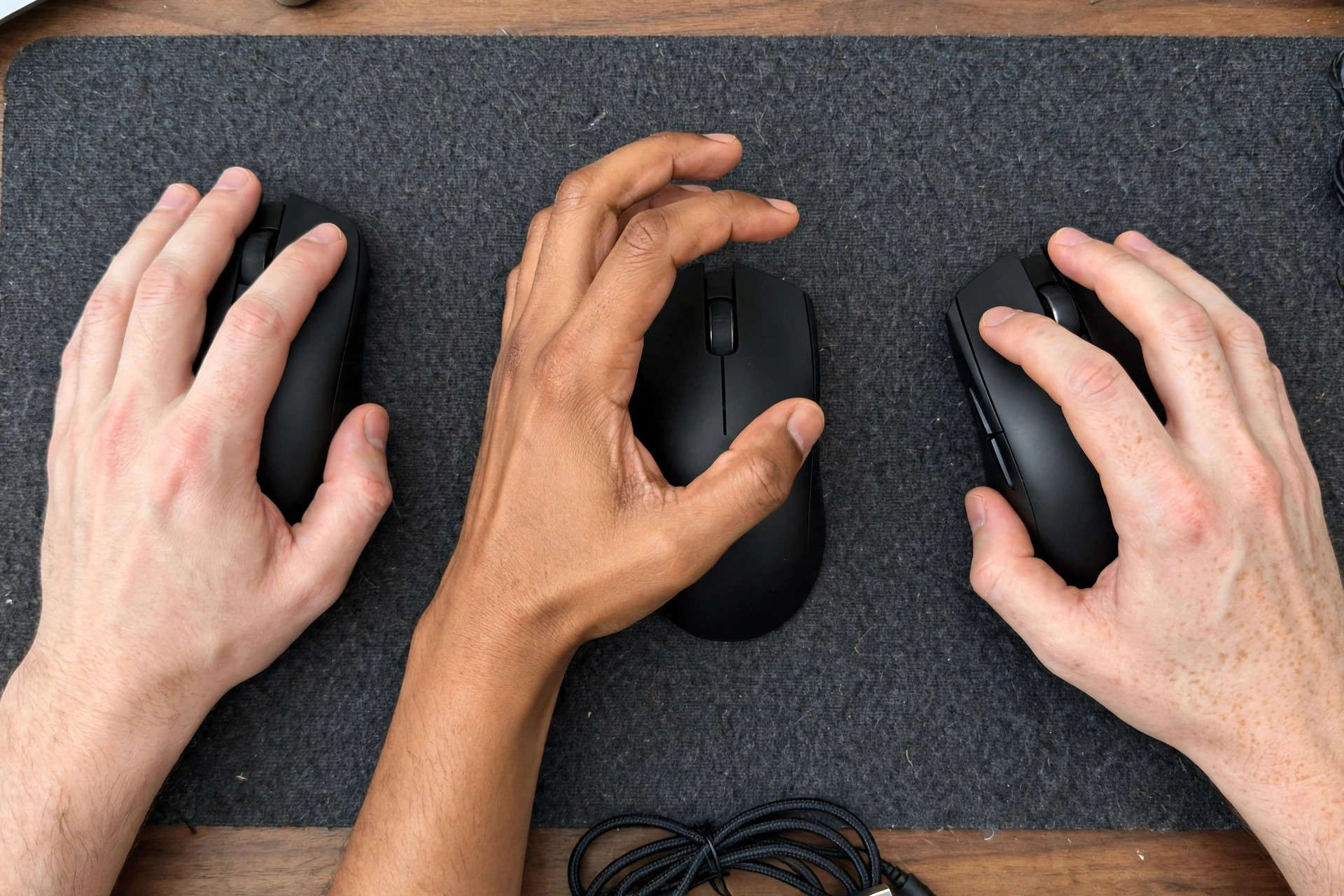
Shape matters more than sensor, because no sensor fixes a mouse that cramps your hand. There are three main grip styles:
- Palm grip: your whole hand rests on the mouse. You want a longer, taller mouse with a hump towards the back.
- Claw grip: your palm rests on the back while your fingers arch onto the buttons. You want a medium-length mouse with a hump in the middle.
- Fingertip grip: only your fingertips touch the mouse, and your palm floats. You want a shorter, lighter mouse, often symmetrical.
Most people use a hybrid of these without realising it, so do not overthink the labels. Instead, check size before you buy: measure your hand from the base of your palm to the tip of your middle finger. As a rough guide, hands under 17 cm suit small mice (under 115 mm long), 17 to 19 cm suit medium mice (115 to 125 mm), and over 19 cm suit large mice (over 125 mm).
Symmetrical mice suit both left- and right-handed players, though most are shaped for right hands in practice. Ergonomic right-handed mice curve to fit your hand and are usually more comfortable for long sessions, but they are a poor choice if you are left-handed.
Weight: Lighter Is Not Always Better
Gaming mice have been getting lighter for years, and many flagship models now weigh 50 to 65 grams. Light mice are easier to flick quickly and cause less fatigue in long sessions, especially at low sensitivity. But lighter is not automatically better: some players find ultra-light mice hard to control for precise tracking, and a few extra grams can steady your aim in slower games. A sensible range for most players is 60 to 85 grams; under 60 grams is specialist territory for competitive FPS players, and over 90 grams starts to feel heavy in fast games. Ignore the marketing around honeycomb shells and magnesium alloys — what matters is whether the weight feels right in your hand.
Switches and Buttons: What to Look For
Mouse buttons use small switches, and there are two main types. Mechanical switches give a crisp, tactile click and are typically rated for 50 to 90 million clicks. Optical switches use a beam of light instead of a metal contact, which removes the double-click problem that ageing mechanical switches sometimes develop. In practice both are good, and optical switches have a small durability advantage over years of heavy use.
Beyond the two main buttons and the scroll wheel, look at the side buttons: two is standard, and they should sit where your thumb rests naturally. A dedicated DPI button on top is useful if you switch sensitivity between games. The scroll wheel should step cleanly, not spin freely. PTFE feet (the small pads underneath) matter more than most people realise: good feet make the mouse glide smoothly, and worn feet are the most common reason an old mouse starts feeling scratchy.
What to Pay: A Realistic Budget Guide
| Budget | What you get | Best for |
|---|---|---|
| Under $50 | Solid sensor, 1,000 Hz polling, wired or basic wireless | Casual and single-player gaming |
| $50–$100 | Top-tier sensor, lightweight shell, good wireless, quality switches | Most players — the sweet spot |
| $100–$160 | Ultra-lightweight, 4,000–8,000 Hz polling, premium materials | Competitive FPS players |
The jump from a $30 mouse to a $70 mouse is huge: better sensor, better shape options, and far better build quality. The jump from $70 to $150 is small — a few grams less weight and a faster polling rate most players will never feel. Unless you play competitive shooters seriously, the mid-range is where your money works hardest.
Setting Up Your New Mouse
Once it arrives, a five-minute setup makes a real difference. Set your DPI and polling rate in the manufacturer's software; most mice save settings to onboard memory, so you can usually uninstall it afterwards. Start at 800 DPI with your in-game sensitivity adjusted to taste. In Windows, turn off the "Enhance pointer precision" option, which adds mouse acceleration and makes your aim inconsistent.
Pair it with a keyboard that suits your games — see our guide on how to choose a gaming keyboard for PC — and a large mousepad that gives the sensor a clean surface to track on. Get the shape right, ignore the DPI arms race, and spend your money in the mid-range.
