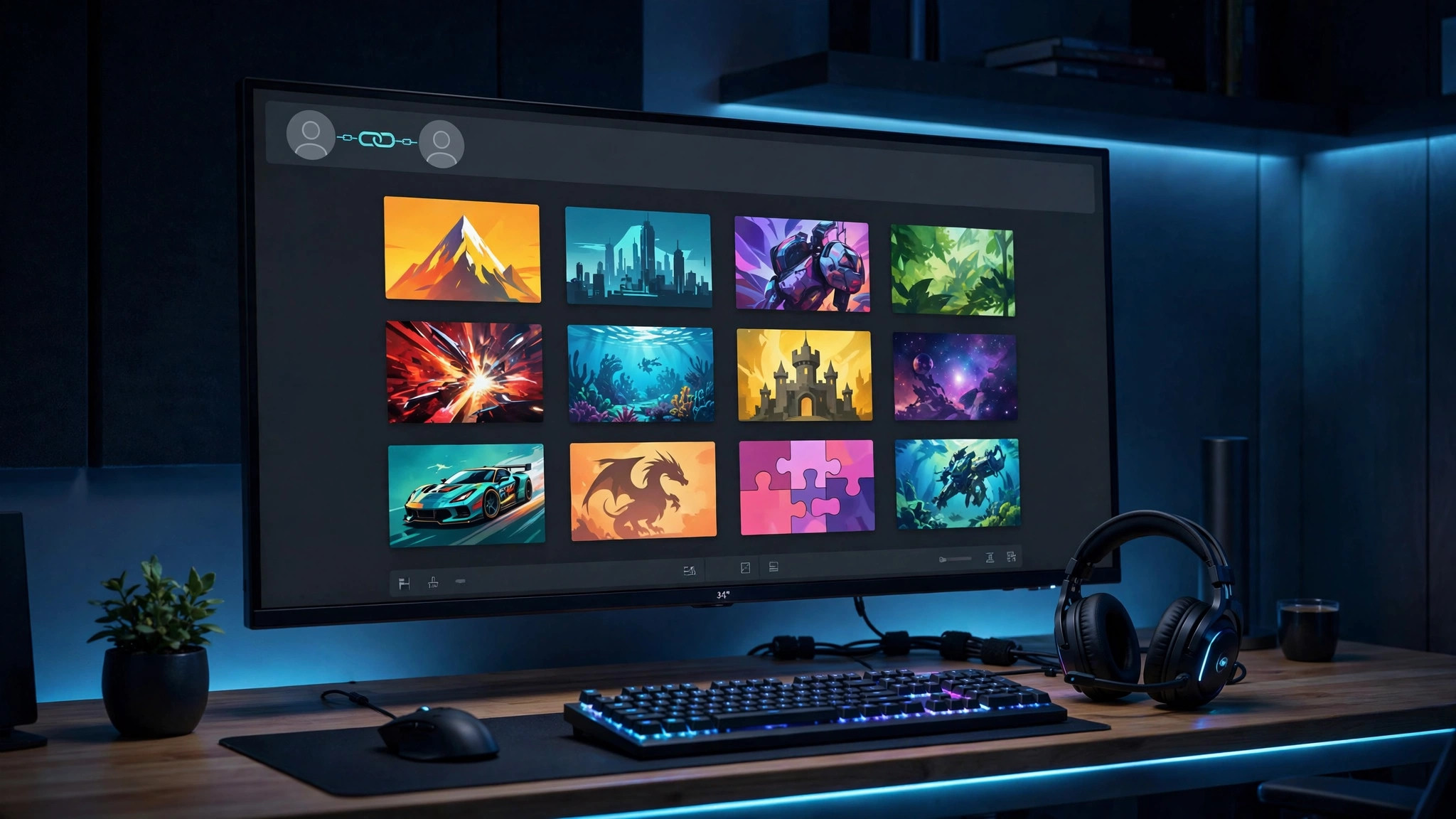
Buying the same game twice — once for you, once for your kid or partner — gets expensive fast. Steam Families solves that: it's Valve's system for sharing game libraries with up to five other people in your household, with proper parental controls built in. Here's everything you need to know to set it up.
What Steam Families replaces (and what changes)
Steam Families replaces two older systems: Family Sharing and Family View. If you've used the old Family Sharing, you'll notice one big change: before, only one person at a time could play anything from a shared library. Now, multiple family members can play different games simultaneously.
- You and five other members (six total) pool your eligible games into one shared family library.
- Everyone keeps their own Steam account, achievements, and saves — saves are per-account, though exact behavior can vary by game.
- If you're playing your copy of Portal 2 and a family member wants to play Half-Life from the library, both of you can play at once. Only if someone launches the same game you're playing do they need their own copy.
- Offline play works with shared games — the old system required you to be online.
There are two important limits: all members must be in the same country/region (Steam checks this), and if you remove or kick a member, that slot has a one-year cooldown before a different person can take it. (The same person rejoining doesn't trigger the cooldown.)

How to create a Steam Family
You can create and manage your family from the Steam client, the Steam website, or the mobile app. The steps are the same everywhere:
- Open Steam and click your profile name (top-right on the website), then choose Account details.
- Select Family Management.
- Click Create a Family and give your family a name.
- You're now the family admin. Next, invite members (see below).
If you're migrating from the old Family Sharing, Steam will suggest inviting the accounts you previously shared with, so you don't have to look them up manually.
How to invite members and set up child accounts
- In Family Management, click Invite a Member.
- Search for the Steam account you want to add (they need an existing Steam account — create one at store.steampowered.com if they don't have one).
- Choose their role: Adult or Child.
- Adult — a normal family member. Can manage invites and apply restrictions. Adults can leave the family whenever they want.
- Child — subject to parental controls set by adults. A child can't leave on their own; an adult must remove them (or they can request help from Steam Support).
- The invited account gets a notification and must accept the invitation to join.
For ordinary adult family members who don't need restrictions, Valve recommends adding them as Adults. Reserve Child accounts for actual children — that's what the parental controls are built for.
How shared library access works
Once someone joins your family, every eligible game owned by every member appears in everyone's library automatically. A few practical details worth knowing:
- Same game, two players: the family needs two copies of a game for two people to play it at the same time. One copy supports one player.
- DLC is shared too — but a member can only use shared DLC for a game they have access to through the family.
- Achievements and saves belong to the individual account playing, not the account that owns the game.
- An adult can mark a game in their library as private so it isn't shared with the family.

Parental controls and purchase approval
For child accounts, adults get a solid set of controls under Family Management → Manage:
- Playtime limits — set daily limits and scheduled access windows (e.g. play only between 4 PM and 8 PM), with playtime reports.
- Game access — block individual titles regardless of rating, or filter by age rating (Everyone, Teen, Mature, Adults Only).
- Store access — full, approval-required, or blocked. With approval mode, a child builds a cart and sends a purchase request; the adult reviews it and pays with their own account. No more handing over credit cards or gift cards.
- Community features — restrict chat, friends, forums, guides, and screenshots per child.
- Additional playtime requests — a child can request extra time, which an adult can approve or deny.
These controls only cover Steam itself — they don't filter in-game chat or purchases made with real money inside individual games, so keep an eye on those separately.
Games that can't be shared
Not every game in your library can be shared. The most common exclusions:
| Category | Example / reason |
|---|---|
| Third-party account or key required | Games that force a separate publisher login or activation key |
| Subscription-based games | MMOs and games needing an active subscription |
| Free-to-play games | Free games (and their purchased DLC) can't be shared |
| Region-blocked content | Games or DLC not available in another member's region |
| Developer opt-outs | Publishers can exclude specific titles from sharing |
| Private games | Games you manually marked as private in your library |
Before buying a game specifically for the family, check its store page or your library — shared-eligibility is shown there. If a game you expected to see is missing from the family library, one of the rows above is almost always the reason.
Common problems and fixes
- "Invite not received": the invitee must accept from the notification in their Steam client or email. Check spam folders, and confirm the account name was typed correctly.
- "Members must be in the same country": Steam Families is region-locked. All six members must share the same country; there's no workaround — this is enforced by Valve.
- Game shows as unplayable for a family member: first check whether the game is excluded (table above). If it should be shared, the owner may have marked it private, or a parental control may be blocking it for a child account.
- Two people can't play the same game together: that's by design — one copy supports one simultaneous player. Buy a second copy through the family and the other member gets their own license.
- Kicked or removed member can't be replaced: the slot has a one-year cooldown before a different person can join it. Only kick someone when you're sure.
- Old Family Sharing stopped working: Valve is retiring the legacy system in favor of Steam Families. Create a family and re-invite your old sharing partners — Steam suggests them automatically.
Set aside ten minutes, create the family, send the invites, and configure the parental controls — after that, everyone plays from one shared library with their own accounts, achievements, and saves. It's the single easiest way to stop buying the same game twice.