Grand Theft Auto VI is out today, 19 November 2026, on PlayStation 5 and Xbox Series X|S, and the first thing that will feel wrong is the sprint button. After 25 years of tapping X on PlayStation or A on Xbox to run, Rockstar has moved sprint to a click of the left stick. It is the biggest single change in a control scheme that is otherwise familiar, and it is the one that will get you killed in your first shootout if you do not know about it. This guide lists the complete default controls for PS5 and Xbox, side by side, for every situation in the game, plus the Classic and Left-Handed schemes and the button that switches you between Jason and Lucia.
The direct answer: on the default scheme, move with the left stick, sprint by clicking the left stick (L3 on PS5, LS on Xbox), jump and climb with Cross on PS5 or A on Xbox, shoot with R2 or RT, aim with L2 or LT, take cover with R1 or RB, and open the map with the touch pad on PS5 or the View button on Xbox. Interact is Triangle on PS5 or Y on Xbox, melee is Square or X, and your phone is D-pad Up. The tables below cover on-foot, aiming, melee, driving, aircraft, bicycles, swimming and parachuting.
GTA VI on-foot controls
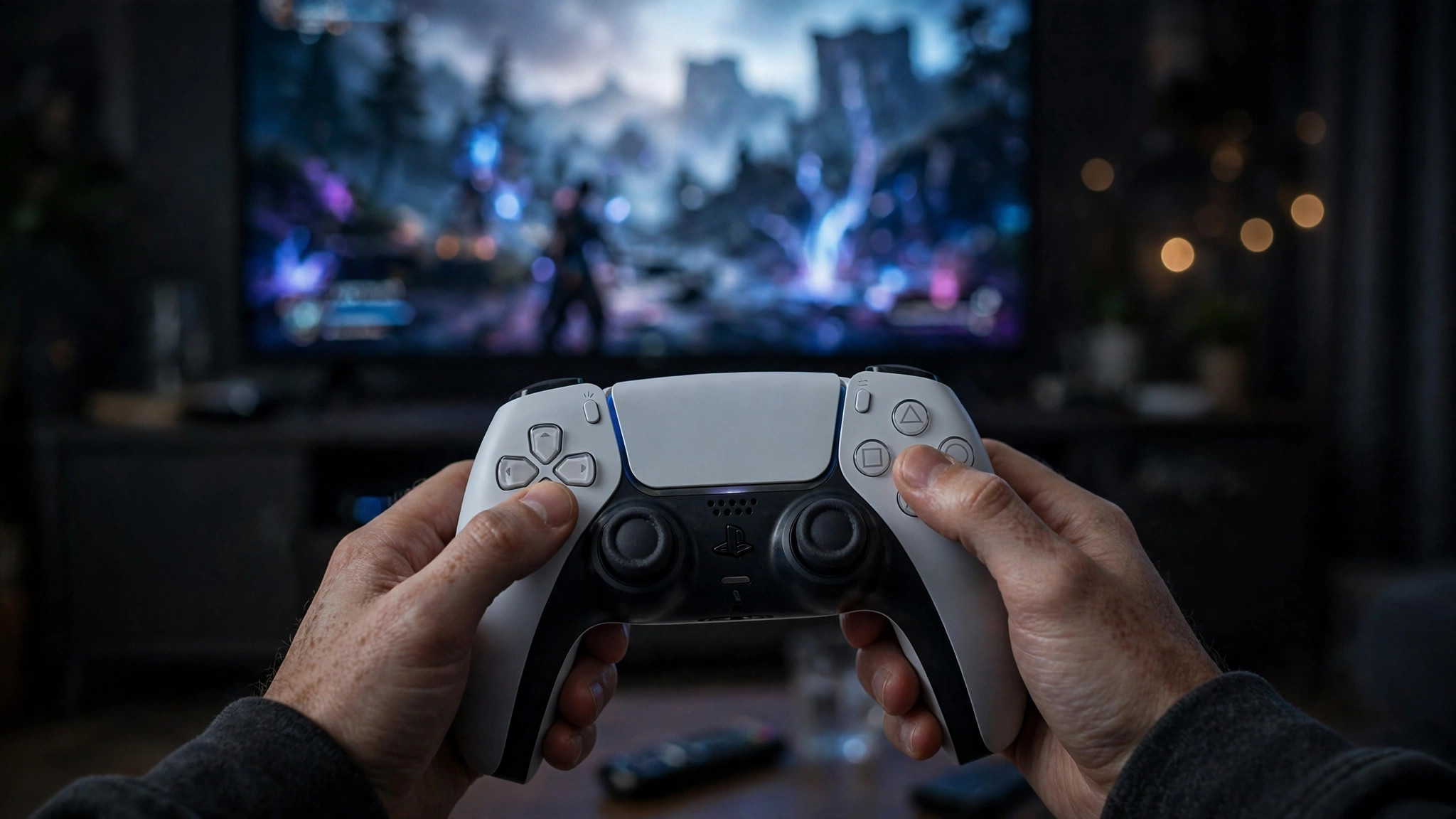
This is the layout you will use most, so learn it first. Two things deserve attention: L3 is sprint on the default scheme, and the D-pad is doing far more work than it did in GTA V, with the phone, radio, partner menu and explosives all living there.
| Action | PS5 | Xbox Series X|S |
|---|---|---|
| Move | Left Stick | Left Stick |
| Look | Right Stick | Right Stick |
| Run / Sprint | L3 (click left stick) | LS (click left stick) |
| Jump / Climb | Cross | A |
| Interact | Triangle | Y |
| Melee | Square | X |
| Crouch and Rest (hold) | Circle (hold) | B (hold) |
| Aim and Interact (hold) | L2 (hold) | LT (hold) |
| Shoot | R2 | RT |
| Cover | R1 | RB |
| Holster and Loadout (hold) | L1 (hold) | LB (hold) |
| Map | Touch Pad | View button |
| Pause | Options | Menu button |
| Cellphone and Waink app (hold) | D-pad Up (hold) | D-pad Up (hold) |
| Radio controls and Radio menu (hold) | D-pad Left (hold) | D-pad Left (hold) |
| Detonate explosives and Partner menu (hold) | D-pad Right (hold) | D-pad Right (hold) |
| Objective, Minimap and Quick Navigation (hold) | D-pad Down (hold) | D-pad Down (hold) |
| Look Behind (hold) | R3 (hold) | RS (hold) |
GTA VI aiming and melee controls
Hold L2 on PS5 or LT on Xbox to aim, and the layout shifts around you. Triangle on PS5 or Y on Xbox becomes a quick weapon swap while aiming, the D-pad takes over scope zoom and shoulder switching, and R3 controls your zoom and throw path. In close combat, the game switches to a dedicated melee scheme.
| Action | PS5 | Xbox Series X|S |
|---|---|---|
| Aim / Interact (hold) | L2 (hold) | LT (hold) |
| Shoot | R2 | RT |
| Cover and Quick Throw (hold) | R1 (hold) | RB (hold) |
| Quick Swap Weapon | Triangle | Y |
| Zoom Scope In | D-pad Up | D-pad Up |
| Zoom Scope Out | D-pad Down | D-pad Down |
| Switch Shoulder | D-pad Left | D-pad Left |
| Zoom / Throw Path | R3 | RS |
| Melee (while aiming) | Square | X |
| Crouch (while aiming) | Circle | B |
In a fist fight, L2 on PS5 or LT on Xbox locks on and strafes, R2 or RT grapples, Square or X punches and kicks, and Cross or A blocks and dodges. It is a small scheme, but the lock-on is the button to remember: without it, you will be swinging at air while your opponent circles you.
GTA VI driving controls
Driving keeps the layout GTA players know, with one change worth noting: the handbrake is Cross on PS5 or A on Xbox, and the horn shares a button with nitrous on L3 or LS. Indicators are on the D-pad, left and right, with the vehicle menu behind a hold.
| Action | PS5 | Xbox Series X|S |
|---|---|---|
| Accelerate | R2 | RT |
| Brake / Reverse | L2 | LT |
| Turn | Left Stick | Left Stick |
| Handbrake | Cross | A |
| Exit Vehicle | Triangle | Y |
| Shoot (from vehicle) | R1 | RB |
| Headlights and Duck (hold) | Circle (hold) | B (hold) |
| Horn / Nitrous | L3 | LS |
| Indicate Left and Vehicle Menu (hold) | D-pad Left (hold) | D-pad Left (hold) |
| Indicate Right and Partner Menu (hold) | D-pad Right (hold) | D-pad Right (hold) |
| Cellphone and Interact (hold) | D-pad Up (hold) | D-pad Up (hold) |
| Look Behind (hold) | R3 (hold) | RS (hold) |
GTA VI aircraft, bicycle, swimming and parachute controls
Planes and helicopters use the left stick for pitch and roll, with R2 or RT throttling up and L2 or LT throttling down, Square or X yawing left and Circle or B yawing right, and L3 or LS working the undercarriage. Exit the aircraft with Triangle or Y, the same button that gets you out of a car. On a bicycle, R2 or RT pedals, Cross or A sprints, Circle or B bunnyhops and L3 or LS rings the bell. It is a deliberately playful scheme, and the bell is exactly where you expect it to be.
Swimming is simpler: move with the left stick, press L3 or LS to swim faster, Cross or A to surface, and R1 or RB to dive. Underwater, L2 or LT aims and strafes while R2 or RT shoots, so the combat controls carry over. With a parachute, Cross or A opens the canopy, Triangle or Y detaches it, and L2 and R2 on PS5, or LT and RT on Xbox, brake left and right to steer your landing. Get the brake buttons wrong and you will land on a roof instead of a road.

How to switch between Jason and Lucia
GTA VI has two playable protagonists, Jason Duval and Lucia Caminos, and you can swap between them in free roam once the game unlocks the feature. The game opens with you playing as Jason, and switching is not available from the start: it unlocks as the story progresses in Chapter 2, after Lucia is out of prison and the two of them are operating together. GameSpot reports the unlock arriving at around 30 percent of the main story, so treat that as a rough guide rather than an exact number.
Once switching is unlocked, press Right on the D-pad to bring up the character-switch menu, which shows both portraits in the bottom-right corner of the screen, then follow the on-screen prompt to swap. When the two characters are together, the swap is near-instant. When they are apart, the camera pulls up over the map and drops down to the other character, in the style of GTA V but much faster. Some story missions lock you to one character for story reasons, and some switch you automatically mid-mission, for example from Jason shooting to Lucia driving during a getaway. If a character is greyed out in the switch menu, they are unavailable for an in-game reason, such as being on another mission. A note on the button itself: launch-day guides disagree on the exact confirm button, with some reporting R1 on PS5 and RB on Xbox and others reporting L1 and LB, so follow the prompt shown on your screen rather than memorising one button.
Classic and Left-Handed control schemes
GTA VI ships with three control schemes, and the two alternatives exist for players whose hands remember the old games. The Classic scheme restores the layout GTA V veterans expect: Cross on PS5 or A on Xbox runs instead of jumping, Square or X jumps and climbs, Circle or B is melee, and L3 or LS crouches. If the new L3 sprint keeps tripping you up in your first week, switching to Classic is the honest fix, and it changes nothing else about the game.
The Left-Handed scheme swaps the sticks and the triggers, so the right stick moves and the left stick looks, with shooting and aiming moving to the left side of the controller. It mirrors every scheme in the game, including vehicles and aircraft, so left-handed players get a consistent layout rather than a partial one. Both alternative schemes are available from the settings menu, and you can change schemes at any time without restarting a mission.
Five control tips for your first hours
- Relearn sprint on day one. Spend ten minutes in free roam just running, jumping and climbing before your first story mission. The L3 click is the change that will cost you the most if you leave it to muscle memory.
- Hold, do not tap, the D-pad. Most D-pad functions in GTA VI are holds: the phone, the radio menu, the partner menu and quick navigation all need a hold, while a tap does something smaller. If a menu is not opening, you are probably tapping.
- Holster before you talk. Hold L1 on PS5 or LB on Xbox to holster your weapon and open the loadout. Walking into a shop or a friendly conversation with a rifle out is a fast way to turn a quiet errand into a police chase.
- Learn the partner menu early. D-pad Right, held, opens the partner menu, which is how you direct Lucia or Jason when the two of you are working together. It matters in heists and getaways, not just in free roam.
- Check the prompts. GTA VI shows contextual button prompts for its new interaction system, with Triangle or Y for careful actions and Circle or B for forceful ones in the extended gameplay footage. The prompts are the fastest way to learn the scheme, because the game teaches you in context.
GTA VI controls FAQ
How do you sprint in GTA VI? Click the left stick: L3 on PS5, LS on Xbox. This replaces the tap-X or tap-A sprint from every previous GTA game. On the Classic scheme, sprint returns to Cross on PS5 or A on Xbox.
How do you switch characters in GTA VI? Press Right on the D-pad to open the switch menu once it unlocks in Chapter 2, then follow the on-screen prompt. Some missions lock switching, and some switch you automatically.
Does GTA VI have a PC control scheme? No. GTA VI launches on PS5 and Xbox Series X|S only, and no PC version has been announced, so there are no keyboard and mouse controls to list. For what else is launching this week, see the games coming out this week.
Can you remap the controls in GTA VI? The game offers Default, Classic and Left-Handed schemes in the settings menu. Full per-button remapping has not been confirmed in launch coverage, so check the settings menu on your console for the options available at launch.
The scheme rewards a short practice session more than a long read. Learn the sprint button, learn the D-pad holds, and the rest of Leonida will feel familiar within the hour.