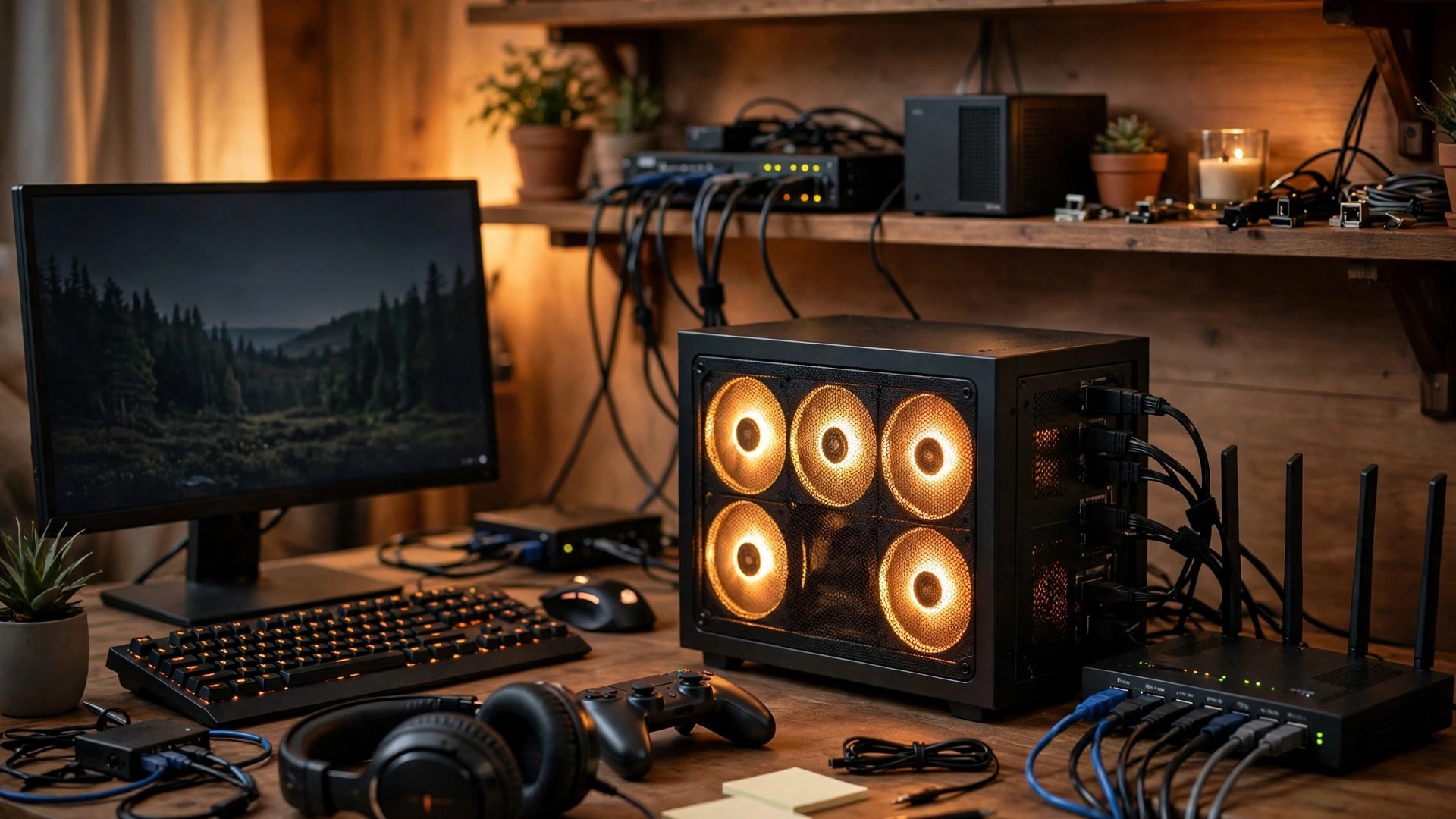
Every multiplayer group hits the same wall sooner or later: the world only exists while the host is online. Your friend builds a base, logs off, and the world freezes until they come back. Your Valheim longhouse sits empty all week because nobody can log in without you.
A dedicated server fixes that: a copy of the game that runs on its own, keeping your world online around the clock. Friends can join whenever they like, and you control the settings and mods. A spare PC — or even your main rig — is enough.
What a dedicated server actually is
When you host from inside the game — the usual "host a session" button — your PC does two jobs at once: running your own game and serving everyone else's. That is listen hosting, and it has three limits: the world only runs while you play, your performance drops, and if your game crashes, everyone gets kicked.
A dedicated server runs the world as a separate program, with no player and no graphics to render. It uses far less power than playing the game — an old PC that could never run the game can often host it. The world stays up when nobody is playing.
First, check your game supports dedicated servers — Valheim, Palworld, Minecraft, ARK, Terraria and Rust do; many shooters and story co-op games do not.
Before you start: what you need
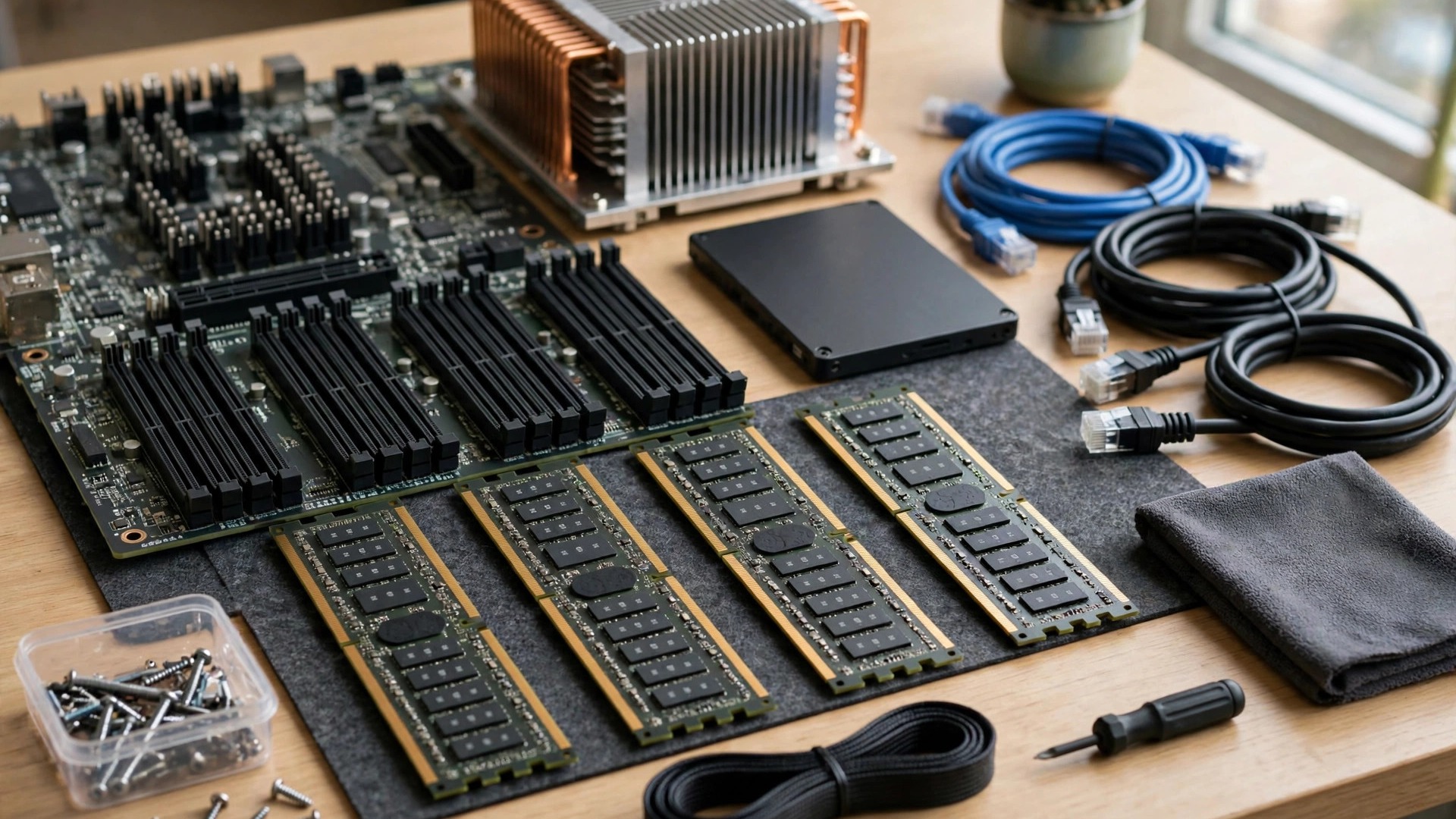
For 4 to 10 players, the requirements are modest — but they differ from gaming requirements, so do not judge by frame rates.
| Part | What to aim for | Why it matters |
|---|---|---|
| CPU | Any modern quad-core, or an older i5 / Ryzen 5 | World simulation; single-core speed matters most |
| Memory | 8 GB for most games, 16 GB for modded servers | Each player and loaded area adds memory use |
| Storage | An SSD with 20–50 GB free | World saves and chunk loading are faster on an SSD |
| Internet | At least 10 Mbps upload, wired Ethernet | Upload speed is the bottleneck |
Two things matter more than raw power: upload speed — your download speed is irrelevant, because players download from you — and a wired connection, because Wi-Fi adds latency spikes every player will feel. With only 5 Mbps upload, keep the group to four or five players.
Option 1: install the server with SteamCMD
Most Steam games with dedicated servers distribute them through SteamCMD, Valve's free command-line version of Steam. It looks intimidating because it has no buttons, but the process is the same few commands every time.
Step 1 — download SteamCMD. Get it from Valve's developer site (search "SteamCMD" on developer.valvesoftware.com), extract it to a folder such as C:\steamcmd, run steamcmd.exe once to let it update, then type quit.
Step 2 — install the server files. Run SteamCMD again and enter the commands for your game. The app ID identifies the server program — find it on the game's wiki. Valheim's dedicated server is app 896660, Palworld's is 2394010:
login anonymous
force_install_dir C:\valheim-server
app_update 896660 validate
quit
Add validate to check the files on first install; most servers allow anonymous login. Step 3 — configure and start it. Open the start script in the install folder (Valheim ships start_headless_server.bat), set your server name, world and password, save it, and double-click it to start. Keep the window open — closing it stops the world.
Option 2: use the game's own server tool in Steam
Some games ship the server as a free tool in your Steam library. Open Steam, change the dropdown above your game list from "Games" to "Tools", and install the server entry — Valheim Dedicated Server, for example. Right-click it, choose Properties, and set your server name, world and password in the launch options.
Updates are automatic through Steam, so you never get the "server version mismatch" error that locks everyone out after a game patch.
Option 3: Minecraft Java Edition's own server
Minecraft Java Edition does not use Steam. Download server.jar from minecraft.net (under "Minecraft: Java Edition server"), put it in its own empty folder, and run java -Xmx4G -Xms4G -jar server.jar nogui in a command prompt there.
The first run stops and asks you to accept the licence: open eula.txt, change eula=false to eula=true, and run the command again. Edit server.properties to change game mode, difficulty and player limit.
Open the ports: port forwarding and the firewall
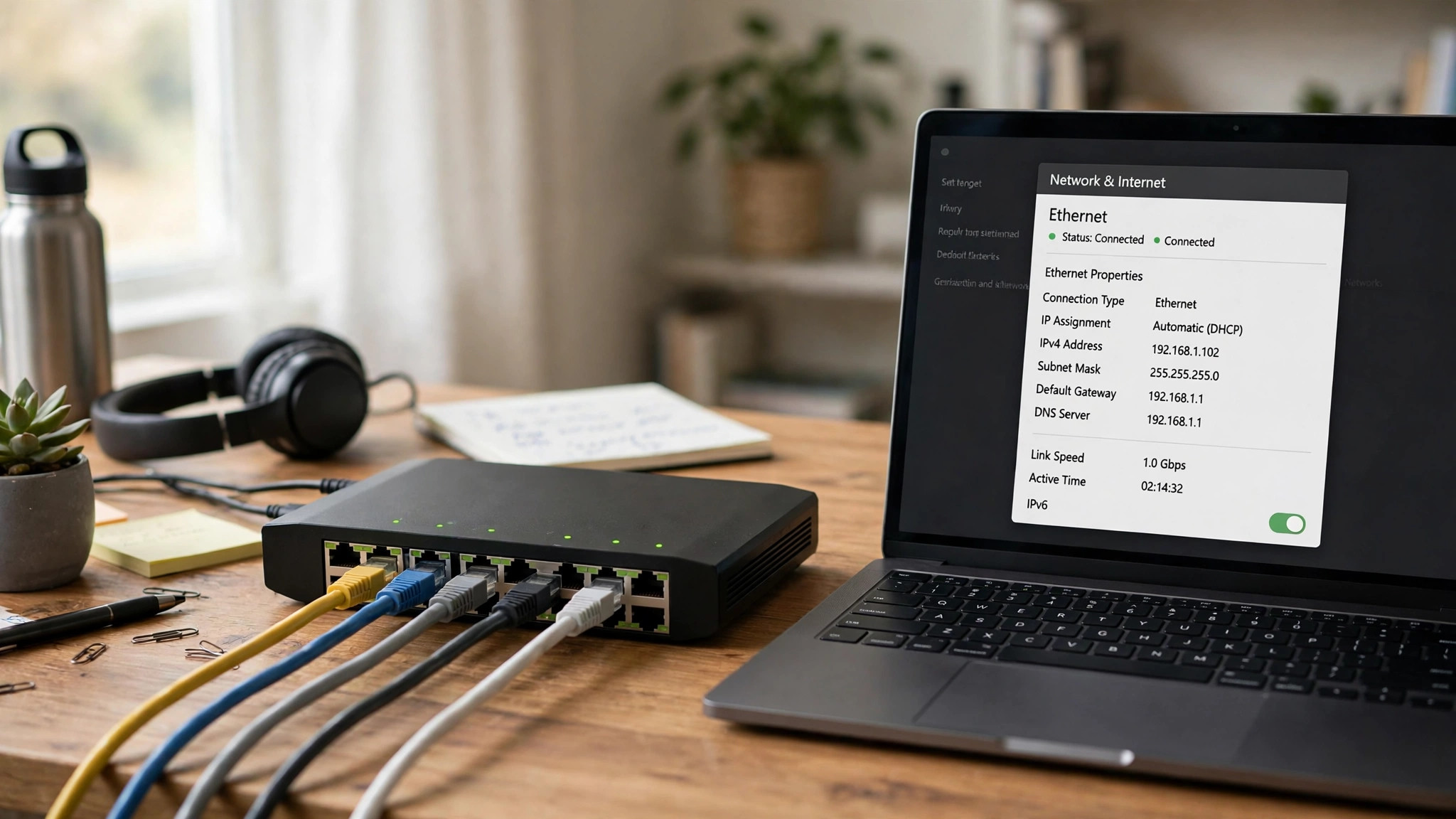
Your router blocks incoming connections by default, so friends cannot reach your server even though it is running. Port forwarding tells the router to send traffic on the game's port to your server PC. Every game uses its own port — Valheim 2456–2458 (UDP), Minecraft 25565 (TCP and UDP), Palworld 8211 (UDP) — so check your game's documentation.
To set it up: first give your server PC a static local IP, so the rule survives a restart. Then log into your router (usually 192.168.1.1 or 192.168.0.1), find Port Forwarding, and point the game's port at that IP. Finally, allow the port through Windows Firewall — Windows usually asks when the server first starts.
If friends still cannot connect, check the protocol (UDP, TCP, or both), whether the PC's IP changed, and whether your provider uses carrier-grade NAT, which blocks port forwarding entirely.
Set the server rules and invite your friends
Friends connect with your public IP — search "what is my IP" — plus the game's port, for example 203.0.113.42:2456. Share it privately, not in a public channel.
Set a server password first — an open server is found by scanners within hours. Set a player cap, add your group rules, and make a trusted friend an admin.
Keep it running: updates, backups and restarts
Back up the world weekly — copy the world folder to another drive or cloud storage; a corrupted world with no backup is gone forever. Update the server when the game updates, and restart once or twice a week overnight to clear memory leaks.
Watch the console: repeated connection errors mean a port or firewall problem, and memory warnings mean it is time for a restart or more RAM.
Common problems
| Problem | Likely cause | Fix |
|---|---|---|
| Friends cannot connect, but you can | Port forwarding or firewall | Check the port rule, the static IP and Windows Firewall |
| "Server version mismatch" error | Server is out of date | Run app_update or let Steam update the server tool |
| Server lags with several players | Upload speed or CPU limit | Lower the player cap; use a wired connection |
| World resets or progress is lost | Wrong world name in the config | Check the world name matches your save file exactly |
| Strangers joining the server | No password set | Set a password and change it after sharing publicly |
Should you host at home or rent one?
Self-hosting is free and gives total control — the right choice for a small group. But if your upload is slow or you want the world up while your PC is off, a rented server costs a few dollars a month and removes the port-forwarding headache.
Either way, the payoff is the same: a world that is always there and belongs to your group. Set it up once and back it up weekly.
