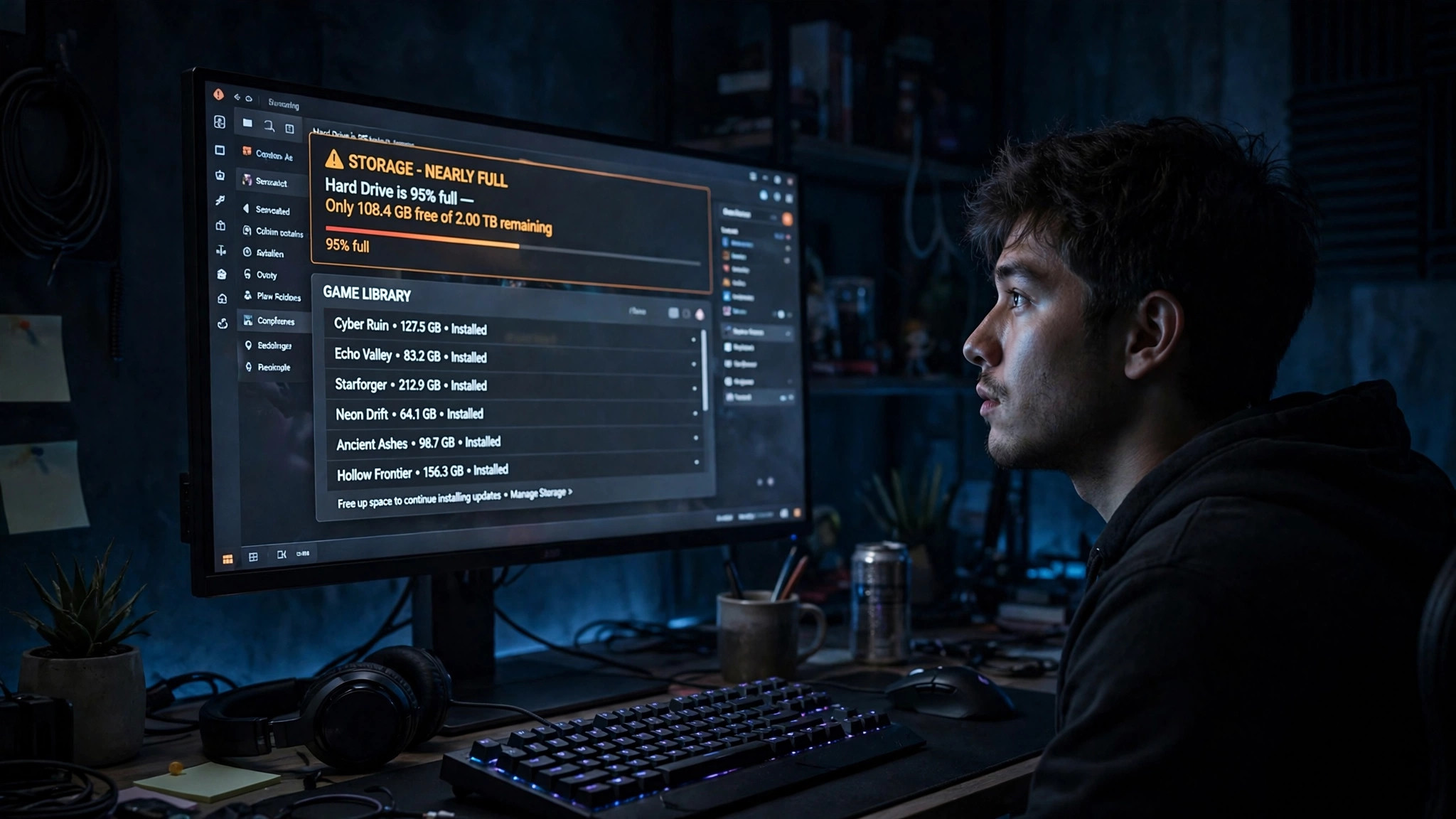
Modern PC games are enormous. A single major release can need 100 GB or more, and a drive that felt huge when you bought it fills up fast once you have a few games installed. Worse, a nearly full drive does not just stop you installing the next game — it slows Windows down, makes downloads stall, and can even cause games to crash or stutter. The good news is that most gaming PCs carry tens of gigabytes that can be reclaimed in minutes, without deleting a single game you still play.
See what is actually using your space
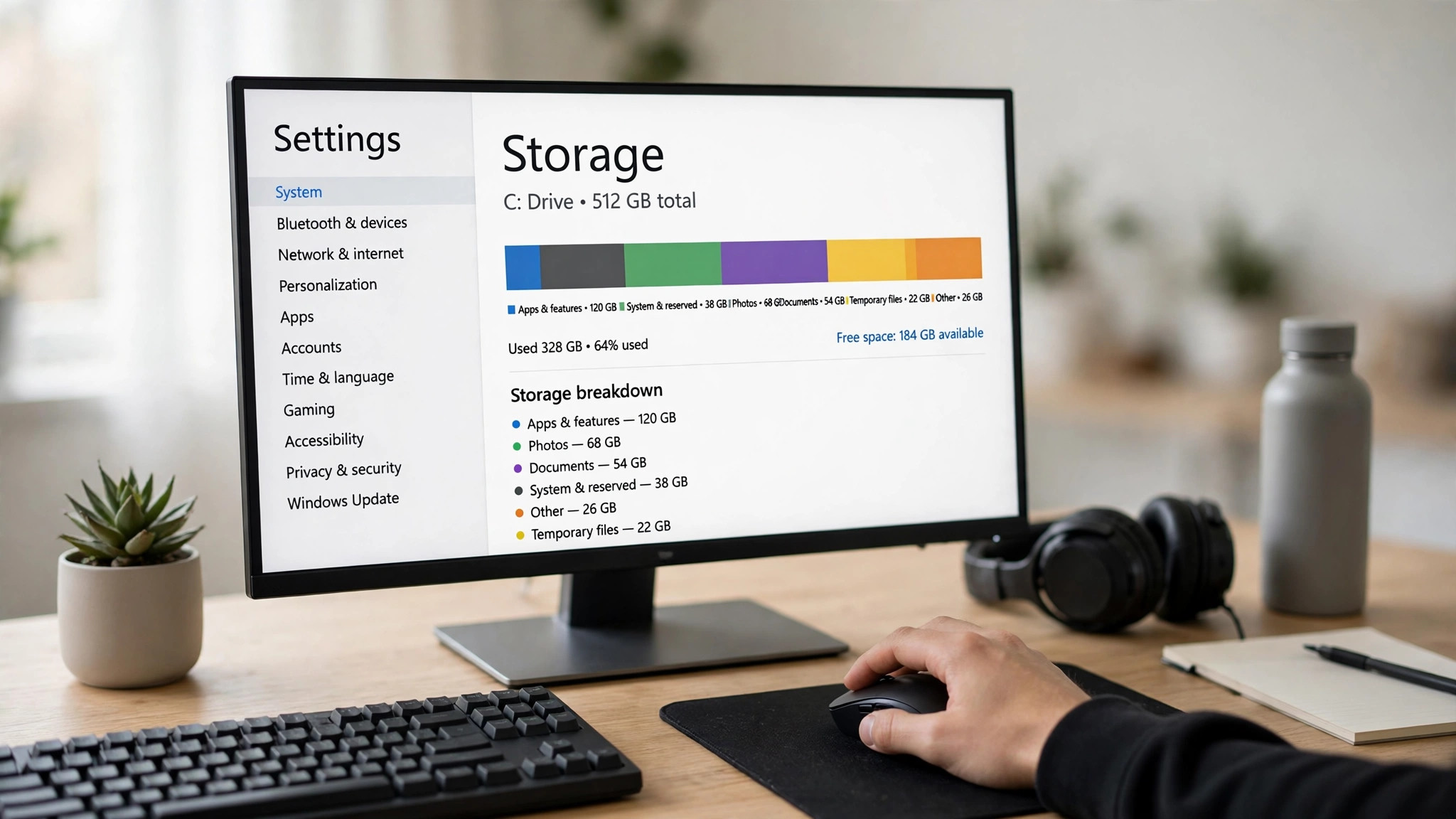
Open Settings, then System, then Storage. Windows shows a breakdown of what is using the drive: apps, documents, temporary files and more. Click into Apps and sort by size to see your biggest games and programs at a glance. For a deeper view, a free tool such as WinDirStat or WizTree scans the drive and shows, folder by folder, what is eating the space.
As a rule of thumb, keep at least 10 to 15 percent of your main drive free. SSDs in particular slow down sharply when they are nearly full, because they need empty space to manage writes efficiently.
Uninstall the games you have finished
One finished 100 GB game is worth more than every cache cleanup in this guide combined. The reason people avoid uninstalling is the fear of losing progress — but that fear is mostly outdated.
- Your saves are safe. Steam Cloud, Epic's cloud saves and similar systems keep your progress online. Uninstalling the game removes the game files, not your saves. If you are unsure, check that cloud sync is on for the game before uninstalling, or copy the save folder to a backup location first.
- Uninstall properly. Use Steam, Epic or the Windows Apps list rather than deleting folders by hand. Manual deletion leaves registry entries, shortcuts and leftover files behind.
- Check for games you forgot. Sort your library by size and look for the games you have not opened in six months. Be honest about whether you will really go back to them.
Move games to another drive instead of deleting them
If you have a second drive with free space, moving games there is the best of both worlds: the main drive gets room back and you keep the game installed.
On Steam: open Settings, then Storage. Click Add Drive and create a library folder on the second drive. Then right-click a game in your library, choose Properties, then Installed Files, then Move install folder, and pick the new drive. Steam moves the whole game and updates its shortcuts — you do not need to reinstall or re-download anything.
On the Epic Games Store: Epic has no built-in move button, so copy the game folder to the new drive, uninstall the game in the launcher, then start the install again pointed at the new location and let it verify the existing files instead of downloading them.
Which drive should games live on? Put the games you play most on your fastest drive — an SSD if you have one — because storage speed affects loading times. Older or less-played games can live on a hard drive. Our guide to optimising Windows 11 for gaming covers the storage setup that gets the best loading times.
Clear temporary files and Windows bloat
Windows accumulates temporary files, update leftovers and caches that can quietly grow to tens of gigabytes. These are safe to remove:
- Open Settings, then System, then Storage, then
Temporary files. TickTemporary files,Windows Update Cleanup,Delivery Optimisation FilesandRecycle Bin, then clickRemove files. LeaveDownloadsunticked unless you have checked what is in there. - Turn on Storage Sense on the same page. It automatically clears temporary files and empties the Recycle Bin on a schedule, so the problem does not build up again.
- Empty the Recycle Bin manually if you have deleted large files recently — they still occupy space until the bin is emptied.
- Check your Downloads folder. Game installers, driver packages and update files often sit there for months after you no longer need them.
Clean up launcher and shader caches
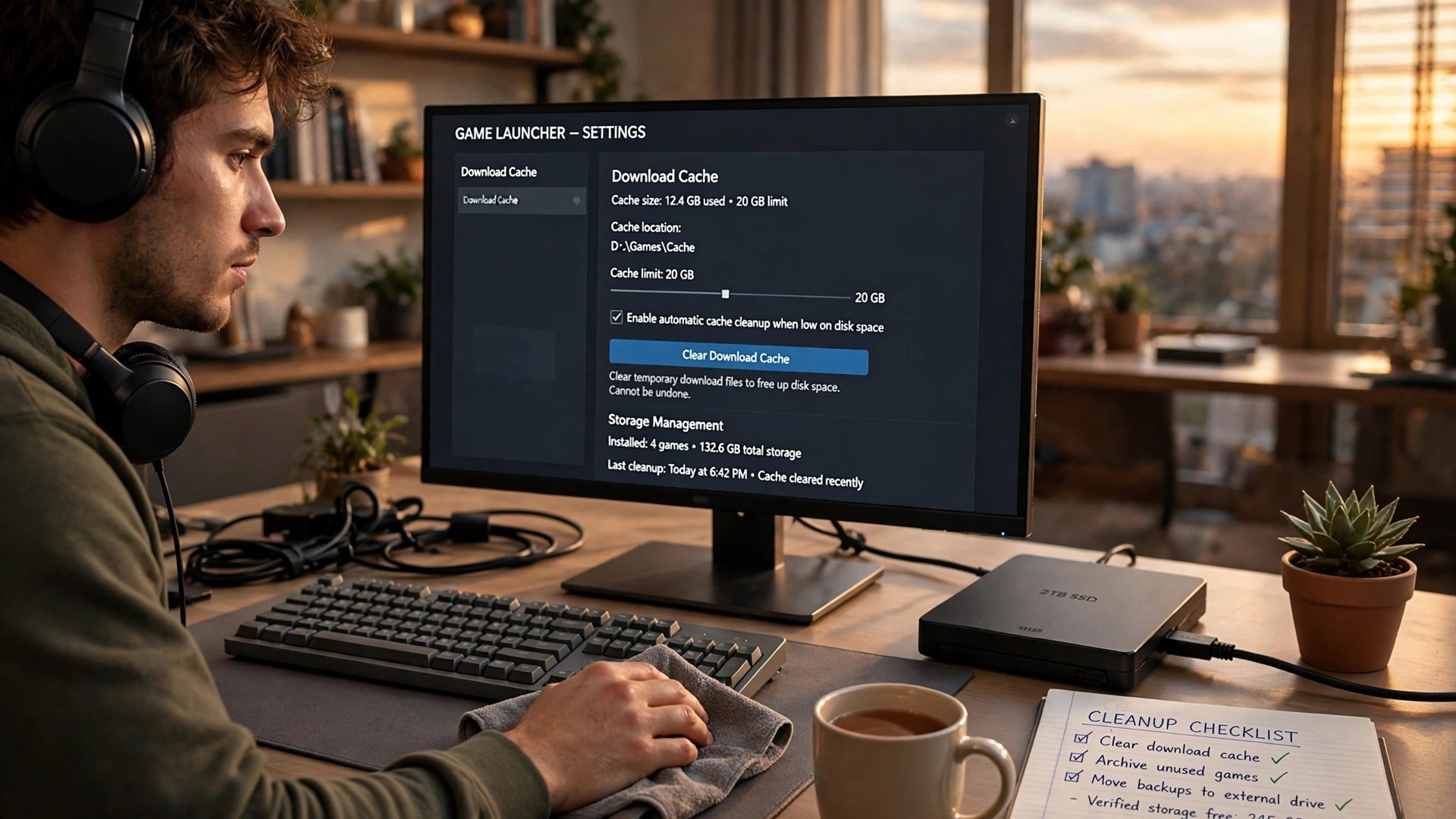
Game launchers and graphics drivers keep caches that grow over time. Clearing them is safe — the programs rebuild what they need — and it can free several gigabytes at once.
- Steam download cache: open Steam Settings, then Downloads, and click
Clear Cache. This fixes stalled downloads as well as freeing space. If Steam downloads are slow in general, our guide to speeding up Steam downloads covers the other causes. - Shader caches: NVIDIA and AMD drivers keep compiled shader caches for your games. In the NVIDIA App, open Settings and use the shader cache controls; in AMD Software, the shader cache can be cleared from the graphics settings. Windows also keeps a DirectX shader cache, which appears under Temporary files in Storage settings.
- Launcher leftovers: check for old installer files and update packages inside launcher folders — for example, the
steamapps\downloadingfolder can hold abandoned partial downloads. - Recording and screenshots: gameplay clips recorded with the Xbox Game Bar, NVIDIA ShadowPlay or OBS pile up fast. Check the Captures folder and delete clips you will never watch again. Our guide to recording gameplay without losing FPS includes the storage settings that keep recordings small.
Trim the hibernation file — carefully
Windows reserves disk space equal to a large part of your RAM for the hibernation file (hiberfil.sys). On a PC with 16 GB of RAM, that can be 10 GB or more. If you never use hibernation — most desktop gamers do not — you can turn it off and reclaim that space. Open Command Prompt as administrator and run powercfg /hibernate off. The file is deleted immediately; run powercfg /hibernate on if you ever want it back. Do not do this on a laptop if you rely on hibernation to save your work when the battery runs out.
The page file (pagefile.sys) is different: leave it alone. Windows manages it, and shrinking it to save space causes crashes and out-of-memory errors in games.
Where the space usually hides
| What | Typical size | Safe to remove? |
|---|---|---|
| Finished games you have not played in months | 50–150 GB each | Yes — saves stay in the cloud |
| Windows Update cleanup + temporary files | 5–30 GB | Yes, via Storage settings |
| Hibernation file (if you never hibernate) | Up to 40% of your RAM | Yes, with powercfg |
| Shader and launcher caches | 2–10 GB | Yes — they rebuild themselves |
| Recorded clips and screenshots | 1–20 GB | Yes, once you have checked them |
| Downloads folder installers | 1–10 GB | Yes, once installed |
| Page file | Several GB | No — leave it alone |
| Save games and configs | A few MB | No — tiny, and precious |
Freeing up disk space for games is mostly about honesty and housekeeping: uninstall the games you have finished, move the ones you still play to the drive with room, and let Windows clear the temporary files it no longer needs. Do that once, turn on Storage Sense so it stays done, and the next big release will have somewhere to live.