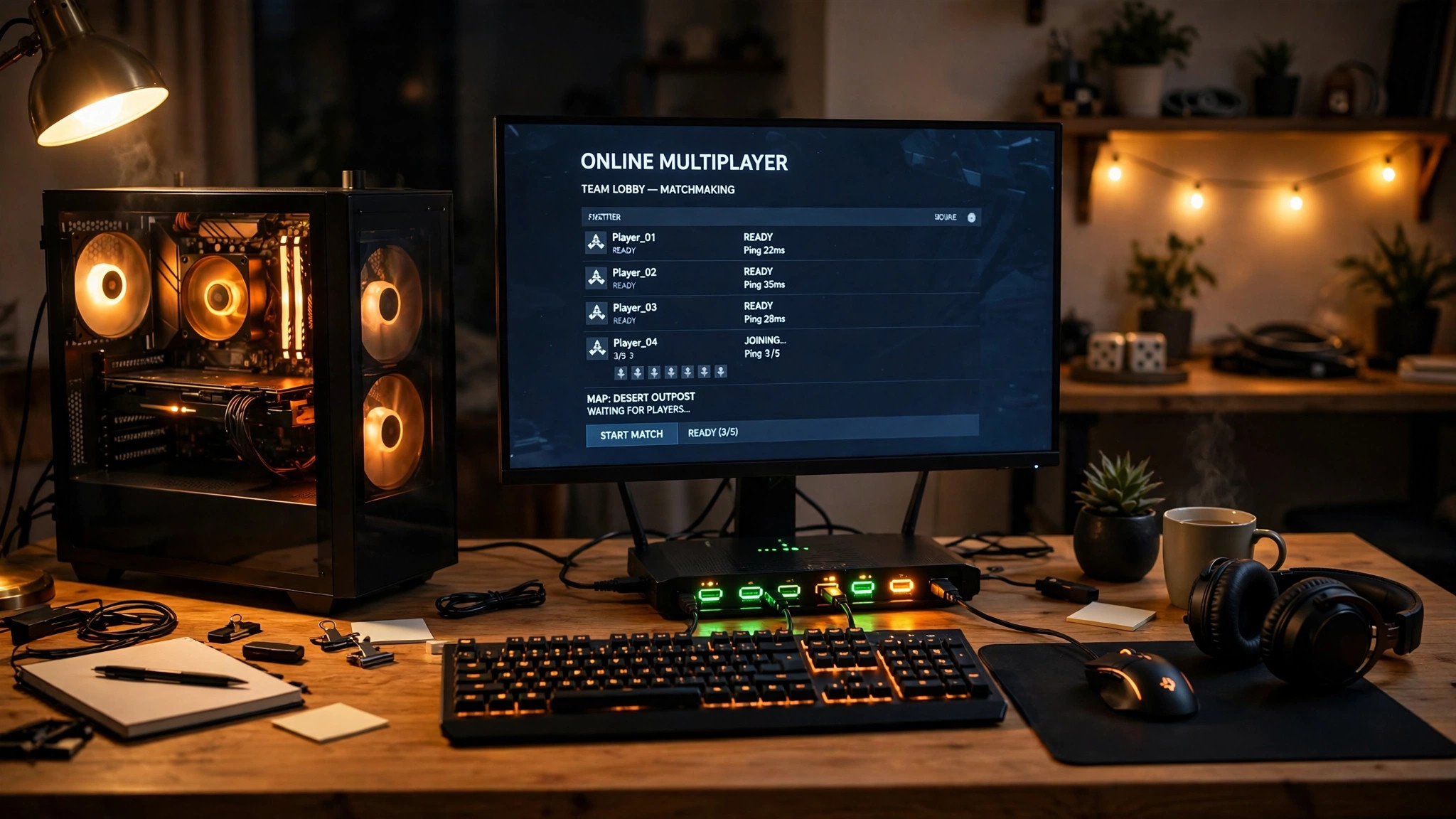
You can have fast internet and still struggle to join a lobby. If matchmaking takes far too long, friends cannot join your session, or voice chat cuts out while the game itself runs fine, Strict NAT is a likely culprit. It is not a speed problem: your router is being too restrictive about which other players your PC is allowed to talk to.
Most Strict NAT cases are fixed with one or two router changes, in the right order: checks first, easy fixes next, port forwarding only if needed.
What each NAT type actually means
NAT stands for Network Address Translation. Your router uses it to share one public internet address between all the devices in your home. When a game connects to another player, the router has to decide how to handle that incoming connection — and how permissive it is determines your NAT type.
| NAT type | What it means for gaming |
|---|---|
| Open | You can connect to players on any NAT type, and host games and lobbies without trouble. |
| Moderate | You can connect to most players, but not to Strict NAT players, and hosting can be unreliable. |
| Strict | Usually only Open NAT players are reachable; matchmaking, invites, voice chat and hosting are likely to fail. |
Two Strict NAT players generally cannot connect to each other, so a Strict player has the smallest pool of players they can reach — which is why the same game can work for one friend and refuse to connect for another.
Check your NAT type first
Do not change router settings blindly. Many online games show NAT type on a network, connection or server-browser screen, or in the lobby or party menu — check there first, because that is the reading that matters for that game.
If your game does not show a NAT type, look for the symptom pattern instead: long matchmaking times, failed invitations, voice chat that drops while gameplay continues, and an inability to host. Several together point strongly at NAT. Note the result before you change anything, so you can tell whether each fix helped.
Note that NAT affects who you can connect to, not speed once connected. Rubber-banding is a different problem — see our guides to fixing packet loss and lowering ping.
Fix 1: Restart your router and PC, then go wired
Before touching any setting, restart both your router and your PC, then test the game again. Routers run for months without a restart, and a stale session table can leave old, broken mappings in place.
Where possible, test on an Ethernet cable, even if you normally play on Wi-Fi: a cable does not change NAT type by itself, but it removes Wi-Fi interference, so you test one thing at a time.
Fix 2: Turn on UPnP
For most home players, UPnP is the fix. UPnP, or Universal Plug and Play, lets a game ask your router to open the ports it needs, automatically, and only while it needs them. On many routers it is already on; on others it is off by default, which is a common cause of Strict NAT.
- Open your router's admin page — the address is usually printed on the router, commonly
192.168.1.1or192.168.0.1— and sign in. - Find the UPnP setting, usually under Advanced, NAT or a similar section. The exact location varies by router brand.
- Turn UPnP on, save, and restart the router, your PC and the game, then check your NAT type again.
UPnP trades a little manual control for automatic port handling. On a trusted home network, that trade-off is widely accepted for gaming. If you prefer to manage ports yourself, skip to port forwarding instead.
Fix 3: Port forwarding — only when you need it
If UPnP is on and your NAT is still Strict, port forwarding is the next step: you tell your router to send traffic on specific ports to your gaming PC. Only forward the ports for the game you are actually playing, using the port numbers from that game's official support pages — requirements differ between games, so a list copied from another title will not help.
- Give your PC a fixed local address first: reserve an address for it in your router's DHCP or connected-devices section, so the rule does not break at the next restart.
- Create a forwarding rule for the ports in the game's official support documentation, pointing to that address, using exactly the TCP or UDP protocol specified.
- Save the rule, restart the router, then restart the game and check your NAT type.
Forward one game at a time and test after each change. If you forward ports for five games at once and something breaks, you will not know which rule caused it.
If port forwarding does not work: CGNAT and ISP limits
Sometimes port forwarding changes nothing, no matter how carefully you set it up. The most common reason is CGNAT, or Carrier-Grade NAT: some providers share one public address between many customers, adding a second layer of NAT before traffic ever reaches your router, so your router's forwarding rules have no effect.
A useful clue is your router's WAN or internet address. If it starts with 100.64. through 100.127., you are very likely behind CGNAT: that range is reserved for provider-level NAT, not a public address you can receive connections on.
If CGNAT is the cause, the fix is with your provider, not your router. Ask whether they can give you a public IP address — some offer this free, some charge, some only on certain plans. If they cannot, UPnP will not help either, for the same reason: the block is upstream of your home. Playing on servers hosted by Open NAT players is then the practical workaround, rather than hosting yourself.
Double NAT: when two routers are in the way
Another common trap is double NAT: your provider's modem-router plus your own router, both doing NAT, so traffic must get through two layers of translation and UPnP and port forwarding seem to do nothing. Put one device in charge: set the provider's device to bridge or modem mode, or use your own router as an access point. Both leave a single layer of NAT.
What not to do
- Do not put your PC in the DMZ. A DMZ rule exposes your PC directly to the internet, bypassing the router's firewall, for every service on that PC, not just the game.
- Do not disable your firewall. Windows Firewall rarely causes Strict NAT, because it mainly controls traffic to your PC, not how your router translates addresses.
- Do not forward every port. Forwarding a wide range of ports is nearly as exposed as a DMZ. Forward only what the game's documentation asks for.
- Do not pay for a gaming VPN to fix NAT. A VPN adds another layer between you and the game server, which usually increases latency, and it does not remove a CGNAT or double-NAT problem.
Most players stop at UPnP. If you have reached the CGNAT stage, the problem is upstream of your home network, and no amount of router tweaking will fix it.
