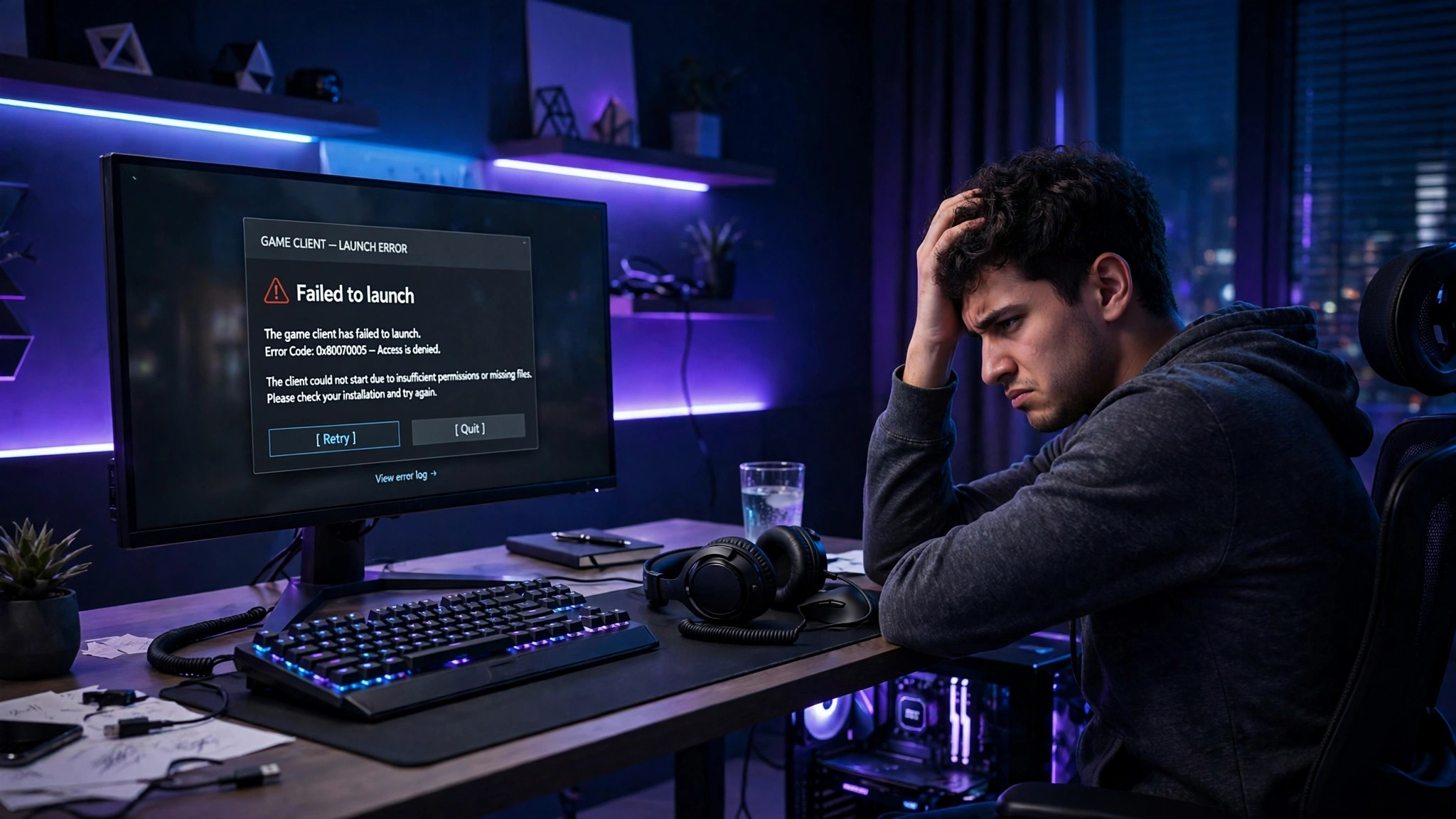
You click the Steam icon and nothing happens. No window, no error, no loading spinner. Steam failing to open is one of the most common PC gaming problems, and it is almost never a broken installation. Usually a background process is stuck, Windows is blocking the client, or an update file is corrupted. Work through the fixes below in order; most people are back in their library by step three or four.
What "Steam won't open" actually means
Before fixing anything, work out which version of the problem you have, because the fix depends on it. If nothing appears at all — not even in the taskbar — Steam is probably running invisibly in the background and failing to show its window. If you see "Updating Steam" or "Verifying installation" forever, an update file is stuck. If Steam opens and immediately closes, something on your PC is killing it: usually security software or a conflicting program. If you see an error such as "Steam needs to be online to update", the cause is narrower — the steps below still apply, and the reinstall step at the end covers corrupted files.
Step 1: Check whether Steam is already running
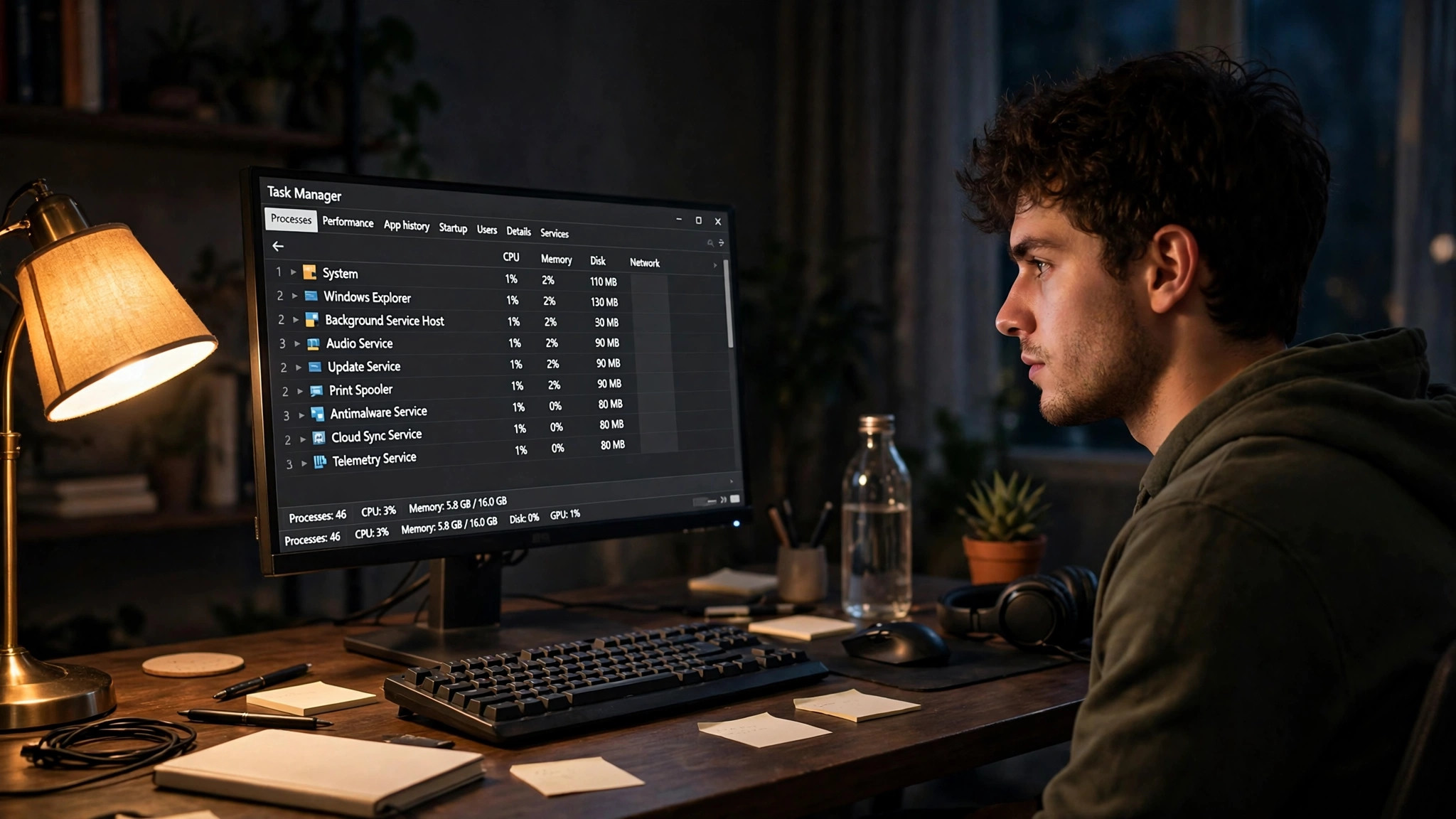
This is the most common cause, and the fix takes thirty seconds. When Steam crashes or fails to close properly, its background processes keep running, and a new launch sees Steam as already open and does nothing.
- Press
Ctrl + Shift + Escto open Task Manager. - On the Processes tab, look for Steam Client Bootstrapper, Steam Client Service, and any entry starting with "Steam".
- Select each one and click End task.
- Also end Steam Client WebHelper entries if you see them — they sometimes hold the client open.
- Wait ten seconds, then launch Steam again from its desktop shortcut.
If Steam opens now, you are done. If it keeps happening, Steam is probably set to start with Windows and colliding with something at login — disable it in Task Manager under Startup apps and launch it manually after everything else has loaded.
Step 2: Run Steam as administrator
Steam needs permission to write its own update files and to talk to its service. If Windows is running it with restricted permissions — common after a Windows update or when Steam is installed in C:\Program Files — the client can fail silently.
- Right-click the Steam shortcut and choose Run as administrator.
- If that works, make it permanent: right-click the shortcut, choose Properties, open the Compatibility tab, tick Run this program as an administrator, and click OK.
Do the same for the actual steam.exe in your Steam install folder if you launch it directly.
Step 3: Check whether Steam itself is down
Before changing anything else, rule out the possibility that the problem is not on your PC at all. Steam's servers go down for maintenance most Tuesdays, and outages happen. Open a browser and check a status site such as steamstat.us. If the servers are down, no local fix will help — wait it out.
Step 4: Let Steam through your firewall and antivirus
Security software is the second most common cause of a client that opens and immediately dies. Windows Firewall can block Steam after an update changes its executable, and antivirus tools sometimes flag Steam's update process as suspicious.
- Open Settings > Privacy & security > Windows Security > Firewall & network protection, then click Allow an app through firewall.
- Find Steam in the list and make sure both Private and Public are ticked. If Steam is missing, click Allow another app and browse to
steam.exe. - If you use third-party antivirus, open it and add
steam.exeand your whole Steam folder to its exclusions or allowlist, then restart Steam. - As a test only, temporarily disable your antivirus and try launching Steam. If it opens, the antivirus is the cause — re-enable protection immediately and set the exclusion properly instead of leaving it off.
VPNs can cause the same symptom: if Steam fails while your VPN is connected, disconnect the VPN, launch Steam, and reconnect afterwards. Some VPN exit nodes are blocked by Steam's login servers.
Step 5: Delete Steam's stuck update files
When Steam gets stuck on "Updating Steam", a partially downloaded update file is usually the culprit. Steam rebuilds these files itself — you just have to remove the broken copies.
- Make sure Steam is fully closed using Task Manager, as in Step 1.
- Open your Steam install folder (usually
C:\Program Files (x86)\Steam). - Delete the file
ClientRegistry.blobif it exists. Steam recreates it on the next launch. - Delete the contents of the
appcachefolder — not the folder itself, just what is inside it. - Launch Steam again. It will re-download the missing pieces, which takes a minute or two on a normal connection.
If the client opens but downloads crawl or stall, the problem has moved from launching to downloading — see our guide to speeding up Steam downloads for the download-side fixes, including changing your download region and clearing the download cache.
Step 6: Fix your clock, then update Windows and drivers
Two quiet causes are worth checking before the nuclear option. First, Steam's login servers reject connections from PCs whose date and time are wrong — if your clock is off by more than a few minutes, Steam can fail to connect or to update. Right-click the clock in the taskbar, open Adjust date/time, and turn on Set time automatically. Second, run Windows Update and install everything pending, and update your graphics driver from NVIDIA or AMD directly — if you suspect a corrupt driver install, clean-install it with Display Driver Uninstaller, as explained in our guide to clean-installing NVIDIA and AMD drivers with DDU.
Step 7: Reinstall Steam without losing your games
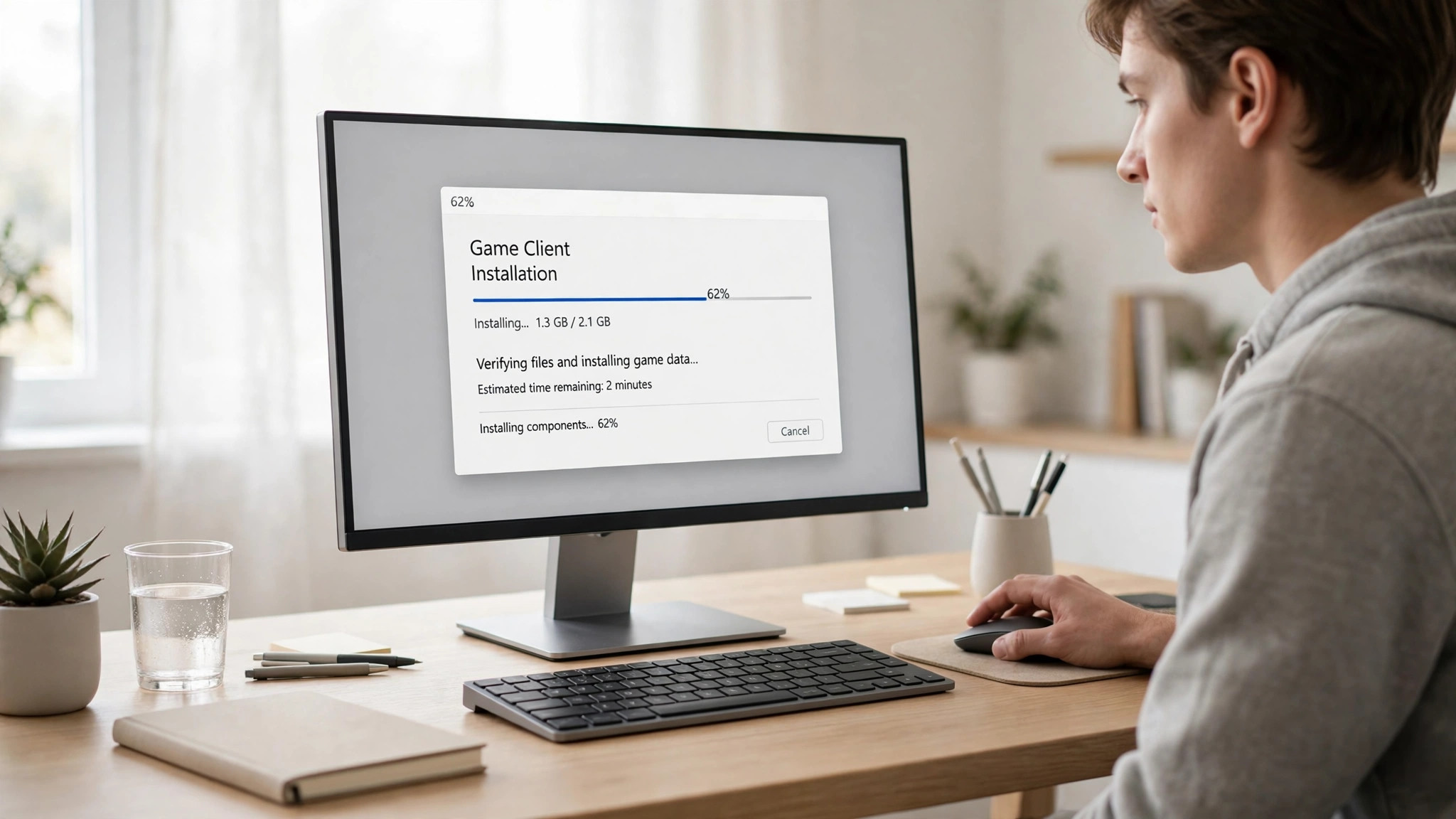
If nothing above worked, reinstalling Steam fixes almost every remaining case — and you do not have to re-download your library. Your games live in the steamapps folder, and your saves and settings live in userdata: keep both.
- Close Steam completely using Task Manager, as in Step 1.
- Open your Steam folder and delete everything except
steam.exe, thesteamappsfolder, and theuserdatafolder. - Double-click
steam.exe. Steam will re-download its own files and rebuild itself around your untouched games. - Log in and let it verify your library. Your installed games should appear as installed, with no re-download needed.
If even that fails, do a full clean reinstall: back up the steamapps folder somewhere safe first, uninstall Steam from Settings > Apps, reinstall Steam from the official site, and move steamapps back into the new install folder before launching.
Diagnose by symptom
| Symptom | Likely cause | Fix to try first |
|---|---|---|
| Nothing happens when you click the icon | Stuck background process | Step 1: end Steam tasks in Task Manager |
| Steam opens, then closes immediately | Firewall or antivirus blocking it | Step 4: allow Steam through firewall and antivirus |
| Stuck on "Updating Steam" forever | Corrupted update file | Step 5: delete ClientRegistry.blob and appcache contents |
| "Steam needs to be online to update" | Wrong system clock, VPN, or Steam outage | Steps 3 and 6: check status, fix the clock, disconnect VPN |
| Nothing above works | Corrupted Steam install | Step 7: reinstall keeping steamapps and userdata |
Steam not opening feels serious because it locks you out of your whole library, but the cause is almost always boring: a stuck process, a permission problem, or a corrupted update file. Start with Task Manager, work down the list, and never delete the steamapps folder. If the client opens but a specific game still refuses to launch, check the game's own error and verify its files — and see our guide to fixing lag and stutter in PC games if it launches but runs badly.
