
A Steam disk write error is one of the most annoying errors in PC gaming, because it usually appears right when a download or update is nearly finished. The message normally reads something like 'An error occurred while updating [game] (disk write error)'. In plain terms, Steam tried to save a file to your drive and the write failed. It does not, by itself, tell you why.
The cause is usually boring: a full drive, a stuck download, a folder Steam can no longer write to, or a security program quietly blocking the write. A failing drive is possible, but it is not the most likely cause, and you should not assume it first. Work through the fixes below in order, and test the download after each step. Stop as soon as it works.
1. What a disk write error actually means
When Steam downloads a game, it writes chunks to temporary files, checks them, and then moves them into place. A disk write error means one of those writes was refused or interrupted. That can happen anywhere in the chain: Steam itself, Windows permissions, your antivirus, a full or failing drive, or another program holding a file open.
That is why the same error has different fixes for different people. A reinstall is the slowest fix, and if the real cause is permissions or a dying drive, it will fail in exactly the same way.
2. Quick checks first: restart, space, and the download queue
Start with three cheap checks. First, close Steam completely — right-click its system tray icon and choose Exit, rather than just closing the window — then reopen it and retry the download. A stuck Steam process can hold files open and block its own writes.
Second, check free space on the drive the game is installed on, not just your main drive. Updates can temporarily need extra space while old and new files exist side by side, so keep at least 10 to 20 GB free beyond the size of the update. If the drive is nearly full, free space first, or follow our guide to move Steam games to another drive without reinstalling.
Third, pause every other download and update, and close the game itself if it is running. A second download writing to the same drive, or a running game, can conflict with the update.

3. Clear Steam's download cache
A corrupted download cache is one of the most common causes of this error, and clearing it is safe. It does not delete your installed games; it only forces Steam to re-check what it has downloaded, which often clears a stuck or half-written chunk.
- Open Steam and go to Settings, then Downloads.
- Click Clear Download Cache, confirm, and let Steam restart.
- Sign back in and resume the download.
If the download now gets further than before but still fails, note where it stops. Failing at the same percentage every time points more strongly at a specific corrupted file or a drive problem.
4. Verify the game files and repair the library folder
Next, ask Steam to check the game itself. Right-click the game in your library, choose Properties, then Installed Files, then Verify integrity of game files. Steam will scan the installed files and replace anything missing or corrupted, re-downloading only what it needs.
While you are there, repair the library folder too. In Steam Settings, go to Storage, click the three-dot menu next to the drive, and choose Repair Folder. If the game is on a second drive, repair that drive's folder, not just the default one. If verification itself fails with a disk write error, the problem is probably not one game file, but the folder, the permissions, or the drive — keep going down the list.
5. Fix folder permissions and take ownership
Steam needs write permission for the folder the game lives in. This breaks most often after moving a drive between PCs, restoring from a backup, or changing Windows user accounts. The tell-tale symptom is that every download to that drive fails, while downloads to another drive work fine.
- In File Explorer, go to the Steam library folder on that drive.
- Right-click it, choose Properties, then the Security tab.
- Check that your Windows user account has Full control; if not, click Edit and grant it.
- On the General tab, check the folder is not marked Read-only. If it is, clear that box and apply the change to subfolders and files.
Fix only the specific Steam library folder. Do not take ownership of your entire Windows drive or user folder just to fix a game — that can create a bigger problem than the one you started with.
6. Check antivirus, ransomware protection, and other blockers
Security software is a frequent silent cause. It may quarantine a game file mid-download, block Steam from writing to a protected folder, or lock a file while scanning it. Windows Controlled Folder Access, in particular, can block Steam from writing to protected folders.
Check your antivirus quarantine and blocked-apps history for Steam or the game. In Windows Security, go to Virus and threat protection, then Ransomware protection, and see whether Controlled Folder Access is blocking Steam. If it is, allow Steam through it rather than turning the feature off. Also pause any cloud sync or backup tool syncing the game folder. If the error disappears when protection is paused, add Steam and the game folder as exclusions, then turn protection back on.
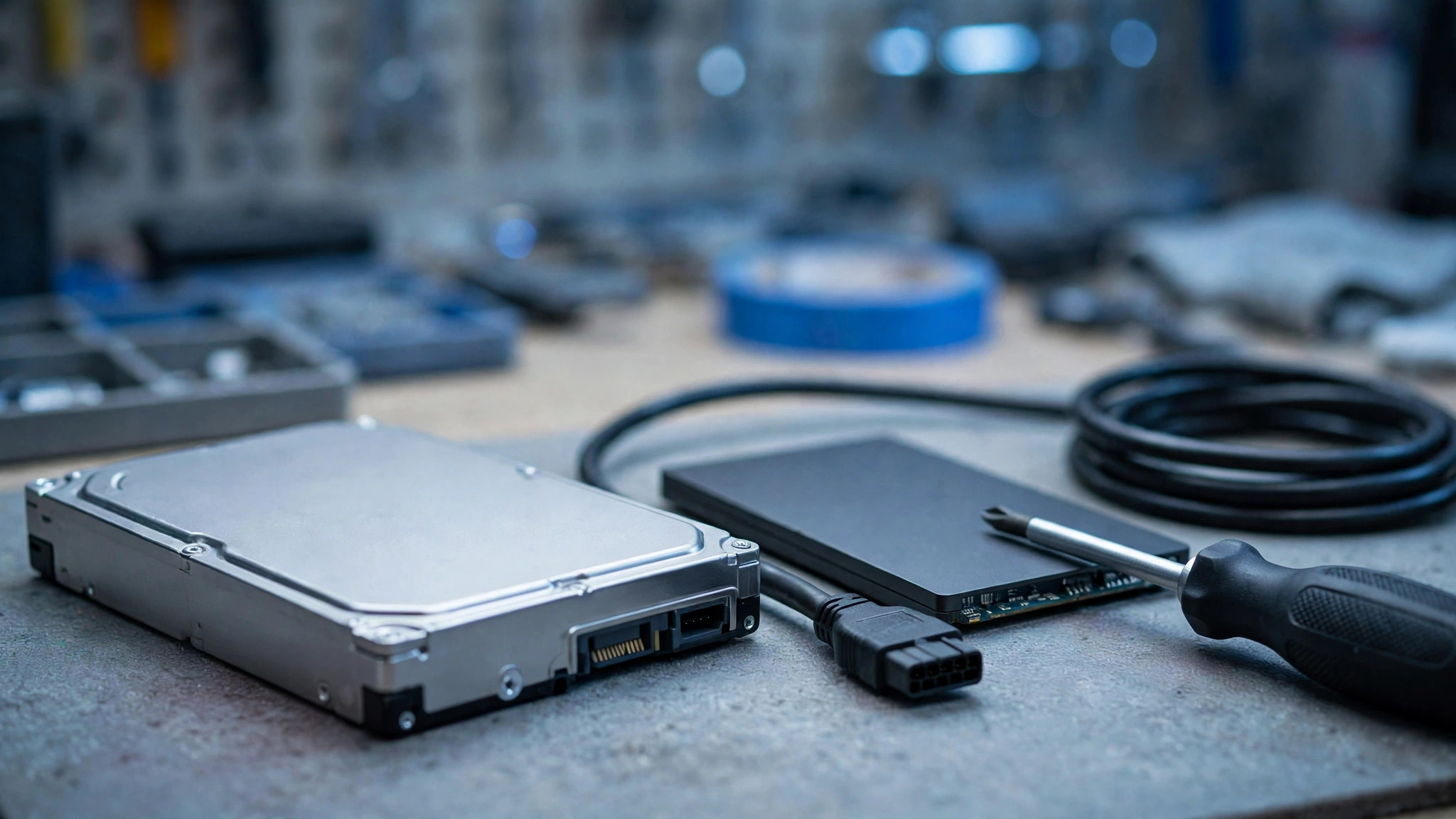
7. Test the drive itself before you blame Steam
If the error happens for every game on one drive, affects other programs too, or appears alongside freezes, disappearing files, or strange noises from a hard drive, stop troubleshooting Steam and test the drive. Back up anything important on it first.
| Symptom | Most likely cause | Try first |
|---|---|---|
| Error on one game only | Corrupted game file or stuck download | Clear download cache, then verify game files |
| Error on every game on one drive | Permissions, full drive, or drive fault | Free space, repair folder, check permissions |
| Error only while antivirus is active | Security software blocking the write | Check quarantine and Controlled Folder Access |
| Error plus freezes or missing files | Failing drive | Back up data, then run a drive health check |
For a basic check, open Command Prompt as administrator and run chkdsk X: /f, replacing X with the drive letter. If the drive reports bad sectors or a failing health status, do not keep forcing downloads onto it — move the game or replace the drive.
8. When to move the game or reinstall
Only now is a reinstall sensible. First try moving the game to a different drive with Steam's built-in move option: it is faster, and it tests whether the problem follows the game or stays with the drive.
If you do reinstall, delete the leftover game folder manually after uninstalling, then install fresh. A disk write error feels like a Steam problem, but it is really a message about writing to a disk. Fix the write path first, and Steam usually takes care of the rest.
