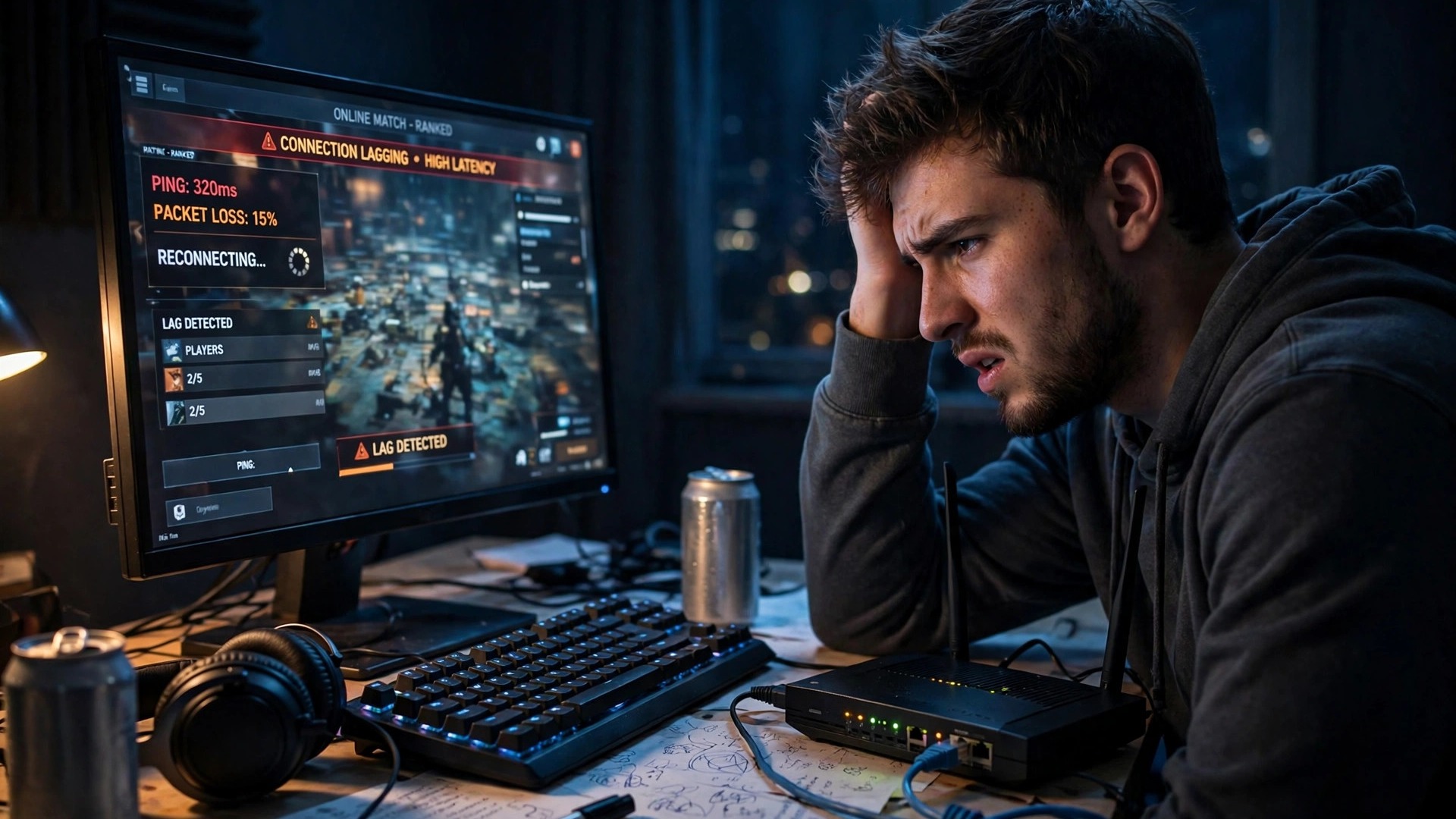
High ping ruins online matches: shots land late, enemies teleport, and the game feels one step behind. Your PC can be perfectly fine — ping is a network problem, not a hardware problem, and it has its own fixes.
This guide explains what ping actually measures, how to find where the delay comes from, and the fixes that lower it, in the order that solves the problem for most people.
What is ping, and what counts as high?
Ping is the time, in milliseconds (ms), for data to travel from your PC to the game server and back. Lower is better: the server hears about your actions sooner.
| Ping | What it feels like |
|---|---|
| Under 30 ms | Excellent |
| 30–60 ms | Good |
| 60–100 ms | Playable |
| 100–150 ms | Laggy |
| Over 150 ms | Poor |
Two related numbers matter too. Jitter is how much ping jumps around — steady 60 ms plays far better than ping swinging between 20 and 120 ms. Packet loss is data that never arrives; even 1–2% causes stuttering and unregistered shots. Most games show all three in their network overlay — check there first.
Find out where the delay is coming from
First, work out whether the problem is your home network, your provider, or the game server:
- In Command Prompt, type
ping -n 20 8.8.8.8. A low, steady result (under 30 ms, no lost packets) means your internet connection is healthy. - Compare it with the ping inside your game. Test fine but game at 150 ms? The problem is the route to that game's server, or the server itself.
- Test ping already high or jumpy? The problem is on your side: Wi-Fi, router, or internet plan.
- Test again at a quiet time. Fine at midnight but terrible at 8 pm means congestion — at home or on your provider's network.
If only one game is affected, it usually means no nearby server, or its servers are having a bad day — check the game's server status page first.

Switch to a wired connection
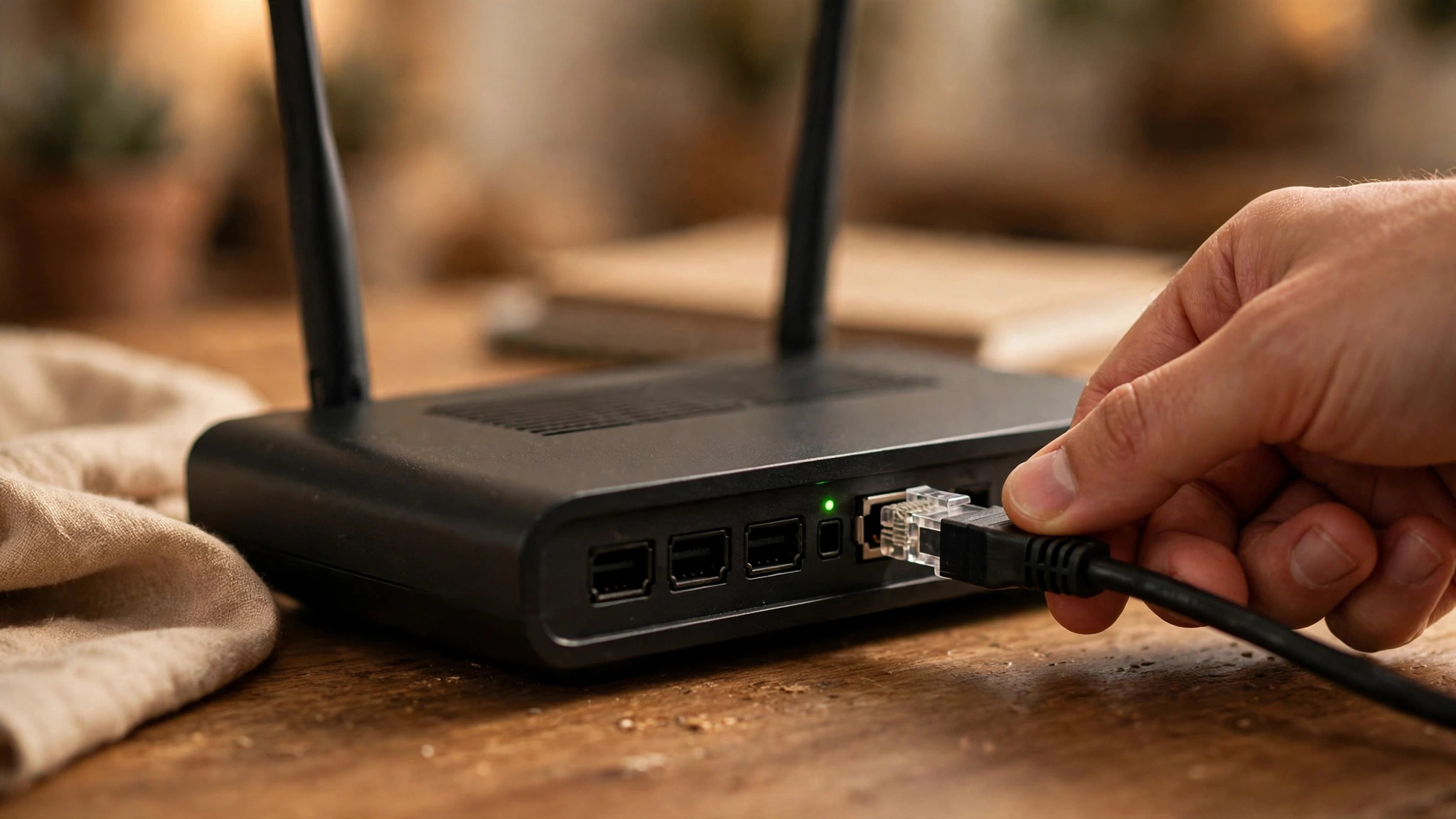
This is the single biggest improvement most players can make: Wi-Fi adds latency and jitter, and suffers interference from neighbours' networks, microwaves, and walls. A wired connection is faster, steadier, and immune to all of it.
Run an Ethernet cable from your PC to the router — a long cable along skirting boards is cheap and worth it. If a cable is impossible, a powerline adapter (signal through your home's electrical wiring) is usually steadier than Wi-Fi; a mesh node in the same room beats a distant router.
Check your PC is actually using the cable — Wi-Fi off, Ethernet active — and that it is in a gigabit port, not a slower 100 Mbps one.
Pick the closest server
Ping is largely distance: every extra thousand kilometres to the server adds delay. Most games let you choose a server region — pick the nearest, not the one your friends use if they live on another continent.
Some games pick a server automatically and get it wrong — set the region manually. If ping only shows after joining, try a practice game first to find the lowest number.
Be wary of VPNs: they add an extra stop, so they almost always raise ping. The exception is a bad provider route to the server — a VPN can occasionally find a shorter path. Test on and off, keep the lower number, and never pay for a gaming VPN untested.
Stop other apps and devices using your bandwidth
Your connection is shared by everything at home. One 4K stream, cloud backup, or background download can saturate your upload — and that makes ping spike, because your game's packets cannot get out on time.
Before you play, pause game downloads in Steam, Epic, Battle.net, or the EA App — launchers update silently. Pause cloud syncing (OneDrive, Google Drive, Dropbox) and phone backups, and ask others to pause 4K streams and large downloads. Set Windows Update active hours so updates install outside gaming time.
If your router has Quality of Service (QoS) or a gaming priority mode, turn it on and prioritise your gaming PC: game packets go first, big downloads wait.
Fix Wi-Fi problems
If you cannot use a cable, use the 5 GHz band, not 2.4 GHz: faster and far less crowded, though shorter range, so it works best in the same room as the router. The 2.4 GHz band reaches further but shares channels with neighbours, Bluetooth, and appliances.
Move closer to the router, or the router closer to your PC — every wall costs signal. Keep it out in the open, not in a cabinet or behind the TV. If you can pick a channel, choose the least congested one; free apps such as WiFi Analyzer show neighbours' channels.
Restart your router: unplug it for 30 seconds, plug it back in, and wait for it to fully reconnect.
Update drivers and reset your network stack
An old or corrupted network driver can add latency and packet loss. Get the latest driver for your network adapter from your motherboard or laptop maker's website — Windows Update lags behind. Check for a router firmware update too.
If ping problems started suddenly, reset the network stack: open Command Prompt as administrator, run these commands, then restart your PC:
netsh winsock resetnetsh int ip resetipconfig /flushdns
Changing your DNS server does not lower in-game ping: DNS only affects the one-time lookup of a server's address when you connect, not ping during a match.
When the problem is your ISP or the game server
Sometimes you have done everything right and ping is still high. If your test shows high ping everywhere, worst in the evenings, your provider's network may be congested — ask them about faults or congestion in your area. A faster download plan does not help ping; a clean, uncongested line does, and fibre beats old copper or cable.
If only one game is affected, the fault is the game's side: overloaded servers, a distant datacentre, or a routing problem. No PC setting fixes that — play at a quieter time, pick another region, or wait for a developer fix. Reporting it on the game's forums, with your region and ping readings, helps them notice regional problems.
Quick checklist
| Fix | When it helps |
|---|---|
| Wired Ethernet | Always — the biggest improvement |
| Closest server region | Ping high in one game only |
| Close downloads and streams | Ping spikes when others are online |
| 5 GHz Wi-Fi, near the router | On Wi-Fi with no cable option |
| Router restart | Ping crept up gradually |
| Update network drivers | Problems started after an update |
| Contact your ISP | High ping everywhere, worst in evenings |
FAQ
Does a faster internet plan lower my ping? Not directly — ping measures delay, not speed, so a 1 Gbps plan and a 100 Mbps plan can have identical ping. What helps is a clean connection: fibre, low congestion, and a wired link.
Why is my ping fine in one game and terrible in another? Different games use different servers in different places. The bad game probably has no server near you, or its servers are overloaded — check its status page and try another region.
