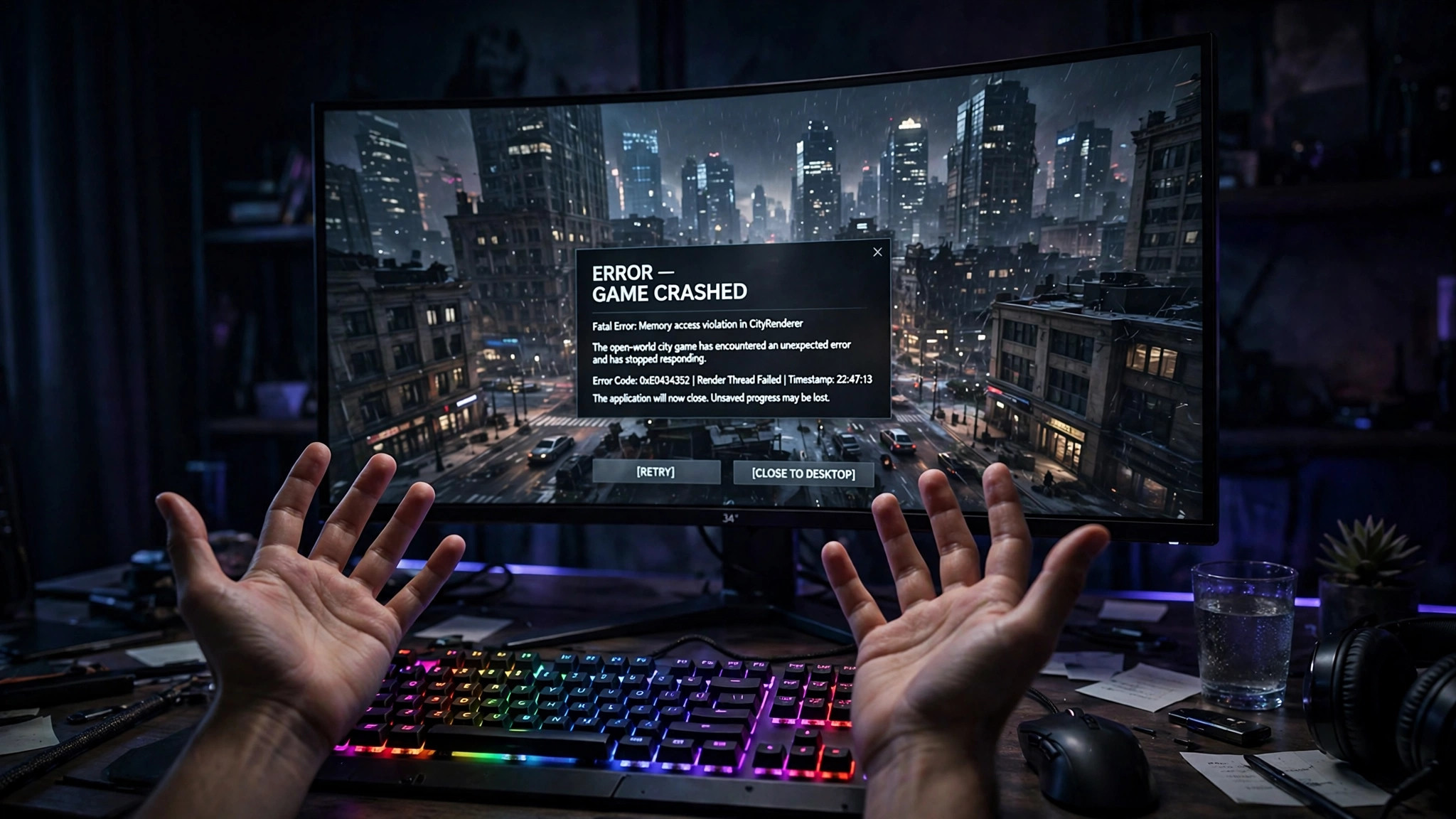
Grand Theft Auto V still crashes on modern PCs: it closes to the desktop mid-mission, freezes on a loading screen, or throws up an error like ERR_GFX_D3D_INIT and quits. The cause is usually one of four things: a graphics driver problem, an out-of-date mod, a corrupted game file, or a setting your hardware does not like.
Work through them in order, testing after each one — most players never get past the first four sections.
Quick fixes to try first
These take five minutes and fix a surprising number of crashes:
- Restart your PC. A pending Windows update or a stuck driver process can destabilise GTA V.
- Close background apps — overlays, recording tools, RGB software and browsers with dozens of tabs all compete for memory and GPU time.
- Run the game as administrator (right-click the GTA V shortcut or the Rockstar Games Launcher). Permission problems can stop the game writing its save and settings files.
Verify the game files
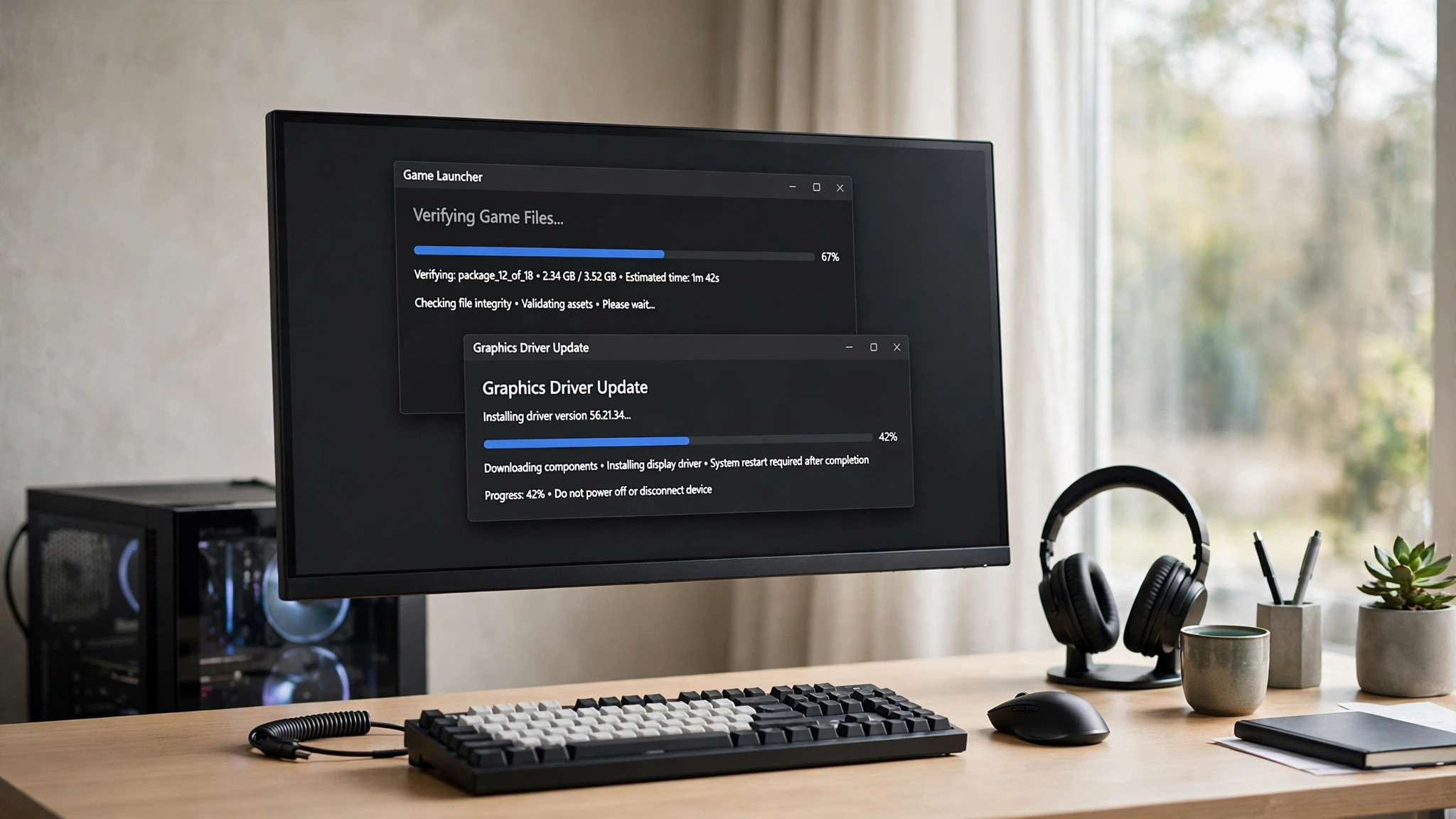
Corrupted or missing files are the most common cause of crashes that start suddenly after an update — verifying forces the launcher to re-download anything damaged, without touching your saves or settings.
On Steam: right-click the game, choose Properties, then Installed Files, then Verify integrity of game files. On the Rockstar Games Launcher: open Settings, find the game under My installed games and choose Verify integrity. On Epic: click the three dots next to the game, choose Manage, then Verify. Verification can take several minutes.
If verification downloads a large chunk of files, that was almost certainly your problem; if it finds nothing wrong, move on.
Update your graphics driver — and do a clean install
GTA V is sensitive to driver problems — a driver that works fine in newer games can still crash it, because the game uses older DirectX features modern drivers occasionally mishandle. Updating is not enough: do a clean install so no leftover files from the old driver remain.
NVIDIA: download the latest Game Ready driver, choose Custom installation during setup, and tick Perform a clean installation. AMD: download the latest driver and use the Factory Reset option, which removes the old driver completely first.
After installing, restart your PC and test GTA V before changing anything else. If the game was crashing on the loading screen, a clean driver install fixes it more often than anything else. If your whole PC runs hot, also check our guide to fixing GPU overheating while gaming on PC.
Lower the settings that crash GTA V most often
If the game crashes during gameplay rather than at launch, drop these first and raise them again one at a time once the game is stable:
| Setting | Safe value to test with | Why it matters |
|---|---|---|
| Texture Quality | Normal or High | Very High textures can exceed video memory |
| MSAA | Off | One of the heaviest settings; a common crash trigger |
| Extended Distance Scaling | Lowest | Loads more of the world at once |
| Population Density / Variety | Half or lower | Fewer pedestrians and vehicles |
| Grass Quality | Normal | Ultra grass is notoriously heavy and unstable |
| Reflection MSAA | Off | Expensive; a known crash source on some drivers |
You can also delete settings.xml from Documents\Rockstar Games\GTA V to force a clean start — the game rebuilds it with defaults, and your saves are stored separately.
Remove or update your mods
If you play with mods, they are the first suspect whenever GTA V crashes after a game update — especially Script Hook V and script mods that depend on it, which can crash the game at launch or when you load into the world.
- Test without mods first. Move the
modsfolder and any.asifiles out of the install folder and launch the game — if it runs cleanly, a mod is your problem. - Update Script Hook V. After every GTA V update it needs a matching update from its author — an outdated version is the most common mod-related crash cause.
- Re-add mods in small batches, testing after each batch, so you can identify the one that breaks the game.
- Check the mod's page. If it has not been updated in years, assume it is incompatible and leave it out.
Never download mods from untrusted sources, or install one that asks you to disable your antivirus.
Fix the ERR_GFX_D3D_INIT error
ERR_GFX_D3D_INIT means the graphics card stopped responding while the game was starting — almost always a driver or DirectX problem, not a broken card. Try these in order:
- Do the clean graphics driver install described above.
- Update DirectX with the End-User Runtime installer from Microsoft, or verify the game files, which restores the DirectX files the game ships with.
- Switch to DirectX 10 or 10.1 instead of 11 in the graphics settings, then restart. You lose some visual features, but the game becomes far more stable on some systems.
- Turn off any GPU overclock, including factory overclocks from tuning software. GTA V is unusually sensitive to unstable overclocks.
- If the error mentions running out of video memory, lower Texture Quality to Normal and turn MSAA off.
Check overheating and memory pressure
Crashes after 20 to 30 minutes of play, but never in the first few minutes, usually point to heat or memory — GTA V keeps the GPU busy constantly, so problems hidden in lighter games show up here first.
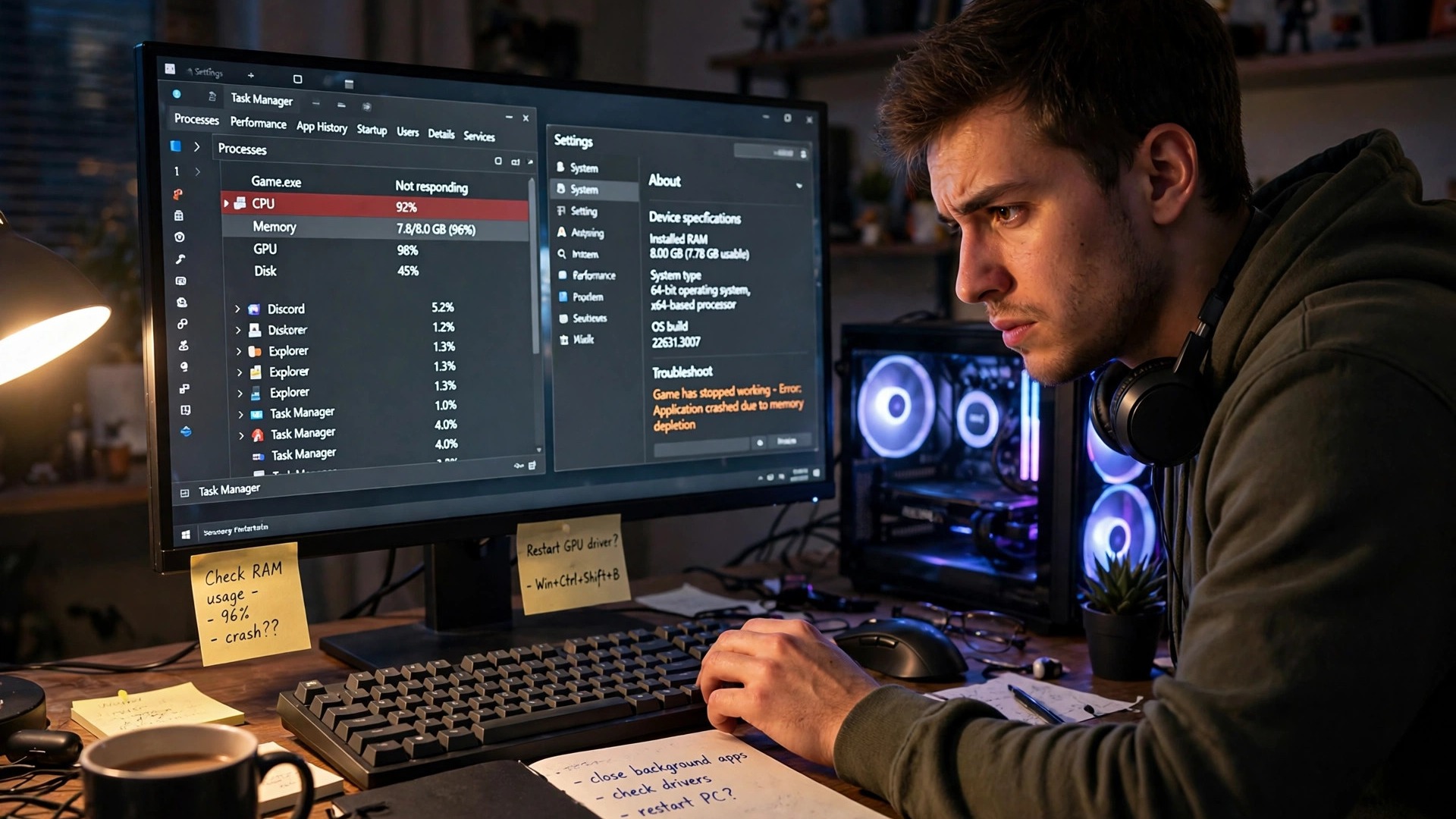
Open Task Manager (Ctrl + Shift + Esc) while the game runs and watch the Memory column. If usage climbs steadily and never comes back down, something is leaking memory — close background apps and check your mods. If the CPU is pinned near 100% while the GPU sits idle, the bottleneck is the processor; our guide to fixing high CPU usage in PC games walks through the checks. For heat, monitor GPU temperature — sustained readings above 85°C mean cleaning dust out of the case and checking the fans.
When nothing works: a clean reinstall
If every fix above has failed, reinstall properly. Uninstall GTA V, delete leftover folders in the install location and in Documents\Rockstar Games\GTA V — back up your saves first, they live in that Documents folder under Profiles — then reinstall and verify the files. A clean reinstall removes corrupted configuration and leftover mod files that verification alone cannot catch. Before reinstalling, check Windows is up to date — our guide to optimising Windows 11 for gaming covers the system setup that keeps games stable.
Diagnose by symptom
| Symptom | Most likely cause | Fix to try first |
|---|---|---|
| Crashes at launch | Outdated mod or driver | Remove mods; clean-install the driver |
| Crashes on the loading screen | Corrupted files or settings | Verify game files, delete settings.xml |
| Crashes after 20–30 minutes | Overheating or memory leak | Check temperatures, close background apps |
| ERR_GFX_D3D_INIT error | Driver or DirectX problem | Clean driver install, switch to DirectX 10 |
| Crashes in one area or mission | Corrupted game data or a script mod | Verify files, test without mods |
| Crashes after a game update | Outdated Script Hook V or mods | Update or remove all mods |
GTA V crashing on PC feels random, but it almost never is — usually the culprit is a driver that needs a clean reinstall, a mod that has not kept up with the latest update, or one graphics setting pushed past what the hardware can handle.
