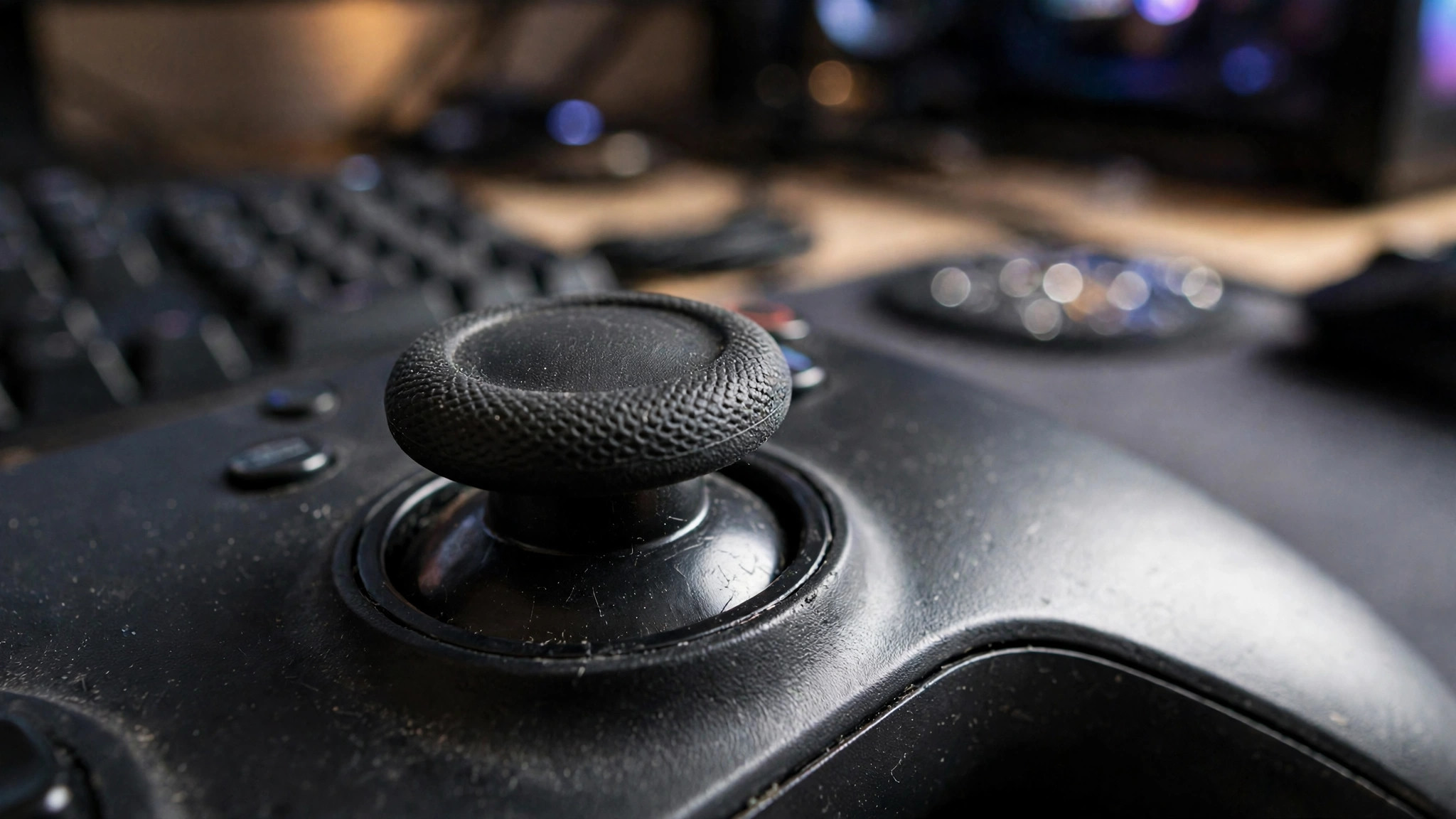
Stick drift is the slow betrayal every controller owner eventually meets: your character strafes left in a menu, the camera creeps on its own, and your thumbs are nowhere near the sticks. Before you buy a replacement, know this — drift is fixable on PC more often than people think, and the fixes run from a 30-second settings change to a careful cleaning job. Work through them in this order, from least invasive to most.
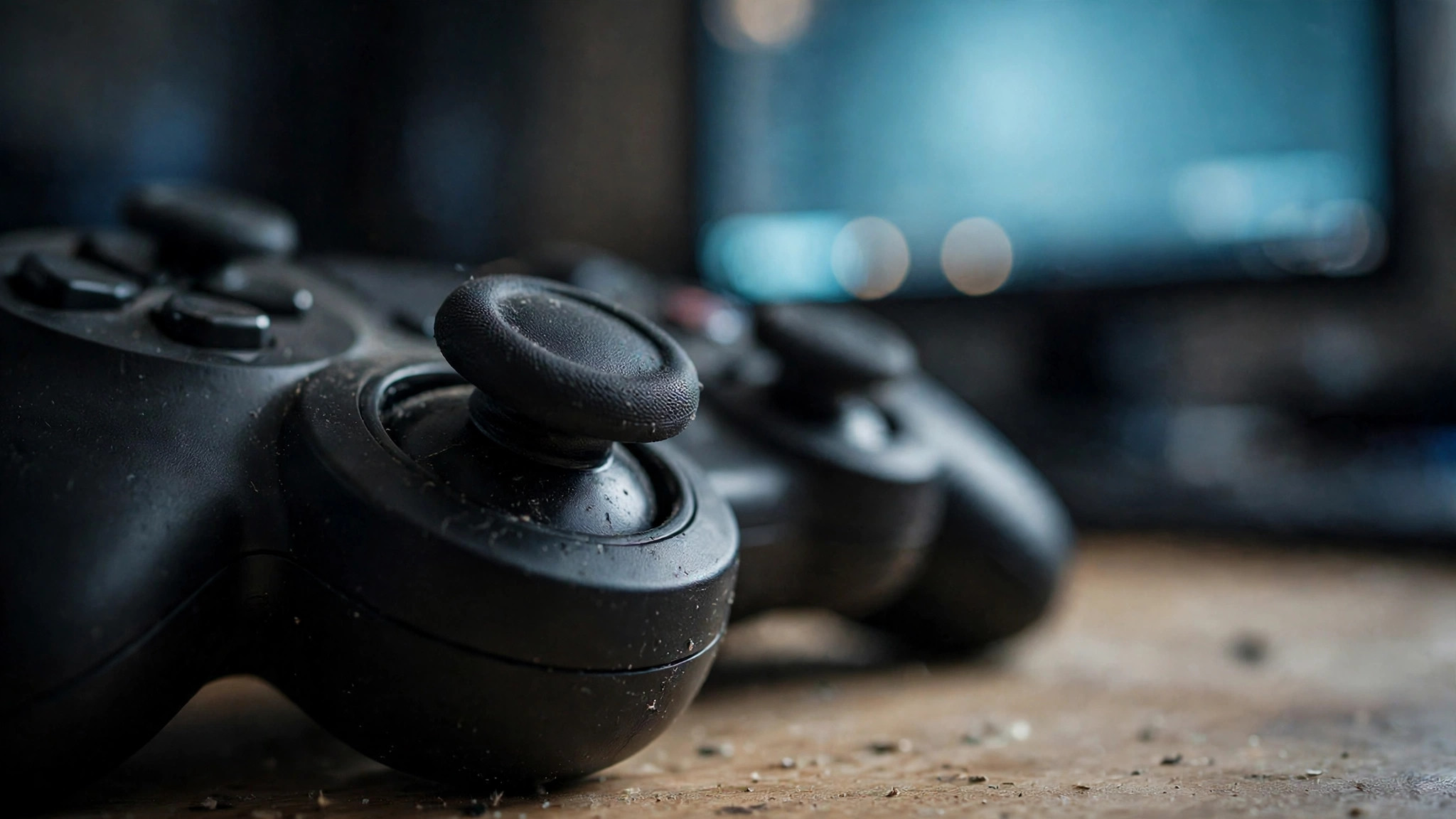
First, confirm it is actually drift
Not every phantom input is drift. Rule out the impostors first:
- Test outside the game. Open Steam, go to Settings > Controller, and use the built-in test area — or use any online gamepad tester. Watch the stick's reported position with your hands off. If the dot sits off-center or flickers while untouched, that is real drift.
- Try a second game. If the camera only creeps in one title, it may be that game's deadzone or a stuck key bind, not your hardware.
- Check for stuck inputs elsewhere. A keyboard key physically stuck down, or a second controller plugged in and forgotten under the desk, can look exactly like drift.
- Note which stick and which direction. Constant drift in one direction usually means a worn sensor or debris; drift that comes and goes often points to wireless interference or a dying battery. Switch to a wired connection and fresh batteries (or a full charge) to rule those out.
Fix it in software first
Software fixes cost nothing and solve a surprising number of drift complaints:
- Add a deadzone in Steam. A deadzone tells the game to ignore tiny stick movements near the center — exactly where drift lives. In Steam's controller settings, open your controller's configuration and raise the stick deadzone slightly (start around 0.10–0.15) until the phantom input disappears. This is per-device, so it applies across all your games.
- Recalibrate in Windows. Press Win + R, type
joy.cpl, select your controller, open Properties, and run the calibration wizard. A fresh calibration re-centers what Windows considers neutral. - Update the controller firmware. For Xbox controllers, use the Xbox Accessories app on PC; PlayStation and third-party controllers have their own vendor apps or update through their consoles. Firmware updates occasionally include stick calibration fixes. (If you have not paired your pad yet, our guide to connecting an Xbox controller to PC covers every method.)
- Pick one input API. Running Steam Input on top of a game that also reads the controller natively can double-report inputs and exaggerate drift. If a game has good native controller support, try disabling Steam Input for that game (right-click the game > Properties > Controller > Disable Steam Input) and compare.
If a deadzone fixes the symptom, you are done for practical purposes — but understand it is masking the problem, not curing it. Drift that keeps getting worse will eventually need the next steps.
Clean under the stick
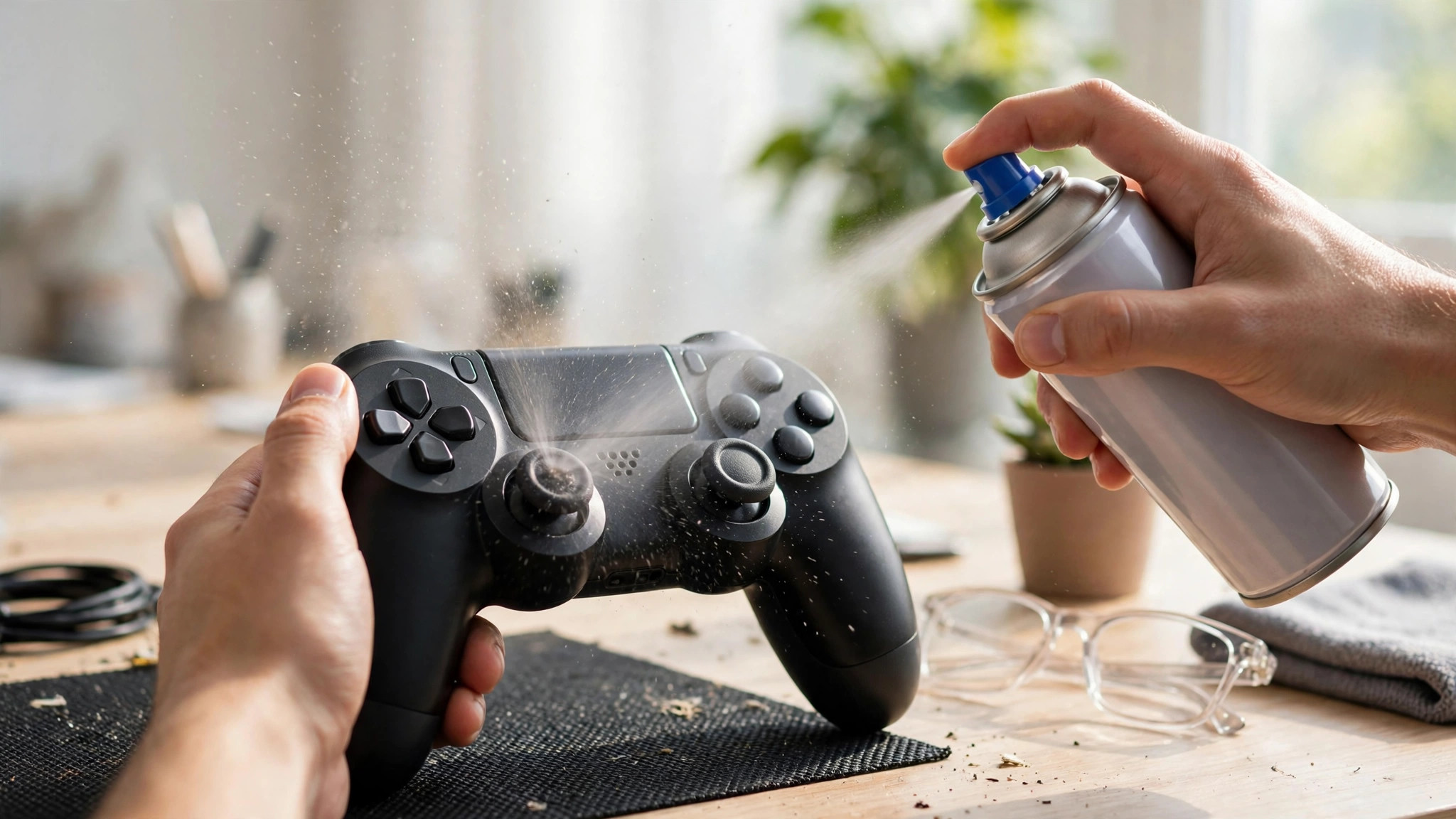
Dust, skin cells and snack crumbs migrate under the stick cap and into the sensor mechanism. This is the most common fixable cause of drift:
- Power the controller off and remove batteries if it has them.
- Hold the can of compressed air upright, aim the straw at the gap around the base of the drifting stick, and give short bursts while slowly rotating the stick in full circles. The upright angle matters — tilting the can sprays propellant liquid instead of air.
- Work a cotton swab lightly dampened with isopropyl alcohol around the edge of the stick base to lift grime the air loosened. Do not pour or drip liquid into the mechanism.
- Let everything dry for a few minutes, reconnect, and re-test in Steam's controller test area.
This single step fixes a large share of drift cases, especially on controllers that live on dusty desks or travel in bags.
The contact-cleaner trick (when cleaning is not enough)
Inside the stick module are tiny potentiometers — variable resistors whose wipers wear down with use, sending noisy signals that read as drift. A plastic-safe electrical contact cleaner can dissolve the oxidation and grime on those wipers and buy the stick significant extra life:
- Use a proper contact cleaner (the kind sold for electronics), not general lubricants — those leave residue that makes things worse.
- With the controller off, pull the stick cap gently to one side to expose the mechanism, and spray a very small amount into the side of the module where the potentiometer sits.
- Rotate the stick vigorously in circles for 30 seconds to work the cleaner across the wiper.
- Wait at least 10 minutes for the cleaner to fully evaporate before powering on, then re-test.
Be honest with yourself about expectations: this is a repair, not a resurrection. If the wiper is physically worn through, cleaner will help for weeks or months, not forever. And never open a controller under warranty — a free replacement beats any DIY fix.
When the stick is done: replace or upgrade
Drift that returns within days of cleaning, drift so severe that even a generous deadzone cannot hide it, or a stick that physically grinds or sticks — the sensor is worn out. Your options:
- Warranty first. Most controllers carry at least a year of warranty, and drift is a covered defect. Check before spending anything.
- Replace the stick module. Replacement modules are cheap, but the job needs soldering skill on most controllers — the module is soldered to the board. If you have never soldered, this is not the project to learn on.
- Consider Hall-effect sticks. These use magnets instead of physical wipers, so the wear mechanism that causes drift essentially does not exist. Several third-party controllers now ship with them, and drop-in Hall-effect modules exist for popular first-party pads. If you are buying a replacement anyway, a Hall-effect controller is the drift-proof choice.
Keep the next stick alive longer
You cannot make potentiometers immortal, but you can slow the wear: avoid slamming the stick to its extremes and releasing it to snap back; store the controller somewhere it will not collect dust; keep a small deadzone configured so early wear never reaches your games; and resist clicking the stick (L3/R3) as a sprint button in every game — that click mechanism shares the module and wears with it.
Quick reference: symptom to fix
| Symptom | Most likely cause | Fix to try |
|---|---|---|
| Slight constant drift in one direction | Dust in the sensor or minor wear | Compressed air cleaning; small Steam deadzone |
| Drift in menus of one game only | Game deadzone or input conflict | In-game deadzone setting; disable Steam Input for that game |
| Drift after a drop or spill | Wireless interference or low battery | Play wired; recharge or replace batteries |
| Drift after a drop or spill | Debris or liquid in the module | Compressed air and isopropyl cleaning; contact cleaner |
| Severe drift that cleaning never fixes | Worn potentiometer wipers | Warranty claim; stick module replacement; Hall-effect upgrade |
| Stick physically grinds or sticks | Mechanical damage | Replace the module or the controller |
Start with the deadzone, clean the stick, and try contact cleaner before you spend a cent — most drift dies at one of those three steps. And if it does not, at least you will know you tried everything before the replacement.
