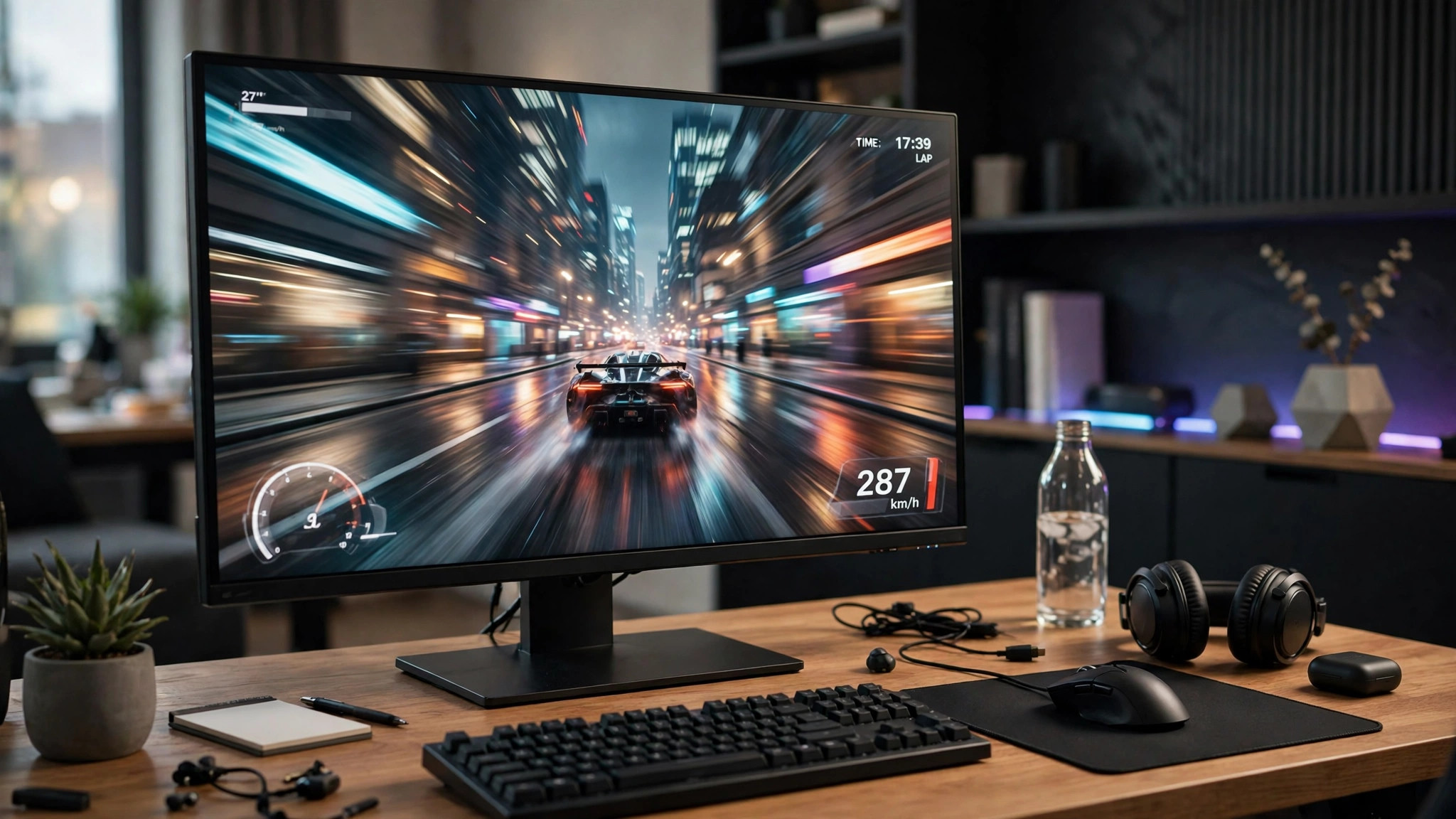
More frames are not always better. When a game runs far above what your monitor can display, your graphics card works at full power for frames you never see, which means more heat, more fan noise and higher power use for no visible benefit. Capping your frame rate puts a ceiling on that work, and when the cap is set well, the game can actually feel smoother too, because frame times become more consistent.
Frame-rate capping is different from simply showing your frame rate on screen. If you want to measure performance first, our guide to showing FPS in PC games covers the display options. Once you know what your system is doing, this guide will help you choose a sensible limit and set it in the right place, whether that is inside the game, in your graphics card software, or with a dedicated frame limiter.
Why Cap Your FPS at All?
The most common reason is that your hardware is producing more frames than your display can show. A monitor with a 60 Hz refresh rate can only display 60 new images per second, so running a light game at several hundred frames per second wastes effort and generates heat. A cap matched to your monitor removes that waste without changing how the game looks.
Capping also helps stability. Some older games misbehave at very high frame rates, with physics, animations or menus running too fast, and a cap can calm those games down. In demanding games, a cap slightly below your average frame rate can reduce sudden frame-time spikes, because the graphics card is no longer swinging between full load and idle as scenes change. That steadier pacing is often what players mean when they say a capped game feels smoother, even though the peak frame rate is lower.
There are trade-offs, though. A cap that is too low will make a game feel sluggish, and a badly implemented limiter can add input lag. The goal is not the lowest possible frame rate, but the lowest limit that still feels fluid on your monitor.
What Frame Rate Should You Cap At?
Start with your monitor refresh rate. That is the number in hertz shown in your display settings, and it tells you how many frames per second your screen can actually show. Matching the cap to that number is the safest starting point for most players.
| Your monitor | Sensible starting cap | Good for |
|---|---|---|
| 60 Hz display | 60 FPS | Most single-player games, general play |
| 120 Hz or 144 Hz display | 120 or 144 FPS | Fast-paced games on a high-refresh monitor |
| 165 Hz or 240 Hz display | 165 or 240 FPS, or slightly below | Competitive games where every frame counts |
| Variable-refresh display | Just below the maximum refresh rate | Keeping variable refresh active without tearing |
For variable-refresh displays, capping a few frames below the maximum refresh rate is a common approach, because it keeps the display inside its variable-refresh range instead of bouncing in and out of it. If your monitor supports a variable-refresh technology, check its range in the manual or display settings before choosing a number.
For competitive games, some players prefer no cap or a very high cap to minimise input lag, while others cap just below their monitor maximum for consistency. Try the matched cap first, play for a full session, and only raise it if you can feel a real difference in responsiveness.
Set the Cap Inside the Game First
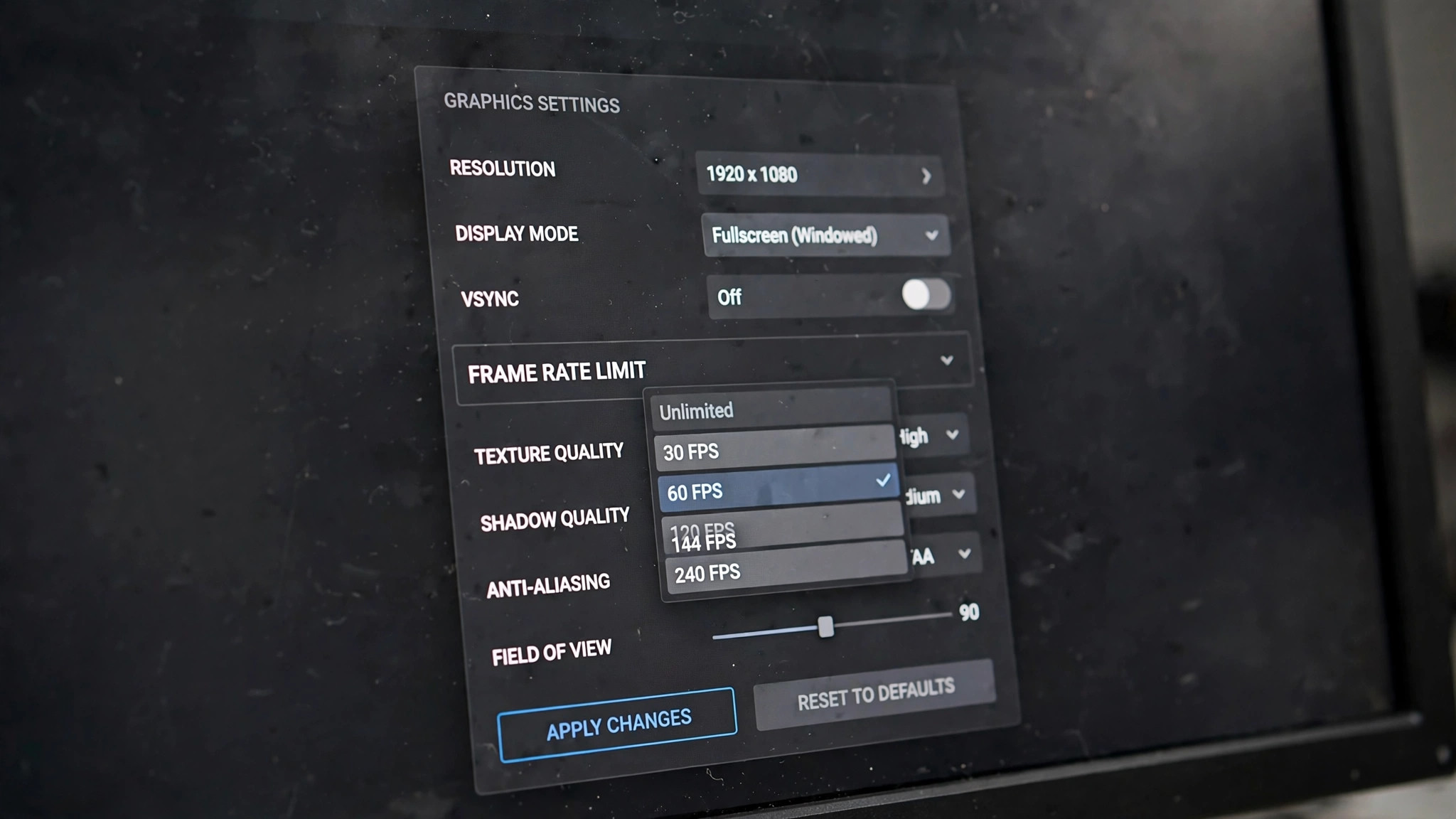
The in-game frame-rate limiter is almost always the best place to start, because it is built for that specific game and usually adds the least input lag. Look in the graphics, display or video settings menu for an option labelled frame rate limit, maximum frame rate, FPS limit or something similar. Some games place it under an advanced graphics section rather than the main display menu.
Follow these steps in most games:
- Open the graphics or display settings from the main menu, not from a pause menu mid-game where options may be locked.
- Find the frame-rate limit option and set it to your chosen number, or to a preset such as 60, 120 or 144 if the game only offers presets.
- Apply the change, then restart the game if it asks you to, since some limiters only take effect after a restart.
- Play for a few minutes and watch for stutter or sluggish aiming before deciding whether the cap suits you.
Note that some games offer separate limits for menus and gameplay, or a background frame-rate limit for when the game window is not focused. A lower background limit is useful if you often tab out of a game, because it stops the game using full power while you are doing something else.
Set the Cap in Your GPU Software
If a game has no built-in limiter, set the cap in your graphics card software instead. This applies the limit to every game, or to one specific game if you create a per-game profile, and it is the cleanest fallback when the in-game option is missing.
On an Nvidia graphics card, open the Nvidia Control Panel, go to Manage 3D Settings, and look for the maximum frame rate setting. You can set it globally on the Global Settings tab, or select a single game on the Program Settings tab so other games are unaffected. On an AMD graphics card, open AMD Software, go to the graphics settings, and look for the frame-rate target control, which offers the same choice between a global limit and a per-game profile.
Use a per-game profile whenever you can. A global cap is convenient, but it will also limit games where you might want a different number, and it can make menus or older games feel unnecessarily restricted. Give the profile a clear name or check that it is attached to the right game executable before you save it.
After setting a driver-level cap, restart the game and confirm the limit is working by enabling a frame-rate display. If the frame rate still runs past your cap, the game may be using its own limiter or a different graphics setting that overrides the driver, so check the in-game menu first.
Use a Dedicated Frame Limiter Only If You Need One
Dedicated limiter tools exist for players who want finer control than the game or driver offers, or who want an on-screen display alongside the limit. These tools work by intercepting the game output and holding frames to the target rate, and they can produce very steady frame pacing when configured correctly.
Only use one limiter at a time. Stacking an in-game limiter, a driver limiter and a third-party limiter on the same game can cause stutter, uneven frame times or a frame rate that sits below every limit you set. Pick the single method that works best for that game and turn the others off for it.
If you try a third-party limiter, download it only from its official site, set a single target frame rate, and test it in one game before applying it everywhere. If the game already has a good built-in limiter, you do not need an extra tool at all.
Fix Common Problems With a Frame Cap
If the game feels sluggish after capping, the limit is probably too low for your monitor, or the limiter is adding lag. Raise the cap to your monitor refresh rate and try again, and if the game has its own limiter, prefer it over a driver or third-party one. Also check that you have not accidentally enabled a power-saving mode that limits performance separately from the frame cap.
If you still see stutter after capping, the problem may not be the frame rate at all. Stutter can come from shader compilation, a game installed on a slow drive, background downloads or an unstable network connection in an online game. Try the cap at a slightly lower number first, then investigate those other causes if the stutter pattern does not change.
If the cap does not seem to work at all, check for conflicting settings. A game set to an uncapped or unlimited mode, a driver profile attached to the wrong executable, or two limiters fighting each other are the usual culprits. Turn off all limiters for that game, confirm the frame rate runs free, then enable exactly one limiter and test again.
FAQ: Capping FPS in PC Games
Does capping FPS hurt performance? No. A sensible cap reduces wasted work, heat and fan noise, and it does not lower your graphics quality. It only stops the game rendering frames your monitor cannot display.
Is capping FPS the same as V-Sync? No, although they are related. V-Sync synchronises frames with your monitor refresh to prevent tearing, while a frame cap simply limits how many frames are produced. Many players use both together, or use a cap with a variable-refresh display instead of V-Sync.
Should I cap FPS in competitive games? It depends on your priorities. A cap matched to your monitor gives consistent pacing, while no cap can give slightly lower input lag on very fast hardware. Test both in the same game and keep whichever feels more responsive to you.
Quick Checklist
- Check your monitor refresh rate in display settings before choosing a cap.
- Use the in-game frame-rate limiter first, and restart the game if it asks.
- If the game has no limiter, set a per-game cap in your GPU software.
- Use only one limiter per game — never stack in-game, driver and third-party caps.
- Test for a full session, then adjust up or down based on smoothness and responsiveness.
